


Category filter
How to enable Remote View for iOS devices
TL;DR: Remote View for iOS Devices in Hexnode UEM
- Enable Remote View in Admin > General Settings before starting sessions.
- Start the session from Manage > Devices in the Hexnode UEM console.
- The device user must start screen broadcasting from the Hexnode UEM app or, on iOS 11, from Control Center.
- Keep the required network ports open so the Remote View session can connect successfully.
Hexnode UEM Remote View for iOS lets enterprise administrators view the screen of an enrolled iPhone or iPad in real time from the Hexnode UEM console. Remote View uses a screen broadcast started from the Hexnode UEM app on the device after an administrator initiates a session from the portal. The expected result is a live device screen view that can help IT teams diagnose user-reported issues, capture screenshots, record the session, rotate the view, adjust display quality, and review previous sessions.
How Remote View Works on iOS Devices
Remote View for iOS in Hexnode UEM is initiated by an administrator from the device details page in the portal. After the session is started, the iOS device receives a notification, and the device user opens the Hexnode UEM app to begin screen broadcasting.
During an active Remote View session, the administrator can monitor the iOS device screen from the Hexnode UEM console. The session controls include options to record the screen, take screenshots, rotate the screen view, change the viewing quality, stop or restart the session, maximize the session window, and open session history.
Configure Hexnode Remote View Settings for iOS Devices
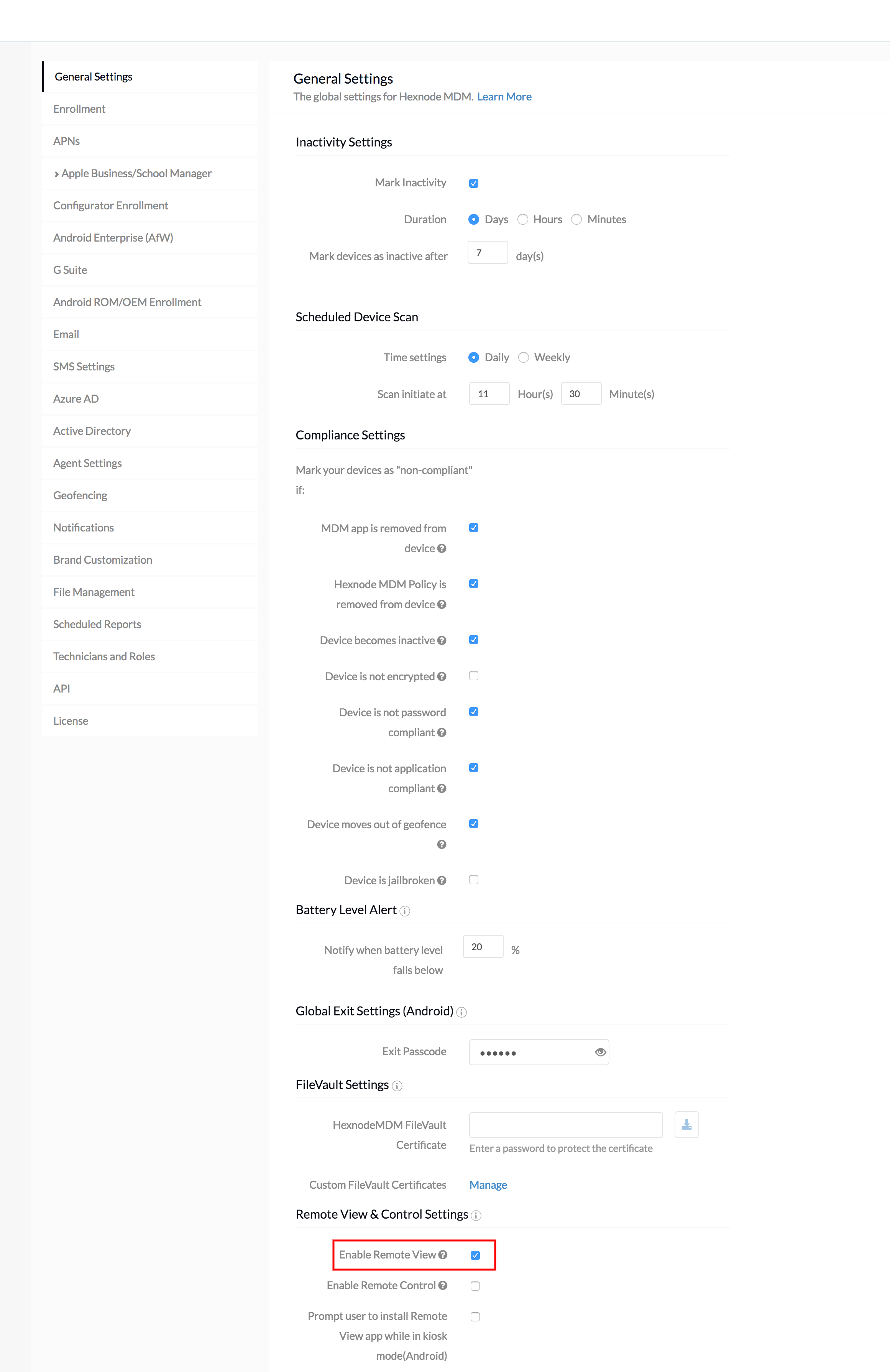
Enable Remote View in the Hexnode UEM portal before starting remote screen-viewing sessions for iOS devices.
- Log in to your Hexnode UEM portal.
- Go to Admin > General Settings.
- Select Enable Remote View under Remote View & Control Settings.
- Click Save.
Start a Remote View Session for iOS Devices in Hexnode UEM
Before starting Remote View, make sure the latest version of the Hexnode UEM app is installed on the iOS device.
Follow these steps to remotely view an iOS device from the Hexnode UEM console.
- Log in to your Hexnode UEM portal.
- Go to Manage > Devices.
- Identify and select the iOS device from the list of enrolled devices.
- Click Remote View/Control, and then click Start Session.
- A notification appears on the iOS device indicating that a remote session has been initiated.
- Open the Hexnode UEM app on the device and select Remote view from the bottom navigation bar.
- Tap Start Remote.
- When the screen broadcast icon appears, tap Start broadcast to start screen broadcasting with Hexnode UEM.
- After the Remote View session becomes active, use the available session controls as needed:
- Record: Record the remote screen-viewing session. You can pause and resume the recording as needed.
- Screenshot: Capture a screenshot of the current remote view.
- Rotate: Rotate the remote view screen.
- Quality: Adjust the resolution of the remote view. Available options include:
- Low
- Medium
- High
- Advanced: 180p, 240p, 360p, 480p, 720p, 1080p
- Click Stop / Restart to end or resume the Remote View session. Click Maximize to fit the Remote View session to your screen.
- To review past sessions, click Session History.
Start Remote View on iOS 11 Devices
For iOS 11 devices, the broadcast button is not available under the Remote View section in the Hexnode UEM app. After clicking Start Session from the Hexnode UEM portal, use Control Center on the iOS 11 device to start screen broadcasting.
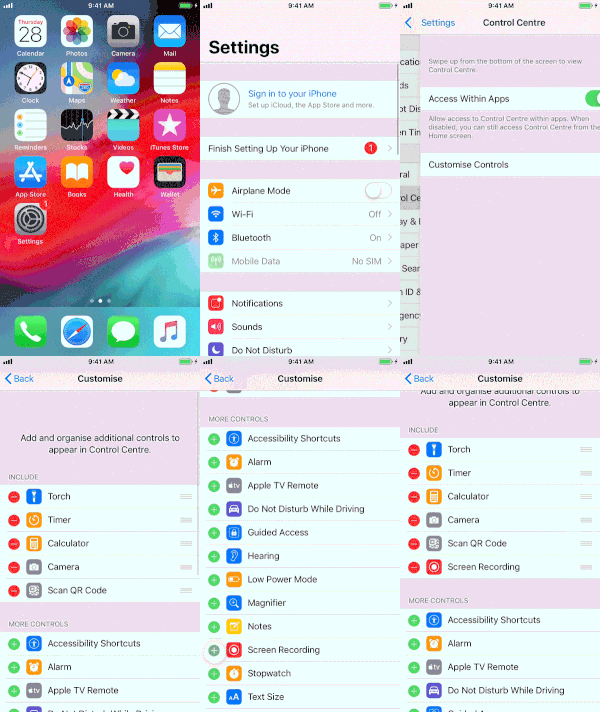
- On the iOS 11 device, go to Settings > Control Center > Customize Controls and add Screen Recording.
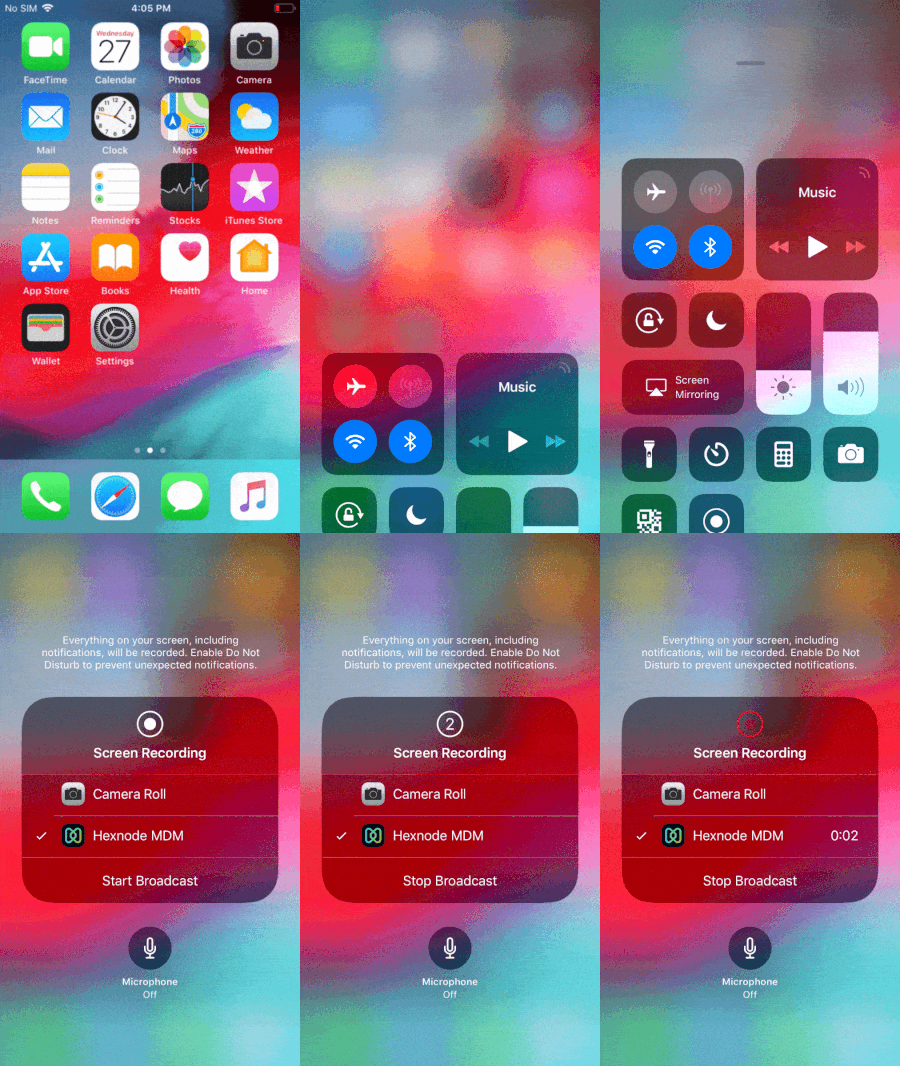
- Open Control Center and tap the Screen Recording button.
- From the pop-up that appears, select the Hexnode UEM app icon.
- Tap Start broadcast to start screen broadcasting with Hexnode UEM.
Network Ports Required for iOS Remote View
Notes: Keep the following ports open to enable the Remote View feature.
- Port 80 – The default application port used during the installation of Hexnode.
- Port 443 – Used for a secured and encrypted connection between mobile devices and Hexnode.
- Port 3478 – TCP and UDP.
- Port 5349 – TCP.
Troubleshooting iOS Remote View in Hexnode UEM
If Remote View does not start or the live screen does not appear in the Hexnode UEM console, verify that Remote View is enabled in Admin > General Settings, the iOS device runs iOS 11 or later, and the latest Hexnode UEM app is installed on the device.
If the device user cannot find the broadcast option on iOS 11, use Settings > Control Center > Customize Controls to add Screen Recording, and then start the broadcast from Control Center after the administrator initiates the session.
If the session fails to connect, confirm that the required ports for Remote View are open on the network. For additional guidance, see how to fix Remote View and Control issues in Hexnode UEM.
Frequently Asked Questions
Does Hexnode UEM support Remote View on iOS devices?
Yes. Hexnode UEM Remote View is supported on iOS 11+ devices.
Why is the broadcast button missing on iOS 11 devices?
On iOS 11 devices, the broadcast button is not available under the Remote View section in the Hexnode UEM app. After the administrator starts the session from the portal, the device user must add Screen Recording to Control Center and start broadcasting from there.
What session controls are available during iOS Remote View?
During an active iOS Remote View session, the Hexnode UEM console provides controls to record the session, capture a screenshot, rotate the view, adjust quality, stop or restart the session, maximize the view, and open session history.
Which network ports are required for Remote View?
Remote View requires ports 80, 443, 3478, and 5349 to be open. Port 3478 uses TCP and UDP, while port 5349 uses TCP.


