Category filter
How to Create a Geofencing Policy to Lock Devices Outside the Office
Overview
Geofencing is a powerful security feature that allows IT administrators to create virtual geographic boundaries. By implementing a geofencing policy, you can ensure that corporate-owned devices remain functional only within a designated area (like your office). In Hexnode UEM, automatically locking a device when it crosses the perimeter requires a three-part approach: defining the Geofence, marking boundary exits as a Compliance violation, and triggering an Automation rule. This is an essential strategy for preventing data breaches due to hardware theft or unauthorized off-site usage.
Prerequisites
To implement geofencing effectively, ensure the following:
- Location Services: Must be enabled on the target devices.
- Hexnode App Permissions: The Hexnode UEM app must have “Always” location access (iOS) or “Allow all the time” (Android).
- Supported Platforms: iOS, Android, Windows, and macOS devices.
Step 1: Create a Geofence (The Virtual Boundary)
Before creating a policy, you must define the physical coordinates of your office.
- Log in to your Hexnode UEM Portal.
- Navigate to Admin > Geofencing.
- Click Create Fence.
- Set the Location: Type your office address in the search bar.
- Choose a Shape: Select either Polygon (to trace an exact building outline) or Circle.
- Define the Radius: If using a circle, set a radius (in meters) around the location. Hexnode supports a radius between 100 and 6500 meters. For a standard office, a radius of 100–200 meters is recommended to account for GPS drift.
- Provide a Name: Enter a name in the Fence Name field (e.g., “Main Office HQ”).
- Click Save.
Step 2: Assign the Geofence to Devices
You must apply the geofence to your devices so Hexnode begins tracking their location relative to the boundary.
- Navigate to the Policies tab.
- Click New Policy and provide a name (e.g., “Office Perimeter Policy”).
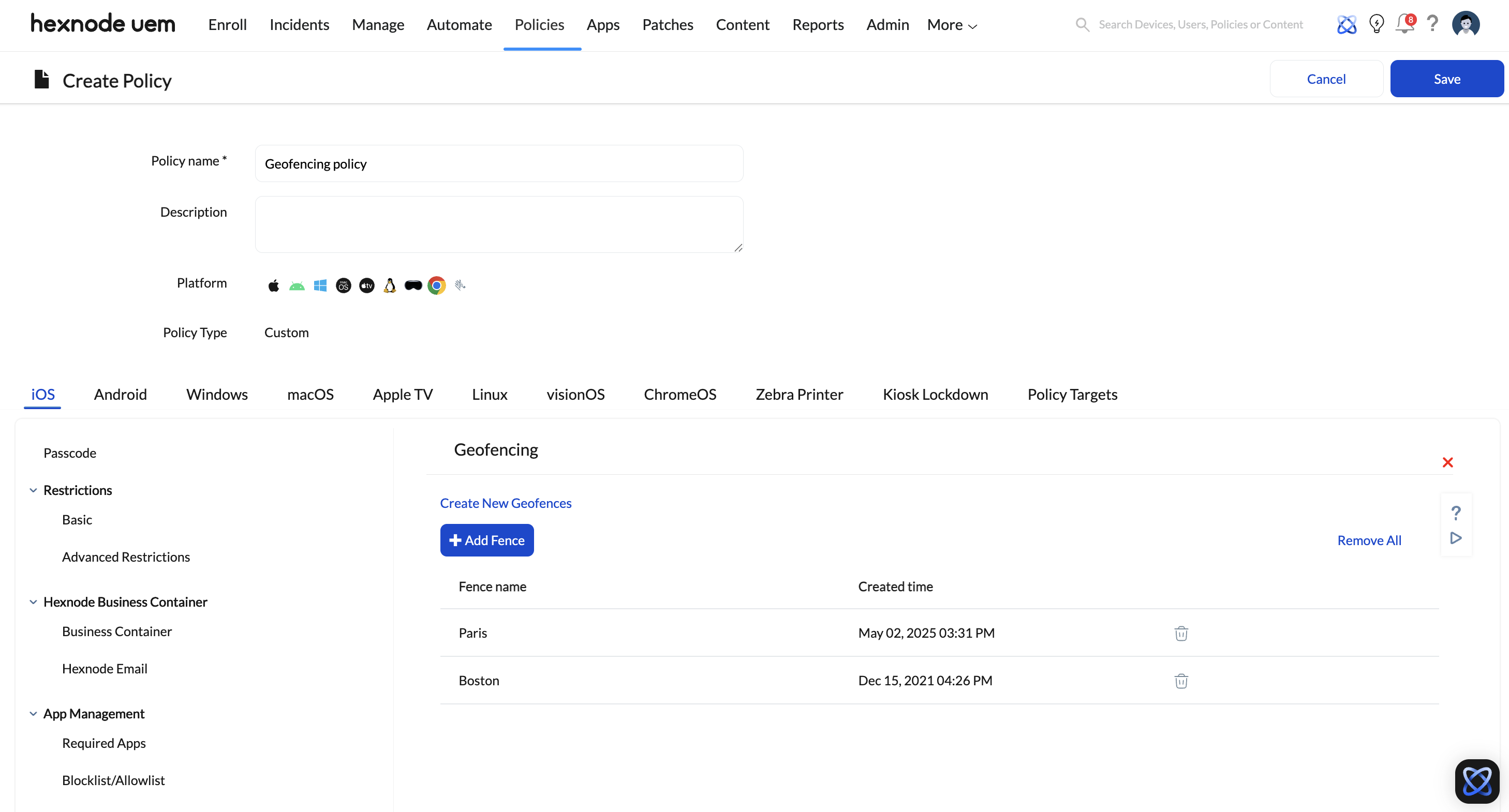
- Go to Tracking and Fencing > Geofencing.
- Click + Add Fence and select the “Main Office HQ” fence you created in Step 1.
- Click OK.
- Go to the Policy Targets tab, select the Devices, Users, or Device Groups that should be monitored, and click Save.
Step 3: Define the Rules of Engagement (Compliance)
Geofencing alone just tells the system where the device is. You must instruct Hexnode that leaving the fence is a critical security violation.
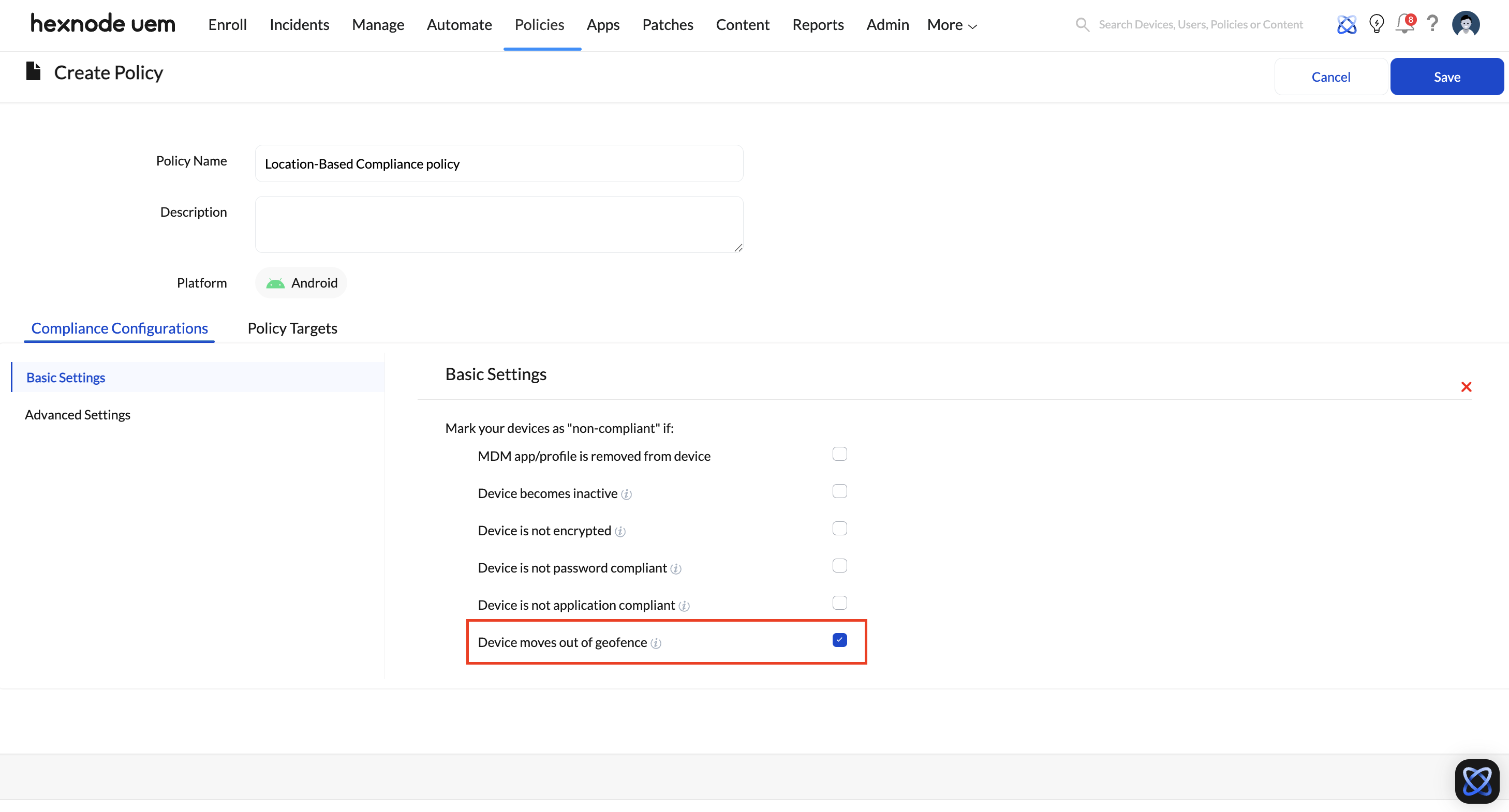
- Go to Policies > Compliance Policies > New Policy.
- Select your target platforms.
- Under Basic Settings, check the box for Device moves out of geofence.
- Navigate to Policy Targets, apply this to the same devices/groups from Step 2, and click Save.
Step 4: Automate the Device Lock
Now, you configure Hexnode to automatically lock the device the moment it becomes non-compliant due to location.
- Navigate to the Automate tab and click New Automation.
- Name the automation (e.g., “Defensive Lock: Office Exit”).
- The Trigger: Set the automation to trigger based on Activity and specifically select On Location Non-Compliance.
- The Action: Scroll to the Security actions section and choose your response:
- Lock Device (Standard): Sends the device to the standard lock screen, securing it behind the user’s existing passcode or biometric.
- Enable Lost Mode (Strict): Completely freezes the user out of the hardware, overrides their normal PIN, and can display a custom security warning on the screen.
- Target this automation at your high-security device groups and activate it.
How to Regain Access
If a device is locked because it left the geofence, how you regain access depends on the strictness of the action you chose in Step 4:
- Standard Device Lock: The screen simply turns black and locks. The employee can unlock the device locally by entering their standard PIN, passcode, or using biometrics.
- Lost Mode: The device is effectively a brick. An administrator must log into the Hexnode portal, go to Manage > Devices, select the locked device, and trigger the Disable Lost Mode remote action.
Best Practices for Geofencing
- Test the Radius: Start with a slightly larger radius to avoid “false positives” where the device locks while the user is simply near a window or in the parking lot.
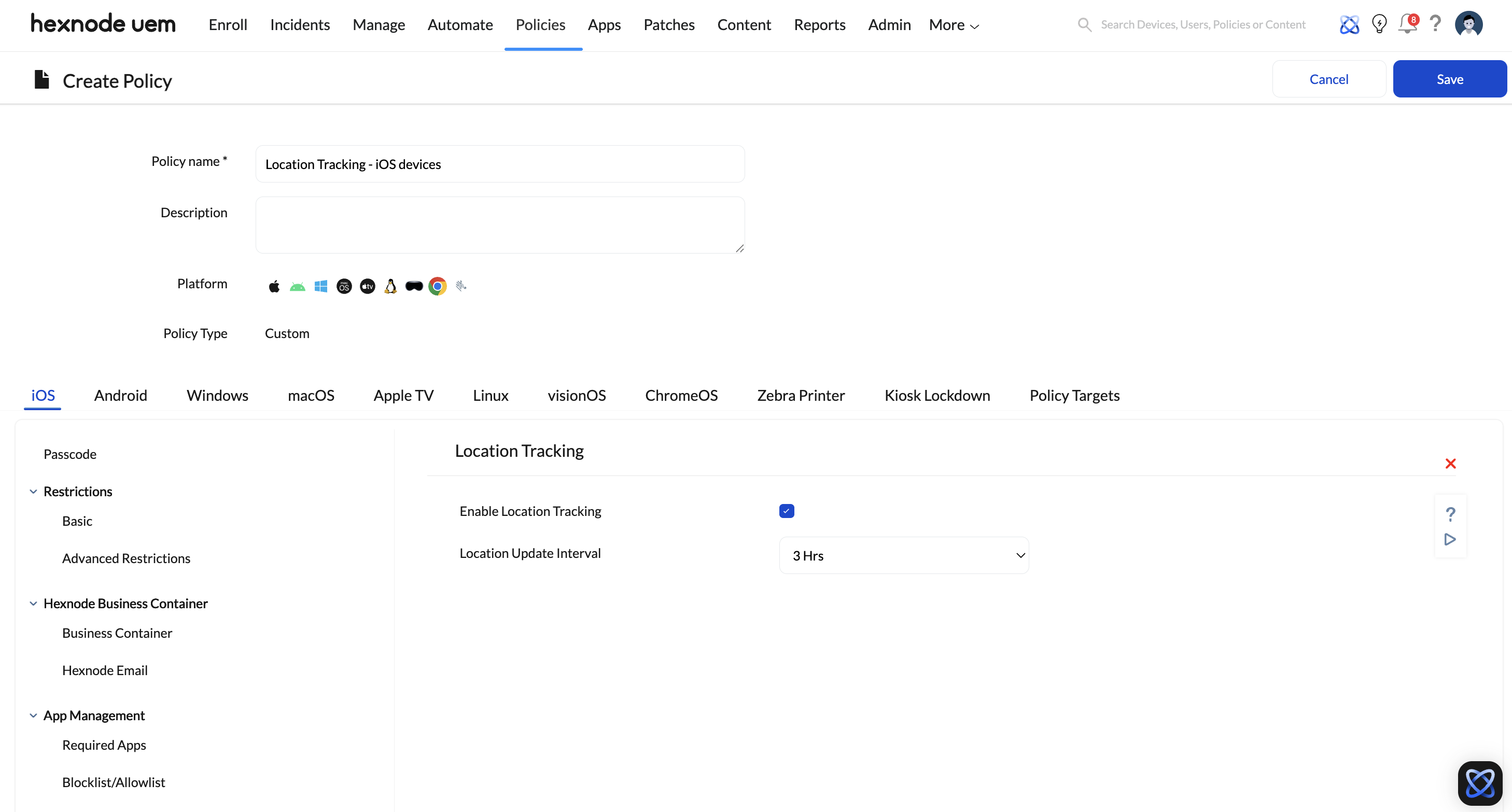
- Battery Impact: Frequent location reporting can impact battery life. Balance the Location Update Interval by navigating to Policies > New Policy > Create a fully custom policy > [Platform] > Tracking and Fencing > Location Tracking based on your security needs (Hexnode allows intervals ranging from 15 minutes to 24 hours).
- Notify Employees: Transparency is key. Inform users that their devices are geofenced to avoid confusion and support tickets when devices lock unexpectedly.