Category filter
Bulk Re-Enrollment Strategies: Automated Fleet Refresh with Hexnode UEM
Executive Summary
Managing a 3-year hardware refresh cycle for 1,000 devices is a logistical massive undertaking. When laptops, tablets, and phones frequently change hands between departing and onboarding employees, relying on physical IT helpdesks to manually wipe, re-image, and re-enroll each machine is incredibly inefficient. This guide outlines how to use Hexnode UEM to create a hands-off, automated re-enrollment strategy. By tying devices directly to Apple, Microsoft, Google, and Android out-of-box deployment programs, IT can establish a “Wipe and Go” workflow where devices essentially set themselves up for the next user.
1. The Real-World Scenario: Manual vs. Automated Refresh
In a standard IT workflow, re-assigning a device is tedious: the employee returns it, IT wipes the drive, applies a new image, manually installs the Hexnode UEM agent, and ships it out. Multiplying this by 1,000 devices consumes countless hours.
The Strategy: Shift to automated, persistent enrollment. The hardware must know it belongs to your company the moment it turns on, regardless of how many times it gets factory reset.
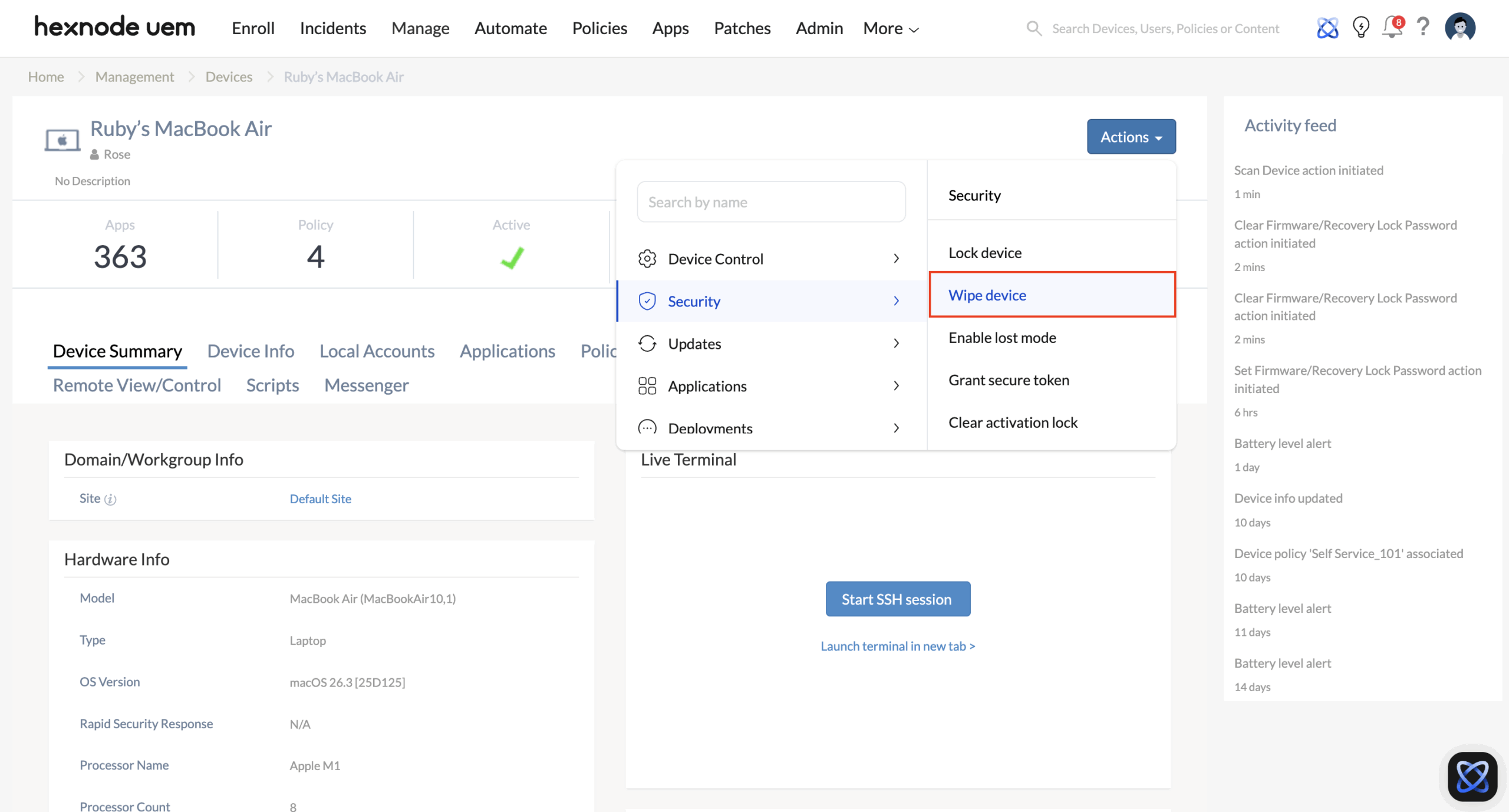
Hexnode UEM Execution: IT administrators link Hexnode UEM with portals like Apple Business Manager or Windows Autopilot. When a device needs to change hands, IT simply clicks Wipe Device in the Hexnode UEM console. The device erases itself. When the new employee turns it on and connects to Wi-Fi, the device automatically locks back into Hexnode UEM without IT ever touching the hardware.
2. Cross-Platform Re-Enrollment Architecture
Different operating systems handle automated re-enrollment differently. Here is how Hexnode UEM manages the automated refresh cycle across your fleet.
| Operating System | Persistent Enrollment Framework | How Re-Enrollment Works |
|---|---|---|
| Apple (macOS, iOS, iPadOS, tvOS, visionOS) | Apple Business Manager (Automated Device Enrollment – ADE) | After a remote wipe, the device reboots to the Apple Setup Assistant. It checks its serial number with Apple and automatically pulls the Hexnode UEM profile. |
| Windows 10/11 | Windows Autopilot | Autopilot Reset: A remote wipe returns the PC to the Windows setup screen. Connected to the internet, it recognizes its corporate hardware hash, prompts the user to sign in with Microsoft Entra ID, and seamlessly re-enrolls into Hexnode UEM. |
| Android (Mixed Fleets) | Zero-Touch (ZTE), Samsung KME, ROM | For Android tablets or rugged devices, wiping a device enrolled via ZTE, KME, or a Custom ROM ensures the device pings Google or Samsung upon reboot and forcefully re-enrolls into Hexnode UEM. |
| ChromeOS | Chrome Enterprise Enrollment | Powerwash: Issuing a remote wipe (Powerwash) resets the Chromebook. If “Forced Re-enrollment” is enabled in your Google Admin console, the device will automatically lock back into corporate management on the next boot. |
| Linux | CLI-based enrollment | Constraint: Linux does not have a native, cloud-based out-of-box program. Wiping a Linux device completely destroys the Hexnode agent. Re-enrollment requires a technician or user to manually re-run the Hexnode installation script. |
3. Two Common Use Cases for Device Reassignment
When a device changes hands, IT must decide how to handle the transition based on the situation.
-
Use Case A: The Complete Wipe (Recommended)
- Scenario: An employee resigns, and their laptop goes to a new hire.
- Action: IT issues a Device Wipe command. All personal data is securely erased. Because the device is tied to an automated program (ADE, Autopilot, etc.), it experiences a clean, zero-touch re-enrollment for the new hire.
- Important Note: If you originally enrolled the device manually (e.g., scanning a QR code or visiting a web portal instead of using ADE/Autopilot), a device wipe will permanently remove Hexnode. The new user will have to manually enroll it all over again.
-
Use Case B: The “No-Wipe” Handoff
- Scenario: A tablet is shared between shift workers, or a device is moving to a new department, but you don’t want to erase the installed apps or local files.
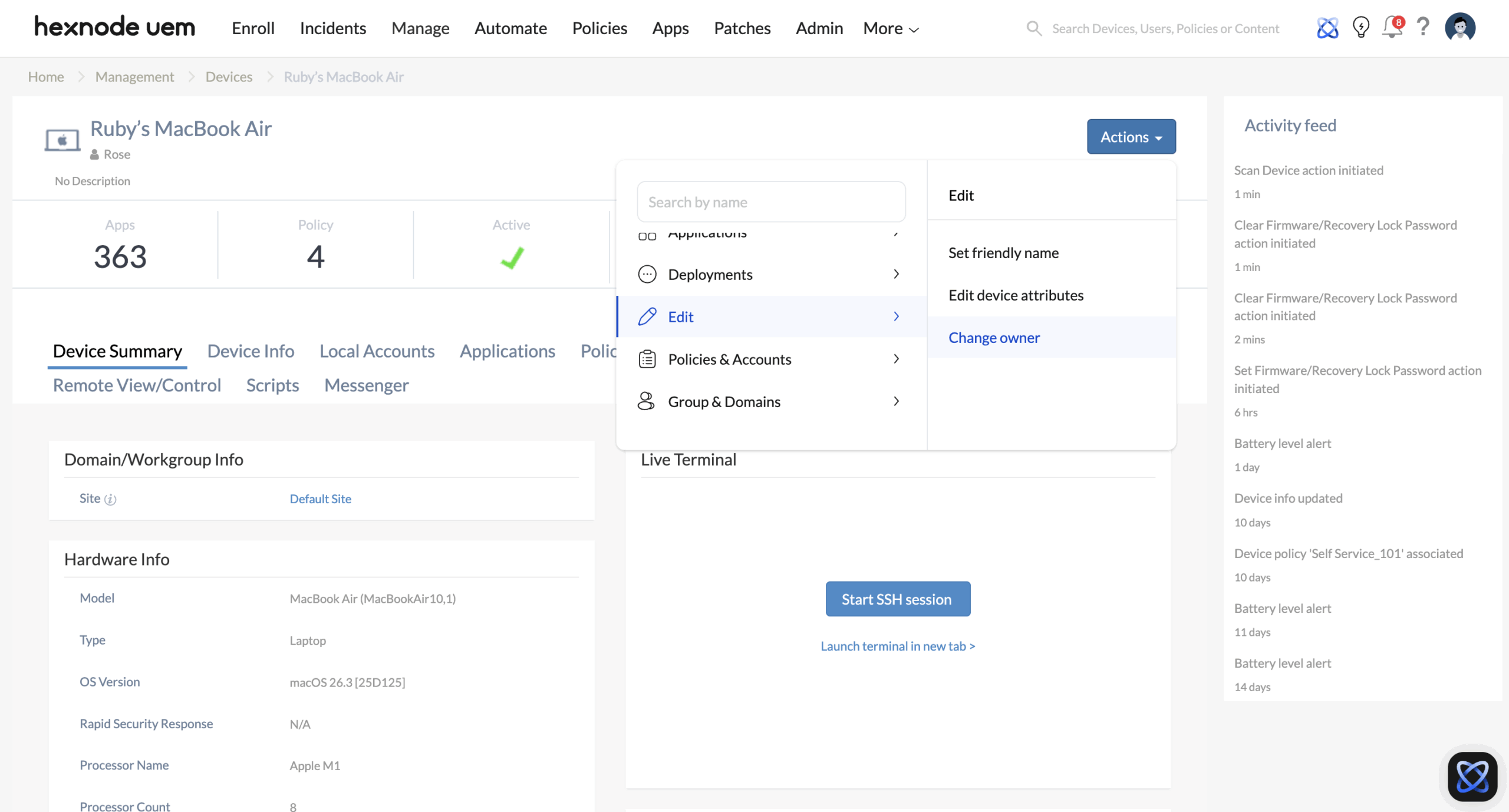
- Action: In the Hexnode console, select the device, click Actions, and choose Change Owner remote action. You can then assign it to a different user.
- Security Warning: “Change Owner” only updates who Hexnode UEM targets for policies going forward. It does not delete the previous user’s local files, browsing history, or saved data on the physical device. For a true handover, a full wipe is always the safest route.
4. End-of-Life (EOL): Properly Decommissioning Hardware
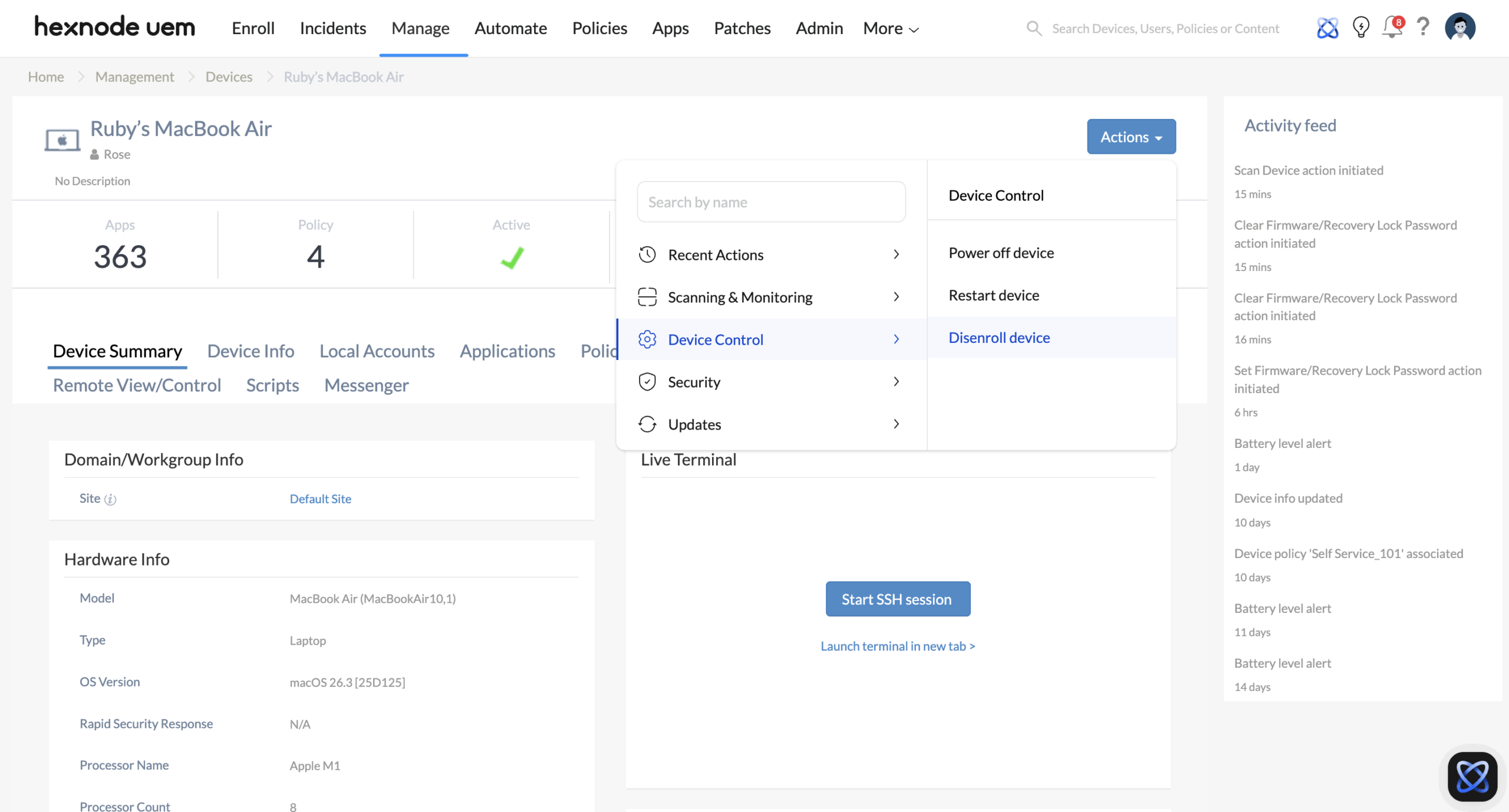
After 3 years, you might sell those 1,000 legacy laptops to a recycler or let employees keep them. If you just wipe them, the persistent zero-touch architecture will accidentally force them to re-enroll into your corporate Hexnode environment when the new owner turns them on.
- The Strategy: Break the automated chain before disposing of the hardware.
- Hexnode UEM Execution:
- Issue the Disenroll Device remote action from Hexnode UEM to remove the active management.
- Clear any Activation Locks (especially for Apple devices) via Hexnode UEM so the hardware isn’t permanently locked.
- Crucially, log into your OEM portals (Apple Business Manager, Microsoft Autopilot, Google Workspace, Android ZTE) and release/unassign the hardware serial numbers. This guarantees that the next time the device is wiped and booted, it functions as a normal, unmanaged consumer device.