


Category filter
Managing Inactive Devices: A 30-Day Remediation Framework for Hexnode UEM
Executive Summary
In a Unified Endpoint Management (UEM) ecosystem, a device that fails to check in for 30 days is a primary source of “Compliance Drift.” Whether caused by hardware power loss, network isolation, or OS-level background throttling, inactive endpoints represent a silent risk to corporate data. This guide provides a comprehensive technical framework for identifying, diagnosing, automating, and remediating long-term inactive devices within the Hexnode UEM console to optimize security and management licensing.
Phase 1: Proactive Configuration & Alerting
Before devices go completely dark, IT administrators must establish baseline triggers to catch “dead battery” or connectivity issues early.
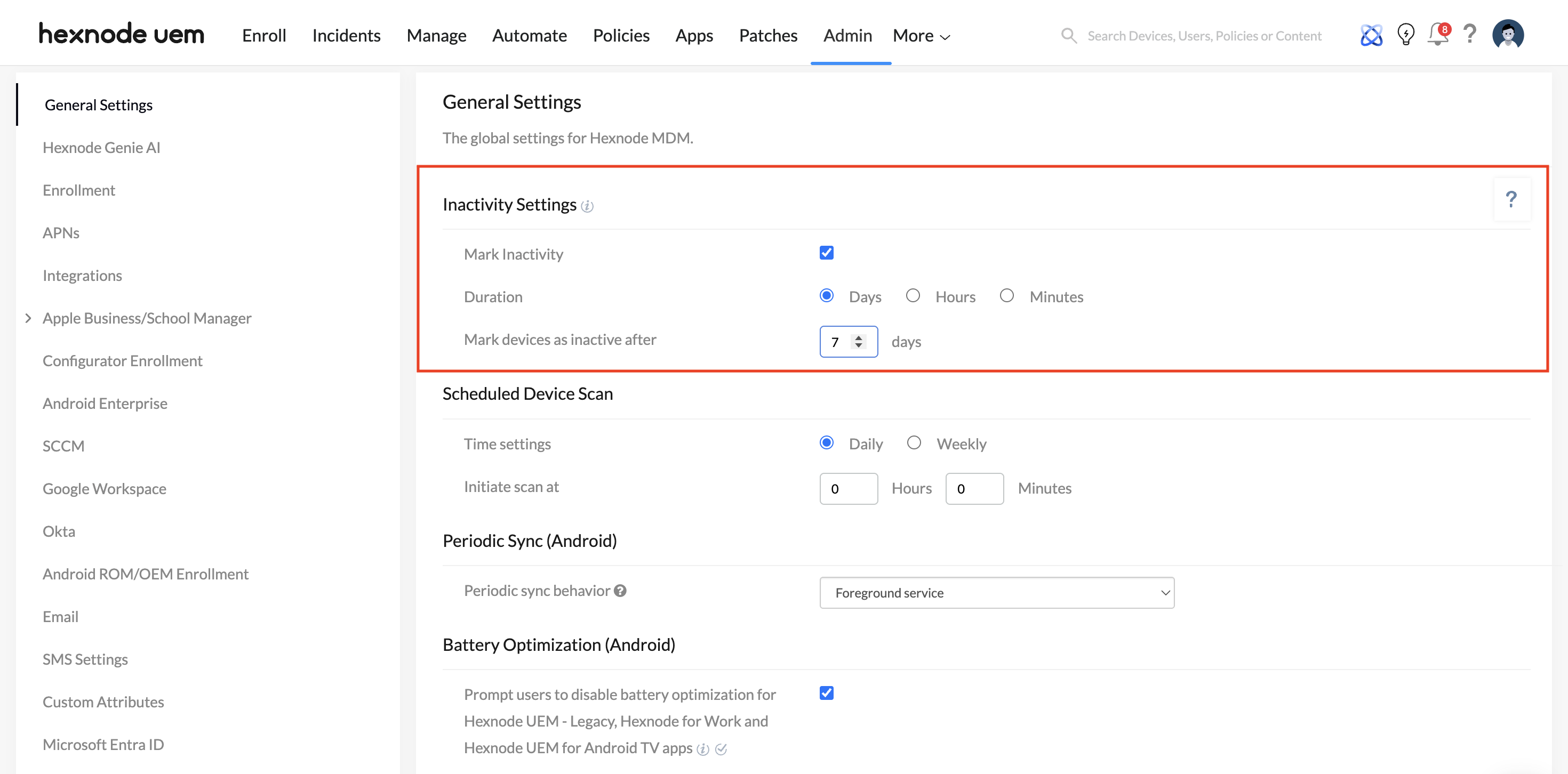
- Configure Inactivity Thresholds: Navigate to Admin > General Settings > Inactivity Settings and set the “Mark devices as inactive after” parameter. For fleets with frequent sync requirements, a duration of 1 to 7 days is recommended.
- Enforce Compliance: Leverage Hexnode’s Compliance Policies to automatically mark a device as “non-compliant” the moment it hits the defined inactivity threshold.
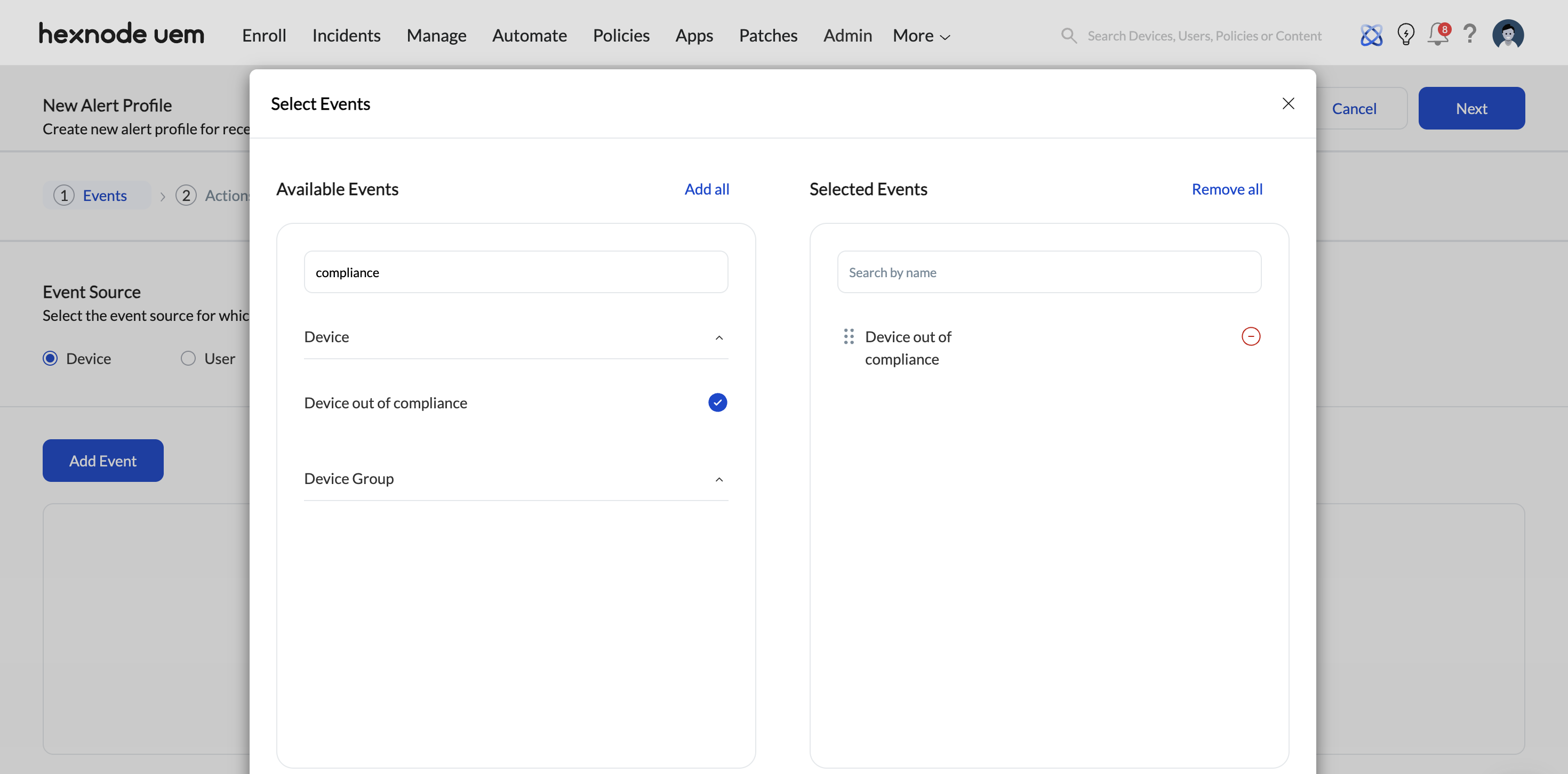
- Configure Alerts: Under Admin > Alert Profile, configure the Device out of compliance email alert. By pairing this with custom battery level alerts, administrators receive proactive notifications right before a device loses power or drops off the network.
Phase 2: The 30-Day Audit
For fleets that have already gone missing for a month, a manual audit establishes a baseline.
- Execute the Audit: Navigate to Reports > Device Reports > Inactive Devices.
- Actionable Insight: This generates a comprehensive, exportable master list of all endpoints that have failed to communicate with the Hexnode server over your specified 30-day timeframe.
Phase 3: The “Sustainability Pivot” (Diagnosis & Anatomy of Inactivity)
A “Pending” status persisting beyond 30 days is rarely a server-side error; it is almost always an endpoint-side communication failure. Once the inactive list is generated, administrators must cross-reference two crucial data points: Last checked-in time (e.g., Aug 18, 2023 9:16 PM) and Battery Level.
- The “Dead Battery” Scenario (Hardware Exhaustion):
- Criteria: Last checked-in time = 30 days ago AND Battery = 0% to 5%.
- Diagnosis: The device is likely powered off and physically stored away. UEM commands remain in the push service queue (APNs for Apple, FCM for Android) until the hardware is energized. It poses a low immediate security risk but occupies an active license.
- The “Zombie” Scenario (Network Isolation or OS Throttling): * Criteria: Last checked-in time = 30 days ago AND Battery > 10%.
- Diagnosis: The device had sufficient power when it last pinged the server. This indicates the device is powered on but cannot reach the Hexnode URL (updated firewalls, expired certificates), or the OS has applied aggressive battery-saver modes that “hibernated” the Hexnode background agent.
Phase 4: Remediation Workflow (The Escalation Logic)
To resolve the “Zombie” sync issue without immediately wiping the device, follow this tiered “handshake” protocol:
- Tier 1: Server-Side Re-activation (The “Wake-up” Call)
-
Action: Go to Manage > Devices, select the inactive device, and click Actions > Scan Device.
Logic: This forces the Hexnode server to send a high-priority push notification. If the device is online but “sleeping,” this trigger forces the OS to resume the management session. - Tier 2: Client-Side Intervention
-
Action: If the scan remains “Pending,” the device requires physical interaction. The end-user must manually open the Hexnode UEM / Hexnode For Work app.
Logic: Bringing the app to the foreground explicitly bypasses all OS-level battery optimizations and forces an immediate check-in with the server. - Tier 3: Network Validation
-
Action: Verify the device can reach your specific portal URL (e.g., https://[your-portal].hexnodemdm.com) via a standard web browser on the device.
Logic: If the browser fails to load the page, the issue is a network block (Firewall/DNS routing) rather than a UEM software failure.
Phase 5: Dynamic Grouping for Ongoing Monitoring
Hexnode’s Dynamic Groups automatically categorize devices based on real-time telemetry, removing the need for recurring manual audits.
- Create the Automation: Navigate to Manage > Device Groups and select New Dynamic Group.
- Apply Condition Filters: Capture your exact dead-battery criteria:
- Condition 1: Compliance Info > Device Status > Is > Inactive
- Condition 2: Device Info > Battery level (%) > Less than > 5%

- Operational Benefit: Devices automatically populate into this group as they meet the criteria, allowing administrators to execute targeted bulk remote actions—like broadcast messages or automated wipes—directly to this cohort.
Phase 6: Decommissioning & License Reclamation
When a device is deemed permanently lost, abandoned, or destroyed, it must be securely decommissioned.
- Attempt a Remote Wipe (Data Security): Navigate to Manage > Select Device(s) > Actions > Security > Wipe Device. Because the device is offline, this command remains “Pending” until it connects to Wi-Fi. Wiping does not automatically free up the license.
- Force License Release (Mark as Disenrolled): To immediately reclaim the software license for an offline device, select the device(s), click the Actions dropdown, and select Device Control > Mark as Disenrolled. This forceful portal-side override severs the management link in the admin console and frees up the license seat.
Frequently Asked Questions (FAQs)
What causes the “Dead Battery” Sync Issue in UEM?
The “Dead Battery” Sync Issue occurs when an endpoint exceeds the Management Inactivity Threshold, breaking the real-time telemetry link between the Hexnode UEM Server and the On-Device Agent. This is typically caused by Persistent Power Loss, Network Certificate Expiration, or OS Background Task Suppression (App Throttling).
How do you remediate an inactive device managed by Hexnode UEM?
Remediation requires a tiered escalation. Start with a Server-Side Push Notification (Actions > Scan Device) to wake up the OS. If that fails, escalate to Manual Agent Re-synchronization by having the user bring the Hexnode app to the foreground. Finally, validate network connectivity by testing the Hexnode portal URL in the device’s native browser.
What is the difference between Wipe Device and Mark as Disenrolled in Hexnode?
Wipe Device factory resets the physical hardware to protect corporate data but leaves the device record in the portal. Mark as Disenrolled is a portal-side action that forcefully removes the offline device from the Hexnode console, immediately freeing up the UEM license slot without requiring the device to be online.


