


Category filter
Perform Hexnode app UI customizations for iOS
1. Configuration Workflow
To customize the Hexnode app UI:
- Log in to the Hexnode UEM portal.
- Navigate to Policies > New Policy > Create a fully custom policy > iOS > Customizations > Hexnode App UI and click Configure.
2. Technical Parameter Breakdown
| Settings | Description |
|---|---|
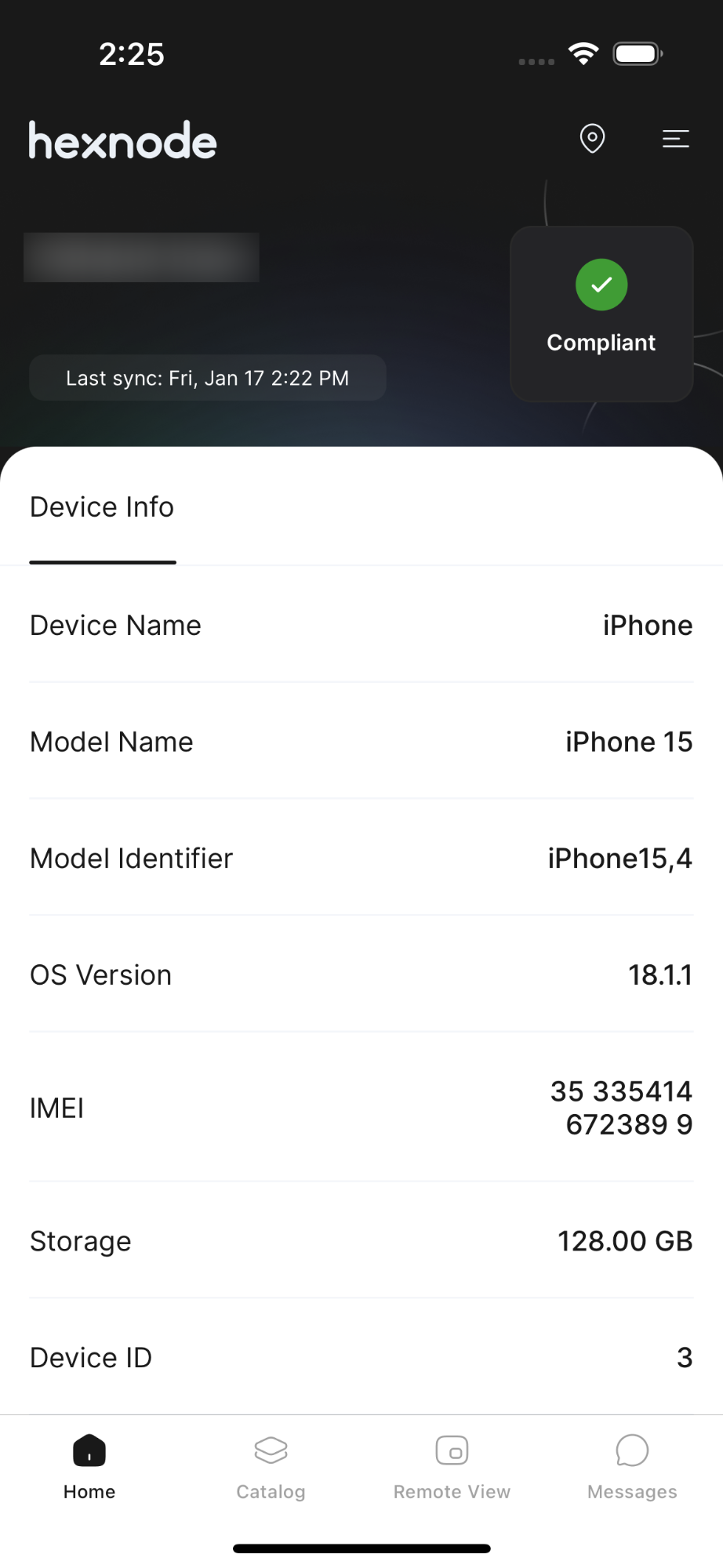
| Compliance details | Unchecking this option removes the “Compliance Info” tab from the Hexnode UEM application. |
| Send location | The Send location option allows users to manually transmit the device’s current coordinates to the Hexnode UEM server. When this setting is unchecked, the option is hidden and becomes unavailable on the device application. |
| Maps | Allows the user to view the map on the device. When unchecked, this option is not available on the app. |
| Messages | Enabling this allows the user to view received messages and unlocks granular message configurations. |
| Message notifications | Determines if the user receives push notifications for messages on the Hexnode UEM app. |
| Delete messages | Allows the user to delete received messages. Enabled by default. |
| Pin messages | Allows users to keep important messages at the top of their list. Enabled by default. |
| Star messages | Lets users favorite specific messages for quick filtering. Enabled by default. |
| Search | Allows the user to find specific text in their message history. Enabled by default. |
| Copy messages | Allows users to copy text from messages received via the Broadcast Message remote action. When disabled, users are restricted from copying any admin-sent messages; this feature is enabled by default. |
| Hyperlinks in messages | Enables clickable URLs, emails, and phone numbers within broadcasted messages to trigger relevant device actions. If disabled, tapping a link results in a “URL not accessible” error; this is enabled by default. |
| App catalog | Provides a curated, custom app store for users to selectively install admin-approved applications. Disabling this option removes the Catalog tab entirely from the Hexnode UEM application. |
| Allow app installation | When checked, users can install applications directly from the catalog. |
| Hide installed apps | If enabled, applications already present on the device will not be visible in the app catalog. |
| Logs | Manages app logs and allows for sending/downloading diagnostic data from the device. |
| Send app logs | Grants users the specific permission to upload and send managed device logs directly to the Hexnode UEM server. This is enabled by default. |
| Download app logs | Enables the option for users to download and save the application logs of the managed device locally. This feature is enabled by default. |
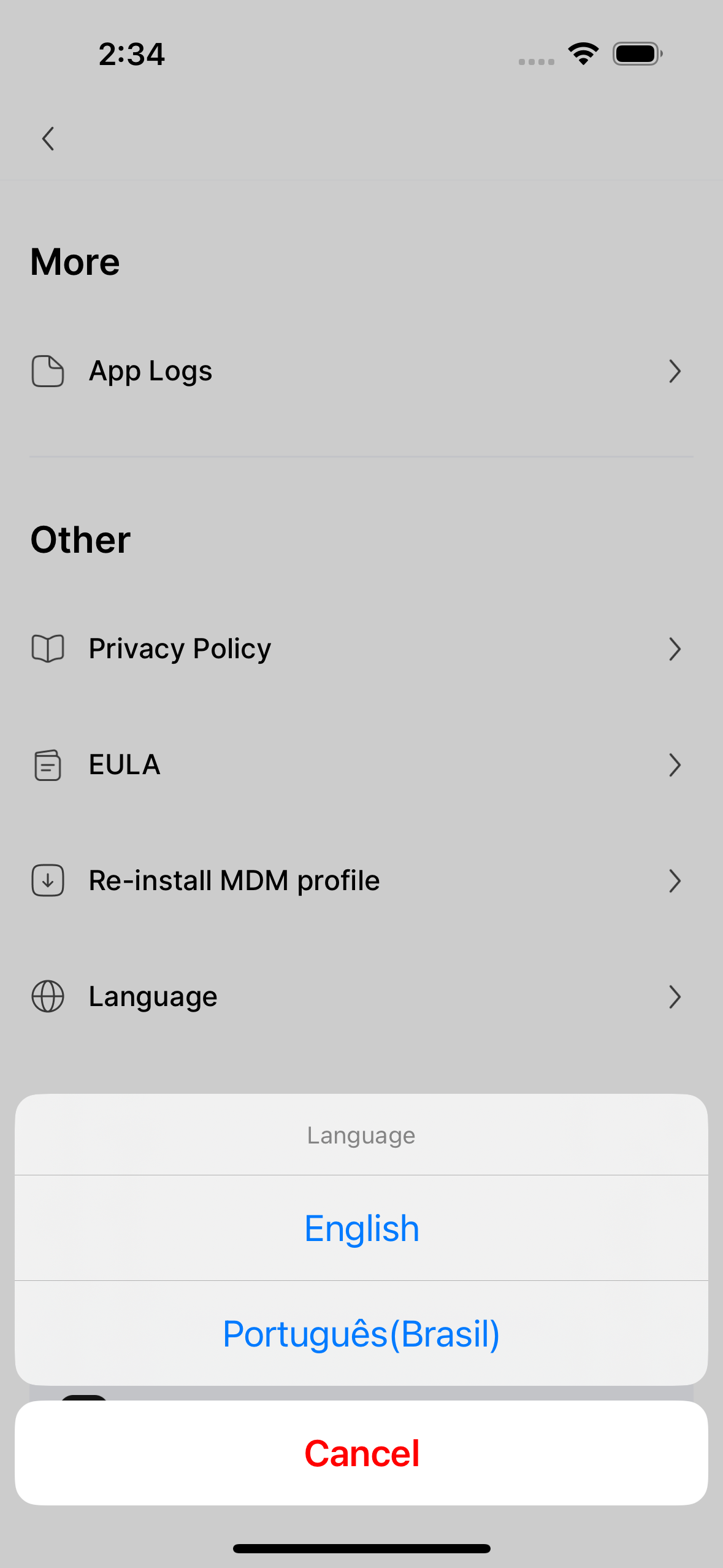
| Language | Allows the administrator to pre-define the application’s display language. The available configurations include ‘Let the user choose’, ‘English’, and ‘Portuguese’. |
3. Policy Association
- New Policies: Go to the Policy Targets tab, click +Add Devices, select your target iOS devices, and click Save.
- Existing Policies: Select the policy from the Policies list, click Manage > Associate Targets, and choose your devices or groups.
4. What Happens at the Device End?
Once the policy is deployed to the device:
- Compliance Info & Maps: The Compliance Info and Maps tabs are completely removed from the app’s navigation menu. Users will no longer be able to view their real-time compliance status or access the interactive map feature directly within the application.
- Language Customization: Users can navigate to the Language option within the app settings to select their preferred display language.
5. Troubleshooting
- UI Not Updating: Ensure the device has an active internet connection and that the Hexnode UEM app is open or running in the background. Check the Action History for any “Policy Application” failures.
- Missing Tabs: If a user reports they cannot see the App Catalog, verify that the “App Catalog” checkbox is enabled in the specific policy assigned to that device.
- Hyperlinks Not Working: If links in messages are not clickable, ensure the “Hyperlinks in messages” option is checked and that the device is running a supported iOS version.
Frequently Asked Questions
Can the app be branded with my company logo?
This specific policy handles functional UI elements. For branding (logos and colors), navigate to Admin > Brand Customization in the portal.
What happens if multiple policies with different UI settings are applied?
If a device is associated with multiple UI customization policies, the most restrictive settings or the most recently updated policy may take precedence depending on the specific attribute.
What is the difference between "Send location" and "Location Tracking"?
The Send location setting in the App UI policy adds a manual button inside the Hexnode UEM app for the user to report their coordinates on demand. Location Tracking is a separate policy that automates this process in the background without user intervention.


