


Category filter
iOS App Distribution via Hexnode UEM
Hexnode UEM facilitates the end-to-end management of iOS and iPadOS applications through two primary App Types – Public Store Apps, Enterprise Apps and one specialised Licensing Framework – Volume Purchase Program (VPP).
Public Store App Distribution
Public store apps are sourced directly from the Apple App Store. These typically require a user to be signed in with a personal Apple Account on the device.
Add Store App to UEM App Inventory
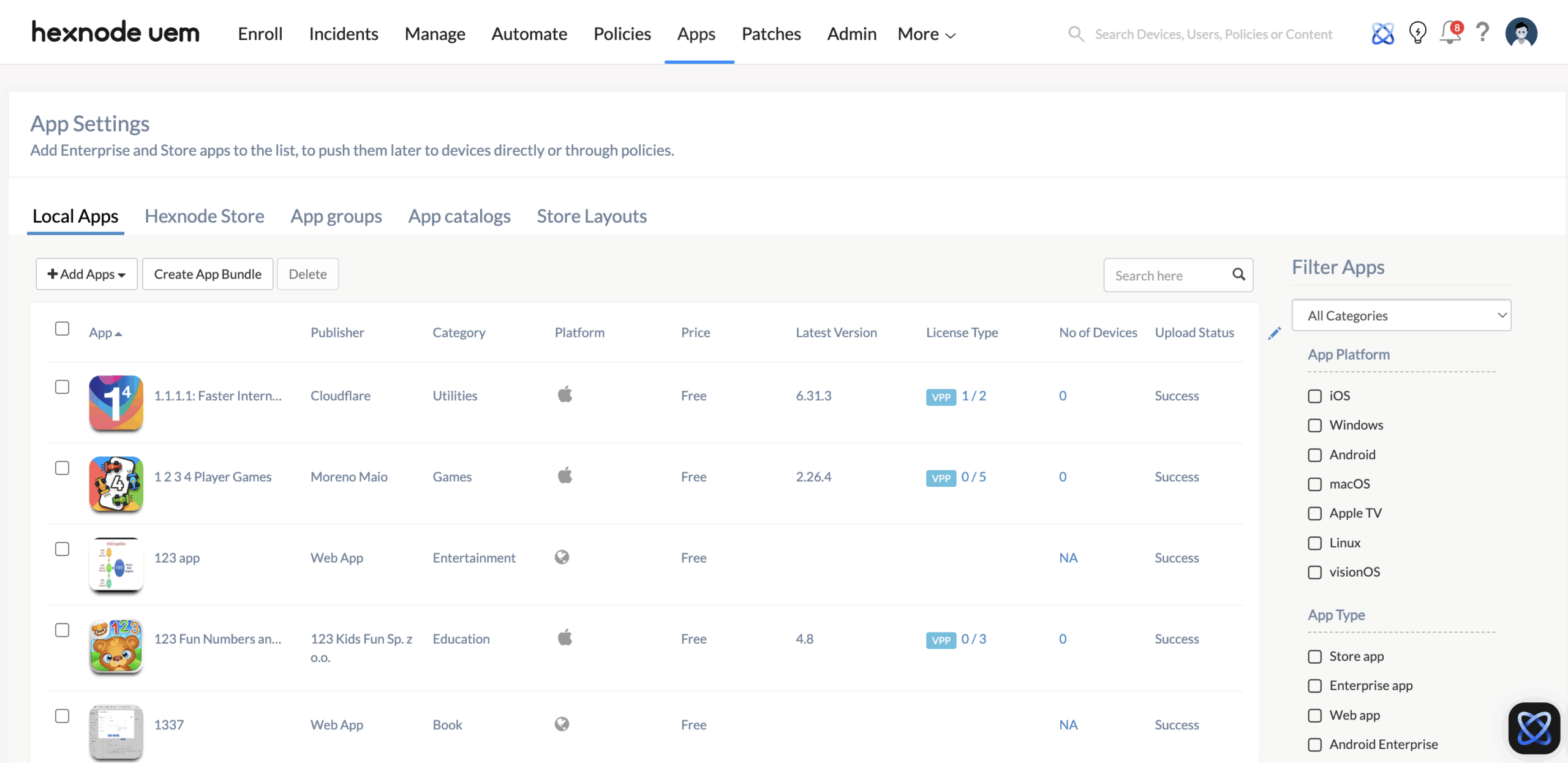
- Path: Apps > Local Apps > +Add Apps > Store App.
- Platform: Tick the iOS checkbox.
- Search: Locate the app via the search bar and click Add.
- Verification: The app is now listed under the Local Apps tab.
Immediate Distribution (Remote Actions)
Use this method for one-off manual installations for quick deployment.
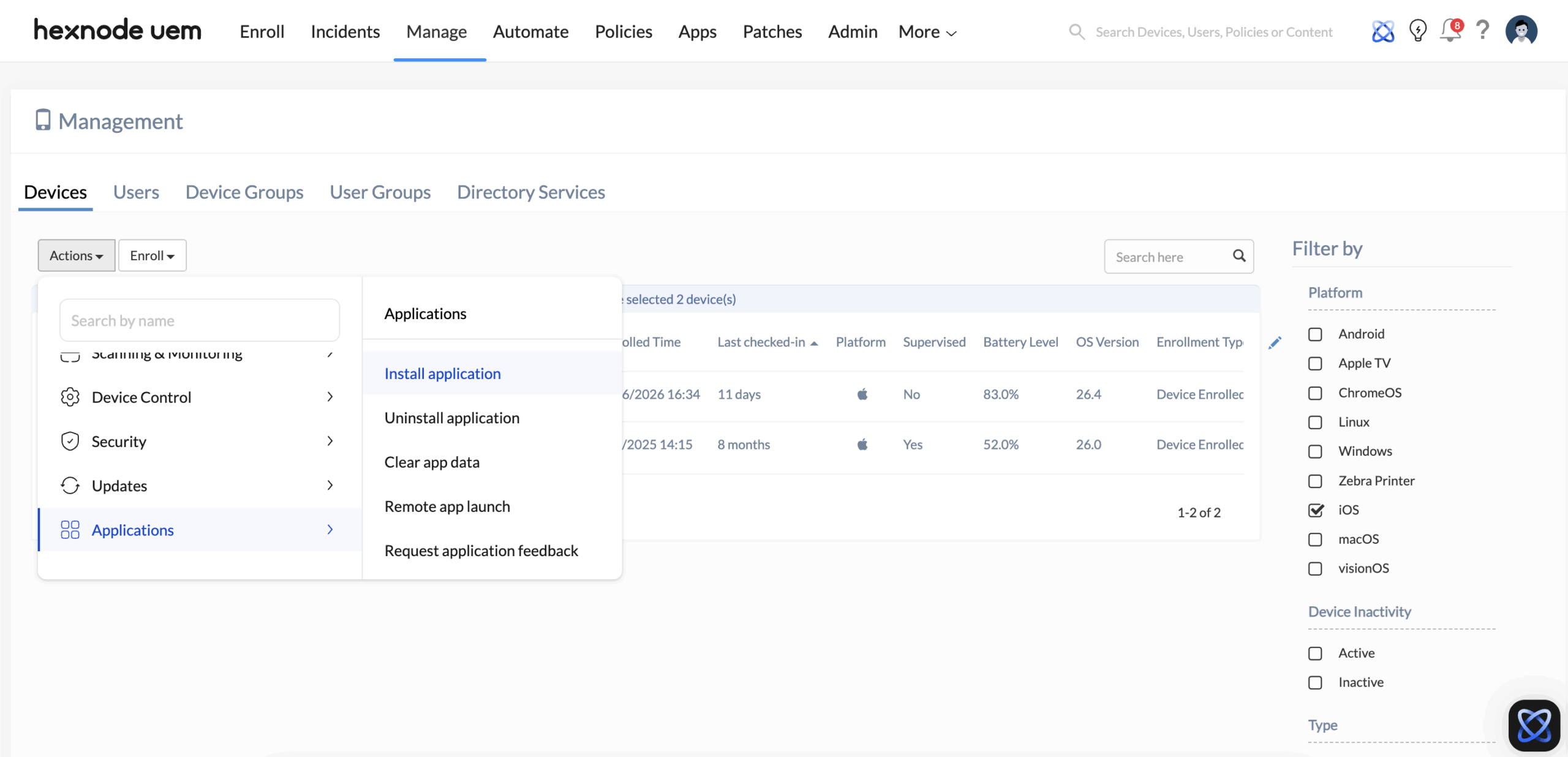
- Path: Manage > Devices > Select target device(s).
- Execute: Actions > Applications > Install application.
- Filter: Tick the iOS checkbox under the Local Apps tab.
- Finalize: Search for the app, select it, and click Install.
Enterprise (In-house) App Distribution
Enterprise (in-house) apps are proprietary applications developed for internal use and are mostly not available on the Apple App Store.
Uploading and Deploying an Enterprise App via Hexnode UEM
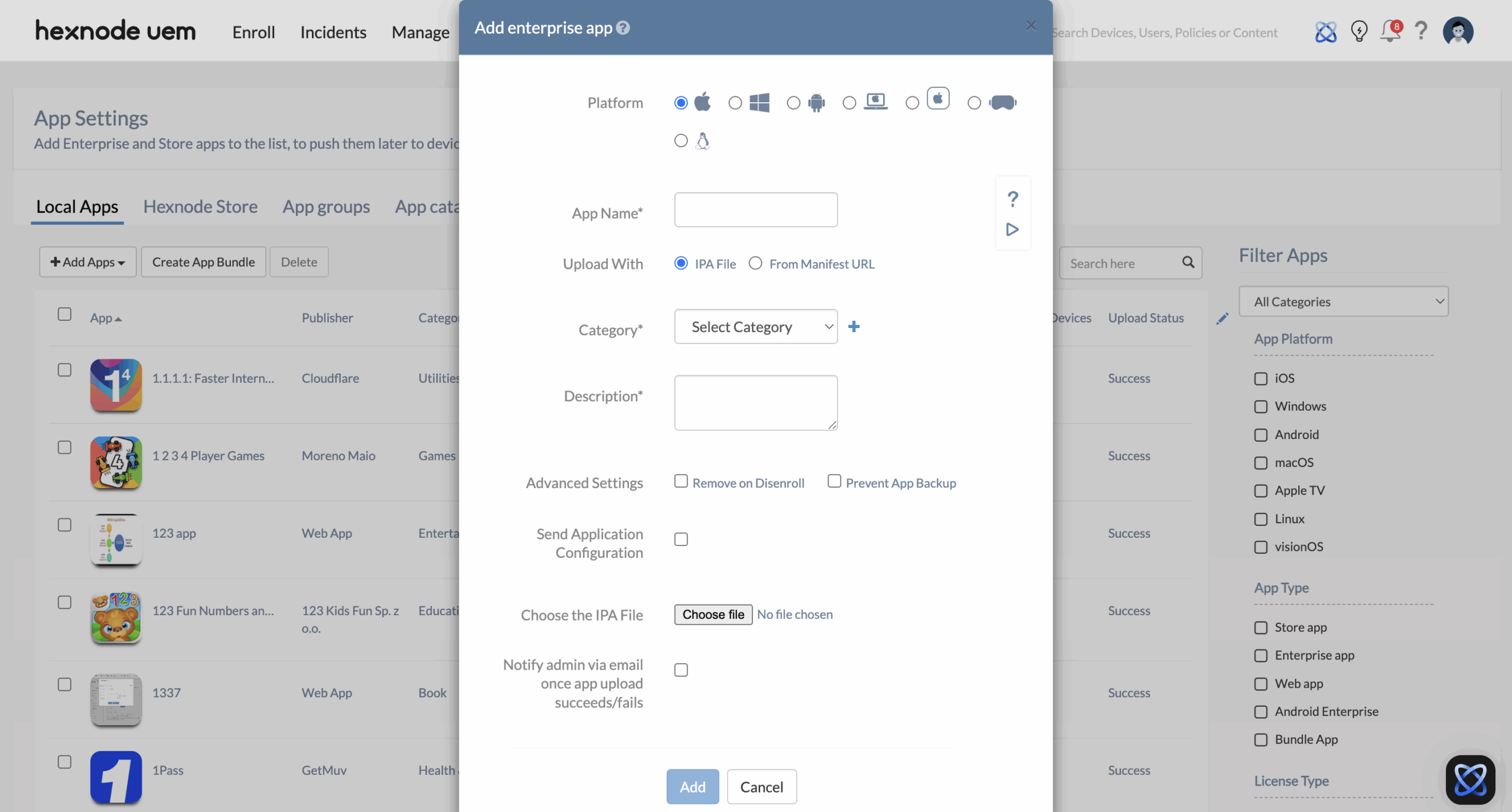
- Path: Apps > +Add Apps > Enterprise App.
- Platform Selection: Select the Apple icon radio button.
- App Name: Provide a name for the enterprise app.
- Upload Method: Choose one of the following distribution channels:
- IPA File: Select IPA file and click on Choose file to upload the .ipa file from the local system.
- Manifest URL: Select From manifest URL to provide the external app hosting link.
- Categorization: Select a Category from the list. Click (+) to create a new category.
- Metadata: Enter the app details in the Description text box.
- Advanced Settings:
- Remove on Disenroll: Tick this to uninstall the app automatically if the device is disenrolled from Hexnode UEM.
- Prevent App Backup: Tick this to block app data from being backed up to iCloud/iTunes.
- Send Application Configuration: Ticking this checkbox returns an option for the admin to upload an XML file with pre-defined in-app settings (logins, server URLs, etc.) during deployment.
- Status Notification: Tick the checkbox “Notify admin via email once app upload succeeds/fails” to receive an automated status update once the server finishes processing the file.
- Click Add to finish setup and add the enterprise app.
VPP App Distribution (Apple Business)
The Apple Volume Purchase Program (VPP), integrated via Apple Business , enables bulk acquisition and distribution of Public Store apps, Custom Enterprise apps, and B2B apps.
Key VPP Capabilities
- Bulk Licensing: Purchase and assign licenses to users or devices centrally.
- Silent Installation: Deploy apps to Supervised devices without requiring a user Apple Account.
- Custom B2B Distribution: Securely distribute private apps tailored for specific business needs.
- License Management: Reclaim and reassign app licenses as device ownership changes.
To know more about deploying VPP apps to an Apple device, see Deploying VPP apps via Hexnode UEM.
Automated Deployment via Required Apps Policies
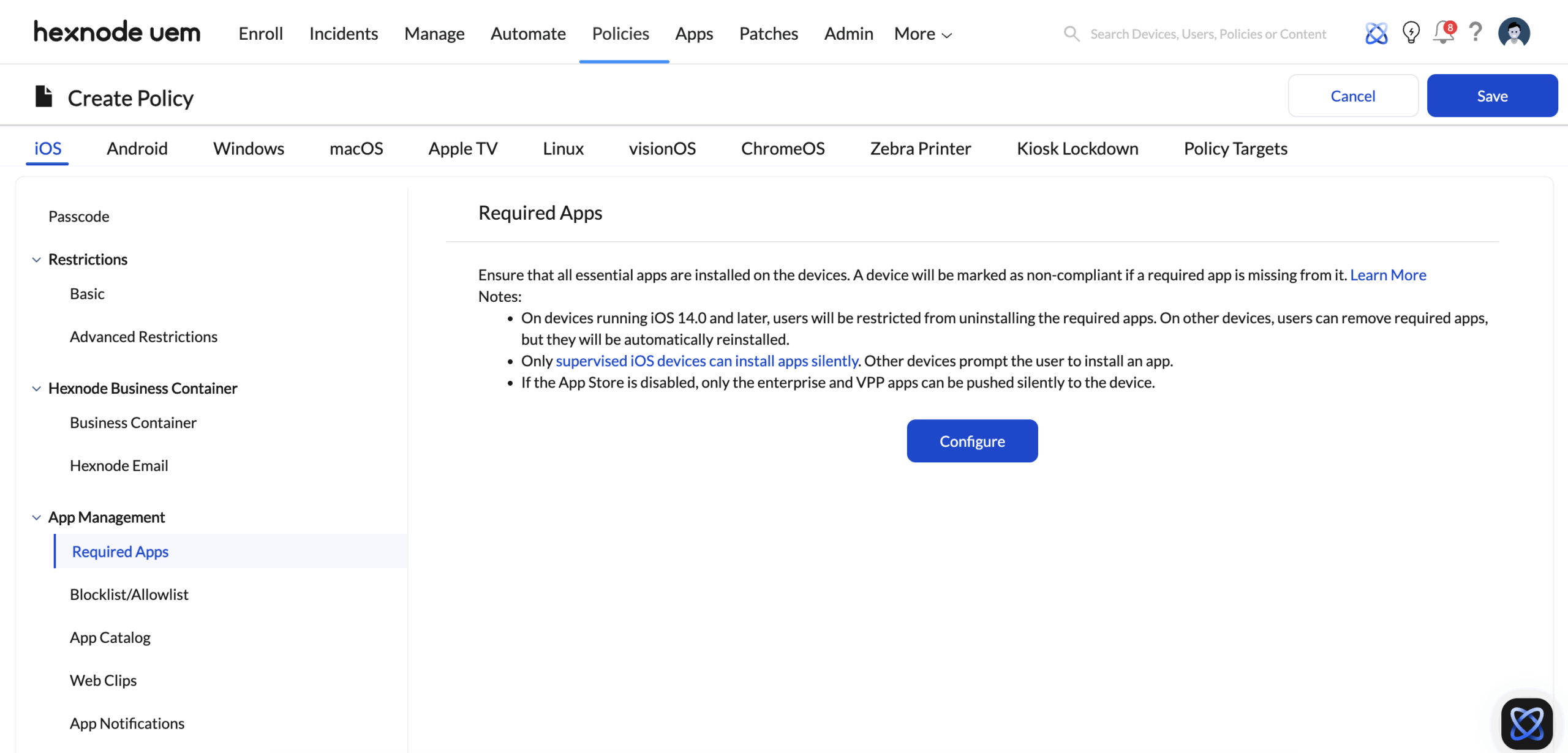
Required Apps policy maintains the “Desired State” of the device, ensuring mandatory apps remain installed.
- Path: Policies > New Policy > Create a fully custom policy.
- Name: Provide a name for the policy.
- Configure Apps: iOS > App Management > Required Apps > click Configure.
- Selection: Click +Add > Add App. Select apps from Hexnode UEM app inventory and click Done.
- Targeting: Navigate to the Policy Targets tab > +Add Devices > Select devices or device groups > Click OK.
- Finalize: Click Save.
Device-End Installation Experience
The installation behaviour depends on the management state of the iOS device:
- Supervised Devices: The enterprise app is installed automatically on the device without any user intervention.
- Unsupervised and User Enrolled Devices: The device receives a notification to install the app. The user must manually accept the prompt to begin the installation process.
Advanced Troubleshooting Resources
Explore these guides for specific error codes and deployment hurdles.


