


Category filter
How to add certificates to Windows devices?
Introduction
Digital certificates act as verified digital passports for your endpoints, ensuring secure communication and authentication within your organization’s network. When configuring enterprise Wi-Fi, Simple Certificate Enrollment Protocol (SCEP), or a VPN that requires certificate-based authentication, the device needs a trusted authority to verify the connection.
If you need to install certificates on windows devices at scale, Hexnode’s Certificates policy allows IT administrators to seamlessly push root and intermediate certificates directly to the fleet. By deploying certificates via this policy, your Windows devices will automatically verify against the deployed trust chain, enabling secure authentication without manual user intervention.
Policy Configuration
To push certificates to your Windows devices, follow the navigation path below:
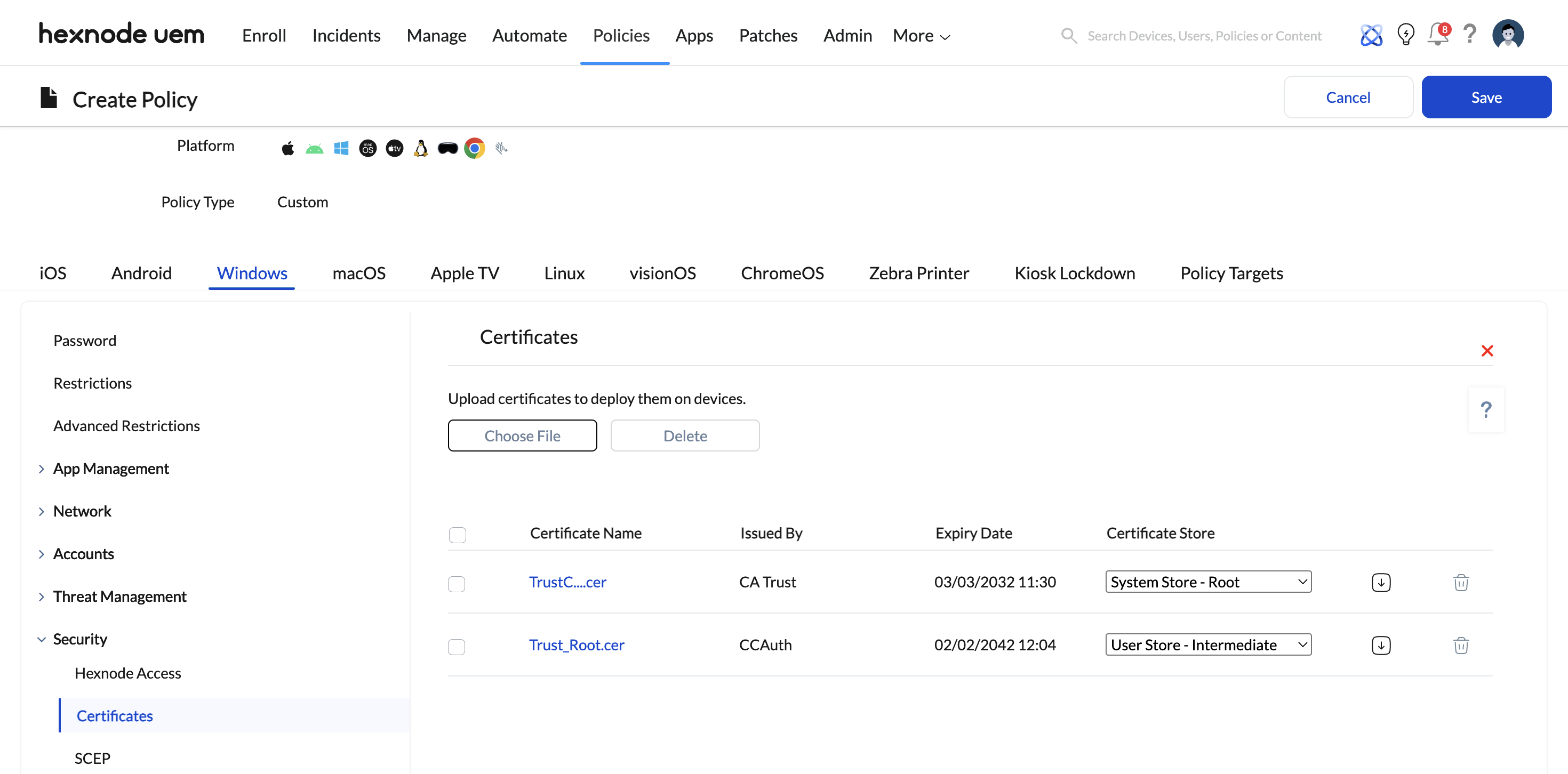
- Log in to your Hexnode UEM portal.
- Navigate to Policies > New Policy. (Alternatively, select an existing policy to edit).
- Select Create a fully custom policy.
- Go to Windows > Security > Certificates and click Configure.
Configuration Steps
1. Uploading the Certificate
- Click Choose file to select a previously uploaded certificate directly from the Hexnode Repository.
- Alternatively, click Choose Certificate to upload a new certificate file directly from your local machine.
2. Reviewing Certificate Details
Once a certificate is selected, click OK. All chosen certificates will be listed on the screen. The console will display the following essential details for each certificate:
- Certificate Name: The identified name of the uploaded certificate file.
- Issued By: The Certificate Authority (CA) that signed and issued the certificate.
- Expiry Date: The exact date the certificate will expire and become invalid.
- Certificate Store: The specific destination on the Windows device where the certificate will reside.
3. Selecting the Certificate Store
You have complete control over where the certificate lives on the endpoint. You can choose from the following three certificate store options based on your security framework:
- System Store – Root: Deploys trusted root certificates at the device level (Local Machine). These certificates act as the primary trust anchor and apply globally to all users who log into that specific machine.
- System Store – Intermediate: Installs intermediate certificates at the device level. This acts as a bridge to complete the chain of trust between the root Certificate Authority (CA) and the end-entity certificates for all users on the device.
- User Store – Intermediate: Deploys intermediate certificates specifically to the profile of the user account used to enroll the device to Hexnode. This establishes the chain of trust exclusively for that specific user’s session, without affecting other user profiles on the same shared device.
4. Managing Added Certificates
Alongside each listed certificate, you have two quick actions:
- Download Icon: Click the downward-facing arrow to download a copy of the selected certificate to your local machine.
- Delete Icon: Click the trash icon to remove the certificate from the policy configuration before deployment.
Policy Association & Deployment
Once you have configured the certificates and selected the appropriate stores, you must associate the policy to deploy them to your endpoints.
To deploy the certificates to devices:
- Navigate to the Policy Targets tab within the policy window.
- Select the desired Devices, Device Groups, Users, User Groups, or Domains/OUs.
- Click Save.
What happens at the device end?
Once the policy is successfully deployed, you can verify the installation of the certificates locally on the targeted Windows device:
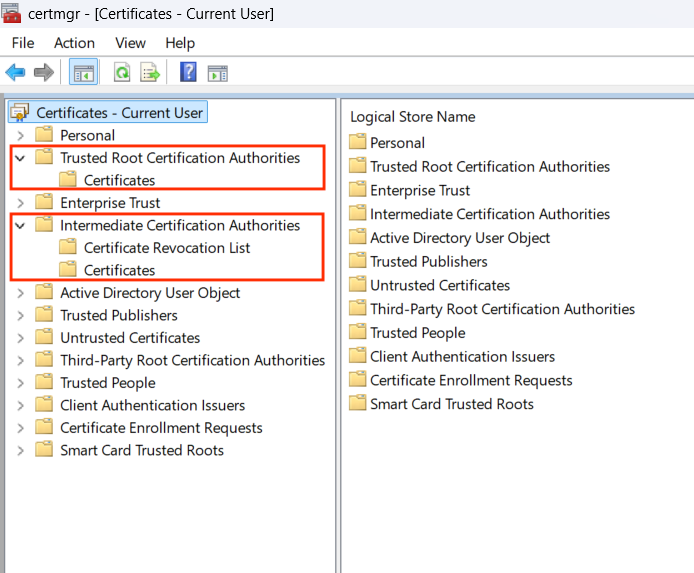
On the Windows device, open Windows Search and type Manage User Certificates to open the local Certificate Manager.
- To locate Root Certificates: Expand the Trusted Root Certification Authorities folder, then click on the Certificates subfolder. All deployed root certificates will be listed here.
- To locate Intermediate Certificates: Expand the Intermediate Certification Authorities folder, then click on the Certificates subfolder. Both system and user intermediate certificates will be stored here.
Troubleshooting
While deploying certificates via Hexnode, you might encounter the following action execution errors in the console. Here is how to resolve them:
Error 1: The profile was not applied. This could be because – The certificate already exists on the device with local ownership or is present in a different certificate store.
- Cause: This error occurs when the exact same certificate is deployed to both intermediate stores (System Store and User Store). A single certificate cannot be used for both intermediates simultaneously.
- Resolution: Ensure the certificate is only mapped to one of the intermediate stores. Note: It is permissible for a single certificate to be deployed as a Root certificate and one of the intermediate options, but never both intermediate options.
Error 2: The profile was not applied. This could be because – The policy targets a User Store configuration, which requires the managed user who enrolled the device to be logged in.
- Cause: This error appears when you deploy a “User Store – Intermediate” certificate, but the active user currently logged into the Windows machine is different from the specific user account used to initially enroll the device in Hexnode.
- Resolution: Have the current user log out. Log back into the device using the exact user account that enrolled the device, and then reassociate the policy from the Hexnode portal.


