


Category filter
Samsung Knox E-FOTA Update Management with Hexnode UEM
Samsung Knox E-FOTA (Enterprise Firmware-Over-The-Air) shifts control of Android operating system updates completely to the corporate IT department. By combining Hexnode UEM with Samsung’s cloud-native architecture, administrators can freeze devices to a specific, tested OS build, skip unstable global releases, enforce critical security patches outside of business hours, and eliminate data overages by enforcing network constraints.
The Modern Architectural Paradigm
Samsung has modernized the architecture of the Knox Service Plugin (KSP) schema to eliminate the tedious copy-pasting of localized alphanumeric Campaign Tokens and Enterprise IDs inside the UEM console.
Instead, the workflow is split into two automated layers: Hexnode UEM handles the initialization of the secure, licensed channel on the endpoint via the Google Android Enterprise OEMConfig protocol, while the Samsung Knox Portal handles the targeted deployment of specific firmware versions, version-locks, and update schedules.
The Automation Flow:
- Admin saves a Knox Service Plugin policy in Hexnode containing the Master Knox Suite License Key.
- Hexnode pushes the Knox Service Plugin (KSP) to the device.
- KSP silently triggers the E-FOTA client installation and auto-registers the endpoint into your Samsung Knox cloud tenant.
- Admin locks OS builds or schedules firmware campaigns natively inside the Samsung E-FOTA Panel.
Phase 1: Infrastructure & Licensing Prerequisites
Before executing the configuration steps inside the UEM console, confirm that your target ecosystem complies with the following prerequisites:
- Hardware Support: Samsung Galaxy smartphones, tablets, or ruggedized endpoints running Android 9.0 (Knox 3.2.1) or higher.
- UEM Enrollment State: Endpoints must be enrolled in Hexnode UEM under Android Enterprise as either Device Owner (Fully Managed Device) or Work Profile on Company-Owned Device (WP-C).
- Samsung Identity Hub: A verified corporate account at SamsungKnox.com with active Knox Suite or Knox E-FOTA seat licenses.
Phase 2: Configuration Actions Inside Hexnode UEM
Step 1: Add the Knox Service Plugin to Your App Repository
Hexnode uses Samsung’s official OEMConfig application as a secure translation bridge to send direct commands down to the device’s hardware-level Knox security module.
- Log in to your Hexnode UEM Portal and navigate to the Apps tab.
- Click + Add Apps > Managed Google Play App.
- Search for Knox Service Plugin and select the official application published by Samsung Electronics Co., Ltd.
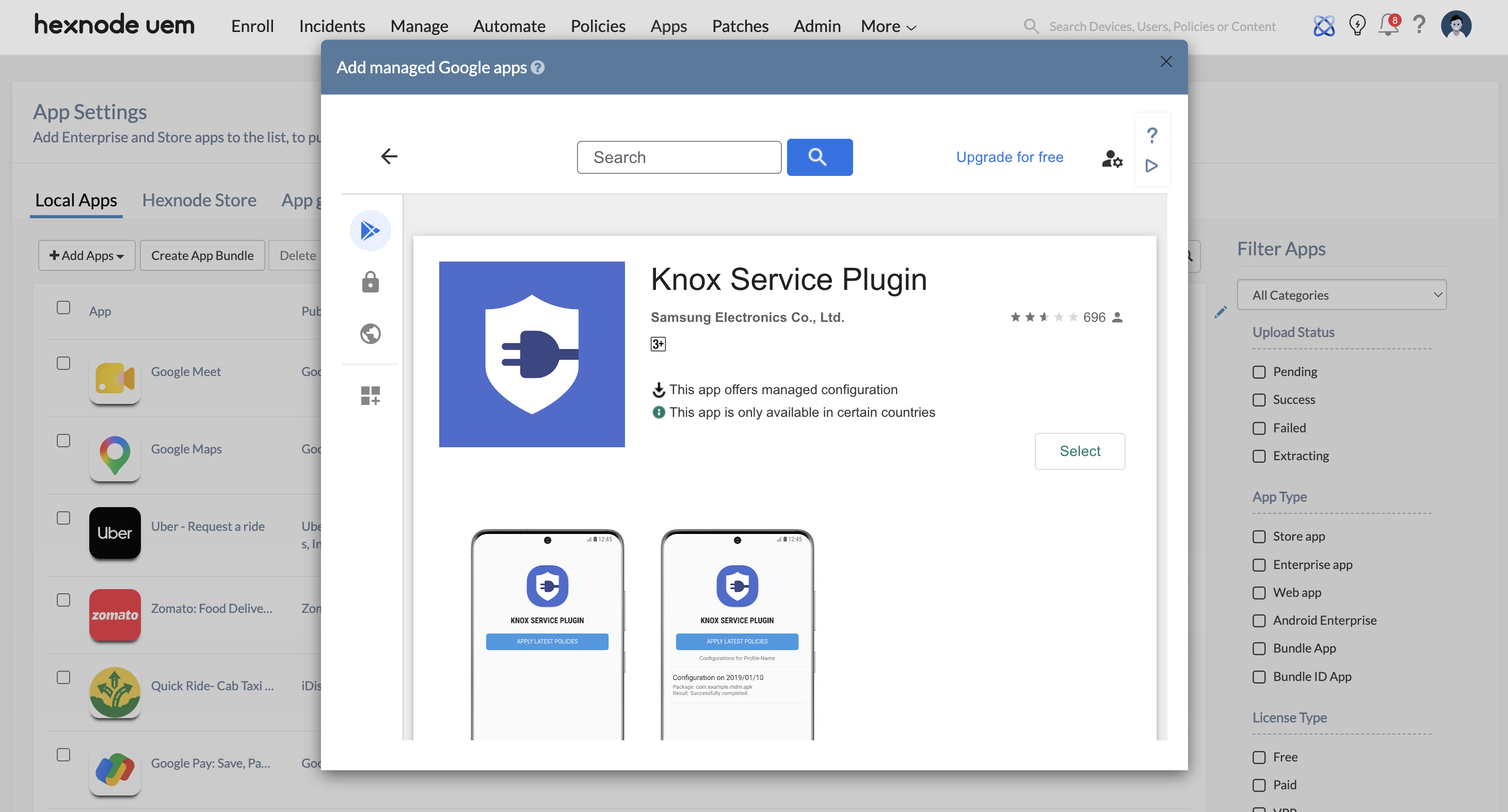
- Click Select and the plugin is now safely indexed inside your enterprise app repository.
Step 2: Build the Modernized E-FOTA Activation Policy
Because manual, localized campaign fields have been deprecated, you will configure a policy that pushes your global corporate license token and tells the device to check into your master Samsung cloud tenant.
- Go to the Policies tab and select New Policy > New Policy > Create a fully custom policy > Android.
- Name the policy container (e.g., Samsung Knox E-FOTA Integration Policy).
- Navigate to Knox Configurations > Knox Service Plugin.
- Click Configure, and then select Configure again beside the Knox Service Plugin Application.
- The Hexnode console will render the dynamic OEMConfig schema. Adjust the key properties to match this exact sequence:
A. Basic Elements
- Knox License key(Knox Suite, DualDAR, etc): Paste your master corporate Knox Suite or Knox Platform for Enterprise (KPE) Premium license key here. (This single key acts as the global cryptographic identity token for your company, replacing the old manual Enterprise ID text boxes).
B. Device-wide policies (Selectively applicable to Fully Managed Device (DO) or Work Profile-on company owned devices (WP-C) mode as noted)
Scroll down to the Device-wide policies (Selectively applicable to Fully Managed Device (DO) or Work Profile-on company owned devices (WP-C) mode as noted) section and configure the following parameter directly beneath it:
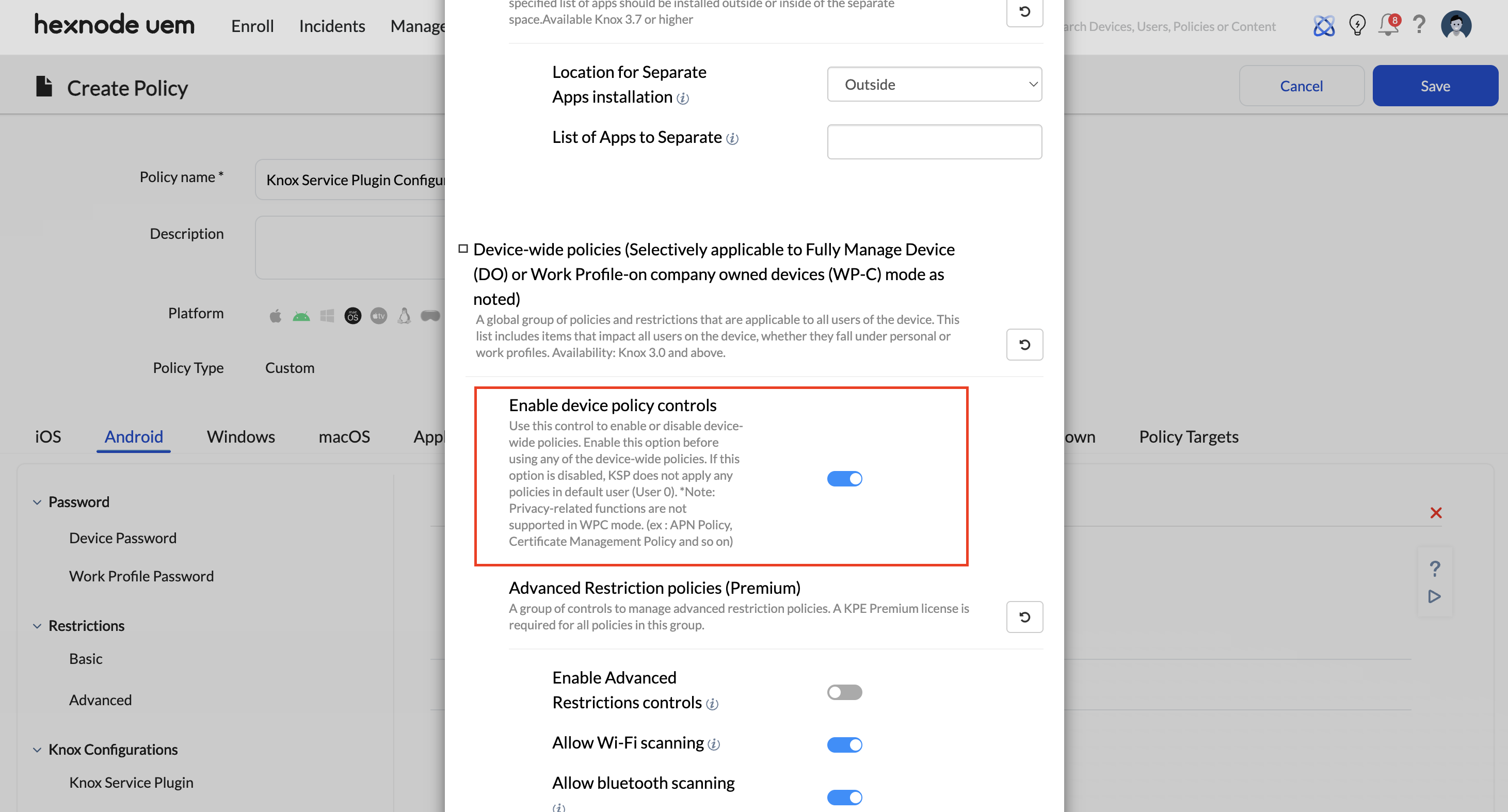
- Enable device policy controls: Change the toggle to True. This must be enabled before configuring any other device-wide configurations; otherwise, KSP will not apply any downstream policies to the default user profile.
C. Firmware update (FOTA) policy
Continue scrolling further down within the same menu to find the Firmware update (FOTA) policy sub-header block and configure the following parameters:
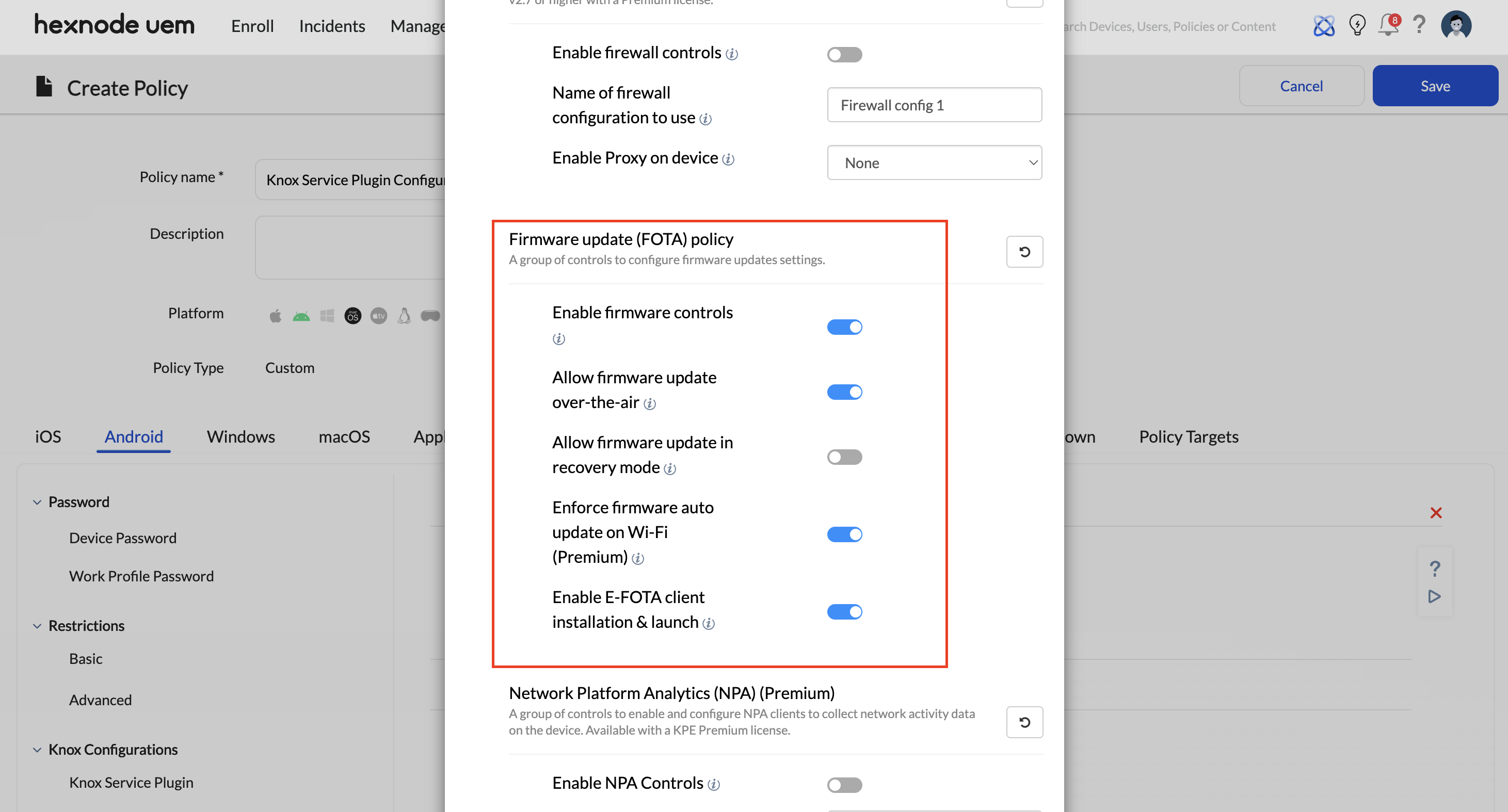
- Enable firmware controls: Change the toggle to True. This acts as the master switch that unlocks all firmware and FOTA-specific settings beneath it.
- Allow firmware update over-the-air: Change the toggle to True. This permits the device to receive, download, and process over-the-air (OTA) OS upgrade requests initiated by the server.
- Allow firmware update in recovery mode: Set to False. This blocks users from applying unapproved firmware updates via the hardware-level Android recovery menu, ensuring they cannot bypass corporate OS compliance baselines manually.
- Enforce firmware auto update on Wi-Fi (Premium): Change the toggle to True. This locks the device’s auto-update setting strictly to Wi-Fi and prevents the user from modifying it. This is a critical setting for eliminating massive cellular data overages during multi-gigabyte OS upgrades.
- Enable E-FOTA client installation & launch: Change the toggle to True. This commands the Knox Service Plugin to silently download, install, and launch the core E-FOTA background package directly onto the handset without prompting the user, effectively bridging the device to your Samsung Knox Portal.
- Click Done to save the app configuration.
Step 3: Target Binding and Policy Enforcement
- Advance to the Policy Targets sub-tab at the top of the policy interface.
- Select Devices, User, Device Groups, User Groups or Domains/OUs.
- Check the box next to the target your enterprise Samsung device is a part of and click Save.
Phase 3: Automated Onboarding & Campaign Management
Once Hexnode pushes the Knox Service Plugin profile, the device reads your master license key, downloads the local E-FOTA client silently, and registers its hardware fingerprint directly into your cloud portal.
To execute actual update restrictions or lock firmware versions, shift operations to the Samsung Knox Portal:
- Log in to the central Samsung Knox Admin Portal and select Knox E-FOTA from your navigation pane.
- Navigate to the Devices menu. You will find that your target smartphones have automatically populated inside this inventory sheet with an Enrolled status, directly resulting from Hexnode’s automated client handshake.
- Go to the Campaigns tab and click Create Campaign.
- Define your campaign policies using Samsung’s strict deployment parameters:
- Schedule & Installation Period: Set the specific time window during the day when devices are allowed to install the firmware (e.g., From: 02:00 To: 05:00). This timeframe is based on the local device’s timezone.
- Device Conditions (Optional but Recommended): Specify battery thresholds (e.g., Only install if battery is above 50%) or require the device to be connected to a charger before the installation can initiate.
- Under the Assign Devices section, click ASSIGN DEVICES or ADD MANUALLY to define your target pool:
- Target Model & CSC: Select your specific device models, Sales Codes, and CSCs (Carrier Specific Codes). You can target specific carrier variants or select All.
- For each assigned model row, click EDIT to assign your Firmware Version Policy. Choose one of the following exact Samsung options:
- Select from firmware list: Push a specific, IT-validated firmware version to the devices (e.g., an exact April 2026 build).
- Latest firmware (Up to): Automatically push the latest firmware, but capped at a specific OS version or Security Patch level.
- Lock current firmware: Freeze the device on its current OS build, preventing any upgrades.
- Review your parameters and click Create and Activate. The Knox E-FOTA client on the devices will pull this policy and execute the update within the scheduled window.
Phase 4: Troubleshooting & Technical Error Remediation
Because modern E-FOTA relies on the Android Enterprise OEMConfig channel, administrators can remotely diagnose registration failures.
Error 1: “License Validation Failed” / Device Missing from E-FOTA Portal
- The Root Cause: The master Knox Suite license key pasted inside Hexnode’s Basic Elements field contains an invisible trailing space, has hit its expiration date, or the target phone has its local system date set incorrectly (causing the cryptographic handshake token to register as invalid).
- The Resolution: Log in to samsungknox.com, confirm your Knox Suite seat allocation is active, re-copy the key string, and paste it into Hexnode. Ensure absolutely no leading or trailing whitespace blocks are introduced before saving the policy.
Error 2: Firmware Campaign Status Remains Stuck on “Pending” or “Postponed”
- The Root Cause: To safeguard hardware stability and prevent bricking, the native Knox engine will block an update from executing if the device’s current battery capacity is below 20%, or if the device is disconnected from a power source during a forced installation time window.
- The Resolution: Instruct your users to plug their endpoints into a power source overnight and ensure the battery is charged. The local Knox execution daemon will automatically detect the power state change and apply the assigned firmware update silently.


