


Category filter
Clear Firefox History on Linux Devices via Hexnode UEM
TL;DR
Streamline Firefox history and session cleanup on shared Linux devices to protect user privacy and provide a fresh browsing experience. This guide provides administrators with a Bash script to clear Firefox history remotely on Linux devices using Hexnode UEM.
Executive Summary
In shared Linux environments, such as school computer labs, library kiosks, and shared office workstations, multiple users may access the same device and browser. Firefox retains browsing activity and session-related data in user profiles. If left uncleared, this information may expose a previous user’s activity, retain session details, and affect the browsing experience of subsequent users.
Regularly cleaning Firefox profiles helps protect user privacy and maintain a consistent browsing environment. Instead of manually cleaning individual devices, administrators can use Hexnode UEM’s Execute Custom Script remote action to run a custom Bash script that removes Firefox history and associated files across Firefox profiles on managed Linux devices.
Script to clear Firefox history for all users
|
1 2 3 4 5 6 7 8 9 10 11 12 13 14 15 16 17 18 19 20 21 22 23 24 25 26 27 28 29 30 31 32 33 34 35 36 37 38 39 40 41 42 43 44 45 46 47 48 49 50 51 52 53 54 55 56 57 58 59 60 61 |
#!/bin/bash # Clear Firefox history for all regular Linux users. getent passwd | while IFS=: read -r user _ uid _ _ home _; do [ "$uid" -ge 1000 ] 2>/dev/null || continue [ -d "$home" ] || continue # Find Firefox profiles. find "$home" -type f -name prefs.js -not -path "*/.cache/*" 2>/dev/null | while IFS= read -r prefs; do profile=$(dirname "$prefs") # Close Firefox. pkill -TERM -u "$uid" -x firefox 2>/dev/null pkill -TERM -u "$uid" -x firefox-esr 2>/dev/null sleep 3 # Skip profiles if Firefox is still running. pgrep -u "$uid" -x firefox >/dev/null 2>&1 && continue pgrep -u "$uid" -x firefox-esr >/dev/null 2>&1 && continue # Files to remove. files_to_remove=( "$profile"/places.sqlite* "$profile"/cookies.sqlite* "$profile"/formhistory.sqlite* "$profile"/favicons.sqlite* "$profile"/sessionstore*.jsonlz4 "$profile"/sessionCheckpoints.json "$profile"/webappsstore.sqlite* "$profile"/logins.json "$profile"/key4.db "$profile"/extension-settings.json ) # Directories to remove. directories_to_remove=( "$profile"/sessionstore-backups "$profile"/storage "$profile"/cache2 "$profile"/startupCache "$profile"/thumbnails "$profile"/cache "$profile"/OfflineCache "$profile"/bookmarkbackups "$profile"/extensions ) # Remove targeted files and directories. if rm -f -- "${files_to_remove[@]}" && rm -rf -- "${directories_to_remove[@]}"; then echo "Cleaned Firefox profile for $user: $profile" else echo "Cleanup failed for Firefox profile: $profile" fi done done echo "Firefox cleanup finished." |
How does the script work?
The script to clear Firefox browsing history of all users identifies Firefox profiles belonging to regular Linux user accounts (UID 1000 or higher), closes active Firefox sessions, and removes the targeted files and directories from each profile.
- Identify user accounts and Firefox profiles: The script uses getent passwd command to retrieve Linux user account details and processes accounts with UIDs of 1000 or higher. It searches their home directories for prefs.js, a Firefox profile configuration file, to locate browser profiles.
- Close active Firefox sessions: The script attempts to terminate Firefox and Firefox ESR (Extended Support Release) processes for each user. After three seconds, it checks whether the processes have stopped. If either is still running, the script skips that Firefox profile.
- Remove Firefox data: Once Firefox is closed, the script deletes the following files and directories from the identified profiles:
Files and directories Data removed places.sqlite*Browsing history, bookmarks, and download records cookies.sqlite*Cookies formhistory.sqlite*Saved form-entry history favicons.sqlite*Website icons sessionstore*.jsonlz4, sessionCheckpoints.json, sessionstore-backupsOpen tabs and session-restoration data webappsstore.sqlite*, storageWebsite storage data cache2, startupCache, cache, OfflineCacheCached website files and startup cache thumbnailsWebsite thumbnails bookmarkbackupsBackup copies of bookmarks logins.json, key4.dbSaved login credentials and associated encryption key database extension-settings.json, extensions/Extension settings and installed extension files - Display execution status: After processing each profile, the script prints the username and profile path. If either command fails, it displays a cleanup failure message. Once all identified accounts have been processed, it displays “Firefox cleanup finished”.
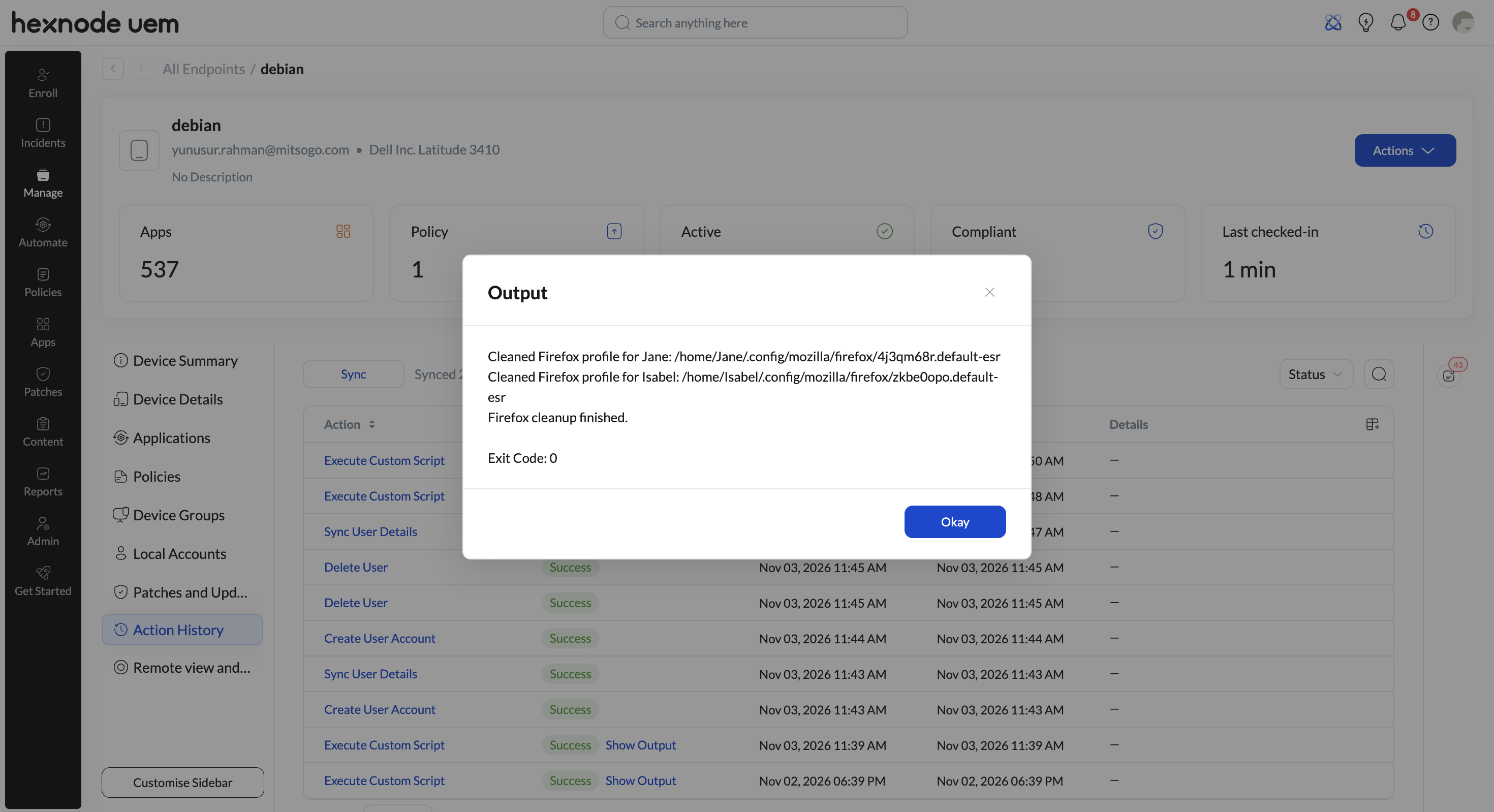
What happens at device end?
When the script is executed through Hexnode UEM, it identifies Firefox profiles across regular Linux user accounts and attempts to close active Firefox sessions. It then removes browsing history, bookmarks, download records, cookies, saved form entries, website icons, session data, and cached files, saved login credentials and installed extension files. Once the cleanup is complete, Firefox remains closed until a user manually opens it again.
Frequently Asked Questions
Will users be prompted before Firefox is closed when the script runs?
No. The script forcibly terminates any active Firefox sessions without prompting users. This ensures that all files are accessible for cleanup. It is recommended to run the script during off-hours or when users are not actively using Firefox to avoid disruption.
Can the script be scheduled to run automatically on multiple devices?
Yes. Using the Automate feature, administrators can schedule the script to run at specific times on multiple Linux devices. This ensures Firefox history is cleared regularly without requiring manual execution.
How often should Firefox data be cleared?
Frequency depends on usage. For shared environments like labs or kiosks, running the script daily or weekly helps maintain privacy and performance.
How long does the cleanup script take to execute on an endpoint?
The script typically completes within 5 to 15 seconds per device, depending on the number of user profiles and the size of the accumulated cache files.


