


Category filter
Role-Based Geofencing: Implementing Identity-Aware Location Security
1. Executive Summary & Architectural Logic
Traditional location-based management often relies on broad departmental rules or static individual assignments, which can lead to configuration drift as personnel change. Hexnode UEM mitigates this by supporting Designation-Based Geofencing via the Dual-Group Workflow.
This architecture orchestrates localized policy transitions by intersecting two dynamic data points:
- Designation/Location Context: Pinpointing exact Active Directory (AD) or IdP attributes—specifically Title or Office Location—synced directly from the directory service.
- Geospatial Context: Real-time GPS boundary data (Geofences).
As a user holding a specific AD Title (e.g., “Senior System Administrator”) crosses a defined virtual perimeter, Hexnode’s synchronization engine automatically transitions their assigned device between dynamically paired groups. This ensures that role-specific privileges are strictly confined to authorized physical perimeters, while the system automatically adapts to HR changes (e.g., promotions or office transfers) during routine IdP syncs.
2. Component Mapping & Strategic Definitions
To execute this role-focused configuration within Hexnode UEM, map your specific AD attributes to the corresponding console components.
| Strategic Concept | Hexnode UEM Component | Technical Purpose |
|---|---|---|
| Designation Anchor | Dynamic Device Groups (Condition Filters) | Queries exact synced IdP attributes (e.g., User Info > Title Is [Value]) to target specific operational roles. |
| Authorized Micro-Zone | Geofence (Location Filters) | Defines the precise GPS perimeter acting as the physical boundary for that specific role or office location. |
| “If/Then” Logic | Dual-Group Workflow | Pairs two opposing Dynamic Device Groups (one with an Include filter, one with an Exclude filter) to trigger automated policy shifts. |
| Out-of-Fence Actions | Policy Targets & Associations | Instantly revokes designation-specific access (e.g., hiding server management tools) via the “Excluded” dynamic group. |
3. Implementation Flow: Executing the Dual-Group Workflow via AD Attributes
Step A: Define the Geofence Perimeter
- In the Hexnode UEM console, navigate to the Admin > Geofencing.
- Click Create Fence.
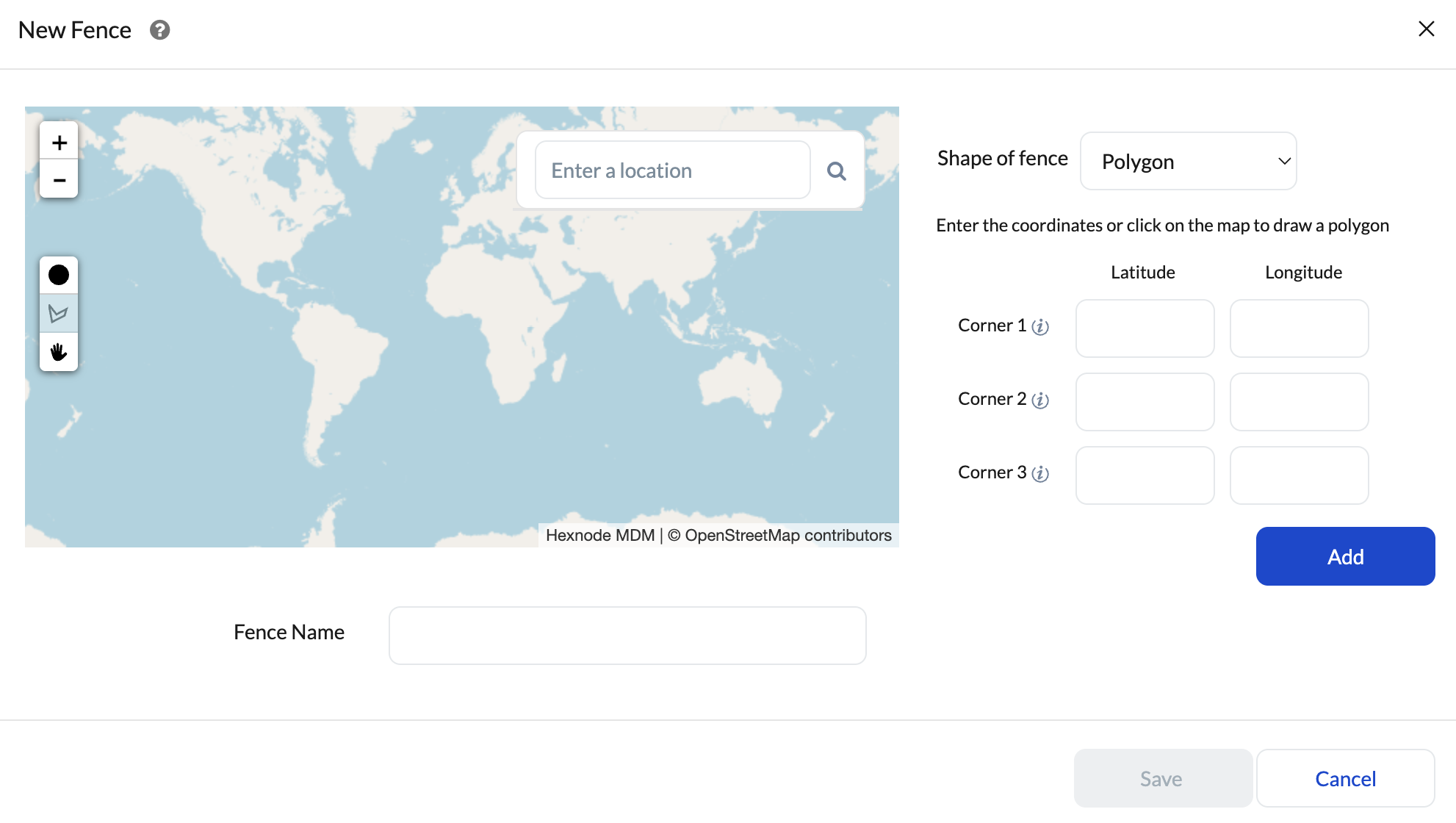
- Utilize the map overlay, enter a precise address, or provide raw coordinates to establish the boundary.
- Save the geofence with an identifiable naming convention (e.g., GeoZone_London_DataCenter).
Step B: Construct the “Inside” Dynamic Group (Role-Authorized Access)
This group captures the device only when a user with the specified AD attribute is physically inside the authorized boundary.
- Navigate to Manage > Device Groups > New Dynamic Group.
- Name the Group: e.g., SysAdmins – Inside_DataCenter.
- Configure Location Filter: Select Include and link the GeoZone_London_DataCenter geofence.
- Configure Condition Filter (AD Anchor): Target the specific designation or office attribute synced from your directory.
- Example 1 (Title): User Info > Title Is Senior System Administrator
- Example 2 (Location): User Info > Office Location Is London Branch
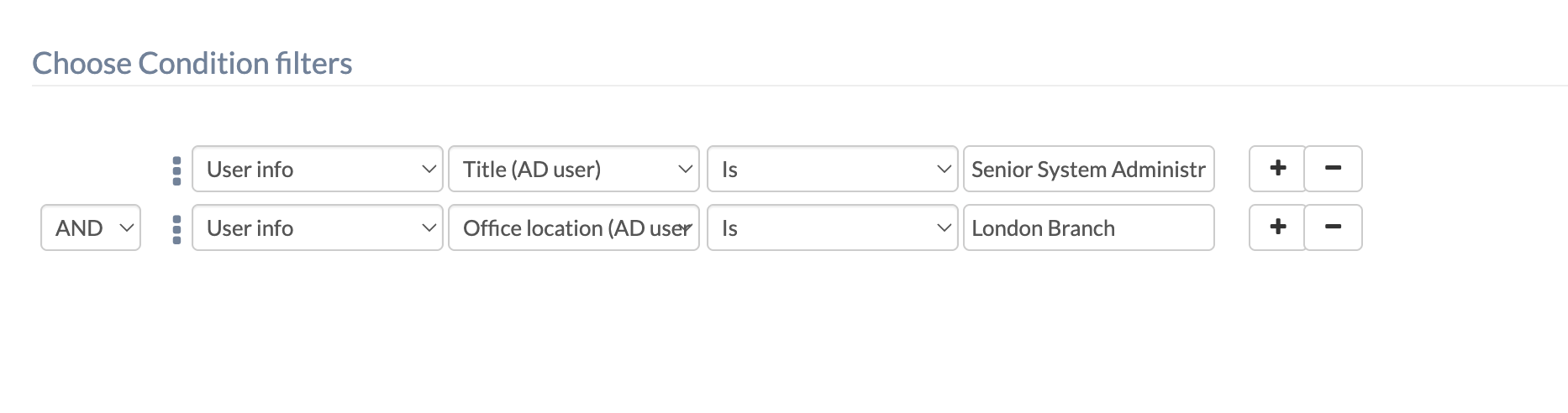
- Click Save Group.
Step C: Construct the “Outside” Dynamic Group (Role-Restricted Access)
To enforce immediate restrictions the moment the specified role exits the perimeter, create the opposing transition group.
- Create a New Dynamic Group.
- Name the Group: e.g., SysAdmins – Outside_DataCenter.
- Configure Location Filter: Select Exclude and link the identical GeoZone_London_DataCenter geofence.
- Configure Condition Filter: Replicate the exact AD attribute parameters from Step B (e.g., User Info > Title Is Senior System Administrator).
- Click Save Group.
Step D: Bind and Associate Role-Specific Policies
- Navigate to Policies > New Policy.
- The On-Site Policy (High Privilege): Configure the specific access rules for this title (e.g., deploying IT management applications or server access VPNs). Under Policy Targets, associate this directly with the SysAdmins – Inside_DataCenter group.
- The Off-Site Policy (Zero Trust): Configure strict external restrictions (e.g., blocklisting the management apps or enforcing a restrictive network proxy). Under Policy Targets, associate this policy with the SysAdmins – Outside_DataCenter group.
4. Core Security Controls & Directory Synchronization
- IdP Sync Intervals: Because this workflow relies entirely on AD/Entra ID attributes, ensure your directory sync interval in Hexnode (Admin > Active Directory / Entra ID / Google Workspace / Okta) is configured to capture HR changes frequently. If a user’s Title changes in AD, Hexnode must sync this change before the dynamic group logic can recognize their new privileges.
- Aggressive Location Syncing: Navigate to Admin > General Settings > Location Tracking. For highly sensitive titles, configure the location update interval to the minimum 15-minute threshold to ensure the tightest possible security window when leaving a zone.
- Spoofing Prevention: For Android fleets, ensure devices are enrolled in Device Owner mode. Navigate to Policies > Restrictions and explicitly uncheck Mock Location. Enable the Force GPS to fetch location restriction to prevent the target user from manually disabling their tracking services.
5. Troubleshooting Matrix
| Issue Signature | Root Cause & Resolution Strategy |
|---|---|
| Target Role Missing from Group | Symptom: The user is inside the geofence, but the policy isn’t applying.
Resolution: Ensure the AD/IdP sync has completed and the user’s Title or Office Location exactly matches the spelling/casing defined in the Condition Filter. |
| Policy Flapping (Drift/Jitter) | Symptom: The device rapidly cycles between allowed and restricted states while stationary indoors.
Resolution: Expand the geofence radius slightly to act as a spatial buffer against weak indoor GPS/Wi-Fi positioning signals. |
| Delayed Off-Site Restriction | Symptom: The user leaves the building but retains sensitive access for several minutes
Resolution: The device is waiting for the next 15-minute sync cycle. For immediate revocation during critical incidents, IT can trigger a manual Scan Device Location via the Hexnode console for that specific device. |


