


Category filter
How to deploy Apple VPP apps
Apple introduced the Volume Purchase Program (VPP) to enable enterprises to find, purchase and distribute apps and books in bulk. The VPP apps may be store apps or enterprise apps. VPP enables the deployment and management of all the purchased apps by importing all the information from the app. You can also distribute custom B2B apps to your users using Apple VPP via Hexnode UEM.
To use Apple VPP, your organization must first be enrolled in Apple Business. Apple Business is Apple’s unified platform for device management, app purchasing, and deployment — replacing the earlier Apple Business Manager (ABM), Apple Business Essentials, and Apple Business Connect programs. If your organization is not yet enrolled, visit the Apple Business website and enter your business email to get started. Provide the required details about your organization to complete enrollment. Once enrolled, you can configure VPP settings in Hexnode.
Step 1: Download the content token
- Go to Apple Business
. - Log in with your account credentials.
- Click on your organization name at the top right-hand corner of the page and select Settings.
- Under Payments and Billing > Apps & Books and scroll down to ‘Content Tokens’.
- Click on Download next to your required content token.
Step 2: Configure VPP account settings
To configure your VPP account settings in the Hexnode portal:
- Log in to your Hexnode portal.
- Navigate to Admin > Apple Business/School Manager and select Apple VPP.
- Click on the Add VPP Account button.
- Enter an Account Name and upload the VPP token file that you downloaded earlier.
- Click Save.
Hexnode UEM is now integrated with your Apple VPP account.
Step 3: Purchase the required apps
- Sign in to Apple Business. The account should have either ‘Administrator’ or ‘Content Manager’ roles to purchase Apps and Books licenses.
- Click on Apps & Services and select Apps and Books.
- Click on View Store+. Search and select the app or book you want to purchase licenses for.
- Go to Buy Licenses > Assign to and choose the organizational unit to which the app or book licenses should be assigned.
- Specify the Quantity of licenses required and click Get.
In the Hexnode portal, navigate to Admin > Apple Business/School Manager > Apple VPP to see all the VPP accounts that have been added to the Hexnode server. Click the Sync button corresponding to a VPP account to fetch all the updated information about the total assets managed under that account.
Step 4: App installation
After configuring the VPP account settings in the Hexnode portal and purchasing the required apps, you can deploy them to your Apple devices enrolled in Hexnode.
You can install apps on iOS/macOS devices either using the Install Application action or via a Required Apps policy. In the case of tvOS devices, you can install apps only using the Install Application action.
Install apps via remote actions
To install the apps via the Install Application action:
- Navigate to Manage > Devices in the Hexnode portal.
- Select the devices to which the apps are to be distributed.
- Click on Actions > Install Application.
- Select the required apps from the window that appears.
- Click on Done.
Install apps via policies
To distribute apps via the Required Apps policy on your iOS/macOS devices enrolled in Hexnode:
- Go to Policies in the Hexnode portal.
- Click on New Policy > New Blank Policy.
- Provide a suitable Policy name and Description.
- Go to iOS/macOS > App Management > Required Apps and click Configure.
- Click +Add > Add App/Add Group to select the required apps or app groups from the app inventory.
- Click Done.
- Associate the policy with the target devices by navigating to Policy Targets.
- Click Save.
Managing VPP apps
To view all the VPP apps purchased from Apple Business/ASM, go to the Apps tab in the Hexnode portal. You can filter the apps by selecting the License Type as VPP and all the VPP apps will be listed.
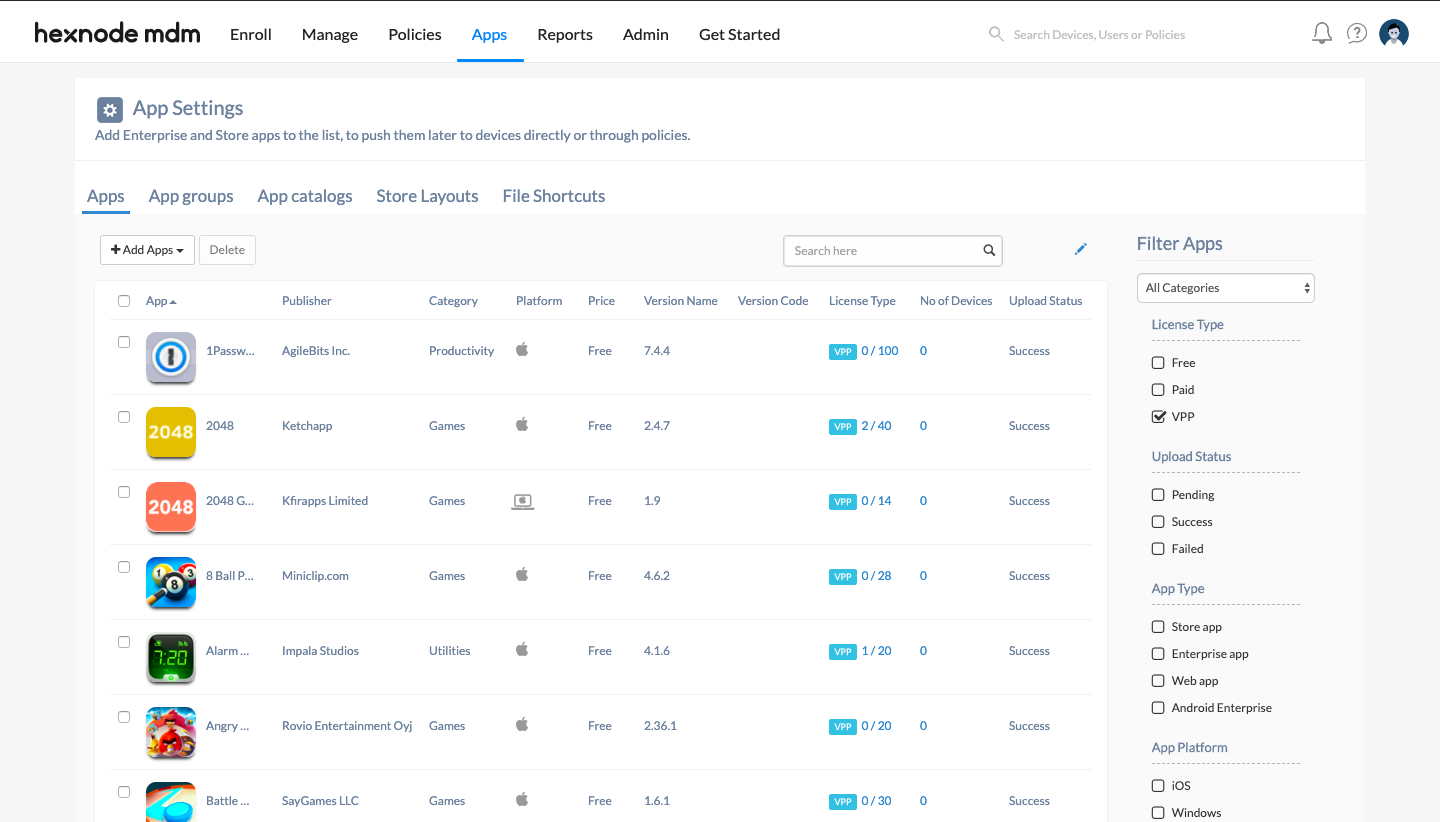
Here you can see the total number of licenses purchased for each app and the number of licenses used. Click on the license type of any app to see all the details about that app.
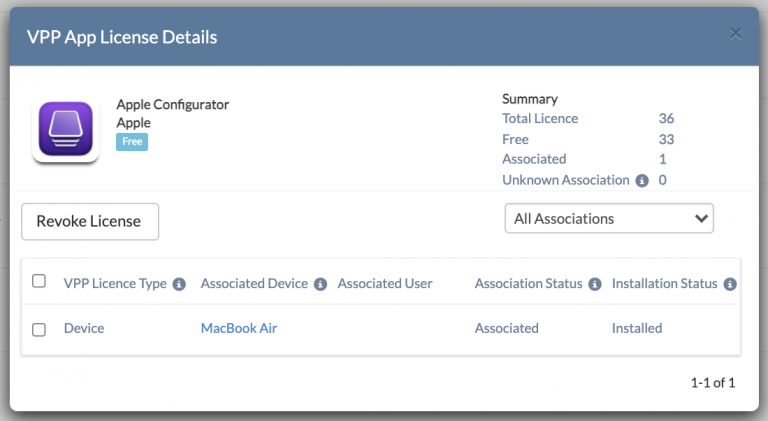
You can also retire the app license here. Select the device you want to withdraw the license from and click Revoke License. This license can be reassigned to any other device later.
To revoke all the licenses associated with a VPP account in bulk:
- Go to Admin > Apple Business/School Manager > Apple VPP.
- Click on the VPP account name.
- Check the Reclaim Licences option in the dialogue box that pops up.
- Click Save.


