


Category filter
Steps to Configure a Multi-App Kiosk for Retail Displays
Overview
In a retail environment, devices are often used as customer-facing displays or dedicated staff tools. Multi-App Kiosk Mode allows you to lock a device down to a specific set of applications (e.g., a Point-of-Sale app, a digital catalog, and a loyalty program) while preventing access to the rest of the OS, settings, or unauthorized web browsing. This is an essential strategy for preventing tampering, reducing support tickets, and maintaining a focused brand experience.
Prerequisites
Before beginning the configuration, ensure the following requirements are met:
- Android: Devices should ideally be enrolled in Android Enterprise (Device Owner mode) for maximum lockdown capability.
- iOS: Devices must be Supervised (e.g., via Apple Business or Apple Configurator).
- Windows: Supported on Windows 10/11 Pro, Enterprise, and Education editions.
- ChromeOS: Each device requires an active ChromeOS Kiosk & Signage Upgrade license to be managed in kiosk mode.
- Hexnode License: Ensure your plan supports advanced kiosk management.
Step 1: Add Retail Apps to the Inventory
Before the kiosk policy can be created, the apps must be added to your Hexnode app inventory.
- Navigate to Apps.
- Click + Add Apps.
- Select the appropriate app type for your platform:
- Android: Select Managed Google Play App for store apps, or Enterprise App to upload your own custom APKs.
- iOS: Select Store App (or VPP App for purchased apps) or Enterprise App for custom IPAs.
- Windows: Select Enterprise App to upload MSI/EXE files, or Store App.
- ChromeOS: Select Web App or Store App.
Step 2: Create the Multi-App Kiosk Policy
- Navigate to the Policies tab and click New Policy > Create a fully custom policy.
- Provide a Policy Name (e.g., “Retail Display – Floor Tablet”) and policy description.
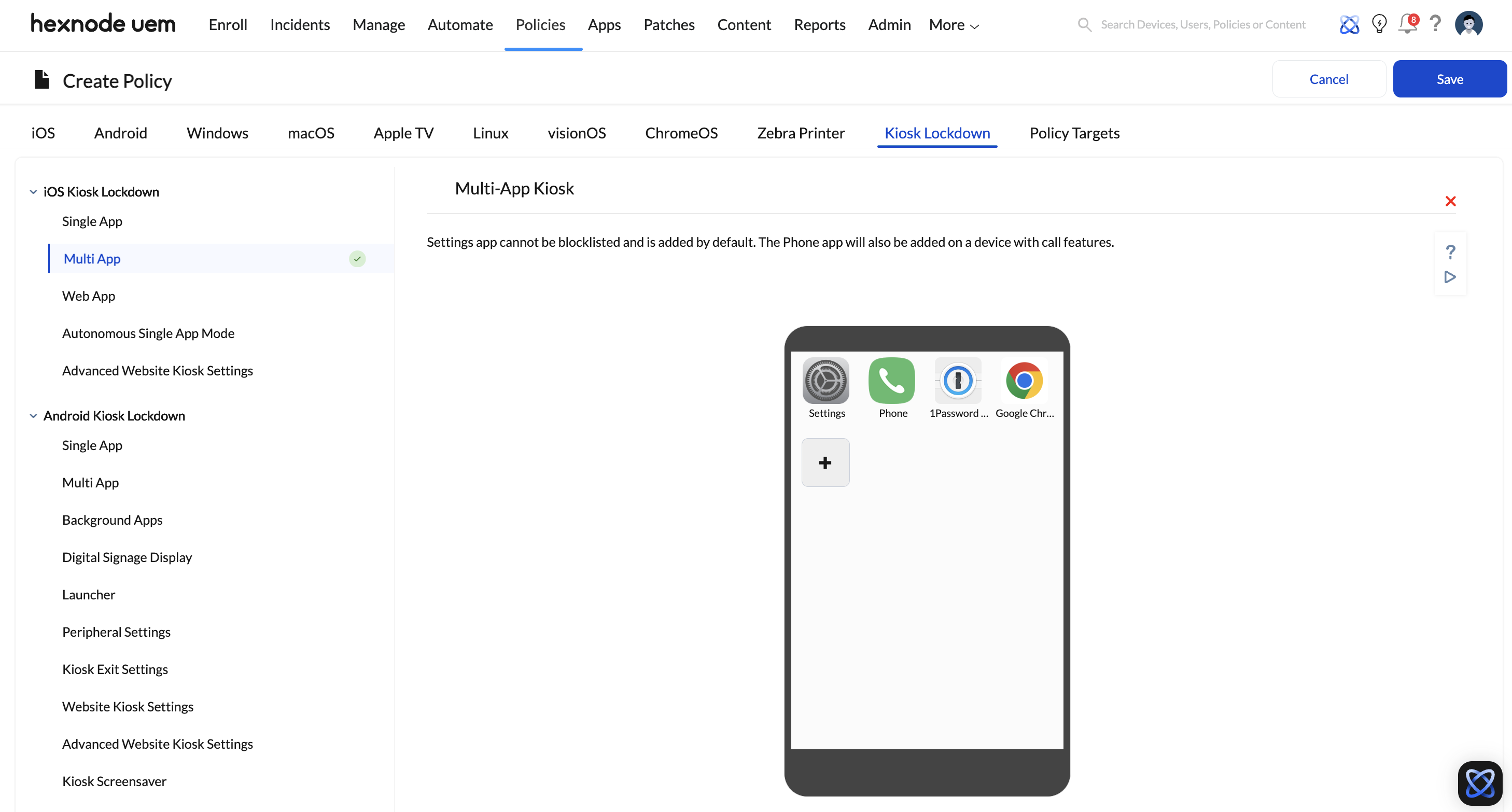
- Choose Kiosk Lockdown and under your platform-specific module (e.g., Android Kiosk Lockdown, iOS Kiosk Lockdown, Windows Kiosk Lockdown, ChromeOS Kiosk Lockdown, or Linux Kiosk Lockdown), select Multi App and click Configure.
Step 3: Selecting and Arranging Apps
- Click the + (Add) icon within the Multi-App Kiosk policy.
- Select the retail applications you added in Step 1 and click Done.
- App Arrangement by Platform:
- Android: You can directly drag and drop the app icons within the Hexnode policy UI to define their display order.
- iOS: To arrange the layout of the kiosk apps, you must configure a separate iOS > Configurations > Home Screen Layout policy.
- Windows, ChromeOS, and Linux: The operating system automatically dictates the app grid presentation.
Step 4: Customizing the Retail UI (Look and Feel)
Retail displays should be branded. Hexnode handles UI customization differently across platforms:
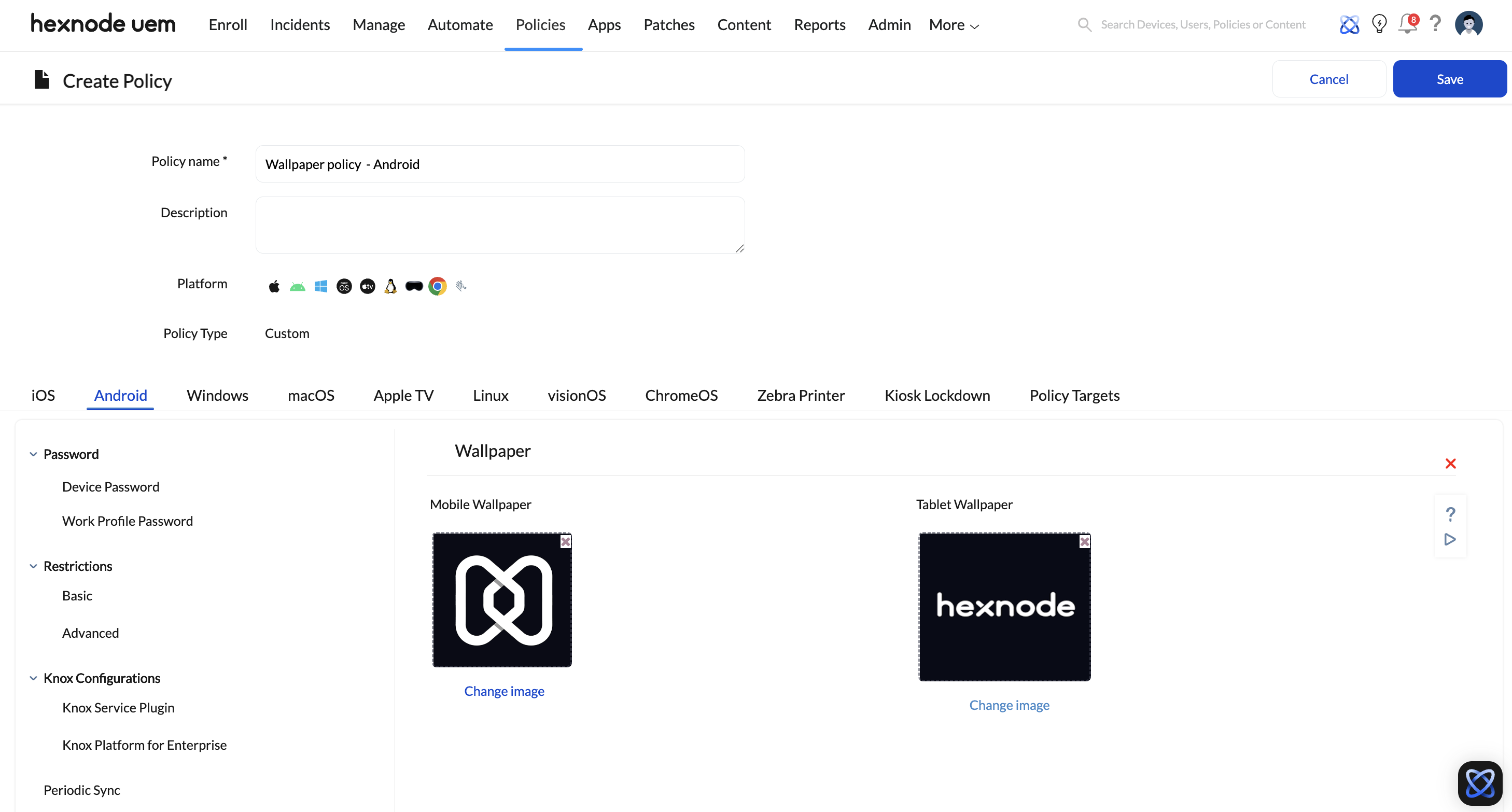
- Setting Wallpapers (Android, iOS, Windows, Linux): Wallpaper cannot be set directly inside the Kiosk profile. Instead, navigate to Policies > New Policy > Create a fully custom policy > [Platform] > Configurations > Wallpaper within the same policy to upload your high-resolution corporate logo.
- Hide Status Bar (Android Only): To create a fully immersive brand experience on Android, navigate to Policies > New Policy > Create a fully custom policy > Kiosk Lockdown > Android Kiosk Lockdown > Peripheral Settings > Display and check the box to Hide Status bar (removes clock, battery, and notifications).
Step 5: Configuring Security and Peripheral Rules
A retail kiosk must be resilient against tampering.
For Android Devices (via Peripheral Settings):
Navigate to Policies > New Policy > Create a fully custom policy > Kiosk Lockdown > Android Kiosk Lockdown > Peripheral Settings:
- Hardware Buttons: Under Hardware/Power Button, you can disable the Power Button, Volume Buttons, and Recent Apps button.
- Wi-Fi: Under Network, configure the device to connect to the store’s secure Wi-Fi and restrict users from toggling it off.
- Screen Timeout: Under Display, enable Keep screen on while plugged in.
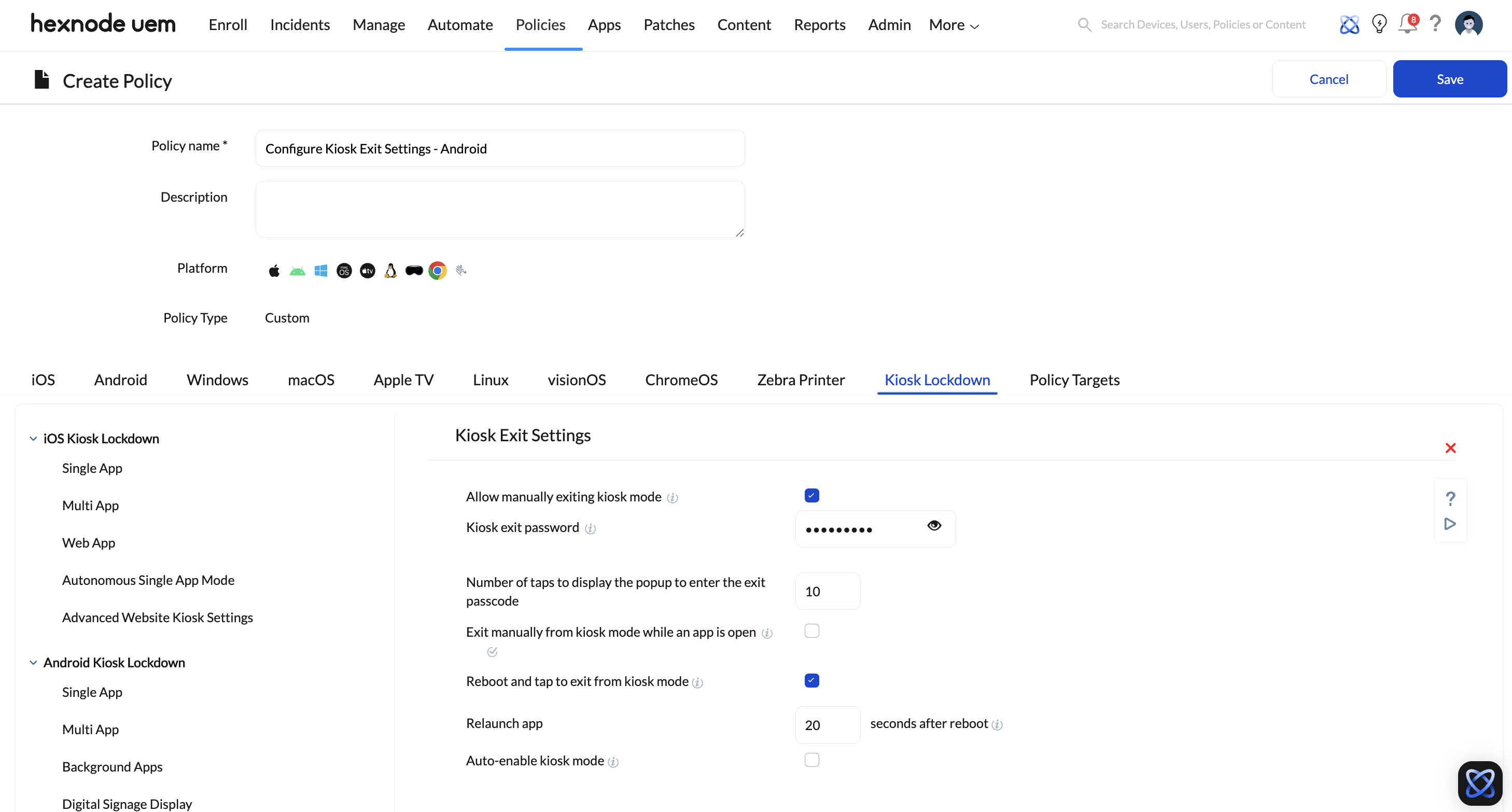
- Kiosk Exit Password: Navigate to Kiosk Lockdown > Android Kiosk Lockdown > Kiosk Exit Settings to define a PIN so staff can temporarily exit the mode for maintenance.
For ChromeOS:
Navigate to Policies > New Policy > Create a fully custom policy > Kiosk Lockdown > ChromeOS Kiosk Lockdown > Kiosk Settings to manage device health monitoring, system reboot settings, and screen behavior.
Step 6: Deploy to the Retail Floor
- Go to the Policy Targets tab within your open policy.
- Select the Devices, Device Groups, Users, User Groups or Domains/OUs (e.g., “New York Store – iPads”).
- Click Save. The devices will sync and automatically enter the restricted multi-app kiosk environment.
Best Practices for Retail Kiosks
- Use Background Apps (Android Only): If your retail app requires a secondary service (like a printing service for receipts), navigate to Policies > New Policy > Create a fully custom policy > Kiosk Lockdown > Android Kiosk Lockdown > Background Apps and add it. It will run silently without an icon on the kiosk home screen.
- Test the User Flow: Before shipping devices to stores, walk through the kiosk as a customer would to ensure no “dead ends” exist.
- Enable Remote View and Control: Use the Remote View and Control features in Hexnode to troubleshoot retail displays from the central office without needing a technician on-site. Hexnode supports full Remote View and Control for Android, ChromeOS, Linux, and Windows devices, allowing admins to interact with the kiosk screen directly. For iOS devices, only Remote View is supported.


