


Category filter
Deploying Advanced PowerShell Registry Fixes via Hexnode UEM
Executive Summary
Deploying advanced registry modifications across a distributed Windows fleet via a Unified Endpoint Management (UEM) solution requires strict attention to execution contexts. While Hexnode efficiently deploys .ps1 scripts over-the-air, these scripts execute invisibly in the background, primarily under the SYSTEM context. This document outlines the mechanical and architectural nuances of executing PowerShell registry fixes through Hexnode, ensuring high-fidelity system configurations without endpoint disruption or silent redirection failures.
1. Architectural Nuances: The Hexnode Execution Context
Before pushing registry-altering scripts, administrators must account for how the Hexnode agent interfaces with the Windows OS. Scripts do not run in the interactive user space by default; they run headlessly.
Targeting the Correct Registry Hive
Because Hexnode typically executes as SYSTEM, direct modifications to certain registry hives will not behave as they would in a local, user-driven PowerShell session.
| Registry Hive | Hexnode Accessibility | Deployment Strategy & Nuances |
|---|---|---|
| HKEY_LOCAL_MACHINE (HKLM) | Direct | Ideal for machine-wide configurations, application limits, and security baselines. Executes seamlessly under the SYSTEM context. |
| HKEY_CURRENT_USER (HKCU) | Restricted | Hexnode runs as SYSTEM. Modifying HKCU directly will alter the hidden SYSTEM profile, not the active user’s profile. To target the logged-in user, you must utilize Hexnode’s supported $currentUser execution level parameter, leverage Active Setup, or iterate through HKEY_USERS via script logic to map the correct SID. |
2. The 32-Bit / 64-Bit Redirection Challenge
One of the most common points of failure in UEM registry deployments is Windows architecture redirection. By default, MDM agents often spawn a 32-bit PowerShell session. If you attempt to modify a 64-bit registry path (e.g., HKLM:\SOFTWARE), Windows OS architecture will silently redirect your changes to the WOW6432Node path. This results in a “successful” script execution in Hexnode, but a failed registry fix on the target application.
The Fix: Forcing a 64-Bit Context
To bypass this limitation, force your .ps1 script to relaunch in the native 64-bit environment using the following script.
|
1 2 3 4 5 6 |
# Relaunch script in 64-bit PowerShell if executing in 32-bit (syswow64) if ($PSHOME -like "*syswow64*") { Write-Output 'Relaunching as x64' & (Join-Path ($PSHOME -replace 'syswow64', 'sysnative') powershell.exe) -File $Script:MyInvocation.MyCommand.Path @args Exit } |
3. Mechanics & Scripting Best Practices
A robust UEM registry script must be idempotent (safe to run multiple times without breaking configurations) and feature highly descriptive error handling.
- Idempotency & Path Checking: Always use Test-Path before generating a new registry key to prevent overwrite errors.
- Error Containment: Wrap your Set-ItemProperty and New-Item cmdlets in Try/Catch blocks. If an access violation or permission error occurs, the script fails gracefully instead of hanging.
- Verbose Standard Output: Because Hexnode runs the script silently, utilize Write-Output for every logical step. Hexnode captures this standard output, making remote troubleshooting viable.
Example Production-Ready Structure:
|
1 2 3 4 5 6 7 8 9 10 11 12 13 |
$registryPath = "HKLM:\SOFTWARE\Policies\Microsoft\Windows\WindowsUpdate" $name = "DisableWindowsUpdateAccess" $value = "1" Try { if (!(Test-Path $registryPath)) { Write-Output "Path does not exist. Creating path: $registryPath" New-Item -Path $registryPath -Force | Out-Null } New-ItemProperty -Path $registryPath -Name $name -Value $value -PropertyType DWORD -Force | Out-Null Write-Output "Successfully updated registry key: $name to $value" } Catch { Write-Output "Failed to update registry. Error: $_" } |
4. Deployment Strategy: Step-by-Step Execution Pipeline
To maintain version control and ensure reliable delivery, follow Hexnode’s official deployment pipeline for custom scripts.
Phase A: Uploading to the Hexnode Repository
Centralizing scripts prevents version mismatching across different administrator accounts.
- Log in to the Hexnode UEM portal.
- Navigate to the Content tab on the top menu.
- Select My Files from the left pane and click Add.
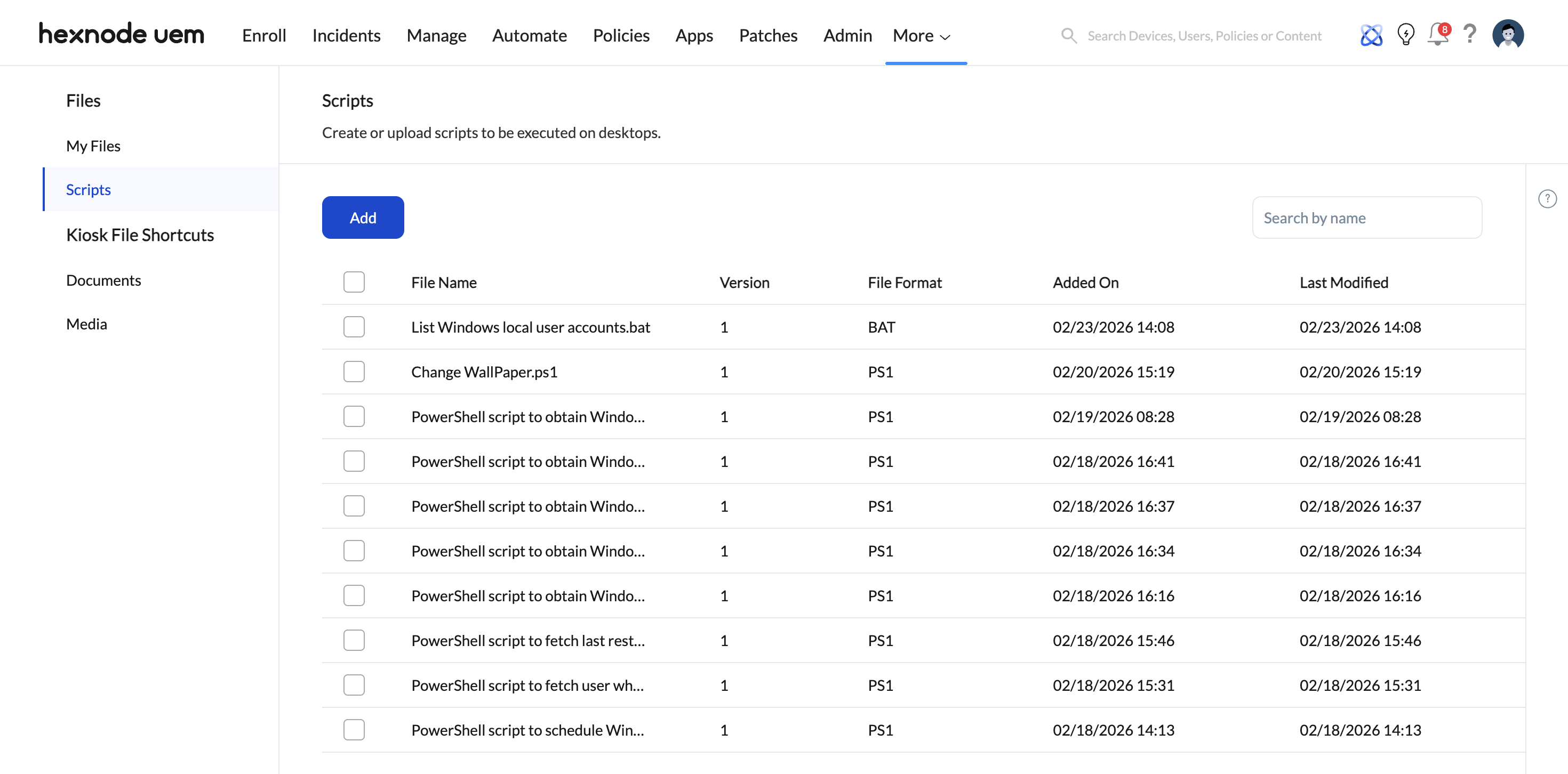
- Upload your tested .ps1 file. (Note: Ensure the filename contains absolutely no special characters like / : ? \ * | “ [ ] @ ! % ^ #, as these can cause database parsing errors).
- Click Save.
Phase B: Deploying to the Fleet
- Navigate to Manage > Devices.
- Select the target Windows endpoints (PCs or tablets) requiring the registry modification.
- Click on Actions > Others > Execute Custom Script.
- Select Windows as the platform.
- Under Script File Source, choose Hexnode repository and select your uploaded .ps1 file.
- Configure the Timeout Parameter: Hexnode enforces a default timeout of 30 minutes (minimum 15 minutes). For lightweight registry edits, this is more than sufficient. If the script hangs—often due to a blocking UI element or prompt—the Hexnode agent will forcefully terminate it once this limit is reached.
- Click Execute.
5. Auditing, Verification, and Troubleshooting
Because registry changes can critically alter application behavior and system stability, post-deployment auditing is non-negotiable.
Verification Workflow
- Action History Review: Navigate to Manage > Devices > [Device Name] > Action History.
- Check Status: Locate the specific “Execute Custom Script” action. Ensure it has moved from In Progress to Success.
- Validate the Output: Click Show Output. You should see the exact Write-Output telemetry stringed into your Try/Catch blocks. This confirms whether the target key was written or if an unexpected OS-level restriction blocked the action.
Common Troubleshooting Nuances
- Script Stuck ‘In Progress’: This typically implies the script is attempting to interact with the UI, which background execution blocks. Ensure all cmdlets are entirely silent (e.g., piping outputs to Out-Null).
- Execution Abruptly Terminated: Ensure the endpoint is awake, connected to the network, and that Hexnode agent background processes are allowlisted in the endpoint’s EDR/Antivirus solution.


