Category filter
Boot-Level Security for macOS: Architecting Firmware and Recovery Locks
Overview: Securing the Mac Hardware Below the Operating System
When architecting macOS security, IT teams typically rely on MDM policies and FileVault encryption to protect the operating system and the data at rest. However, a critical vulnerability exists beneath the OS layer: the boot environment.
If a bad actor (or a curious employee) gains physical access to a corporate Mac, they could bypass standard OS management by booting from an external USB drive, or boot into macOS Recovery to completely wipe the hard drive and bypass the MDM enrollment entirely.
Apple secures this boot layer differently depending on the processor architecture:
- Intel-based Macs: Utilize a Firmware Password.
- Apple Silicon Macs (M-Series): Utilize a Recovery Lock.
Hexnode UEM allows IT architects to secure both architectures seamlessly over the air. By leveraging remote actions, administrators can set, audit, and clear these hardware locks, ensuring that no Mac can be booted from an unauthorized volume or wiped via Recovery Mode without explicit IT authorization.
The “Boot Security” Comparison Matrix
| Hardware Type | Security Mechanism | Prerequisite | Core Function |
|---|---|---|---|
| Intel (T2 Chip) | Firmware Password | macOS 10.13+ | Prevents booting from external volumes/USB. |
| Apple Silicon (M1/M2/M3) | Recovery Lock | macOS 11.5+ | Prevents unauthorized entry into Recovery Mode. |
The Architectural Prerequisite: Fleet Readiness
While Hexnode UEM abstracts the complexity of Apple’s hardware transition by combining both Intel and Apple Silicon workflows into a single remote action, the fleet must meet Apple’s baseline MDM requirements:
- Intel-based Macs: Require macOS 10.13 or later.
- Apple Silicon Macs: Require macOS 11.5 or later.
- Management State: Devices must be enrolled via Automated Device Enrollment (ADE/DEP) and be Supervised.
Phase 1: The Mass Deployment Strategy (Setting the Lock)
The Operational Challenge: You need to lock down the recovery environment across your fleet. Because Hexnode UEM applies the password you define to all selected devices in a bulk action, applying a single password to 1,000+ machines creates a shared secret.
The Execution Strategy: To mitigate the risk of a shared secret, the architectural best practice is to divide your fleet into logical segments (e.g., by Department or Location via Device Groups) and assign a highly complex, unique password to each group.
- Navigate to Manage > Device Groups and select your targeted Mac group.
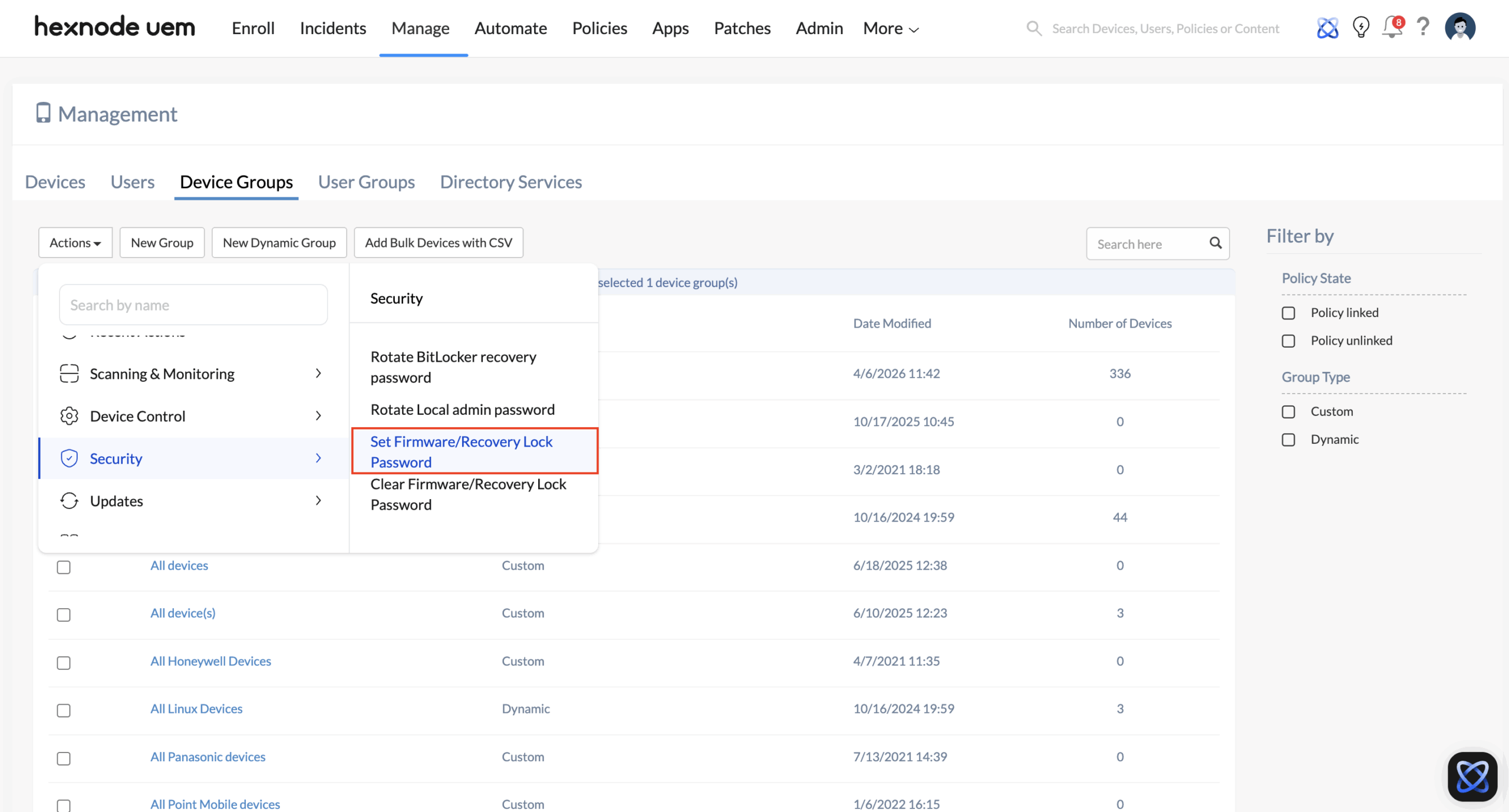
- From the top menu, click Actions > Security > Set Firmware/Recovery Lock Password.
- Hexnode will present a configuration prompt. Input your complex, vaulted password and verify it.
- Click Set Password to execute the remote command.
The Result: Hexnode silently deploys the payload to the hardware. If a user attempts to boot an Intel Mac from an alternate disk, or boot an Apple Silicon Mac into Recovery Mode, the system intercepts the process with a black screen and a padlock icon. The only way past it is to enter the password established by IT.
Phase 2: Continuous Compliance (Auditing the Lock)
The Operational Challenge: In highly regulated environments, IT cannot just assume a security payload was applied successfully; they must be able to prove it and ensure the lock hasn’t been locally modified or tampered with.
The Execution Strategy: If a security analyst needs to audit a device to ensure the IT-vaulted password is still valid, the admin does not need physical access to the machine. Hexnode UEM allows you to actively test your password against the device’s hardware over the air.
- Navigate to Manage > Devices and select the specific macOS device you want to audit.
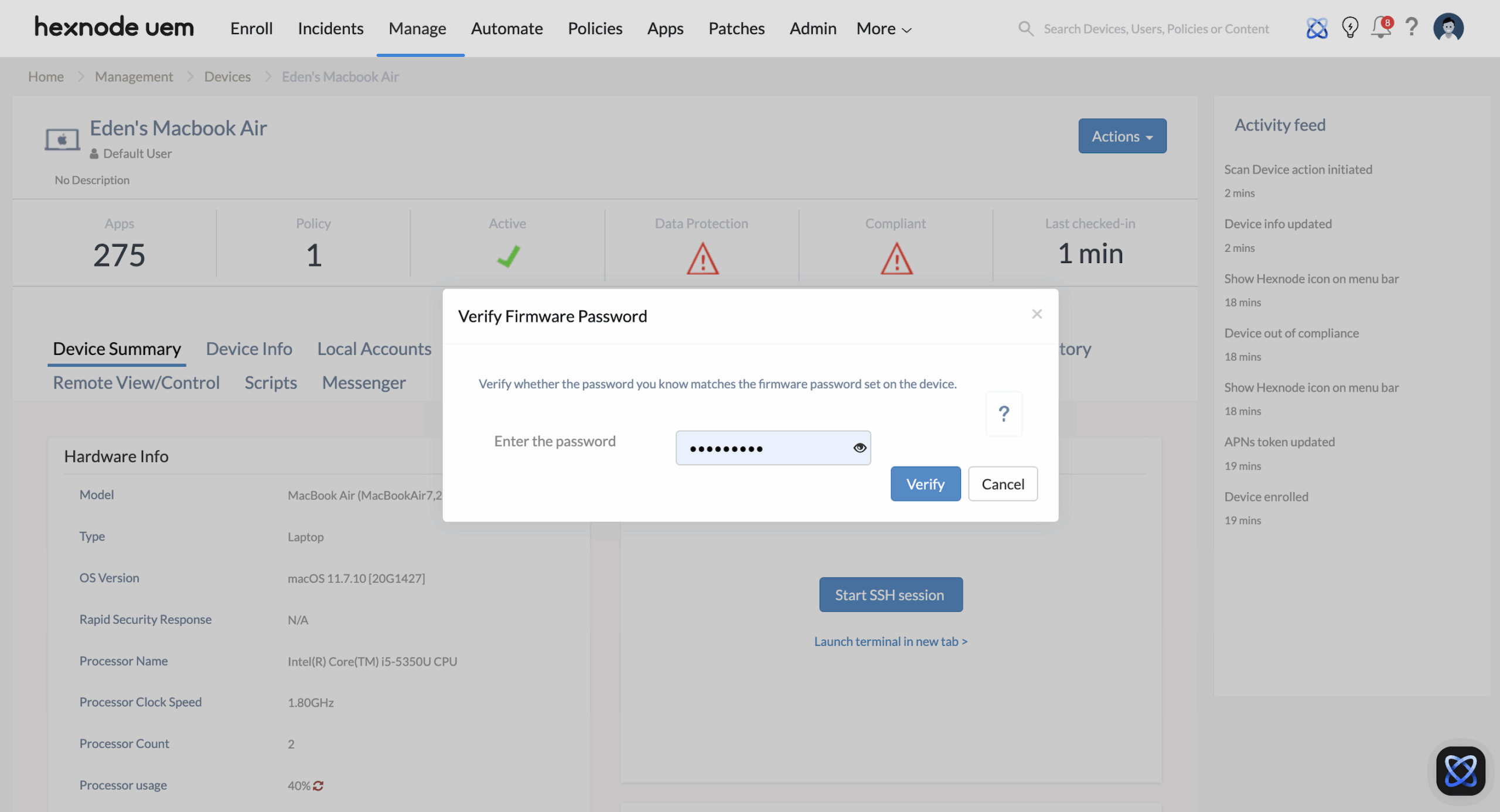
- Click the Actions dropdown menu and select Security > Verify Firmware Password.
- Hexnode will present a prompt. Enter the password you wish to check against the device (the password you previously deployed).
- Click Verify.
- Check the Action History tab on the device’s summary page. Hexnode will confirm whether the password you entered matches the lock currently active on the device, proving your boot security is intact and untampered.
Phase 3: The Decommissioning & Repair Workflow (Clearing the Lock)
The Operational Challenge: A Firmware/Recovery Lock is designed to be ruthless. If a corporate Mac suffers a hardware failure and needs to be shipped to an Apple Store for logic board repair, or if the device is being sold at the end of its lifecycle, a locked device is essentially a brick. Apple technicians cannot run their diagnostic tools, and the next owner cannot wipe it.
The Execution Strategy: Before decommissioning the hardware or sending it out for repair, IT must cleanly strip the boot security over the air.
- Navigate to Manage > Devices (or Device Groups for bulk offboarding).
- Select the targeted Macs.
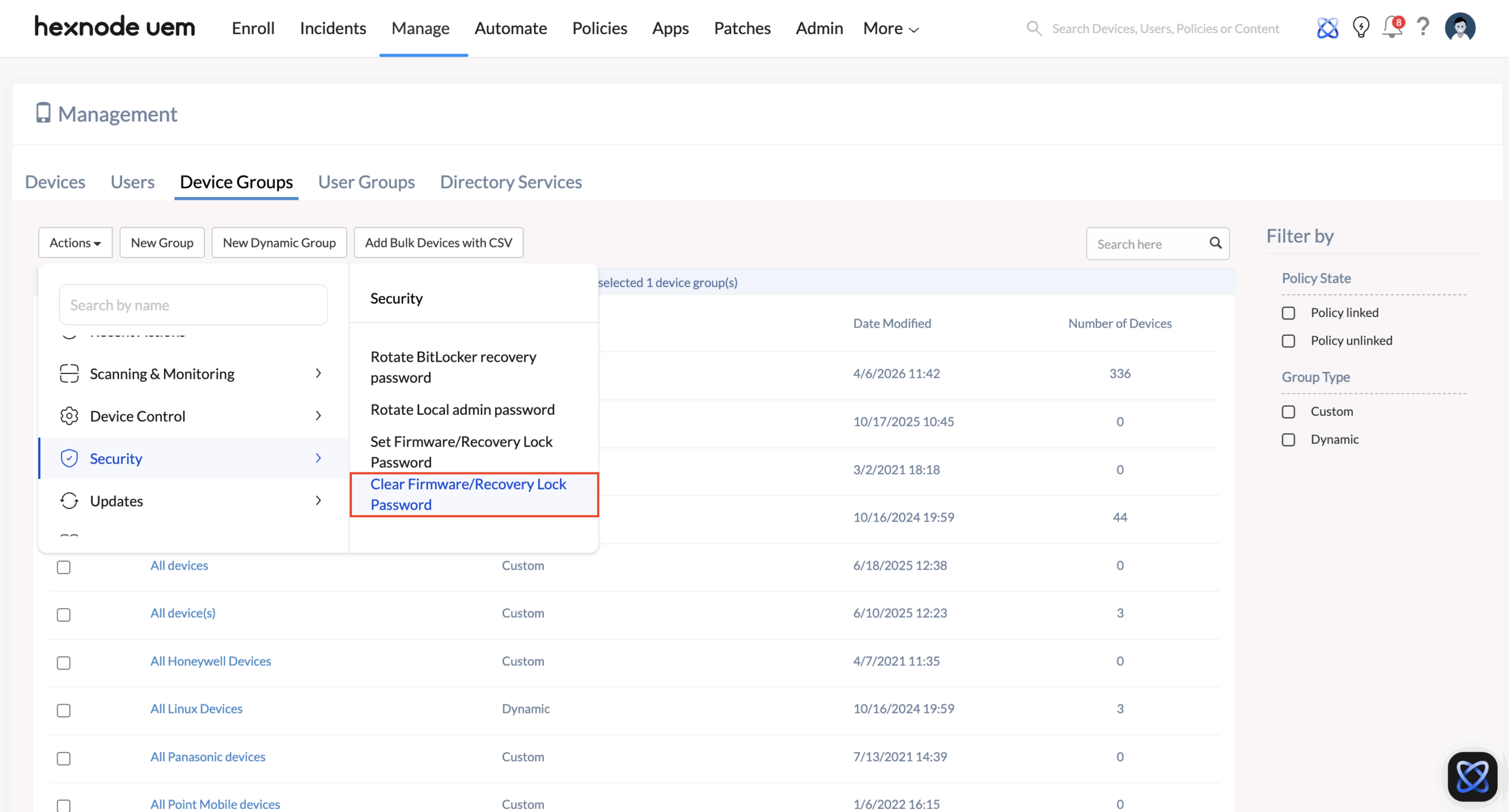
- From the top menu, click Actions > Security > Clear Firmware/Recovery Lock Password.
- Confirm the prompt. Hexnode UEM authenticates with the hardware and permanently removes the boot restriction.
- Once the Action History confirms the removal was successful, the device is completely unlocked and safe to be factory wiped, repaired, or released from your Apple Business Manager portal.