


Category filter
Allow APK Install Without Removing Restrictions for the Entire Fleet
TL;DR
To allow third-party .apk installation on a single Android device in Hexnode UEM, clone the existing Android policy, remove the Install apps from unknown sources restriction in the cloned policy, remove the original policy from the target device, and apply the cloned policy to that device only. The restriction cannot be overridden by a script or a second policy while the restrictive policy remains applied to the device.
What does “Install apps from unknown sources” mean in Hexnode UEM?
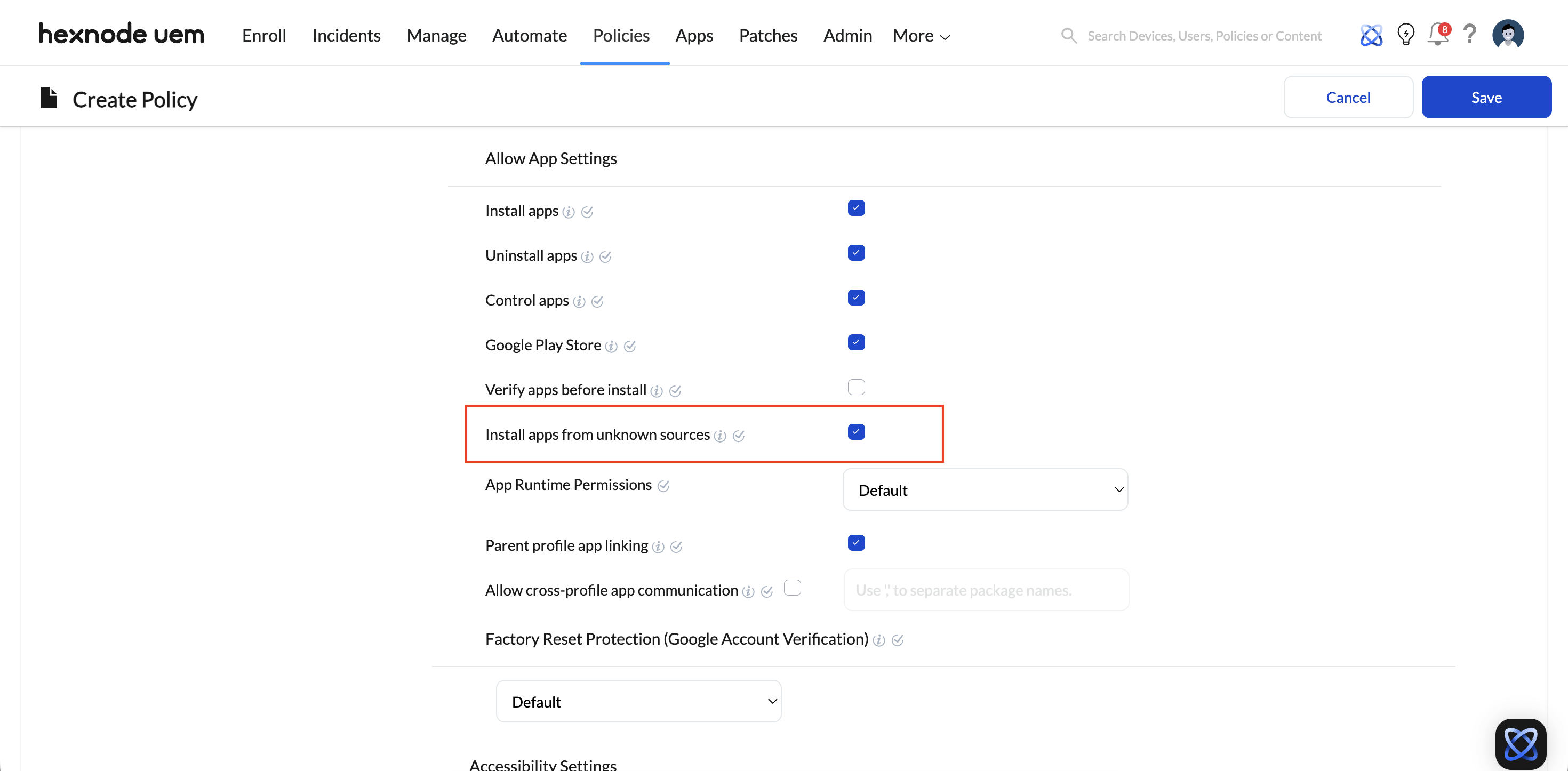
In Hexnode UEM, the Install apps from unknown sources setting is an Android restriction found under Policy > Android > Advanced Restrictions > Allow App Settings. When this restriction is disabled in an applied policy, Android blocks the installation of any .apk file that did not come from the Google Play Store or the Hexnode app inventory. The restriction applies to every device associated with that policy.
This is a policy-enforced restriction — not a device-level toggle that can be temporarily bypassed by a script, another policy, or a remote command while the restrictive policy remains applied.
What you need to know before starting
- The target device must be an Android device managed in Hexnode UEM.
- The app package must be a
.apkfile. This configuration does not apply to.pkgor other formats. - The current policy applied to the device must have Install apps from unknown sources disabled.
- The exception is for one device. Other devices in the same policy group continue using the original restricted policy.
- Editing the original policy directly would remove the restriction for all devices assigned to it — not just the target device. Cloning is the correct approach for a single-device exception.
Why the restriction cannot be overridden without changing the policy
The Install apps from unknown sources restriction in Hexnode UEM is enforced at the MDM policy level. A second policy, a remote script, or a temporary exemption cannot override it while the restrictive policy remains applied to the device. The only way to permit unknown source installation on a specific device is to apply a policy to that device where the restriction is not enabled.
Note: Removing the restriction from the original policy would affect all devices associated with that policy. Clone the policy first to create a controlled exception for the target device without changing the rest of the fleet.
How to allow APK installation from unknown sources on one Android device
Step 1: Clone the existing Android policy
- Go to the Policy tab in the Hexnode portal.
- Locate the Android policy currently applied to the target device.
- Click the clone icon on the right side of the policy row to duplicate it.
Step 2: Remove the restriction in the cloned policy
- Open the cloned policy.
- Navigate to Android > Advanced Restrictions > Allow App Settings.
- Remove the restriction for Install apps from unknown sources.
- Save the cloned policy.
Step 3: Reassign the target device to the cloned policy
- Remove the original restricted policy from the target Android device.
- Apply the cloned policy to the target Android device.
- Sync the device to confirm the policy is applied.
What happens after applying the cloned policy
The target Android device receives the cloned policy where Install apps from unknown sources is permitted. Third-party .apk installation is now allowed on that device. All other devices remain assigned to the original policy with the restriction active — their configuration is unchanged.
Real-world scenario
An IT admin manages a fleet of 60 Android tablets in a warehouse. All 60 devices are assigned an Android policy with Install apps from unknown sources disabled. A logistics vendor provides a custom inventory .apk that needs to be sideloaded on one specific tablet used by the warehouse supervisor. The admin clones the existing policy, removes the unknown sources restriction in the clone, removes the original policy from the supervisor’s tablet, and applies the clone. The supervisor’s tablet can now install the vendor .apk. The other 59 tablets remain on the original restricted policy.
What this configuration does not do
| Misconception | Reality |
|---|---|
| A script can temporarily bypass the restriction for one device. | No. The restriction is policy-enforced. It cannot be overridden by a script or remote command while the restrictive policy remains applied. |
| A second policy can override the restriction on a single device. | No. The existing restrictive policy must be removed from the device and replaced with a policy where the restriction is not enabled. |
| Editing the original policy creates a single-device exception. | No. Editing the original policy changes the restriction for all devices assigned to it. Clone the policy to create a controlled exception for one device. |
| This configuration applies to .pkg files. | No. Android application packages use the .apk format. .pkg files are used on macOS. This configuration applies to Android devices and .apk files only. |
| Unknown sources can be enabled from the device itself while a policy blocks it. | No. MDM policy enforcement overrides the device-level setting. The user cannot enable unknown sources on the device while the restrictive policy is applied. |
Frequently Asked Questions
How do I allow APK installation from unknown sources on one Android device in Hexnode?
Clone the Android policy currently applied to the target device. In the cloned policy, navigate to Android > Advanced Restrictions > Allow App Settings and remove the Install apps from unknown sources restriction. Remove the original policy from the target device and apply the cloned policy to it. Other devices remain on the original restricted policy.
Why can't I just apply a second policy to override the restriction?
The Install apps from unknown sources restriction is enforced at the MDM policy level. A second policy cannot override it while the restrictive policy remains applied to the device. The restrictive policy must be removed from the device and replaced with one where the restriction is not enabled.
Will cloning the policy affect other devices?
No. Cloning creates a new, separate policy. The original policy and all devices assigned to it are unaffected. Only the target device is moved to the cloned policy.
Why clone the policy instead of editing the original?
Editing the original policy removes the restriction for every device assigned to it — not just the target device. Cloning preserves the original configuration for the rest of the fleet and creates a controlled exception for one device.
Can the user enable unknown sources directly on the device?
No. When a Hexnode UEM policy disables Install apps from unknown sources, MDM policy enforcement overrides the device-level toggle. The user cannot re-enable it on the device while the restrictive policy is applied.
Does this configuration work for all Android enrollment types in Hexnode?
The Install apps from unknown sources restriction under Advanced Restrictions applies to Android devices managed in Hexnode UEM. Behavior may vary depending on the Android Enterprise enrollment mode — for example, fully managed devices or work profile devices — and the Android OS version. Verify behavior on the target enrollment type before deploying.
What is the difference between installing an APK through Hexnode and sideloading from unknown sources?
Deploying an .apk through Hexnode UEM’s app inventory is a managed installation — it goes through the MDM workflow and does not require the Install apps from unknown sources restriction to be removed. Sideloading refers to installing an .apk directly on the device outside of the managed workflow, which requires the restriction to be removed from the applied policy.


