


Category filter
How to completely Wipe a Device?
TL;DR
The Wipe Device remote action in Hexnode UEM performs a factory reset on managed devices to permanently remove corporate and personal data when a device is lost, stolen, compromised, reassigned, or retired. The action is irreversible and may remove the device from Hexnode management depending on the platform and enrollment method. Automated re-enrollment is supported for certain Android, ADE-enrolled Apple, and supported iOS or visionOS workflows when the required enrollment and Return to Service conditions are met.
The Wipe Device remote action is a critical security measure that performs a factory reset on managed devices, permanently deleting all data to prevent corporate leaks if an asset is lost or stolen.
Why perform a Complete Device Wipe?
Wiping a device is the final line of defense for data protection. While locking a device prevents immediate access, a complete wipe ensures that even if encryption is bypassed, sensitive corporate and personal information remains inaccessible.
- Data Protection: Erases files, contacts, calendars, apps, and certificates.
- Asset Disposal: Prepares a corporate-owned device for retirement or reassignment.
- Security Compliance: Safeguards against unauthorized access on compromised endpoints.
Platform Support and Compatibility
The Wipe Device action is supported across multiple operating systems, with specific behavior variations based on version and management state.
| Platform | Supported Versions / Conditions |
|---|---|
| Android | Version 5.0 or later. |
| iOS / tvOS | iOS 4.0+, tvOS 10.2+. |
| macOS | 10.7+. macOS 12.0.1+ uses Erase All Content and Settings (EACS). |
| Windows | All managed Windows devices. |
| ChromeOS | All managed ChromeOS devices. |
| Linux | Fedora 36+, Ubuntu 18.04+, Debian 10+. User credentials required for Linux Mint. |
| Other | Fire OS 6.0+, visionOS. |
Critical Warnings
- Irreversibility: The wipe process cannot be stopped or paused once initiated.
- Total Data Loss: All data, corporate and personal, is permanently deleted.
- Management Loss: Standard Android, unsupervised iOS, Windows, and Mac devices are removed from Hexnode management and require manual re-enrollment.
- Linux Impact: The device is rendered unusable and requires a complete OS re-installation.
Step-by-Step Guide: Executing a Remote Wipe
Follow these steps to initiate a factory reset from the Hexnode UEM console:
- Log in to the Hexnode UEM portal.
- Navigate to the Manage tab.
- Select the target device(s) you wish to wipe.
- Click Actions > Security > Wipe Device.
-
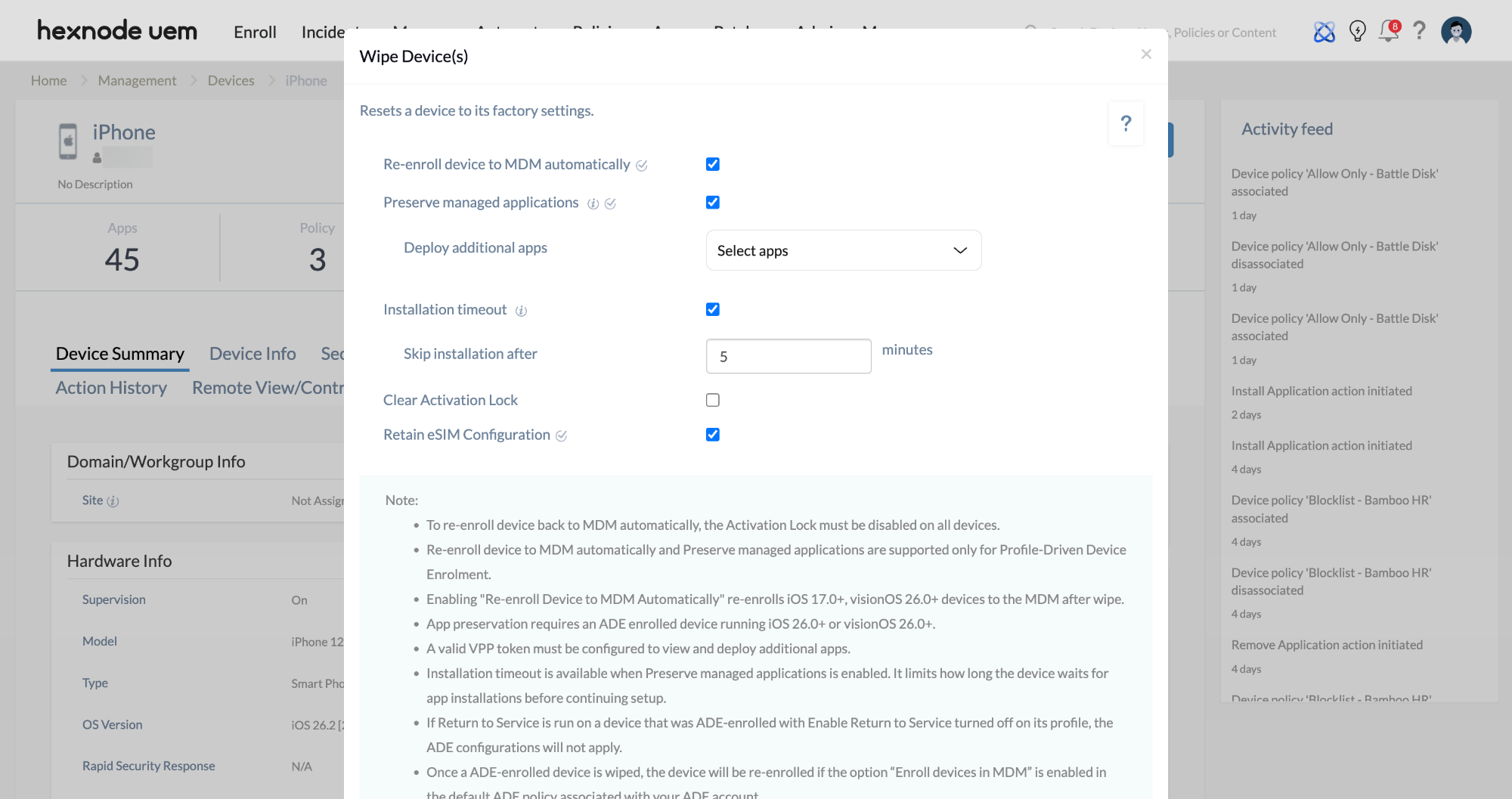
Configure platform-specific options in the prompt:
- macOS 10.8+: Enter the Find My Mac PIN.
- Clear Factory Reset Protection/Activation Lock: Enable Clear Factory Reset Protection/Activation Lock to remove lock screens on supervised iOS/macOS or Android Enterprise devices.
- macOS 12.0+ Fallback: Choose between Complete Wipe for manual OS install or Do not wipe if EACS fails.
- ChromeOS Methods: Select Remove User Profiles to retain policies or Factory Reset to erase everything.
-
iOS and visionOS:
- Re-enroll device to MDM automatically: Enable this option to automatically re-enroll devices into Hexnode UEM after wiping.
-
Preserve managed applications: Enable this option to retain managed applications assigned through the ADE enrollment profile when wiping the device.
-
Deploy additional apps: Use this dropdown to select additional apps to be deployed on the device after wiping it.
- Installation timeout: Enable this option to limit how long Setup Assistant pauses in the foreground to install preserved or additional apps when a device restarts after a wipe. The installation phase times out if it exceeds the specified duration, and the Setup Assistant proceeds with the device setup.
-
Deploy additional apps: Use this dropdown to select additional apps to be deployed on the device after wiping it.
-
Enable Retain eSIM Configuration to preserve mobile data plans.
- Click Wipe.
- Enter your Hexnode UEM portal password and click Confirm to authorize the action.
Post-Wipe Re-enrollment Behavior
| Device Enrollment Type | Automatic Re-enrollment? |
|---|---|
| Android (Knox, Zero-touch, ROM/OEM) | Yes. Requires internet connection. |
| visionOS (DEP / ADE) | Yes. |
| iOS (DEP / ADE) | Yes. Unless within the 30-day provisional period. |
| iOS (Profile-driven enrollment) | Yes, if the Re-enroll device to MDM automatically option is enabled. |
| iOS (Apple Configurator) | No. Manual enrollment required. |
| Standard Windows / Mac | No. Manual enrollment required. |
Automatic device wipe using Hexnode UEM
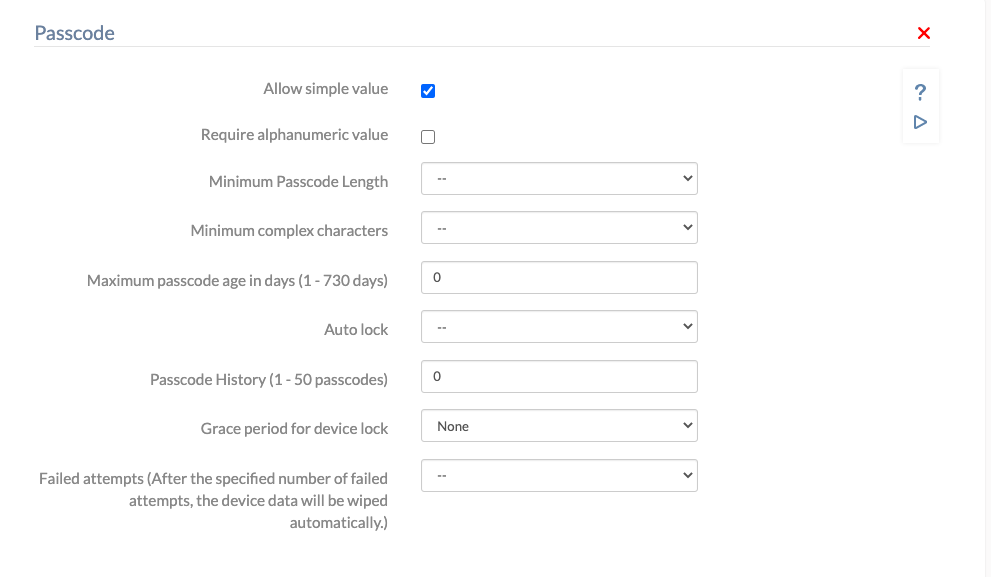
A device can be set up to get completely wiped automatically if the user enters an incorrect password for a specific number of times. This feature is available only on iOS, Android, and Windows devices.
Configure automatic wipe after failed password attempts
- Go to Policies and create a new policy or continue with an existing one.
- Go to iOS > Passcode, Android > Device Password, Android > Work Profile Password, or Windows > Password.
- Set a value for Failed Attempts or Failed attempts before wipe.
Associate the policy with targets before saving
- Go to the Policy Targets tab from the policy setup screen.
- Add devices, users, device groups, user groups, or domains.
- Save the policy.
Associate the policy with targets after saving
- Go to Policies and select the required policy.
- Click Manage > Associate Targets.
- Click Device/User/Device Group/User Group/Domain.
- Select the required targets and click Associate.
Troubleshooting Guide
OS cannot be reinstalled on erased macOS devices
Problem: OS cannot be installed back on macOS devices after a device wipe. You may have to install or reinstall the same OS version from scratch to resolve this issue.
Resolution:
- Boot to the Recovery HD: Restart the Mac, and after the chime, long-press the command + R keys until the menu screen appears. Else, long-press the option key until the boot manager screen appears. Then, choose Recovery HD and click on the corresponding arrow button.
-
Erase the Hard Drive:
- Select Disk Utility in the macOS Utilities window and click Continue.
- Select the startup volume, generally Macintosh HD, from the Disk Utility left panel. Then click Erase in the main window.
- Input a partition name and set the partition format as Mac OS Extended (Journaled).
- Click Erase in the pop-up window.
- Close the Disk Utility window and go back to the macOS Utilities menu.
- Reinstall macOS: Close the Disk Utility window and go back to the macOS Utilities menu. Choose Reinstall macOS and proceed with the installation.
Wipe action remains in “Pending” status
Problem: The Wipe Device action does not execute and remains pending in the portal.
Possible Causes:
- The device is powered off.
- The device is not connected to the internet.
- The device is no longer actively communicating with the management server.
Resolution:
- Ensure the device is powered on.
- Confirm it has an active internet connection, such as Wi-Fi or cellular.
- Verify the device is checking in with the server.
- Retry the action once connectivity is restored.
Device did not re-enroll after wipe
Problem: The device does not automatically re-enroll in management after the wipe completes.
Possible Causes:
- The device was not enrolled using an automated enrollment program, such as Knox, Zero-touch, ADE, or DEP.
- The ADE Enrollment Profile does not have Enroll devices in MDM enabled.
- The device was within the 30-day provisional period for Apple Configurator-added iOS devices.
Resolution:
- Verify the enrollment method used before wipe.
- Ensure automated enrollment settings are correctly configured in the respective enrollment program.
- Manually re-enroll the device if automatic re-enrollment is not supported.
Frequently Asked Questions
What happens when a device is wiped from Hexnode UEM?
When the Wipe Device action is initiated, Hexnode UEM sends a factory reset command to the selected managed device. The device deletes its data and returns to a reset state. Depending on the platform and enrollment method, the device may either re-enroll automatically or require manual enrollment after the wipe.
Can the Wipe Device action be cancelled after it is initiated?
No. The wipe process cannot be stopped, paused, or reversed after it starts. Admins should confirm the selected device and review the platform-specific wipe options before authorizing the action.
Does wiping a device delete all data?
Yes. A device wipe permanently deletes data from the device, including corporate and personal data. On supported iOS devices, admins may choose to retain the eSIM configuration if the Retain eSIM Configuration option is available and enabled before wiping.
Does wiping a device remove it from the Hexnode UEM portal?
No. Wiping a device resets the endpoint, but the device record and historical details remain in the Hexnode UEM portal until an admin manually deletes them. However, some devices may no longer be managed after the wipe and may require manual re-enrollment.
Which devices can re-enroll automatically after a wipe?
Devices enrolled through supported automated enrollment methods, such as Android Knox, Android Zero-touch, ROM/OEM enrollment, Apple ADE, or DEP, can re-enroll automatically when the required conditions are met. For supported iOS and visionOS devices, automatic re-enrollment also depends on the Re-enroll device to MDM automatically option and related Return to Service requirements.
Why does the Wipe Device action remain in Pending status?
The Wipe Device action may remain pending if the device is powered off, offline, or not communicating with the Hexnode server. Ensure the device is turned on, connected to the internet, and able to check in with Hexnode UEM before retrying or waiting for the pending action to execute.
What is the difference between EACS and Complete Wipe on macOS?
On macOS 12.0.1 and later, Erase All Content and Settings removes user data and settings without deleting the operating system. A Complete Wipe erases the disk more fully and may require a manual macOS reinstall if used as a fallback.
Can a user bypass remote management after an iOS device wipe?
Users may be able to leave remote management only when an iOS device was added to ADE through Apple Configurator and is still within the 30-day provisional period. After that period, the option to leave remote management is no longer available.


