


Category filter
Remote Action Guide: Erasing Safari History with Hexnode UEM
The Erase Safari History remote action allows IT administrators to clear browsing history from the Safari browser on managed macOS devices directly from the Hexnode UEM console.
Why Erase Safari History Remotely?
Clearing browser data helps keep corporate devices secure and running smoothly. IT admins typically use this action to:
- Protect Privacy and Data: Clears the record of visited websites to keep user browsing history private, which is especially important for shared devices or public kiosks.
- Stay Compliant: Easily meets company data retention policies and official privacy regulations (like GDPR or HIPAA).
Prerequisites
| Prerequisite | Condition |
|---|---|
| Operating System | The action is supported on macOS devices. |
| Enrollment | The device must be enrolled in Hexnode UEM. |
| Network Connectivity | The device must be online to execute the command instantly. |
Step-by-Step Guide: Erase Safari History from Hexnode UEM
To erase Safari history from a single or multiple macOS devices:
- Log in to the Hexnode UEM portal.
- Navigate to Manage > Devices.
- Select the required macOS device(s).
- Click the Actions drop-down and select Others > Erase Safari History.
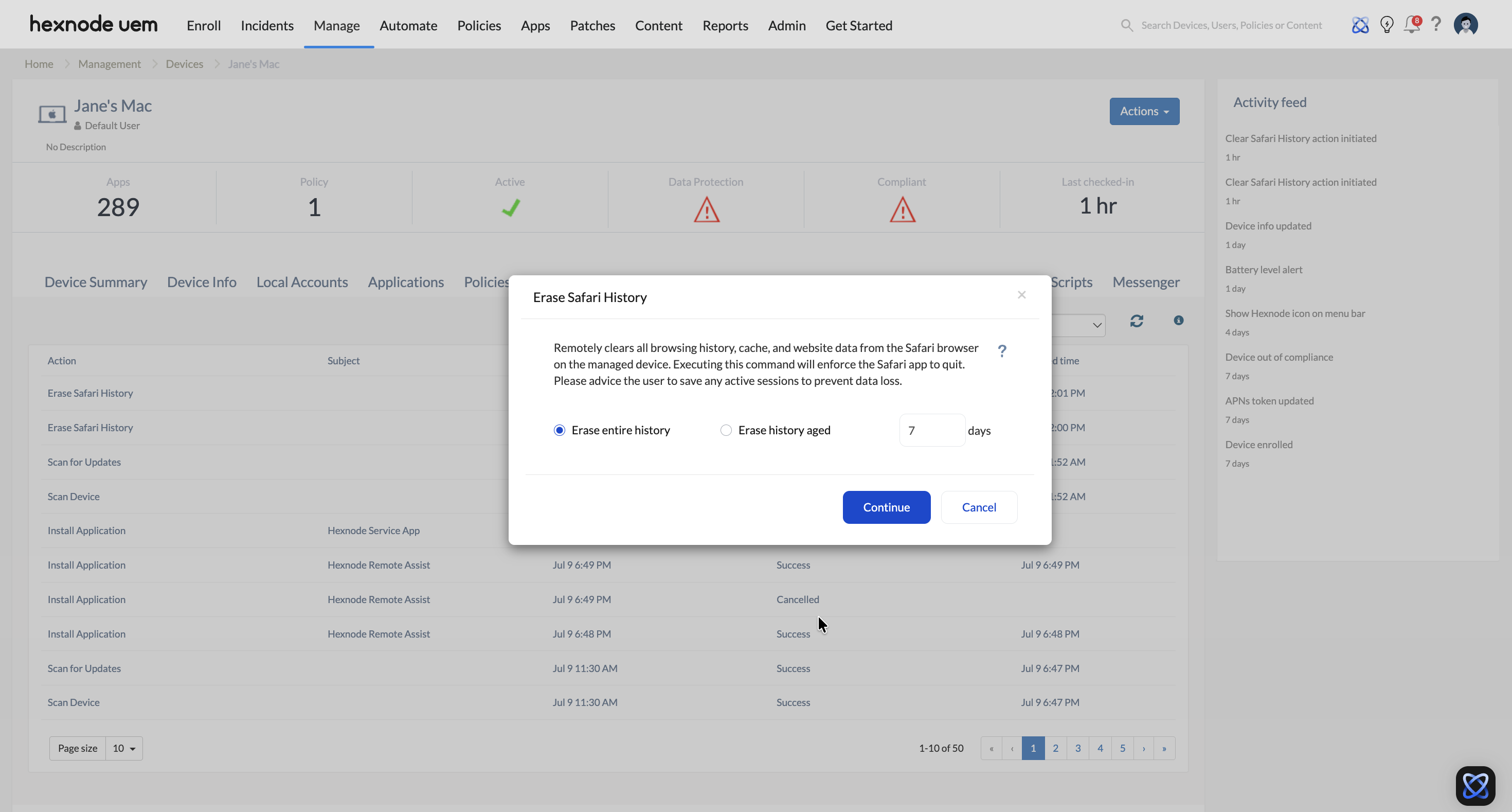
- Select the specific data erasure scope by choosing one of the following options:
- Erase entire history: Completely erases all accumulated Safari browsing logs from the device.
- Erase history aged: Enter the number of days (1 – 365). This option clears only the history logs generated within that specific time window.
- Click Continue.
Device End Behavior
Once the remote instruction hits the target macOS platform:
- The Safari application will immediately force quit if it is actively running in the foreground or background.
- All specified browsing history records are instantly deleted.
- The user can reopen Safari right away. However, all browsing history logs and lists of previously visited websites will be completely wiped out based on the admin’s chosen configuration scope.
Frequently Asked Questions
What happens if the managed macOS device is offline when the action is triggered?
If the device is unreachable, Hexnode UEM automatically places the action into a pending queue. The command will execute automatically the exact moment the device reconnects to the network and checks in with the UEM server.
Does erasing Safari history delete user bookmarks or saved passwords?
No. This remote action specifically targets history trails, ephemeral caches, and website session cookies. It does not tamper with user bookmarks, reading lists, or passwords securely managed inside the native macOS iCloud Keychain.
Will the end-user receive any alert or notification before Safari force closes?
No. The command executes silently on the backend without showing any confirmation prompts or warning messages to the end-user.


