


Category filter
Enroll Windows Server with Hexnode Installer
Deployment Overview
Deploying a management agent to a Windows Server should not require complex cloud directory integrations or heavy backend infrastructure. Enrolling via the Hexnode Installer is a straightforward, user-driven deployment method that uses a simple, downloadable executable file to securely onboard your Windows Server to the Hexnode Unified Endpoint Management (UEM) console.
This installer-based enrollment method is useful because it does not require additional deployment infrastructure. System Administrators can install the Hexnode agent directly on both physical Windows Servers and cloud-hosted virtual machines, making it suitable for one-off deployments, test environments, branch servers, and mixed server fleets.
By simply accessing a secure web link directly from the endpoint, System Administrators can download the agent, run the setup wizard, and instantly bring the Windows Server under centralized management for health monitoring and policy enforcement.
Supported Platforms & Prerequisites
Before beginning the enrollment process, verify that the target Windows Server meets the necessary baseline requirements.
Supported Operating Systems:
- Windows Server 2019
- Windows Server 2022
- Windows Server 2025
Deployment Prerequisites:
- Local Administrator Privileges: You must be logged into the target Windows Server with an account that has local administrative rights to execute the installation file.
- Active Internet Connectivity: The Windows Server requires an active outbound internet connection to successfully communicate with your Hexnode UEM server.
- Open Browser Ports: Standard web traffic (Port 443/HTTPS) must be permitted so the Windows Server can access the portal URL and download the installer assets.
Enterprise Use Cases
While automated scripts exist, System Administrators should choose the Hexnode Installer method for its simplicity and reliability in the following scenarios:
- On-Premises Data Centers: Perfect for traditional, physical rack servers that operate entirely independently and are not connected to a modern cloud directory like Microsoft Entra ID.
- Cloud/Virtual Environments: Ideal for manually onboarding newly created virtual servers (VMs) hosted in AWS, Azure, or VMware before complex, automated provisioning pipelines have been built.
- Legacy System Management: Provides a fast, manual method to bring older or unmanaged Windows Servers under centralized control, allowing System Administrators to immediately enforce security policies and monitor compliance.
Enrollment Workflow
Step 1: Portal Configuration (Hexnode UEM Console)
To begin, you must act from your Hexnode UEM console. Your goal in this step is to select how the Windows Server will be categorized and to generate the specific download link for the installer.
- Log in to the Hexnode UEM console.
- Navigate exactly to: Enroll > Platform-Specific > Windows Server > Windows Server Enrollment > Information.
- Select your desired Enrollment Profile from the dropdown menu.
Understanding the Profile: In Hexnode UEM, an enrollment profile dictates the initial onboarding experience by defining general settings (like device ownership and group assignment), device configurations, and user authentication methods. Learn more about configuring Windows Enrollment Profiles.
- Note that the target Username and the generated Enrollment URL will update dynamically based on the profile you selected.
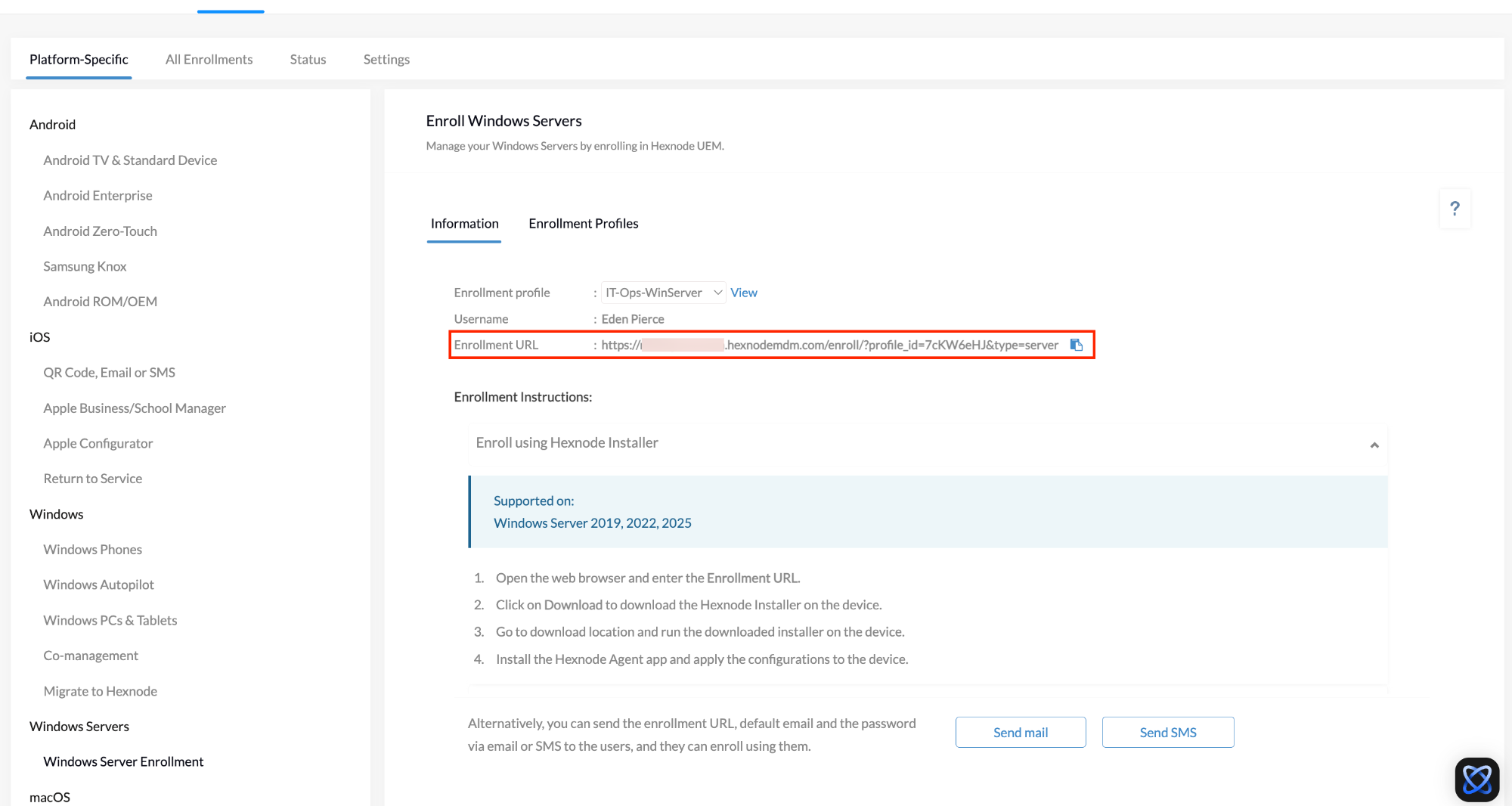
- Click the View option located beside the chosen profile. This allows you to quickly double-check the profile’s assignment rules before you deploy.
- Direct Copy: Copy the uniquely generated Enrollment URL to your clipboard. You will need to access this exact link from the target Windows Server itself.
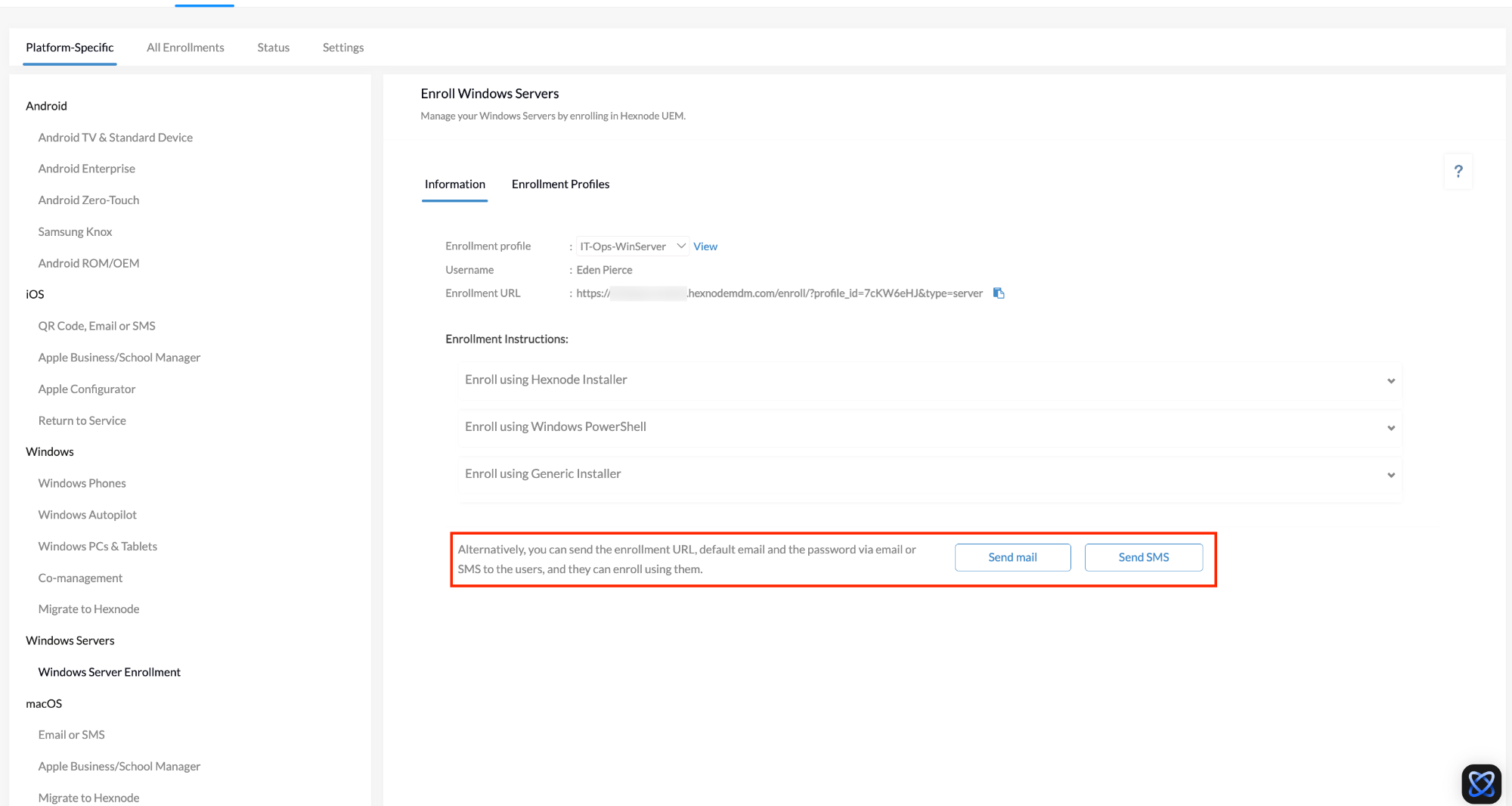
- Alternative Distribution (Email/SMS): Alternatively, you can send the Enrollment URL, default email, and password via email or SMS to the users, and they can enroll using them. Scroll to the end of the enrollment instructions to locate the Send Mail and Send SMS options to quickly distribute these details.
Step 2: Device-Side Execution (On the Target Windows Server)
Now, transition your focus away from the Hexnode UEM console and log directly into the desktop of the target Windows Server.
- On the Windows Server, open an authorized web browser (such as Microsoft Edge).
- Paste the copied Enrollment URL into the address bar and press Enter.
- Click the Download button on the webpage to pull the specialized Hexnode Installer package onto the server’s local hard drive.
- Locate the downloaded file (typically found in your Downloads folder) and run the installer. Ensure you run it with elevated administrator rights.
- Follow the standard on-screen setup wizard. The wizard will fully install the Hexnode Agent application and automatically link the Windows Server to your management portal based on the URL you used.
Post-Enrollment Validation
To confirm that the Windows Server is successfully communicating with your management portal, return to your Hexnode UEM console.
Navigate to the Manage > Devices tab. The newly enrolled Windows Server should now appear in your device list. By clicking on the Windows Server’s name, you can view its comprehensive Device Summary, verifying its OS version, network status, and real-time health telemetry.
Frequently Asked Questions
Does this installation format require a system reboot of the production Windows Server to activate management?
No. Executing the Hexnode Installer does not force a system restart, which protects your active Windows Server workloads. The agent installs and registers silently in the background once the wizard completes.
Can the same Enrollment URL be reused across multiple Windows Server endpoints?
Yes. The generated Enrollment URL is tied directly to the Enrollment Profile you selected in Step 1. You can copy that single URL and use it to manually enroll five, ten, or fifty different Windows Servers. Every endpoint that uses that specific URL will be enrolled with the exact same ownership type and group assignments dictated by that profile.


