


Category filter
Restricting USB File Transfers on Managed Windows PCs
Overview
In an enterprise environment, unmonitored USB ports and other external media represent a significant risk for Data Loss Prevention (DLP) and malware infiltration. By using Hexnode UEM, IT administrators can remotely control how Windows 10/11 devices interact with external storage via Media management. You can choose to completely block removable disks or configure them as read‑only, allowing users to view files without the ability to copy sensitive corporate data to external drives.
Prerequisites
- Supported OS: Windows 10 (version 1703 or later) and Windows 11.
- Enrollment: Devices must be enrolled in Hexnode UEM.
- Permissions: Administrative access to the Hexnode UEM portal.
Step‑by‑Step Configuration
Step 1: Create a New Policy
- Log in to Hexnode UEM.
- Navigate to the Policies > New Policy > Create a fully custom policy
- Provide a clear name (e.g., “Windows DLP – USB Restriction Policy”).
Step 2: Configure Media Management for Removable Storage
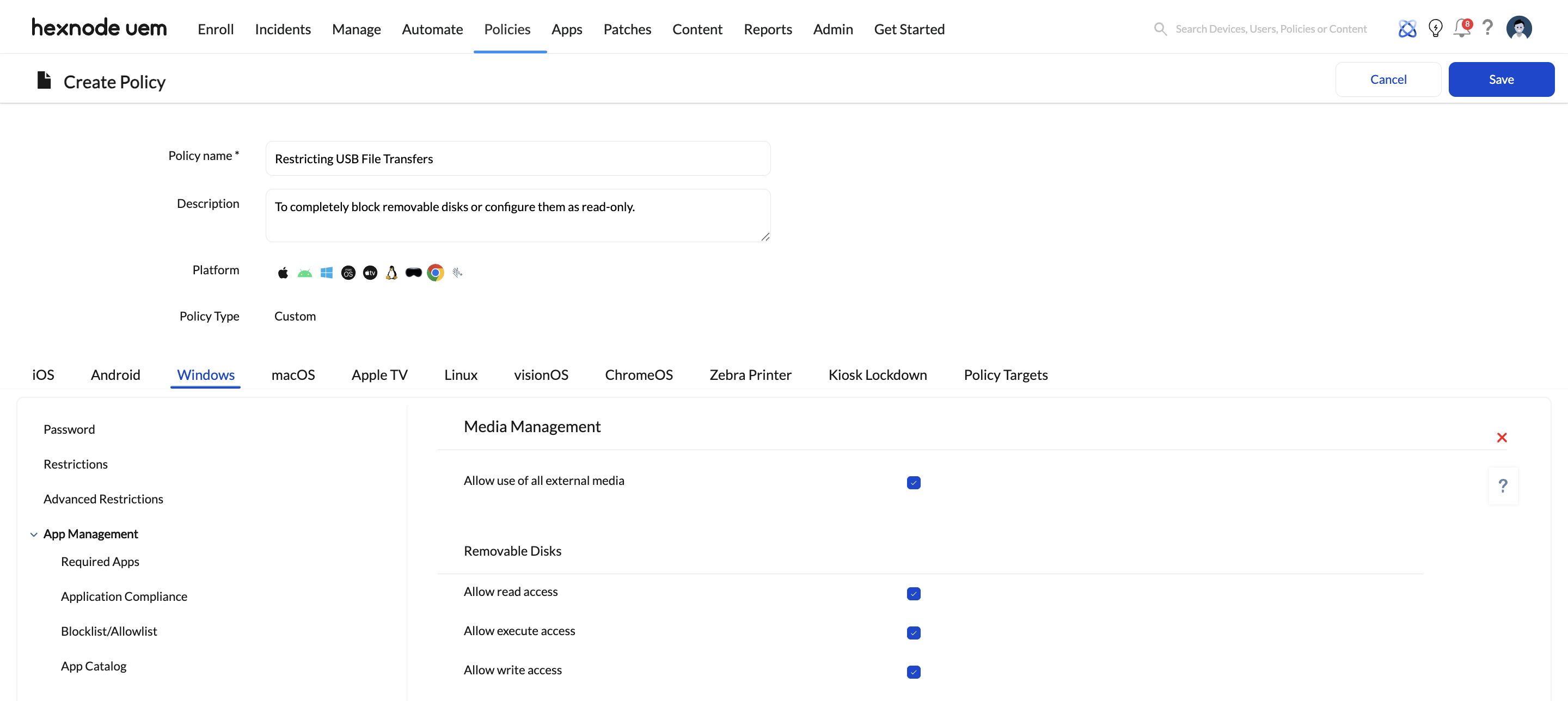
- Navigate to Windows > Security > Media management.
- Under Removable Disks, configure how Windows devices handle USB flash drives.
- You’ll see options such as:
- Allow read access – permits devices to read/open files from removable disks.
- Allow write access – permits creating, modifying, or deleting files on removable disks.
- Allow execute access – permits running executable files (for example, .exe, .bat, .com) from removable disks.
Use these to set your DLP posture:
-
Completely block USB storage
Under Removable Disks in Media management:
- Disable Allow read access.
- Disable Allow write access.
- Disable Allow execute access.
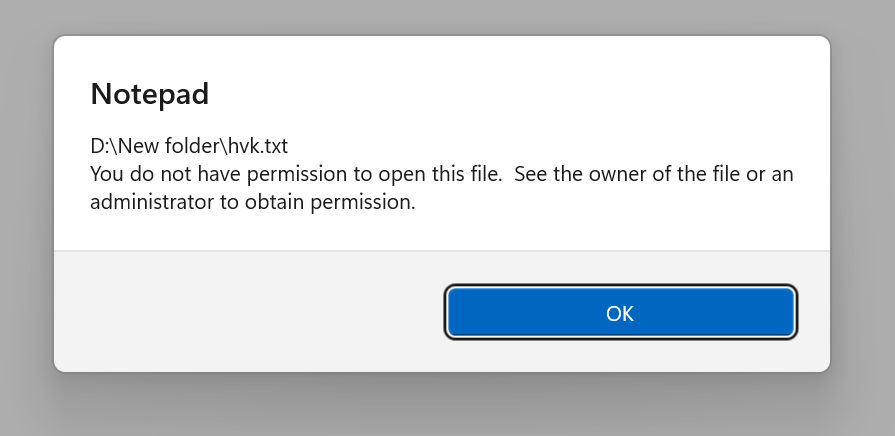
Result: Users will not be able to open, write to, or run anything from USB storage; attempts will show an error at the device.
-
Allow read-only access to USB storage
Under Removable Disks in Media management:
- Enable Allow read access.
- Disable Allow write access.
- (Optionally) disable Allow execute access to reduce malware risk.
Result: Users can view/open files on USB drives but cannot copy or save corporate data to them and cannot run executables if execute is disabled.
Step 3: Deploy the Policy
- Go to the Policy Targets tab.
- Select the specific Devices, Device Groups, or Users you want to restrict.
- Click Save to deploy the policy.
Verification: How to Confirm the Restriction
Once the policy has synced with the Windows PC:
-
Total block configuration
- When a USB flash drive is plugged in, the drive will not appear in File Explorer.
-
Read-only configuration
- The user can see the drive in File Explorer and open files.
- When they try to paste or save a file to the USB drive, they receive an access denied message (e.g., “Destination Folder Access Denied”).
Best Practices for USB Management
- Start with read‑only: Enable read but disable write/execute on Removable Disks so users can reference external content but cannot exfiltrate data or run untrusted executables.
- Combine with Defender: Pair Media management with a Windows Defender policy to automatically scan external drives when mounted for malware.
- Use groups wisely: Put high‑risk departments (finance, legal, HR) into dedicated device groups and apply stricter Media management settings to them.
- Define exceptions: For teams that routinely move large datasets, assign a more relaxed media policy through separate groups.
- Audit regularly: Review device/media usage reports in to see how removable media is used across your fleet and adjust policies if needed.
Troubleshooting
1. Policy not syncing
Confirm the device is online; trigger Scan Device or a manual sync from the portal.
2. Changes not taking effect
For some Media management changes, a device restart is recommended for the settings to fully apply.
3. Unexpected USB behavior
Re‑check the Windows policy under Security > Media management and verify the Removable Disks read/write/execute checkboxes for the affected devices.


