


Category filter
Enrolling Android Enterprise Devices Without a Google Account
In a corporate environment, requiring employees to use personal Gmail accounts on work devices can lead to security gaps and “Shadow IT.” Hexnode UEM utilizes Managed Google Play (MGP) accounts to automate device provisioning. This allows the MDM to silently create a unique, anonymous management account on the device, eliminating the need for a user-provided Google ID.
Prerequisites
- Hexnode UEM Portal: Active subscription or trial.
- Integration Account: A single corporate Gmail account (one-time setup for the portal integration).
- Device State: For “Device Owner” (Fully Managed) mode, the device must be Factory Reset.
Phase 1: Portal-Side Integration (One-Time)
Before enrolling devices, you must register your organization with the Android Enterprise program. This creates the “Managed Google Play” infrastructure.
- Log in to your Hexnode UEM portal.
- Navigate to Enroll > Platform – Specific > Android > Android Enterprise > Enroll Android Enterprise Devices.
- Choose Managed Domain (or Google Domain) as the enrollment method and click Enroll.
- Assign Profile: Select a Default enrollment profile or click “Create new profile” to customize settings for new devices.
- You will be redirected to Google. Sign in with your Google Work account (If you don’t have a work account, you can use a personal Gmail address and select Sign up for Android only).
- Click Get Started, enter your Organization Name, and review the Managed Google Play agreement.
- Accept the terms and click Confirm > Complete Registration. You will then be redirected back to the Hexnode portal.
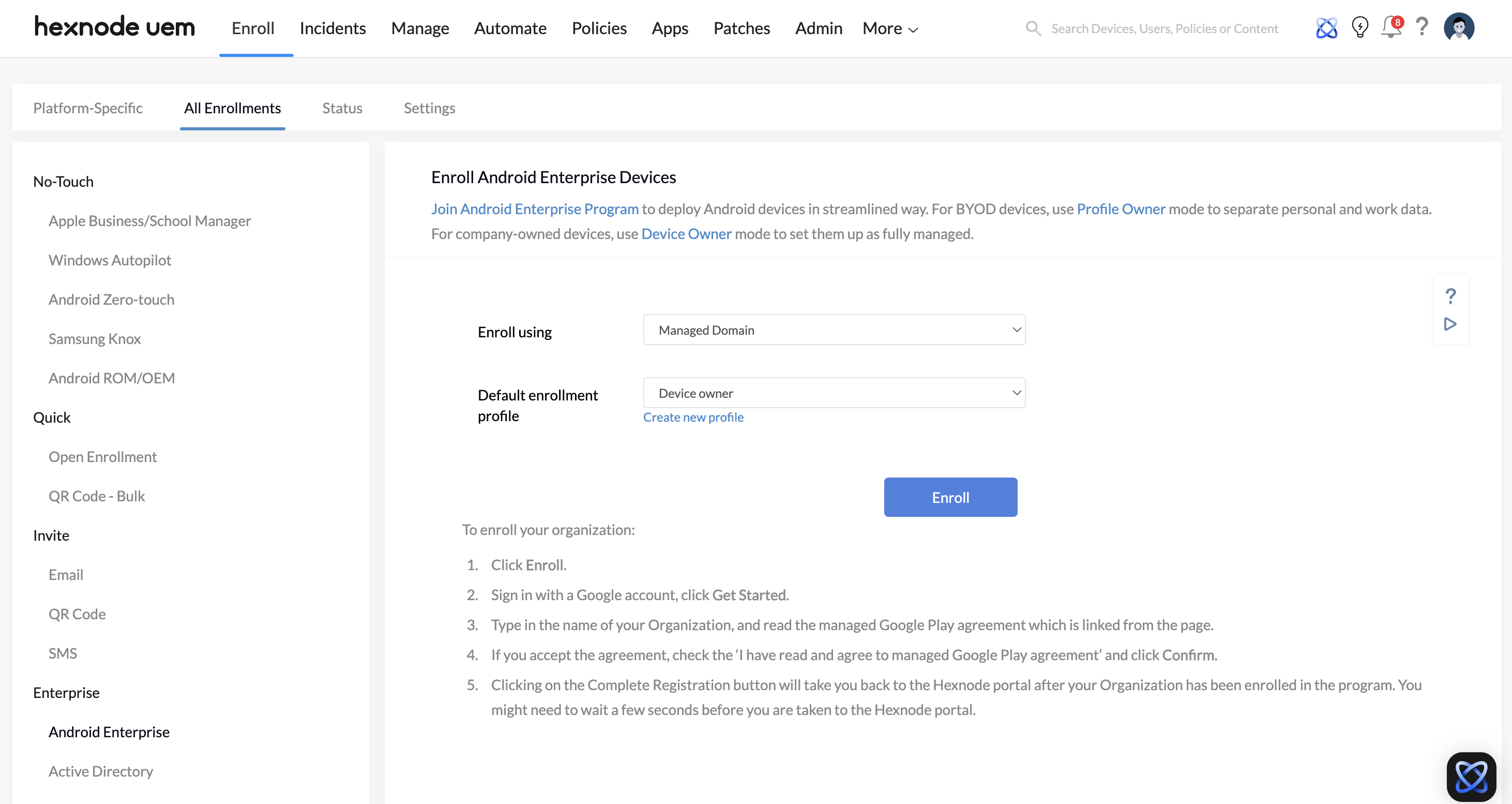
Result: Hexnode generates a dedicated Managed Google Play account for your organization, allowing it to act as the primary administrator to manage multi-user access and enroll devices.
Phase 2: Enrollment Methods (No User Account Required)
There are three primary ways to enroll a device without a user-facing Google account.
Method A: The 6-Tap QR Code Method (Recommended)
This is the fastest method for Android 7.0+ devices.
- On the Portal: Go to Enroll > Platform-Specific > Android > Android Enterprise > Organization. A QR code will appear.
- On the Device: Power on a factory-reset device.
- On the initial “Welcome” screen, tap the screen 6 times in the same spot.
- The device will launch a QR code scanner.
- Connect to Wi-Fi, then scan the QR code from your Hexnode portal.
- The device will automatically download the Hexnode app and enroll without asking for a Google account.
Method B: The DPC Identifier (afw#hexnodemdm)
Use this if the device does not have a camera or the 6-tap method fails.
- Power on a factory-reset device and connect to Wi-Fi.
- When prompted to “Sign in with your Google Account,” enter the code: afw#hexnodemdm.
- Tap Next. The device will recognize the identifier and download the Hexnode UEM agent.
- Follow the on-screen prompts to complete the setup. The portal will handle the background account creation.
Method C: Zero-Touch Enrollment (ZTE)
For large-scale deployments, ZTE allows devices to enroll automatically as soon as they are unboxed and connected to the internet.
- Link your Zero-Touch portal to Hexnode under Enroll > Platform-Specific >Android > Android Zero-Touch.
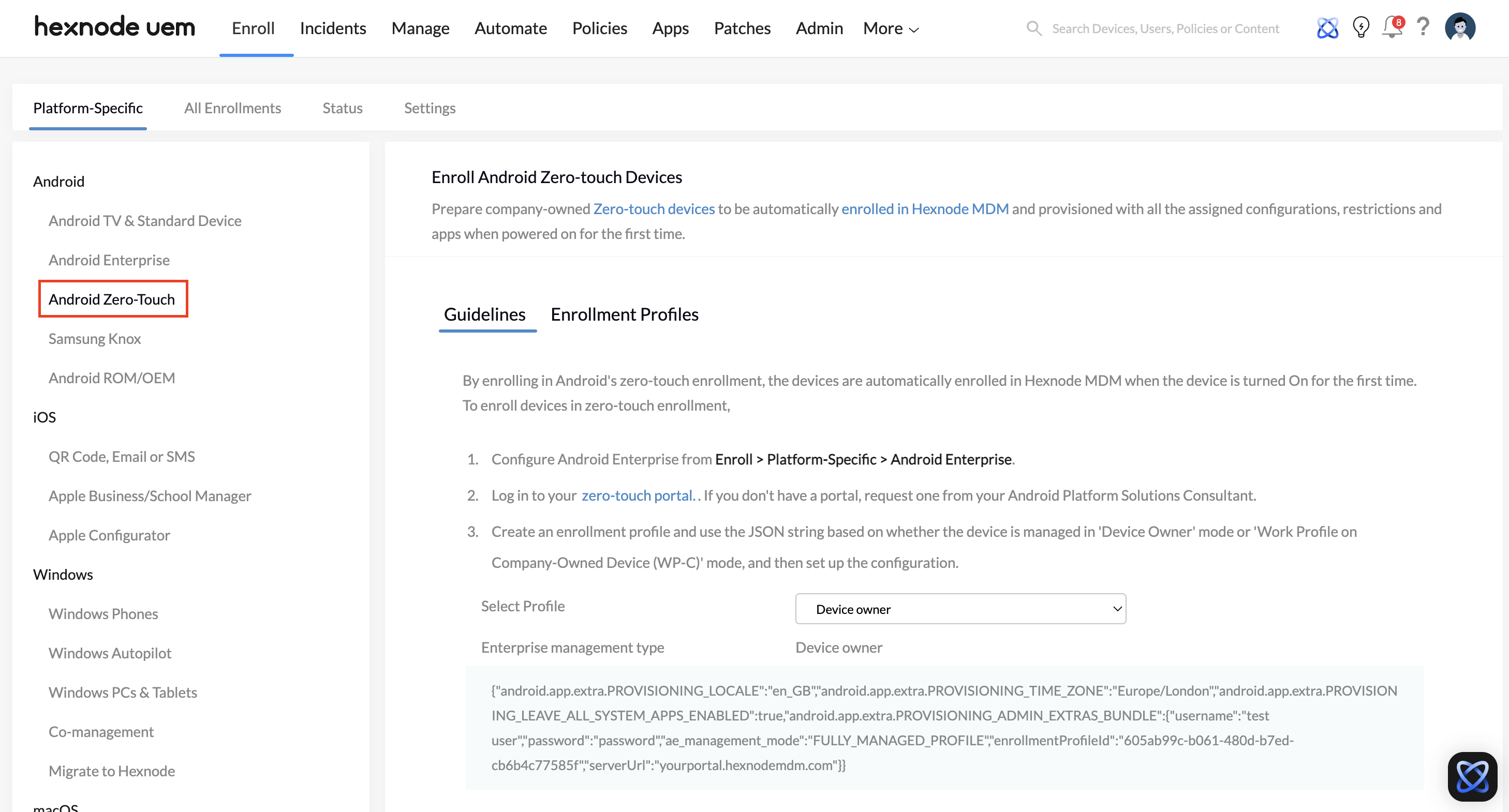
- Configure a “Default Profile” in the Zero-Touch portal.
- When the user turns on the device, it will bypass all setup screens and force-enroll into Hexnode management.
Phase 3: Verification
Once the device is enrolled, verify the “Account-Less” status:
- In the Hexnode Portal, go to Manage > Devices and select the device.
- Check the Device Summary. Under “Android Enterprise Info,” you should see the management type as Device Owner.
- On the physical device, open the Play Store. You will see only the apps you have “approved” in the Hexnode portal, and the user will not be able to add a personal account unless your policy specifically allows it.
Troubleshooting & Tips
Important Note: Standard “Profile Owner” (BYOD) enrollment requires a Google Play account to download the Hexnode app from the store. If you want a completely Google-account-free experience, you must use Device Owner (Fully Managed) mode on a factory-reset device.
- App Distribution: Because there is no personal account, you must push apps via Policies > Android > App Management > Required Apps.
- System Apps: Many system apps (like the Camera or Gallery) are hidden by default in Android Enterprise. Go to your Policy > Android > Restrictions and check “Allow System Apps” to restore them.


