


Category filter
Create custom configuration profiles for Windows
Key Capabilities
- Targeted Precision: Enforce hyper-granular, system-level settings tailored to specific enterprise compliance, networking, and security needs.
- Day-One Readiness: Seamlessly deploy the latest Microsoft configuration nodes and features the moment they are available.
- Unified Management: Distribute custom configurations right alongside your standard Hexnode policies for a centralized, cohesive endpoint strategy.
Supported Devices and Prerequisites
Before configuring custom payloads, ensure your endpoint fleet meets the required OS specifications.
This feature is supported on:
- Windows 10 (Pro, Enterprise, Education)
- Windows 11 (Pro, Enterprise, Education)
To find different payloads and their compatibility with the Windows device, refer to Microsoft’s documentation on Configuration Service Provider (CSP).
Understanding OMA-URI and Windows CSP Architecture
What is OMA-URI in Windows Device Management?
An OMA-URI (Open Mobile Alliance – Uniform Resource Identifier) is a case-sensitive path that identifies a specific Windows configuration setting exposed by a Configuration Service Provider. Hexnode UEM uses OMA-URI values inside custom configuration payloads to send advanced Windows settings to enrolled devices. Microsoft dictates that the OMA-URI syntax is determined by the CSPs on the Windows client, and the OMA-URI points to the specific configuration setting supported by that CSP.
Windows Configuration Service Providers
A Configuration Service Provider (CSP) is an interface used by device management providers to read, set, modify, and delete configuration settings on Windows devices.
- How CSPs apply MDM settings: When Hexnode deploys a custom configuration policy, the Windows OS routes the OMA-URI payload to the matching local CSP, which executes the change in the registry or system files.
- Difference between CSP, OMA-URI, and policy: The CSP is the underlying Windows engine. The OMA-URI is the specific address pointing to a setting inside that engine. The policy is the Hexnode container used to deliver the OMA-URI.
- How CSP support varies: Support varies strictly by Windows edition and version build. Always verify your OS supports the CSP node before deployment.
Device Scope vs User Scope in Windows OMA-URI
The prefix of your OMA-URI determines the assignment scope of the policy.
- What ./Device means: Device-scope CSPs apply globally to the endpoint, regardless of which user is authenticated. Use this for hardware restrictions and core OS security.
- What ./User means: User-scope CSPs apply only to the individual managed user profile currently logged into the device.
- Common mistakes: Applying a device-wide setting to a ./User path, or vice versa, will cause the payload to fail to execute.
Windows OMA-URI Syntax Guide
OMA-URIs require absolute precision.
- Anatomy: Scope/Vendor/MSFT/Category/Subcategory/SettingName
- Case sensitivity: OMA-URIs are strictly case-sensitive. Using ./device/… instead of ./Device/… will result in a 404 error.
Data Types and Payload Naming Rules
Selecting the wrong data type is a leading cause of policy failure. You must match the data type required by the Microsoft CSP documentation exactly.
Windows Custom Configuration Data Types in Hexnode
| Data Type | Description | Common Usage |
|---|---|---|
| Integer | Whole numbers | Toggles (0 for disable, 1 for enable) or metrics (e.g., minutes) |
| Boolean | Logical values | True or False states |
| String | Text strings | URLs, domain names, file paths, or text labels |
| String (XML) | Formatted XML structure | Complex configurations like Wi-Fi profiles or Defender Exploit Guard |
Naming Rules for Windows Custom Configuration Payloads
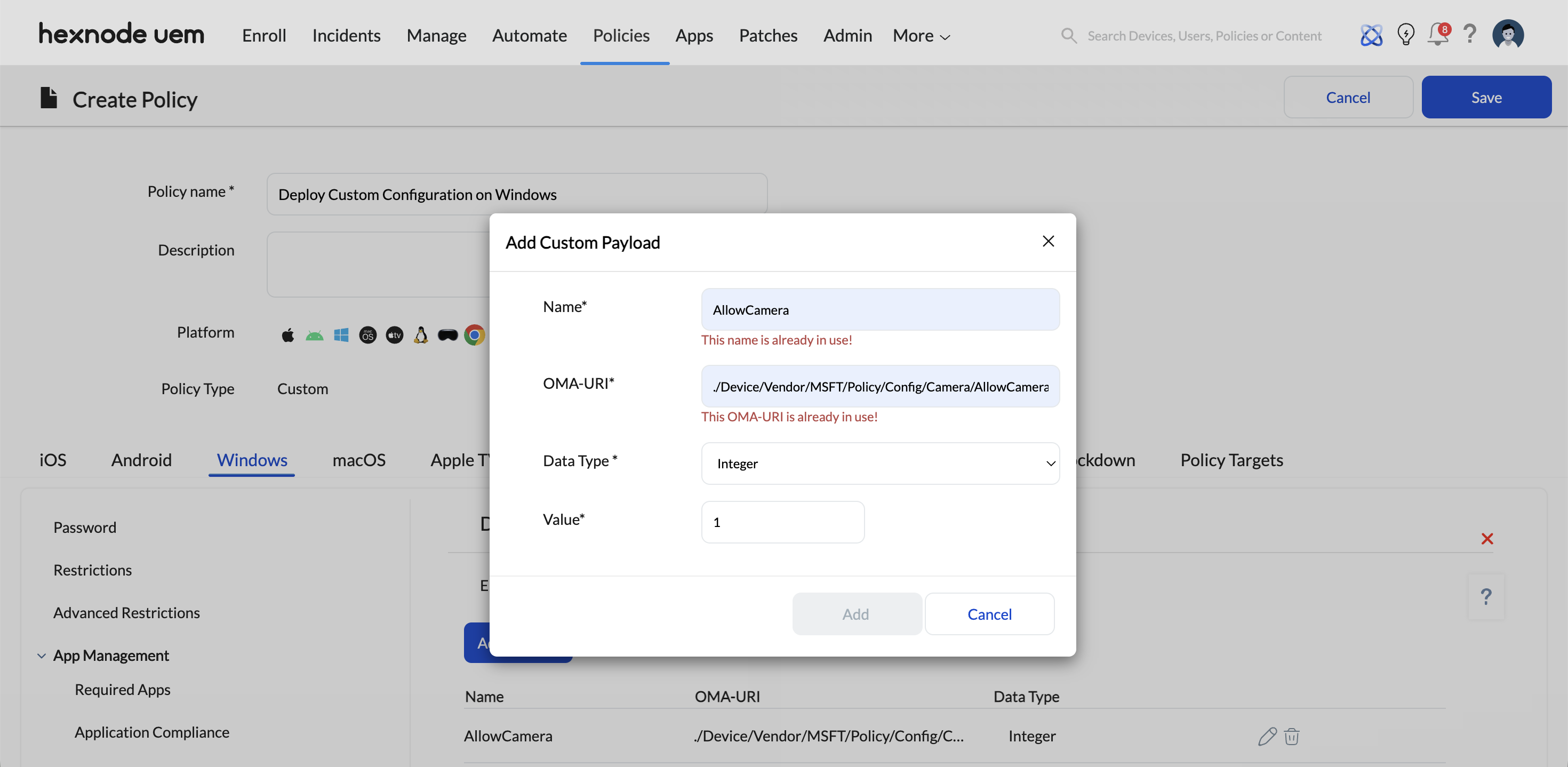
- Unique payload names: Every custom payload within a single Hexnode policy must have a completely unique name.
- Unique OMA-URIs: You cannot deploy duplicate OMA-URI paths inside the same policy.
- Duplicate errors: If a name or OMA-URI is used more than once in the same policy, an error message stating “The name/OMA-URI is already in use” will block the configuration.
- Best naming convention: Use highly descriptive payload names to streamline action history auditing and troubleshooting.
Creating and Deploying Custom Configuration in Hexnode
Deploying OMA-URI settings to Windows devices involves passing the payload through the Hexnode policy.
- Initialize the Policy:
Log in to the Hexnode UEM console. Navigate to Policies > New Policy. Provide a unique policy name and description. - Navigate to Custom Configuration:
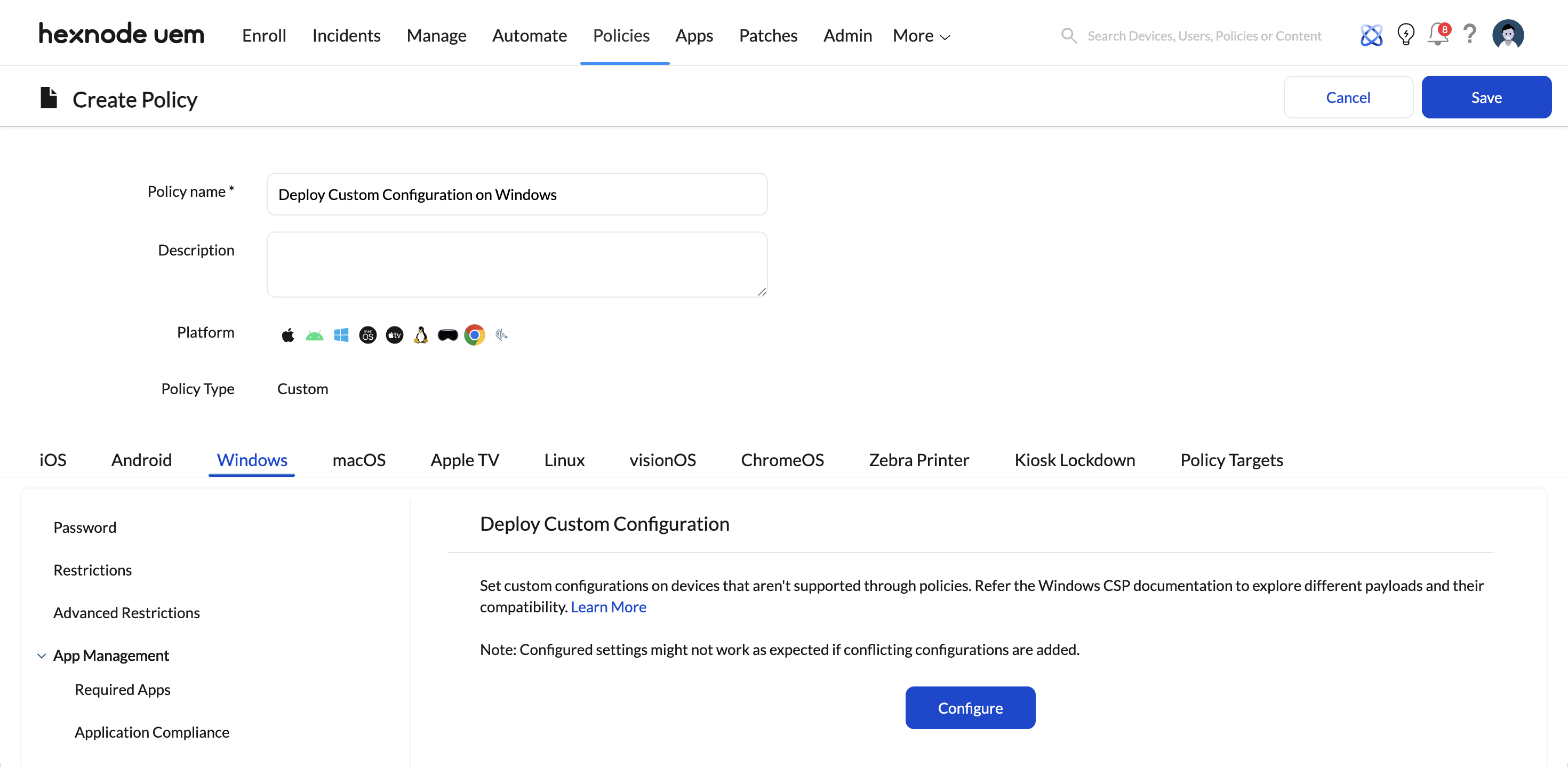
Navigate to Windows > Configurations > Deploy Custom Configuration and click Configure. - Set Atomic Execution: Critical for multi-payload deployments.
Click on Enable atomic execution to ensure all payloads within the policy apply entirely. If failure of any payload occurs, the entire block rolls back and marks the policy as Failed. If disabled, only the erroneous payload fails, and the rest apply successfully. - Add Payload Details:
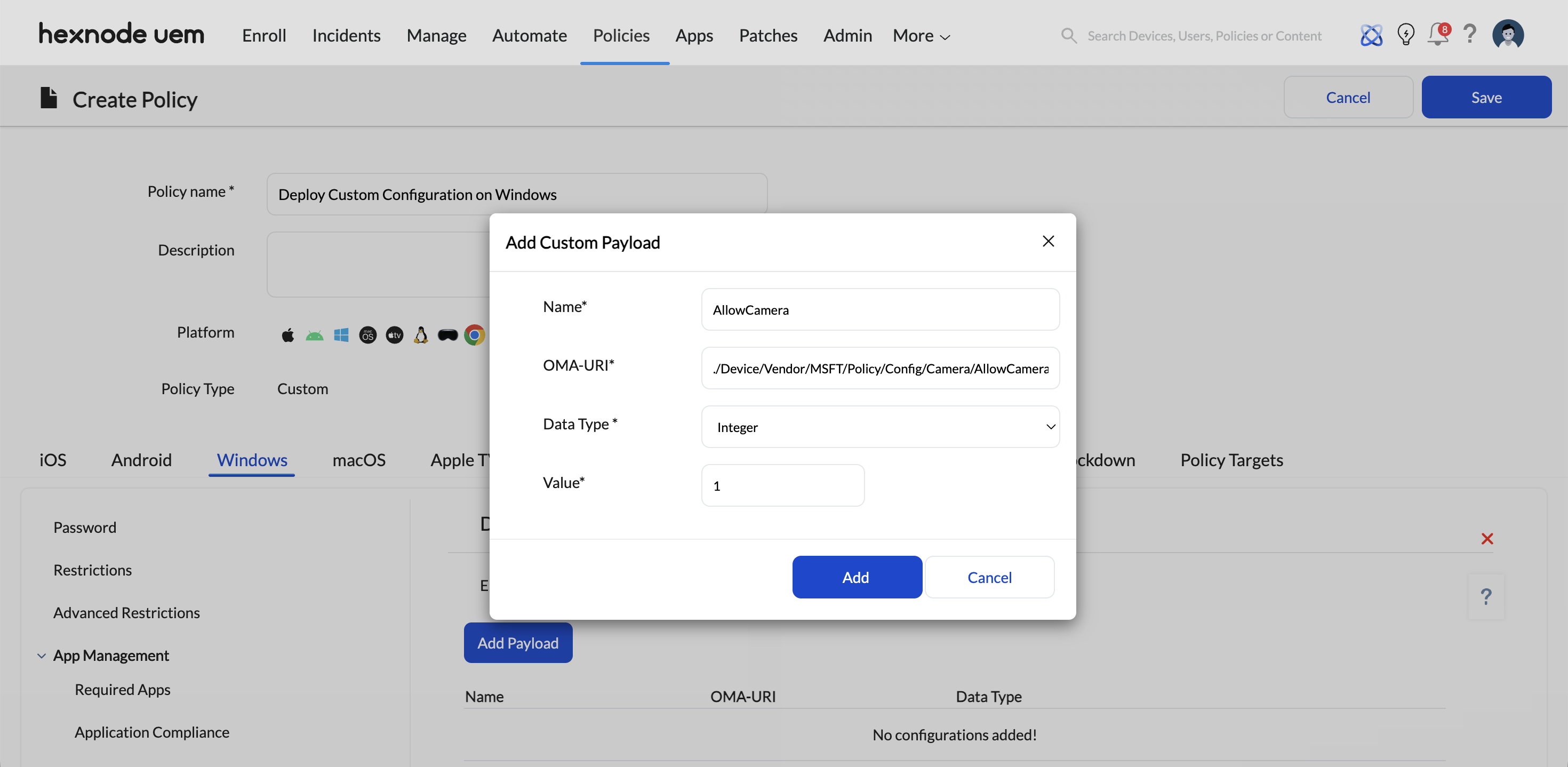
Click Add Payload. Provide a Name, specify the case-sensitive OMA-URI, choose the exact Data Type, and enter the Value exactly as expected by the CSP. - Assign to Devices and Save:
Navigate to Policy Targets > +Add Devices. Select your target devices, users, or groups. Click OK, then click Save.
Example 1: Disable Camera on Windows Devices Using Hexnode
If you need to deploy advanced restrictions, configuring camera access is a standard administrative task.
- OMA-URI Path: ./Device/Vendor/MSFT/Policy/Config/Camera/AllowCamera
- Data Type: Integer
- Value Required: 0 (Disables the camera). Use 1 to allow the camera.
- Device-side result: Upon policy sync, the camera devices become inaccessible to the Windows OS and all applications.
Example 2: Configure Windows DeviceLock Settings
The MaxInactivityTimeDeviceLock CSP allows admins to configure lock screen behavior.
- OMA-URI Path: ./Device/Vendor/MSFT/Policy/Config/DeviceLock/MaxInactivityTimeDeviceLock
- Data Type: Integer
- Example Value: 15 (Sets the screen timeout to 15 minutes).
- Validation: Check Windows Settings > Accounts > Sign-in options to confirm the setting is enforced.
Policy Comparisons and Decision Frameworks
Built-in Windows Policies vs Custom Configuration Profiles
When deciding how to manage a setting, Microsoft and Hexnode recommend a specific decision tree:
- Use built-in policies when available: Hexnode’s native UI policies carry lower risk, require less administrative skill, and are easier to troubleshoot.
- Use custom OMA-URI when no built-in control exists: Reserve custom configurations for zero-day OS settings, highly granular controls, or edge-case enterprise requirements.
OMA-URI Payload Library and Security Hardening
Windows CSP Payload Library for Hexnode UEM
Curated examples of highly requested OMA-URIs.
| Data Type | Description | Common Usage |
|---|---|---|
| Integer | Whole numbers | Toggles (0 for disable, 1 for enable) or metrics (e.g., minutes) |
| Boolean | Logical values | True or False states |
| String | Text strings | URLs, domain names, file paths, or text labels |
| String (XML) | Formatted XML structure | Complex configurations like Wi-Fi profiles or Defender Exploit Guard |
Use Windows Custom Configuration for Security Hardening
Custom configuration profiles are essential for configuring Windows Privacy Settings and advanced restrictions.
- Device restrictions: Block external storage, disable location services (./Device/Vendor/MSFT/Policy/Config/Privacy/LetAppsAccessLocation), or restrict microphone access.
- Security baselines: Deploy complex XML data types to enforce Microsoft Defender Exploit Guard policies or Local Security Authority (LSA) protection.
Troubleshooting
1. Error Code 404: Not Found
Probable Cause:
The administrator has entered an incorrect OMA-URI path, or the target setting is not supported by the specific Windows edition (e.g., attempting to apply an Enterprise-only CSP to a Pro edition device).
Solution:
Verify the OMA-URI string against the official Microsoft CSP reference and confirm that the device is running a supported Windows edition and version for that specific node.
2. Status: ‘Failed’ with Atomic Execution Enabled
Probable Cause:
A single payload within a multi-payload policy has encountered an error, causing the entire “Atomic” block to fail and roll back all other settings to maintain system consistency.
Solution:
Inspect the Action History of the device and click the information icon to identify the specific payload causing the conflict. The admin may need to isolate the problematic payload into a separate policy for further testing.
Best Practices
- Pilot Testing: The admin should always deploy new or complex custom configurations to a small pilot group of devices before an organizational rollout to identify potential OS-level conflicts.
- Validate via Diagnostic Reports: If a policy fails silently, the admin should use the Advanced Diagnostic Report on the Windows device (Settings > Accounts > Access work or school > Info) to verify which OMA-URI settings were successfully processed by the local MDM engine.
Frequently Asked Questions
What is the difference between the “./Device” and “./User” paths in an OMA-URI?
The prefix of the OMA-URI defines the scope of the configuration. Payloads beginning with ./Device apply globally to the endpoint regardless of which user is authenticated. Payloads starting with ./User are specific to the individual managed user profile and only take effect when that specific user is logged into the device.
Are OMA-URI strings case-sensitive?
Yes. Administrators must ensure that the OMA-URI path exactly matches the casing specified in Microsoft’s CSP reference. Incorrect casing (e.g., using ./device/ instead of ./Device/) will result in the device being unable to locate the target node, leading to a deployment failure.
Is it possible to use wildcards within the “Value” field of a custom payload?
No. Unlike some Hexnode policies (such as Email or VPN), the “Value” field for custom configuration payloads does not support wildcards. The administrator must provide the exact literal value required by the CSP.


