


Category filter
Silent App Installation on iOS Devices
Silent app installation allows administrators to deploy applications to iOS devices without any user intervention. The app appears on the home screen automatically, bypassing all “Install” prompts and Apple Account requirements.
The Core Prerequisite: Supervision
For any app to be installed silently on iOS, the device MUST be in Supervised Mode.
- Supervised Devices: Install apps silently in the background.
- Unsupervised Devices: The device receives a notification to install the app. The user must manually accept the prompt to begin the installation process.
This doc explains how to silently install Public Store Apps and apps you purchase through Apple’s VPP Program.
Silent Installation Methods
Choose the method that best aligns with your organization’s app procurement strategy.
Method A: Using Apple VPP (Recommended)
This is the most reliable method for silent deployment as it uses Device-Based Assignment, removing the need for a user Apple Account.
- Requirement: Organization must be enrolled in Apple Business with a synced VPP token.
- Logic: Once VPP licenses are synced, apps can be pushed via Remote Actions or Policies without any iTunes password prompts.
- OS Support: Target devices must be on iOS 9.0 or later.
Technical Resource: How to Deploy Apple VPP Apps with Hexnode UEM.
Method B: Without VPP (Standard App Store Apps)
Use this approach if your organization has not yet integrated Apple Business or VPP. While the admin initiates the push from the Hexnode UEM console, the “silent” success depends on the device-side environment.
Initiation Process
- Add App: Navigate to Apps > +Add Apps > Store App. Search for and add the app to Hexnode UEM App Inventory.
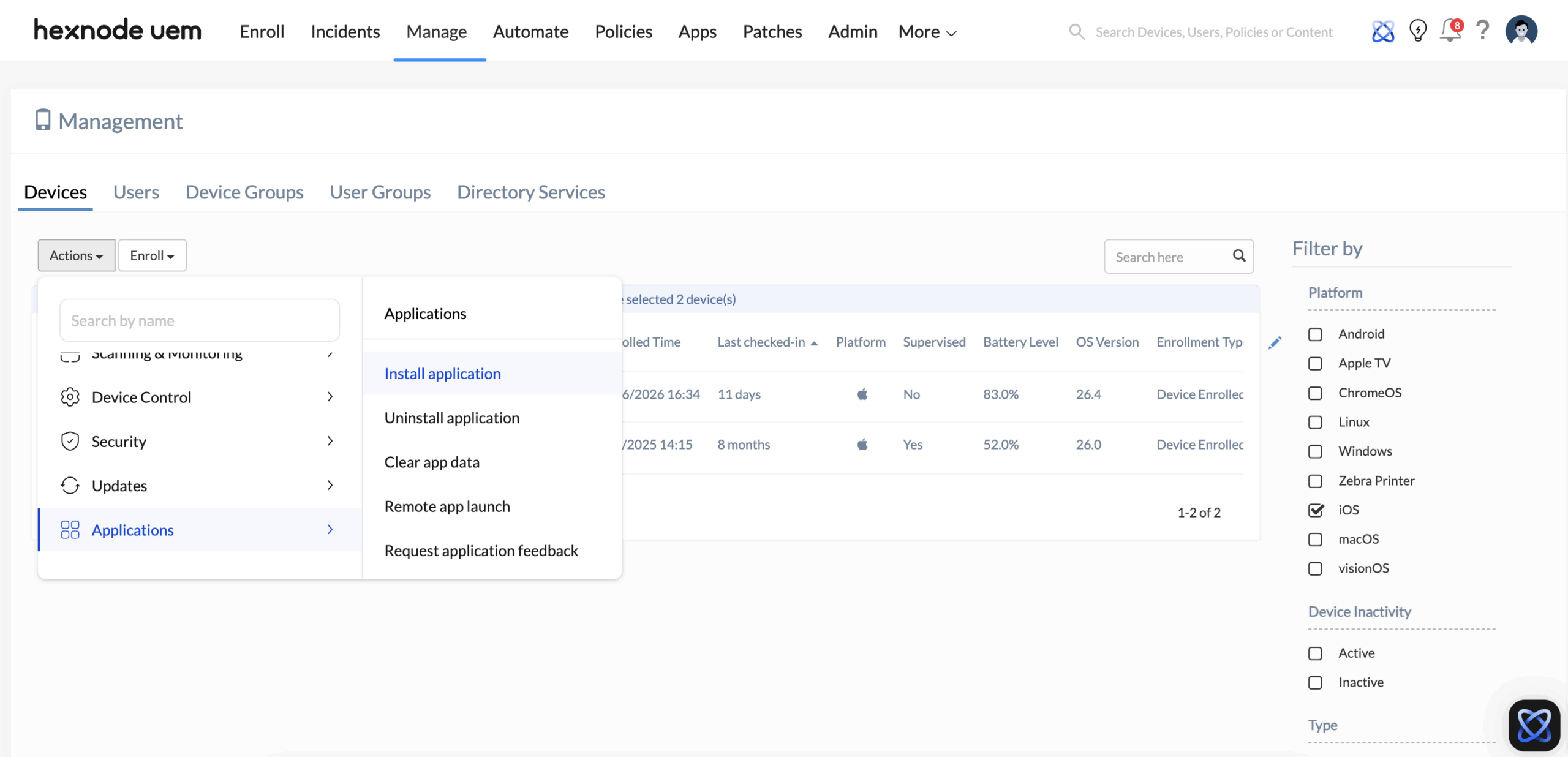
- Push App: Trigger the installation by navigating to Manage > Select your device(s) > Actions > Applications > Install application, or by adding the app to a Required Apps Policy.
Requirements for a Successful Silent Installation
- User State: A personal Apple Account must be signed in on the device.
- Device Settings: The user must have “Require Password” toggled OFF (found in Settings > [Name] > Media & Purchases > Password Settings) for free downloads.
Result
The app installs silently only if these conditions are met. If not, iOS prompts users to enter their Apple Account credentials to install the app.
Deployment Workflows
Follow these steps to push applications either manually or automatically via the Hexnode UEM portal.
Scenario 1: Immediate Silent Push (Remote Action)
Use this method to trigger an instant installation on specific devices.
- Path: Manage > Devices > Select target device(s).
- Action: Actions > Applications > Install application.
- Selection: Choose the app from the list and click Install.
Scenario 2: Automated Silent Rollout (via Required Apps Policy)
Set up a Required Apps policy that automatically installs specific apps the moment a user enrolls a device.
- Path: Policies > New Policy > Create a fully custom policy > iOS tab > App Management > Required Apps.
- Action: Click Configure > +Add > Add App.
- Finalize: Associate with the Policy Targets and click Save.
Troubleshooting: When Apps Don’t Install “Silently”
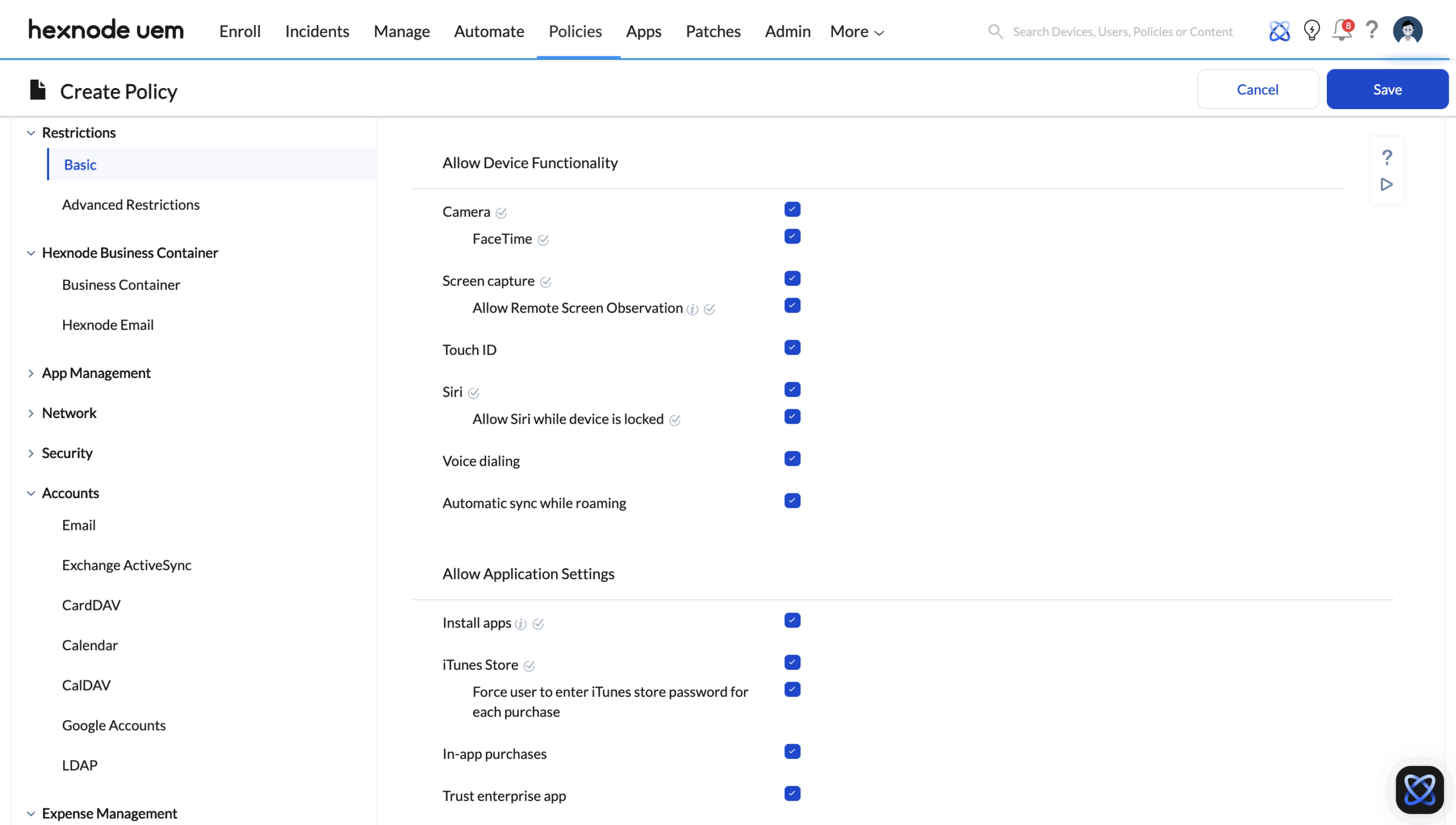
If a user is still seeing a prompt on a Supervised device, check the Restrictions on Hexnode UEM policies by navigating to Policies > Click the Policy Name > Manage > Modify > iOS > Restrictions and modify the following settings:
| Restriction Setting | Required State for Silent Install |
|---|---|
| Force user to enter iTunes store password for each purchase | Must be Disabled (Unchecked) |
| iTunes Store | Must be Enabled (Checked) |
Note: Enterprise (.ipa) apps uploaded directly to the Hexnode UEM App Inventory are inherently silent and bypass all Apple Account requirements on Supervised devices.
Advanced Troubleshooting Resources
Explore these guides for specific error codes and deployment hurdles:
- Common Issues with iOS App Installation: A deep dive into Apple Account conflicts and supervision errors.
- Error During iOS App Installation: A comprehensive list of Hexnode UEM error codes and their specific fixes.
Frequently Asked Questions
Why does an Enterprise (.ipa) app installation trigger a manual confirmation prompt on an iOS device?
iOS requires manual confirmation if you deploy the app to an Unsupervised device. Silent, zero-touch installation for in-house (Enterprise) apps is a feature exclusive to Supervised devices. On unsupervised endpoints, the iOS system triggers a mandatory notification, requiring the user to tap “Install” to complete the process.
Can Hexnode silently restore system applications (e.g., Mail, Safari) if a user removes them from an iOS device?
Yes. While these apps are part of the iOS firmware, a Required Apps Policy can re-install them. For the restoration to remain silent, the device must be in a Supervised state, and the VPP-licensed version of the app should be used as the installation source to bypass any Apple Account requirements.


