Category filter
How to Fetch and Decrypt FileVault Recovery Keys in Hexnode UEM
If you manage a fleet of Macs, enforcing Apple’s FileVault encryption is an integral function for keeping company data secure. However, that top-tier security can quickly turn into an IT headache when an employee forgets their password and gets entirely locked out of their machine.
This FAQ document serves as your quick-reference guide to handling FileVault recovery keys directly within the Hexnode UEM console. Whether you need to locate a specific Personal Recovery Key (PRK), figure out why a key is missing from your dashboard, or troubleshoot Macs that were encrypted before they were enrolled, this guide has you covered.
Frequently Asked Questions
1. Why the need to use recovery keys for FileVault?
When FileVault is enabled on a macOS device, it encrypts the entire startup disk, rendering the data inaccessible without the login credentials. While this provides robust protection for organizational data, it introduces a significant risk: if a user forgets their password, they will be entirely locked out, and the data may become irrecoverable.
A recovery key serves as a secure, secondary decryption method. Generating and escrowing these keys within Hexnode UEM ensures that IT administrators have a reliable contingency plan to unlock the drive, reset user credentials, and recover critical business data.
2. What are the different recovery key types in Hexnode?
FileVault offers three models. Here is how they break down:
- Personal (PRK): Generates a unique, alphanumeric string for the specific Mac. Easily viewable directly in the Hexnode UEM portal via the Decrypt button. Best for environments where IT needs quick, remote access to unlock specific machines.
- Institutional (IRK): A master certificate used to unlock all managed Macs. It is not viewable as plain text in the Hexnode UEM portal. IT must download the encrypted key and use a private certificate locally to decrypt it. Best for organizations requiring a centralized decryption method without individual keys floating around.
- Hybrid (Both): Forces the generation of a unique PRK (escrowed to the Hexnode UEM console) while installing the IRK certificate as a master backup. Best for maximum redundancy. IT uses the PRK for standard recovery and the IRK as a fail-safe.
3. How to fetch a Personal Recovery Key (PRK) from the Hexnode UEM console?
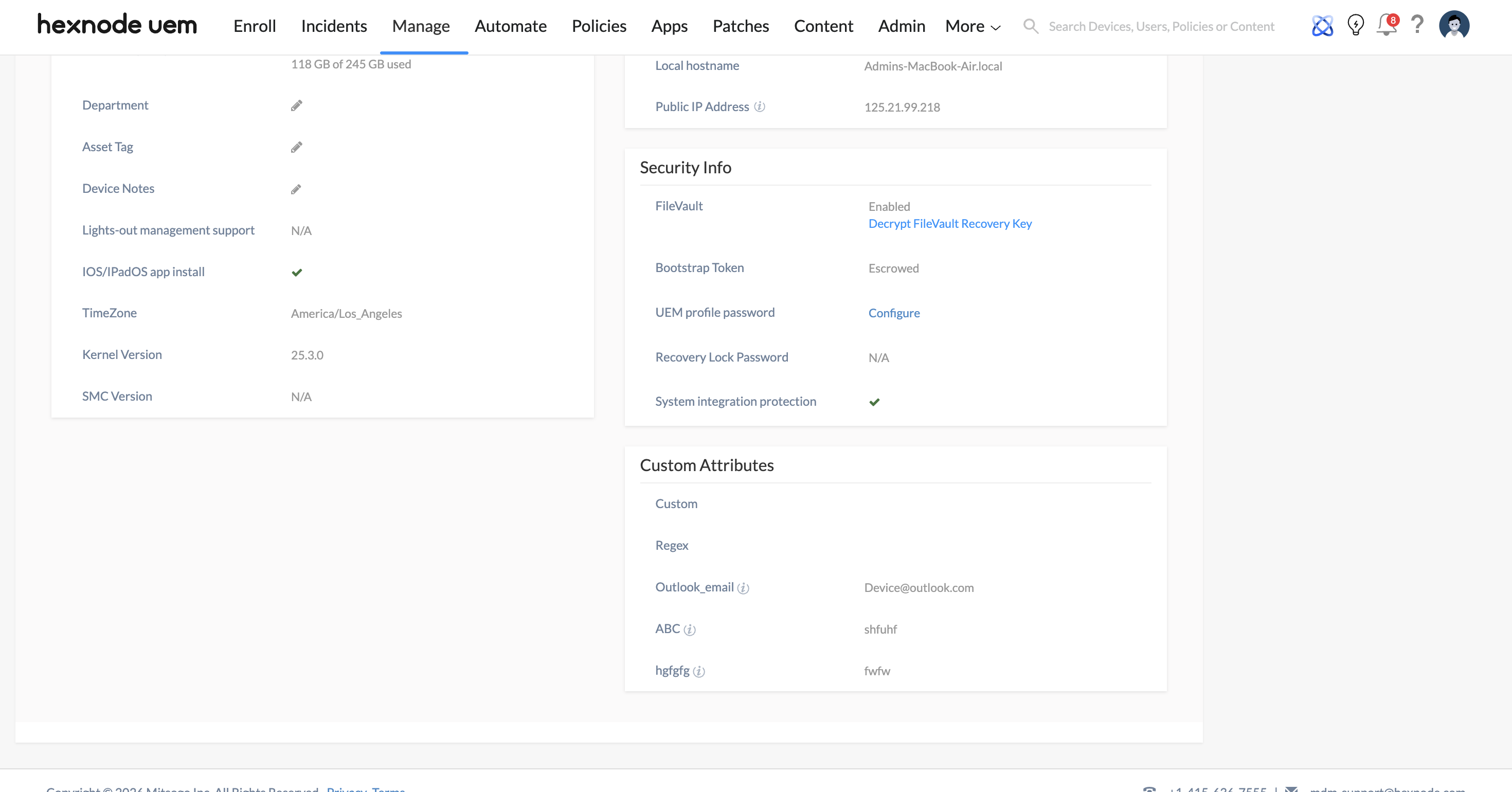
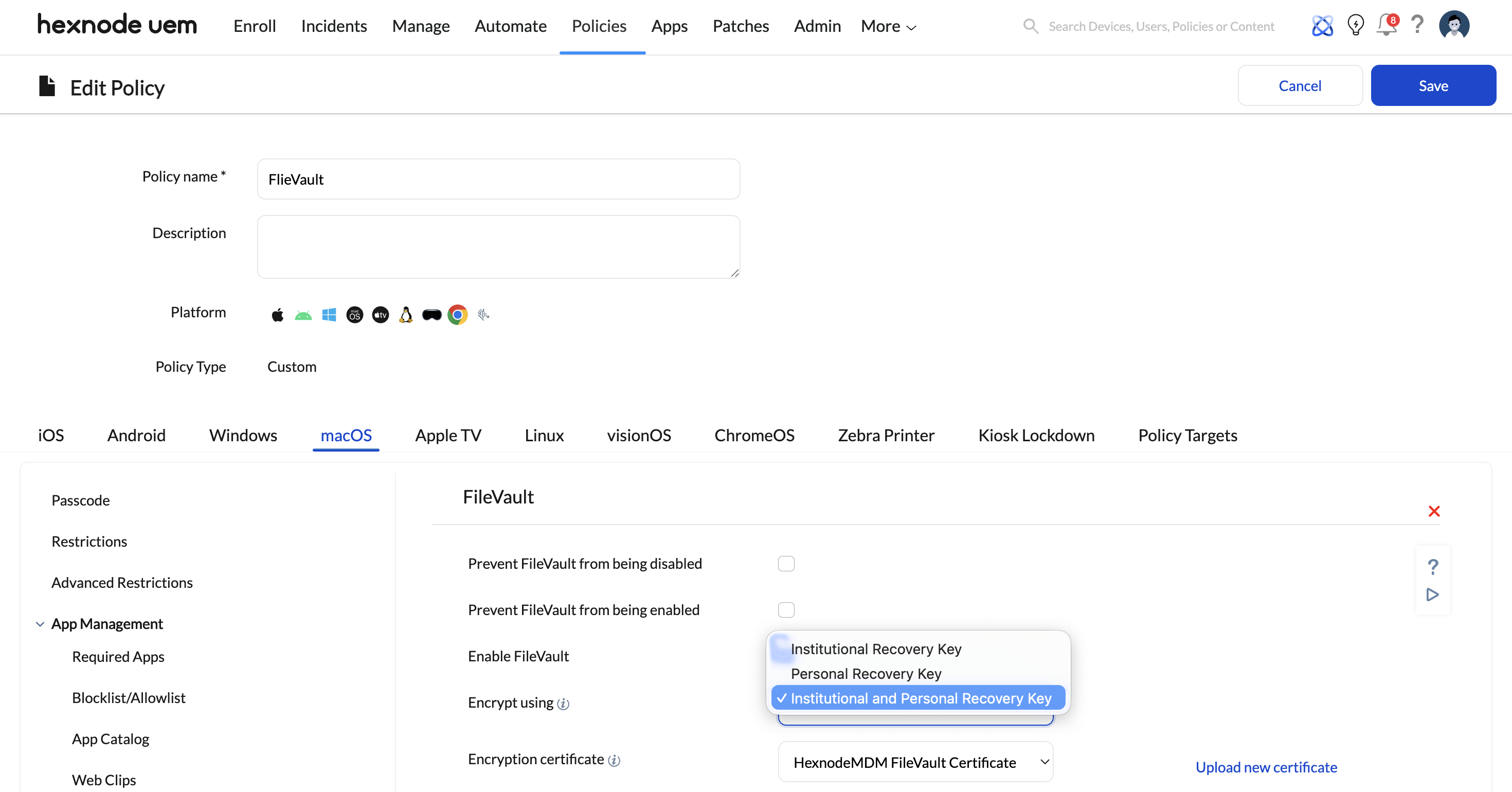
To view a device’s PRK in the portal, you must first ensure that Escrow Personal Recovery Key is checked in your active FileVault policy (Policies > New Policy > macOS > Security > FileVault). Once escrowed, follow these steps:
- Navigate to the Manage tab and select the target Mac.
- Go to Device Info > Security Info.
- Scroll down to the FileVault Recovery Key section.
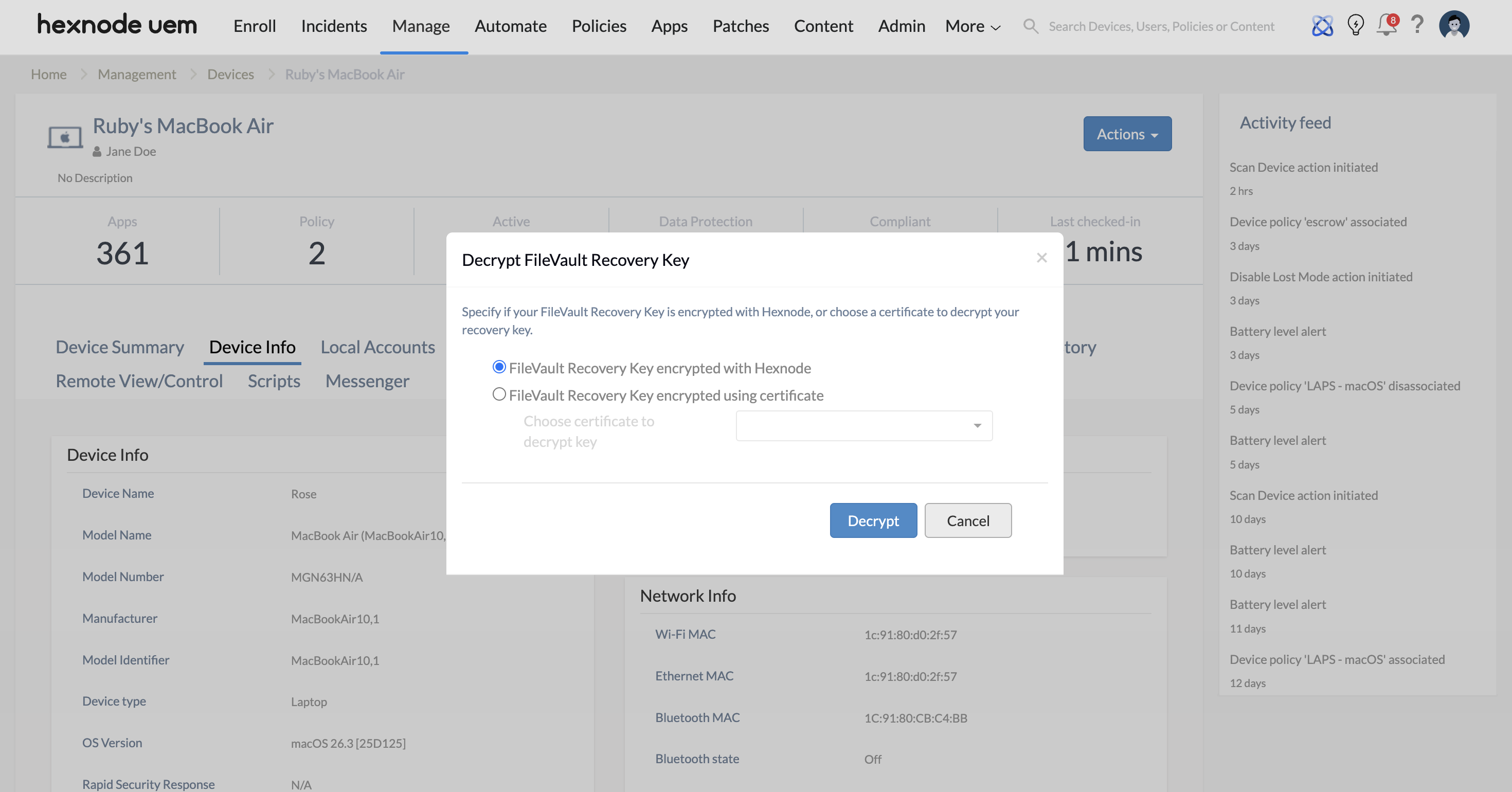
- Click Decrypt FileVault Recovery Key.
- Select the encryption method used and click Decrypt to reveal the alphanumeric key.
4. How can I verify the FileVault recovery key escrow status of multiple Macs at once?
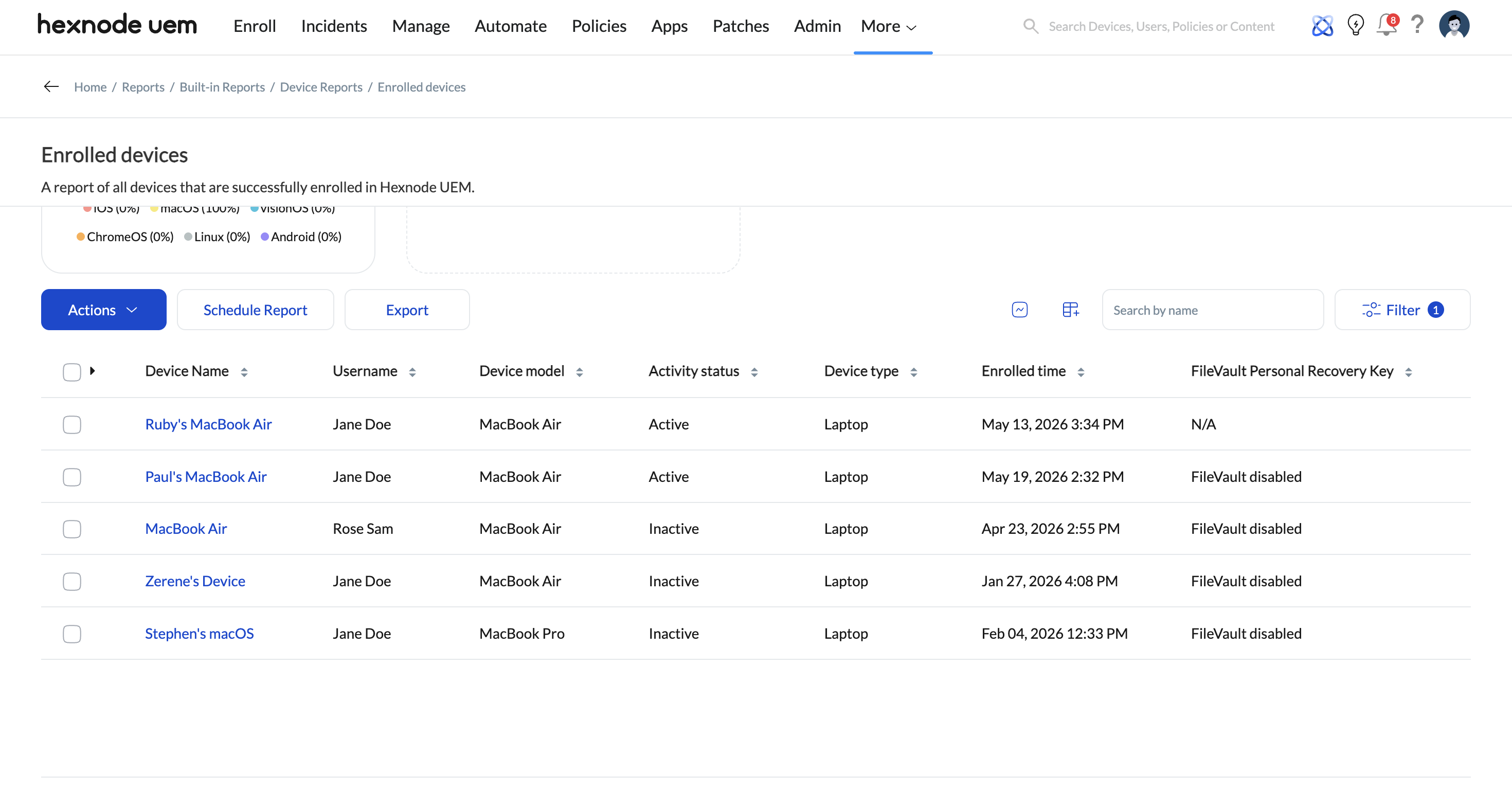
Instead of checking devices one by one, you can run a bulk report:
- Navigate to Reports > Device Reports > Enrolled Devices.
- Check the FileVault Personal Recovery key column.
- [The Key]: It successfully fetched and was decrypted.
- N/A: The key was fetched but hasn’t been decrypted by an admin yet.
- Failed: The policy is active, but Hexnode was unable to fetch the key (usually due to pre-existing encryption).
5. Why is the recovery key missing from the Hexnode UEM portal?
If you are staring at the console and the key isn’t there, it usually comes down to two reasons:
- Wrong Policy Configuration: If your FileVault policy is set to use only the Institutional Recovery Key, Hexnode will not escrow individual personal keys. You must select either Personal Recovery Key or Institutional and Personal Recovery Key (Hybrid) to see the escrow option.
- Legacy Encryption: If the Mac was encrypted prior to Hexnode enrollment, or before the escrow policy was applied, the portal cannot silently fetch the old key. You will see an error stating: “Unable to fetch the recovery key since FileVault had already been enabled.”
6. How do I fetch the recovery key if the Mac was already encrypted?
If the device was encrypted before the UEM policy was applied, you have to generate a fresh key locally and force a sync:
- Open Terminal on the Mac.
- Run the command:
1sudo fdesetup changerecovery -personal
- A new recovery key will be generated and displayed in the Terminal.
- Log into the Hexnode portal and trigger a Scan Device action for that Mac.
- Navigate back to Device Info > Security Info; the option to decrypt the new key will now be available.