


Category filter
Automation templates: Custom and Pre-Configured Workflows
Quick Summary: Automation templates in Hexnode UEM are reusable workflow blueprints. They define actions, configurations, and schedules. Administrators can use Custom Templates for specific needs or Pre-configured Templates, such as Windows 11 Upgrade, for standardized, system-protected IT operations.
While creating an automation, you can either build it from scratch or deploy a pre-defined template to your fleet.
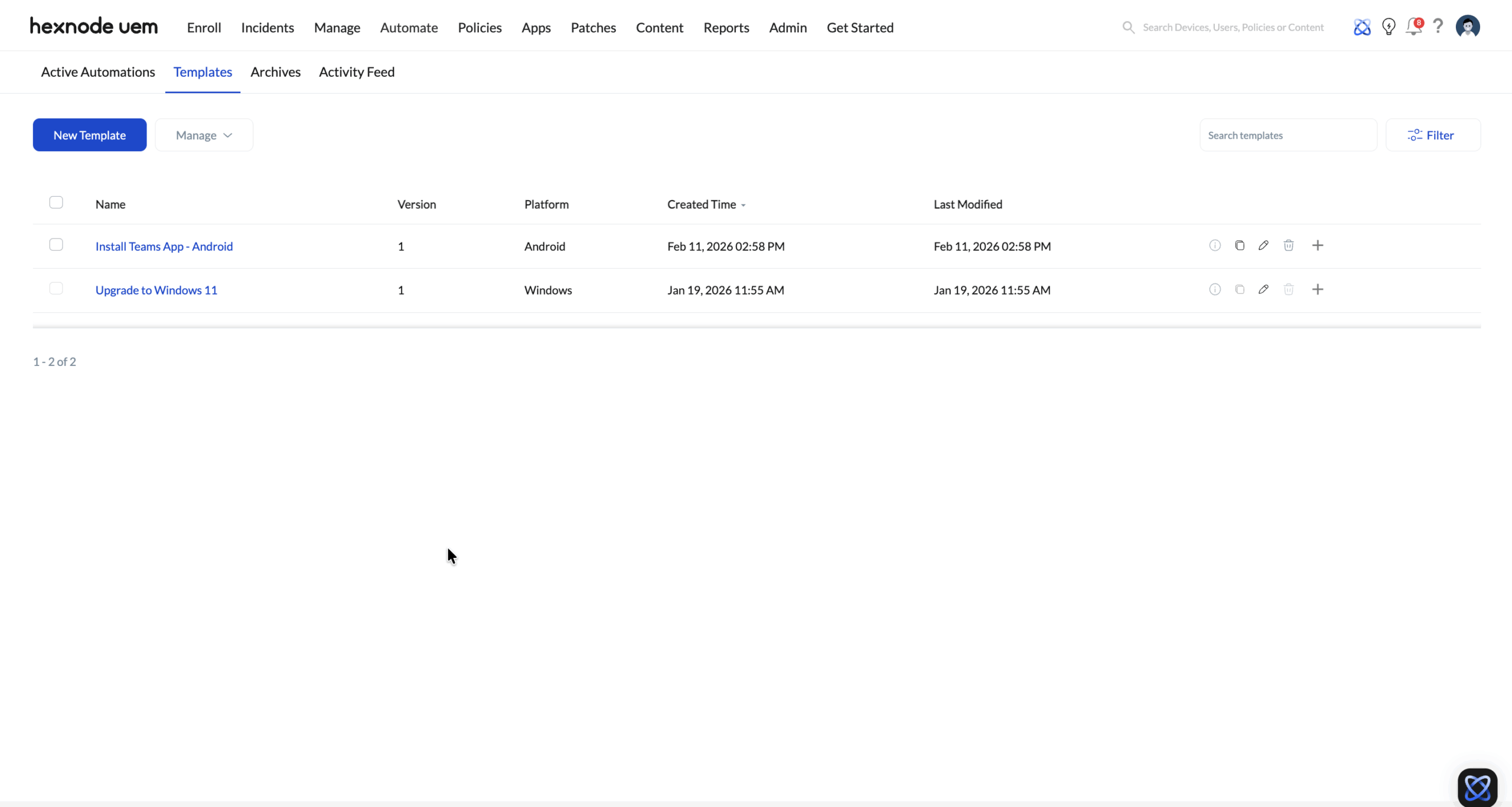
How to Create Custom Automation Templates
Custom automation templates allow IT admins to architect specific workflows tailored to organizational security and compliance needs.
Steps to Create a New Blueprint
- Log in to the Hexnode UEM portal.
- Navigate to Automate > Templates > New Template.
- Select the target Platform, such as iOS, Android, Windows, macOS, visionOS, Zebra Printer, Apple TV, or Linux.
- Define the Template Name and Description using the Edit icon.
- Click Add New Action to define tasks, such as script execution or app installation.
- Configure the Settings and Schedule logic and click Next.
- Review the final configuration and click Save.
Actions Available for Automation Templates
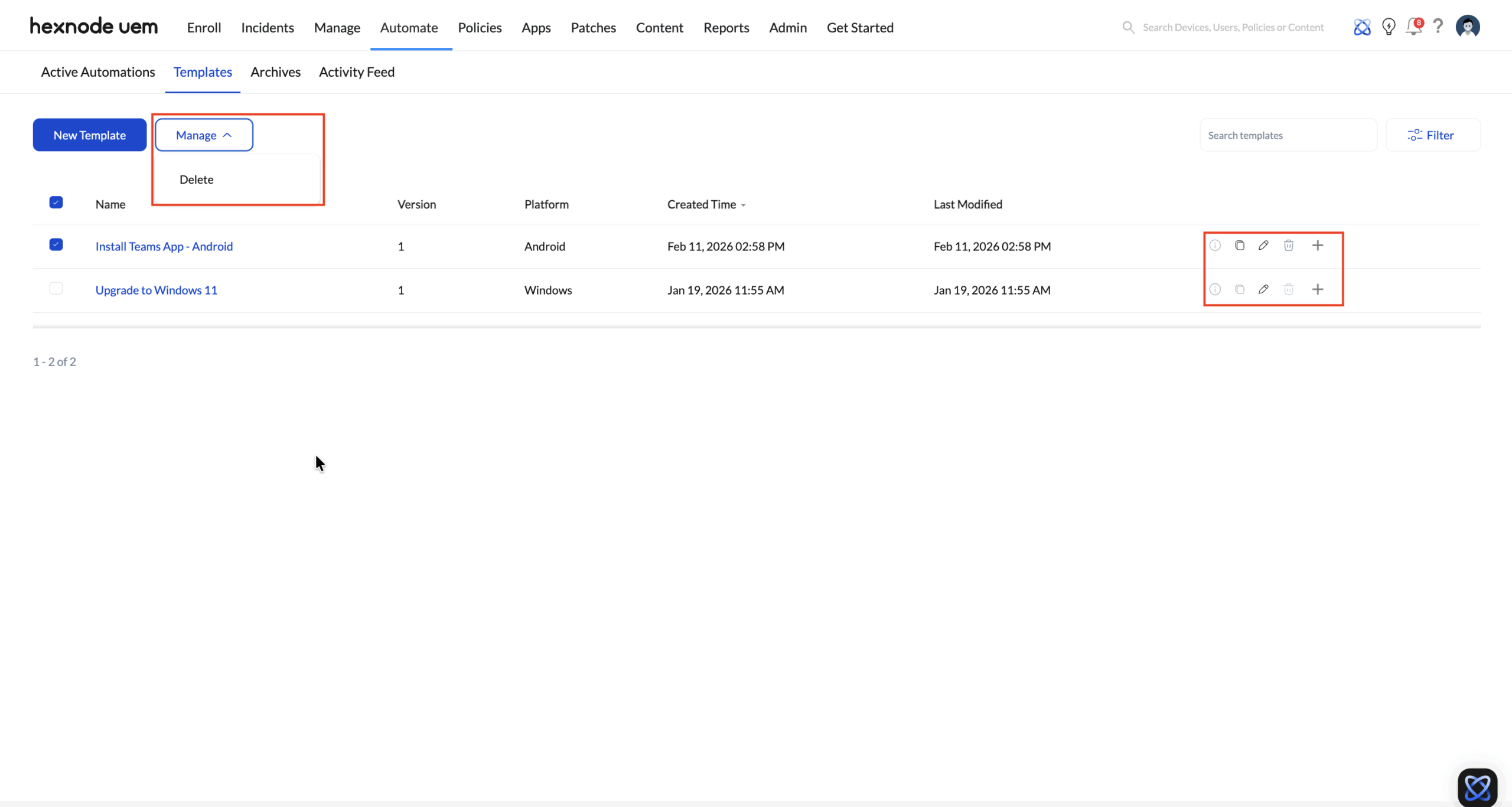
Manage the lifecycle of your blueprints within the Automate > Templates dashboard:
- Modify: Edit settings via the list view or the Information icon.
- Clone: Create a duplicate of an existing custom template for rapid iteration.
- Delete: Permanently remove templates. System-protected templates cannot be deleted.
Pre-configured Automation Templates
Hexnode provides system-protected templates for critical, standardized IT tasks. These workflows cannot be deleted but can be modified to suit environment-specific constraints.
Case Study: Upgrade to Windows 11
This template automates the migration from Windows 10 to Windows 11. It reduces custom scripting risks and helps maintain OS consistency across the fleet.
View Windows 11 Automation Rules
| Setting | Technical Description |
|---|---|
| Require update approval | When enabled, only administrator-approved patches are deployed to devices. This option is enabled by default. |
| Install and reboot only during maintenance window | Ensures devices reboot automatically only during the defined maintenance window after updates are installed. Notifications can be customized using Configure device end notifications. This option is enabled by default. |
| Configure technician notifications |
Enables notifications to selected technicians about installation failures and status updates. The technician notification options are:
|
| Restart notifications | When enabled, users receive default notifications about upcoming restarts, even if restart notifications are disabled elsewhere. This option is enabled by default. |
| Notification schedule | Defines how long before the restart users are notified. |
| Notification message | Customizes the notification title and message displayed to users. |
| Allow user to postpone restart |
This option is disabled by default. When enabled, users can postpone restarts using the following options:
|
Frequently Asked Questions
What are pre-configured automation templates?
Pre-configured templates are system-protected standardized workflows provided by Hexnode for critical tasks like Windows 11 upgrades. They cannot be deleted but their rules can be edited.
Can I clone a system-protected template?
No. System-protected templates like ‘Upgrade to Windows 11’ cannot be cloned or deleted. However, administrators can modify their configurations.


