


Category filter
How to Print Text to a Printer via Windows Scripts?
For organizations managing physical records—such as contracts, shipping labels, or patient records—manual printing is an operational bottleneck. Hexnode UEM allows administrators to automate text-based printing across a dispersed Windows fleet, transforming a local task into a centralized administrative workflow.
By utilizing the Execute Custom Scripts feature within the Hexnode UEM console, administrators can deploy commands that leverage the local Windows operating system and printer drivers to directly send text and files to connected printers, ensuring immediate and accurate document printing from a centralized control point.
Implementation Scenarios
Deploying PowerShell and Batch scripts via Hexnode UEM provides a reliable bridge between digital administration and physical record-keeping, supporting a variety of practical requirements.
- Logistics and Fulfillment: Automate the generation of packing slips or shipping manifests at specific warehouse terminals, ensuring paperwork is ready the moment a shipment is processed.
- Retail Operations: Dispatch end-of-day transaction logs or internal invoices to back-office printers, removing the need for staff to manually interact with the local Windows OS.
- Audit and Compliance: Generate time-stamped hardware status reports or system health checks using the %date% and %computername% variables, creating a physical paper trail for security audits.
- Healthcare Administration: Send patient check-in notifications or departmental alerts to nursing stations by targeting specific printer names within the clinical environment.
- Unattended Kiosks: Remotely trigger the printing of visitor badges on devices where no physical keyboard or mouse is accessible to a user.
Technical Requirements
To ensure the successful deployment of these automated print scripts, the target Windows endpoints must meet the following technical requirements.
| Category | Requirement |
|---|---|
| Operating System | Windows 10/11 (Pro, Enterprise, or Education). |
| Management | Hexnode UEM Agent must be installed and initialized. |
| PowerShell | Version 5.1 or higher (standard on modern Windows). |
| Printer Setup | The target printer must be pre-installed on the local machine. |
| Service Status | The Windows Print Spooler service must be running. |
| Naming | The $printerName in the script must match the “Friendly Name” in Windows Settings exactly. |
PowerShell Script to send custom text to a printer
This script is the most reliable method. It defines the custom text and targets a specific printer name. If the printer is offline, the Windows Spooler will hold the job until the device reconnects.
To execute this script via Hexnode UEM, follow the given steps:
- Navigate to the Manage tab in your Hexnode UEM console and select your Windows device.
- From Actions, select Execute Custom Script from Deployments.
- Upload the .ps1 PowerShell script and click Execute.
|
1 2 3 4 5 6 7 8 9 10 11 12 13 14 15 16 17 18 19 20 21 22 23 24 25 |
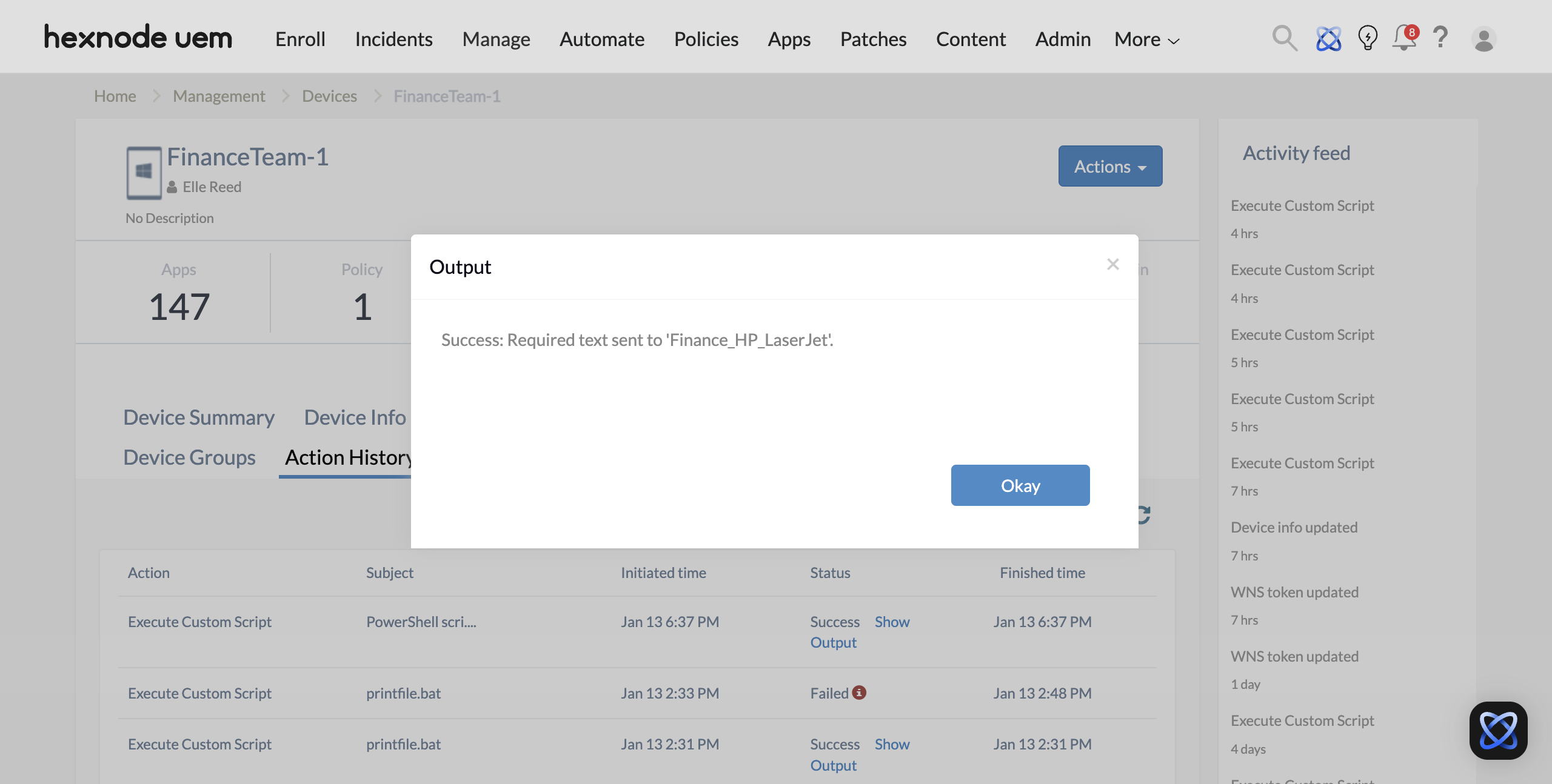
# 1. Define the custom text content directly in the script $printPayload = @" BUSINESS RECORD: INVOICE Date: $(Get-Date -Format "yyyy-MM-dd HH:mm") Device Name: $($env:COMPUTERNAME) -------------------------------------- This is a custom automated print job generated via Hexnode UEM. -------------------------------------- "@ # 2. Define the specific printer name $printerName = "Printer_Name" # Replace with your actual printer name # 3. Check if the specified printer exists if (Get-Printer -Name $printerName -ErrorAction SilentlyContinue) { # 4. Send the string directly to the printer $printPayload | Out-Printer -Name $printerName Write-Host "Success: Required text sent to '$printerName'." } else { Write-Error "Error: Printer '$printerName' not found. Check the name in Windows Settings." exit 1 } |
Batch Scripts to send custom text to a printer
This script uses a Batch wrapper to pipe dynamic text into a background PowerShell command. It is useful for environments where Batch is the preferred scripting standard.
|
1 2 3 4 5 6 7 8 9 10 11 12 13 14 15 16 17 18 19 20 21 22 23 |
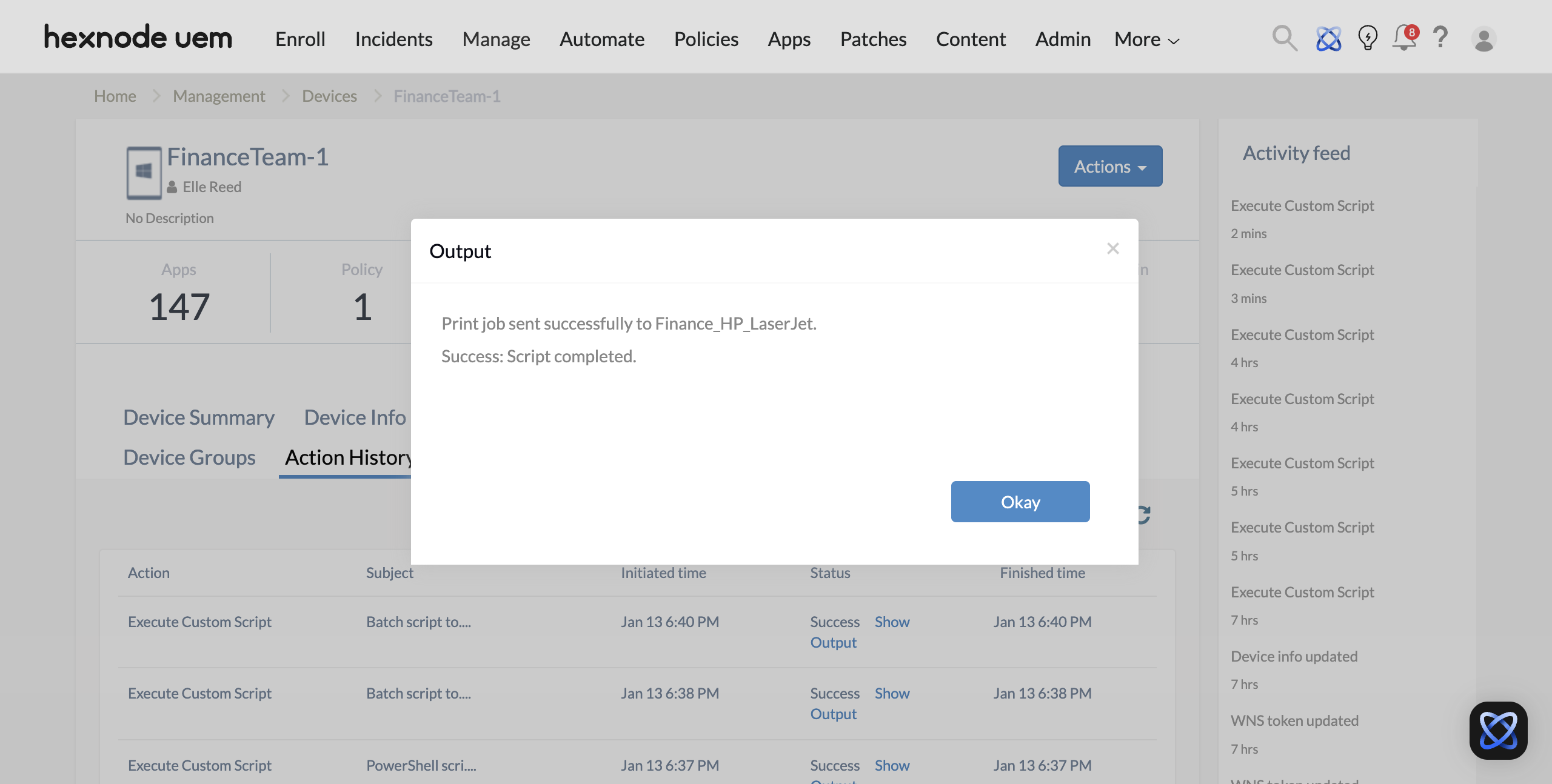
@echo off :: 1. Define the target printer name set "printerName=Printer_Name" :: 2. Verify printer existence and stream text in one execution ( echo BUSINESS RECORD: INVOICE echo Date: %date% %time% echo Device Name: %computername% echo -------------------------------------- echo This is an automated print job echo deployed via Hexnode UEM. echo -------------------------------------- ) | powershell -ExecutionPolicy Bypass -Command "$inputData = $input; if (Get-Printer -Name '%printerName%' -ErrorAction SilentlyContinue) { $inputData | Out-Printer -Name '%printerName%'; Write-Host 'Print job sent successfully to %printerName%.' } else { Write-Error 'Printer %printerName% not found in SYSTEM.'; exit 1 }" :: 3. Reporting to Hexnode Portal if %errorlevel% equ 0 ( echo Success: Script completed. ) else ( echo Error: Print job failed. Check if printer is installed for 'All Users'. exit /b 1 ) |
Post-Execution Verification of the Script
The text payload is dispatched straight to the printer spooler for immediate output if the device is online. If the printer is currently disconnected, the job is cached in the Windows print queue and will resume automatically once the connection is re-established.
To audit the execution status and verify script success within the Hexnode UEM console, follow these steps:
- Locate the Device: Navigate to the Manage tab and select the specific Windows endpoint.
- Access Logs: Within the device details page, click on the Action History tab to view all remote operations.
- Validate Output: Find the Execute Custom Script entry. If the status is “Success,” click the Show Output button to review the confirmation messages.
Troubleshooting common errors
| Issue | Potential Cause | Recommended Solution |
|---|---|---|
| Error: Printer not found | The $printerName variable does not match the printer “Friendly Name” in Windows exactly. | Run Get-Printer command in the terminal to obtain a list of installed printers in the device to identify the exact friendly name |
| Script hangs / Timing out | The printer is a “Print to PDF” or virtual driver requiring a save location. | Ensure that a physical printer is targeted. Virtual printers require a UI interaction that is blocked in the UEM context. |
| Script hangs / Timing out | The printer is a “Print to PDF” or virtual driver requiring a save location. | Ensure that a physical printer is targeted. Virtual printers require a UI interaction that is blocked in the UEM context. |
| Success reported, but no printout | The Print Spooler service is stuck or the printer is offline. | Restart the spooler using Restart-Service Spooler command in terminal. Check the physical printer for paper jams or “Offline” status. |
| Garbage characters printed | The printer driver does not support plain text streaming. | Ensure the printer is using a standard Windows-compatible driver (PCL or PostScript) from the Printer Properties from Windows Settings > Bluetooth & devices (or Devices) > Printers and scanners > Target printer > Printer Properties > Advanced. |


