


Category filter
Automate App Uninstallation on macOS Devices in Hexnode UEM
TL;DR
App Uninstallation feature in Hexnode UEM automates the removal of outdated or non-compliant applications from macOS devices. By supporting sequential execution, silent background removal, and custom scripts, this automation ensures comprehensive application cleanup across managed endpoints.
Executive Summary
Standard uninstallation methods often leave behind residual cache files and complex application dependencies. This can lead to storage bloat and potential security vulnerabilities on macOS devices. The App Uninstallation automation in Hexnode UEM resolves these challenges by providing advanced controls over the entire removal process. Administrators can dictate exact removal sequences and execute custom scripts before and after uninstallation. Additionally, the feature enforces silent background removals to ensure complete app removal without requiring end user interaction.
Strategic Use Cases
- Storage Management: Reclaim device storage by silently removing legacy or unused software packages.
- Policy Compliance: Enforce organizational policies by removing unauthorized consumer applications (such as personal cloud storage or messaging platforms).
- Device Handover: Ensure comprehensive data sanitization by completely wiping all third-party applications when an employee offboards or a device is reassigned.
Configuration Guide
Step 1: Initialization
- Navigate to the Automate tab in the Hexnode UEM portal.
- Click New Automation and select macOS.
- Provide a descriptive name for the automation.
Step 2: Action Configuration
Select App Uninstallation and proceed through these four stages:
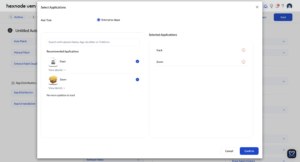
A. Select Applications
Select the target applications for removal and confirm the selection.
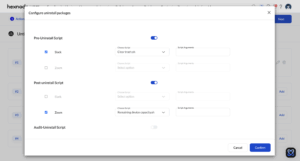
B. Configure Scripts
Toggle and assign scripts from your repository to handle any specific uninstallation requirements for each app.
| Script Type | Function | Example |
|---|---|---|
| Pre-Uninstall | Executes before the uninstallation initiates. | Terminates active application processes (e.g., using killall). |
| Post-Uninstall | Executes immediately after the application is removed. | Deletes lingering preference files (.plist) and clears application caches. |
| Audit-Uninstall | Executes upon completion of the uninstallation workflow to perform final evaluations or custom tasks. | Logs custom removal metrics, evaluates the final device state, or scans the directory to confirm complete deletion of the app. |
C. Set Uninstallation Flow
Utilize the drag-and-drop interface to establish the exact sequential order for multi-app removals.
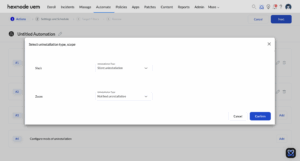
D. Configure Mode of Uninstallation
Define the user experience during the uninstallation process:
- Silent uninstallation: The application is removed in the background without on-screen prompts.
- Notified uninstallation: The user receives an on-screen alert regarding the removal.
Step 3: Scheduling & Triggers
Define exactly when the automation will run by selecting one of these triggers:
| Trigger Type | Available Options |
|---|---|
| Time |
|
| Activity (Enrollment) |
|
| Activity (Compliance) |
|
Step 4: Target Filters and Finalization
Select the target devices using Included groups, Excluded groups, or custom Filters. Review the configuration and click Save to deploy the automation.
Tracking Automation Status
Administrators can monitor the execution status of the app uninstallation workflows in the following ways:
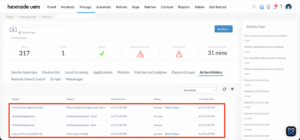
1. Device-Level Tracking (Action History)
To view a granular, step-by-step execution log for a specific endpoint:
- Navigate to Manage > Devices > [Device Name] and select the Action History tab.
- This view logs individual stages (such as script executions and application removals) alongside their timestamps and statuses.
- Click Show Output to inspect the exact results of executed scripts.
2. Automation-Level Tracking (Reports)
To view a consolidated summary of the automation deployment across all targeted devices:
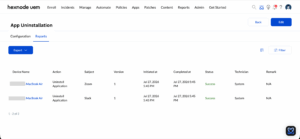
- Navigate to the Automate tab, select the specific automation, and click Reports.
- This dashboard displays the Device Name, Action, Subject (the target application), Status, and Timestamps.
- Administrators can use the Filter button to isolate specific execution states or click Export to download the deployment report.
Troubleshooting
| Issue | Probable Cause | Solution |
|---|---|---|
| Leftover files remain on the Mac | Standard uninstallation commands only remove the main application bundle, leaving cache files behind. | Deploy an Audit-Uninstall Script to scan the directory and confirm all residual data is wiped. |
| Scripts fail to execute | The script contains formatting errors, or the Hexnode agent lacks necessary system permissions. | Ensure scripts are formatted as .sh for macOS and verify the MDM agent has Full Disk Access. |
| Application fails to uninstall | macOS prevents the deletion of applications that are actively running. | Utilize a Pre-Uninstall script to force-quit the application (e.g., killall [App Name]) prior to removal. |
Frequently Asked Questions
Can an automated app uninstallation be cancelled once initiated?
No. Once the command reaches the target device, macOS processes the removal permanently. Administrators cannot pause or rollback the action via the portal. To restore the application, a new installation action or policy must be deployed.
What happens if a "Required App" is removed via automation?
The Hexnode agent will automatically reinstall the application during the next routine device scan to ensure the endpoint remains compliant with organizational policies.
Does the "Silent uninstallation" option bypass standard macOS Admin prompts?
Yes. Because the command is routed through the MDM framework, it leverages system-level privileges to remove the application silently, bypassing local administrator password prompts.
Can this automation remove default Apple applications (e.g., Safari, Mail)?
No. System Integrity Protection (SIP) on macOS prevents the modification or deletion of native Apple applications. This feature exclusively targets third-party and enterprise applications.


