


Category filter
Cross-Tenant “Outdated OS” Discovery via Hexnode UEM
Executive Summary
For Managed Service Providers (MSPs), the Hexnode MSP portal serves as a centralized hub, offering seamless multi-tenant access and exceptional macro-level administrative control for billing, licensing, and client management. However, when auditing granular, device-level attributes; such as identifying every device running an outdated OS version across dozens of tenants simultaneously; MSPs can be used as an access point to elevate their operations in respective UEM consoles.
This strategic document outlines a validated best practice workflow utilizing Hexnode UEM’s Custom Reports and Scheduled Reports functionalities. By configuring individualized reports in each UEM tenant and funneling them into a centralized data pipeline, MSPs can leverage their centralized access to achieve global OS compliance visibility with minimal recurring labor.
Technical Validation: Hexnode UEM Capabilities
Before outlining the workflow, it is crucial to align the strategy with validated Hexnode UEM capabilities:
- Custom Reports: Hexnode allows the creation of tailored reports under the Reports > Custom Reports module.
- Report Types: Hexnode categorizes custom data. To query OS versions, the Device Report Type is utilized.
- Condition Filters: Hexnode supports granular logic operators (e.g., OS Name and OS Version) to strictly isolate outdated devices.
- Data Columns: Hexnode allows administrators to strip out unnecessary data. Note: In Hexnode, the “Device Name” column is mandatory for device reports.
- Automated Delivery: Hexnode explicitly supports automating report delivery via Reports > Scheduled Reports, allowing CSV exports to be emailed at daily, weekly, or monthly intervals.
Automated “Old OS” Discovery Workflow
Objective: Configure individual Hexnode UEM tenants to automatically compile and push “Outdated OS” data to a central MSP repository, eliminating the need for manual, recurring portal-hopping.
Phase 1: The Initial Configuration (Per Tenant)
This is the foundational phase. You will use your overarching MSP portal as a jump-station to securely access each individual client’s Hexnode UEM console.
- Access the Tenant: From your centralized Hexnode MSP dashboard, navigate to the Tenants (or Portals) tab and click on the first client to instantly access their individual UEM console.
- Initialize the Report:
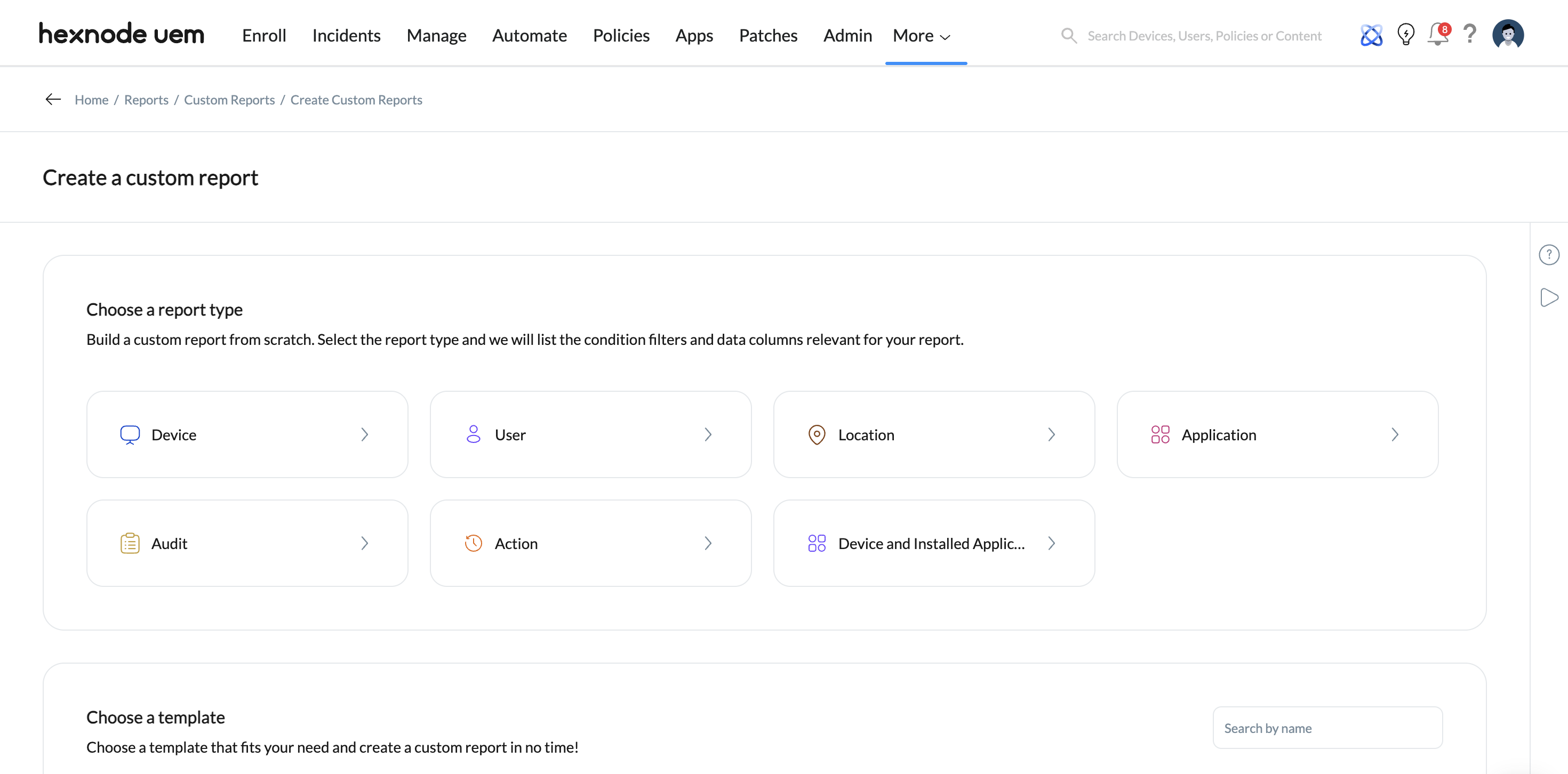
- Navigate to Reports > Custom Reports from the main dashboard.
- Click the Add button to build a new framework.
- Configure Basics & Report Type:
- Provide a clear naming convention: “Audit – Outdated OS [Insert Tenant Name]”. (Appending the specific tenant name is critical for the final data aggregation phase).
- Set the Report Type to Device (this encompasses serial numbers, OS versions, and compliance status).
- Apply Condition Filters:
- Instead of pulling all devices, use Hexnode’s logic filters to isolate non-compliant operating systems.
- Add rules such as OS Name is iOS AND OS Version is less than 16.0 (adjust based on your MSP’s security baseline).
- Define Data Columns:
- Navigate to the Available Columns section.
- Select only the necessary points to keep the payload clean: OS Name, OS Version, and Last Sync. (Note: Hexnode permanently locks Device Name as a mandatory column, which is required for identification anyway).
- Save: Click Save to finalize the template.
Phase 2: Automate the Delivery (The “Set and Forget” Step)
Instead of returning to this specific portal to run the report manually, you will utilize Hexnode’s scheduling engine to push the data to your team automatically.
- Access Scheduling: Navigate to Reports > Scheduled Reports.
- Create the Schedule: Add a new scheduled report and select the custom “Audit – Outdated OS [Insert Tenant Name]” report you just built.
- Delivery Cadence: Set the interval (Daily, Weekly, or Monthly) to align with your MSP’s routine patch management or compliance audit cycle.
- Target Destination: Enter a centralized MSP email address (e.g., reports@yourmsp.com or a dedicated ticketing system ingestion address).
- Format Configuration: Explicitly select CSV as the export format. Do not choose PDF, as it cannot be easily parsed by data aggregation tools.
Phase 3: Replication Across the Fleet
- Return to the primary Hexnode MSP jump-station.
- Click into the next client tenant.
- Repeat Phases 1 and 2.
- Continue this process until the scheduled reporting framework is deployed across all managed UEM portals.
Phase 4: Centralized Aggregation & Data Synthesis
Once the global configuration is complete, your centralized MSP inbox will begin receiving CSV files on your chosen schedule.
The Power Query Aggregation Strategy:
Opening dozens of CSVs manually defeats the purpose of automation. To finalize this workflow, utilize Microsoft Excel’s Power Query feature:
- Route all incoming Hexnode report emails to save their CSV attachments into a designated local or SharePoint folder.
- Open a master Excel workbook, navigate to Data > Get Data > From File > From Folder, and point it to your repository.
- Power Query will instantly combine all generated CSV files into a single, cohesive master spreadsheet.
- Because you rigidly adhered to naming the reports with the Tenant Name during Phase 1, the aggregated data will inherently categorize which non-compliant devices belong to which client.
Strategic Conclusion
By leaning into Hexnode’s highly customizable Condition Filters and Scheduled Reports, MSPs can effectively bypass the limitations of a macro-only dashboard. This decentralized push-reporting strategy ensures accurate, tenant-specific OS version tracking while reducing ongoing engineering time to zero after the initial setup.


