


Category filter
Configuring BitLocker Encryption via Hexnode UEM Policy
Overview
BitLocker is a native Windows security feature that provides full-disk encryption to protect data from unauthorized access, particularly in cases of lost or stolen hardware. By using Hexnode UEM, IT administrators can silently enforce BitLocker across the entire device fleet, automate recovery key escrow, and ensure compliance with corporate security standards.
Prerequisites
To deploy BitLocker via Hexnode, the following requirements must be met:
- Supported OS: Windows 10/11 (Pro, Enterprise, or Education editions).
- Hardware: A Trusted Platform Module (TPM) version 1.2 or later is highly recommended.
- Licensing: The device must be enrolled in Hexnode UEM via MDM.
Step 1: Create a BitLocker Policy in Hexnode
- Log in to your Hexnode UEM Portal.
- Navigate to the Policies tab.
- Click New Policy or edit an existing one.
- Provide a Name and Description (e.g., “Corporate BitLocker Enforcement”).
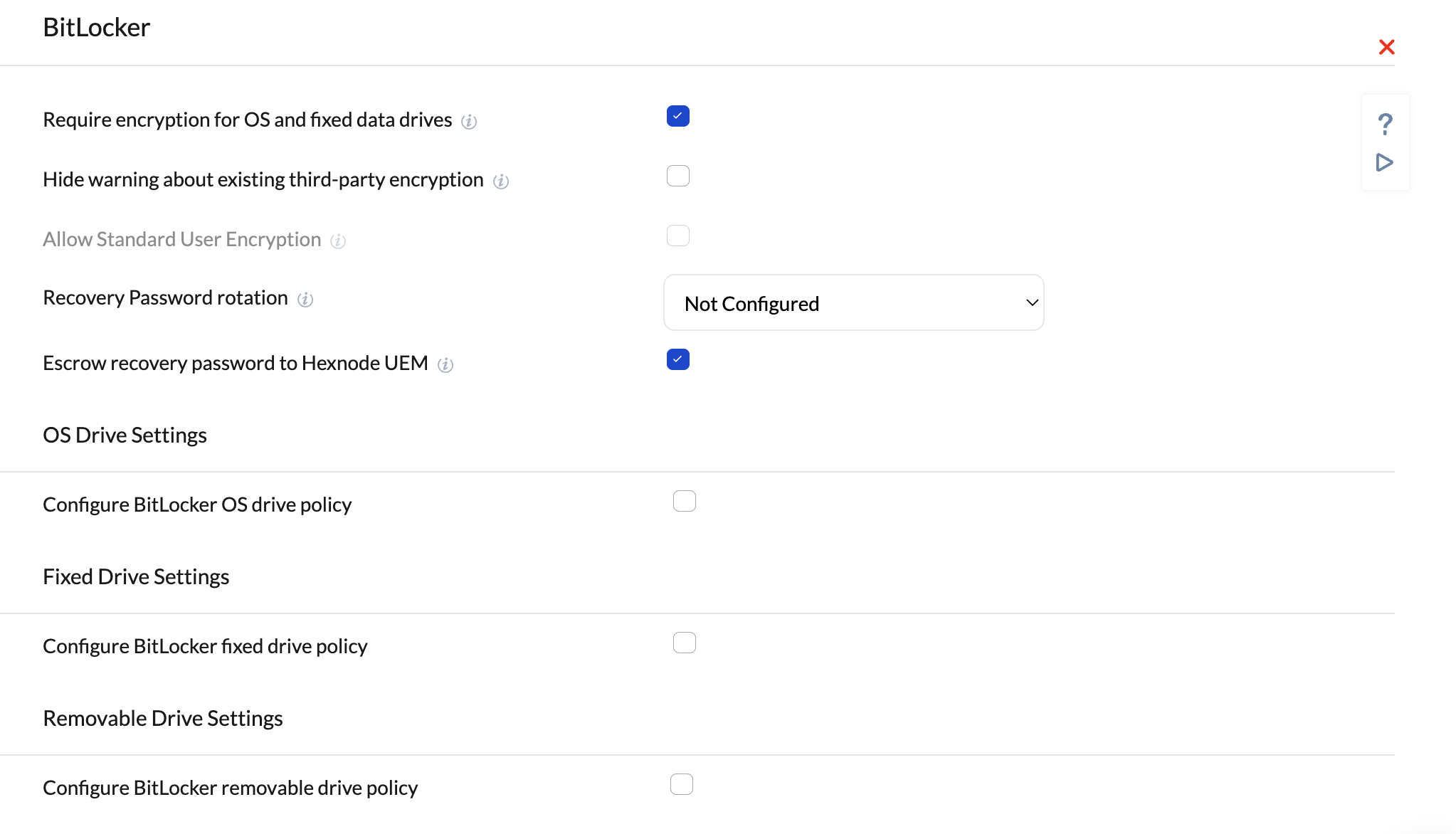
- Go to Windows > Security > BitLocker.
- Click Configure.
Step 2: Configure Encryption Settings
Within the BitLocker settings, define the level of security required:
- Require encryption for OS and fixed data drives: Check this to mandate encryption.
- Encryption Method: Choose between AES-CBC or XTS-AES. (XTS-AES 256-bit is recommended for modern Windows 10/11 versions).
- Require Authentication at Startup: For devices with a TPM, you can allow silent encryption. For devices without a TPM, you must require a startup password or a USB key.
- Allow Standard Users to Enable Encryption: Enable this if your employees do not have local admin rights, allowing the MDM to trigger encryption on their behalf.
Step 3: Manage Recovery Keys (Escrow)
One of the primary benefits of MDM-managed BitLocker is recovery key management.
- Recovery Password: Set this to Required. This generates a 48-digit numerical password.
- Escrow Recovery Password to Hexnode: Crucial. Ensure this is enabled. This allows Hexnode to securely store the recovery key in the portal.
- Rotation of Recovery Passwords: You can configure the device to rotate the recovery key after it has been used to unlock the drive, ensuring the old key is no longer valid.
Step 4: Silent Encryption (Zero-Touch)
For a seamless user experience, you can enable Silent Encryption.
- Set Warning for other disk encryption to Block.
- Set Allow Standard User to Enable Encryption to Yes.
- Note: The device must be Azure AD (Microsoft Entra ID) joined or Hybrid Joined for fully silent encryption without user interaction.
Step 5: Assign the Policy
- Navigate to the Policy Targets tab within the policy editor.
- Select the Devices, Device Groups, or Users to whom this policy should apply.
- Click Save.
Monitoring Compliance and Recovery
Checking Encryption Status
To verify if a device is encrypted:
- Go to Manage > Devices.
- Select the specific device and click on the Security tab.
- Look for the BitLocker section to see encryption status and drive details.
Retrieving a Recovery Key
If a user is locked out of their device:
- Navigate to Manage > Devices.
- Select the device and go to Device Summary.
- Click on BitLocker Recovery Key (or find it under the Actions dropdown).
- Provide the key to the user to unlock their system.
Best Practices
- Test on a Pilot Group: Always deploy BitLocker to a small group of test machines before a company-wide rollout to ensure TPM compatibility.
- Encrypted Only Used Space: For faster initial encryption on new devices, choose “Used Space Only.” For repurposed devices, “Full Disk Encryption” is safer.
- Backup First: Advise users to back up critical data before the encryption process begins, though BitLocker is generally non-destructive.
Common Troubleshooting:
Error: TPM not found. Ensure TPM is enabled in the BIOS/UEFI settings of the hardware.
Policy not applying: Check if the device is running Windows Home edition, which does not support full BitLocker management.


