


Category filter
Setting Up Hexnode UEM for Small Businesses: The Complete Roadmap
Deploying a Unified Endpoint Management (UEM) solution is a critical step for small businesses to secure corporate data and manage device fleets. This guide provides a simplified, 6-phase workflow to get your Hexnode portal from a trial state to a fully operational management hub.
Phase 1: Initial Portal Configuration
Before managing devices, establish your administrative environment within the Hexnode portal.
- Register Your Portal: Sign up at Hexnode.com. Choose a unique sub-domain (e.g., yourbusiness.hexnodemdm.com).
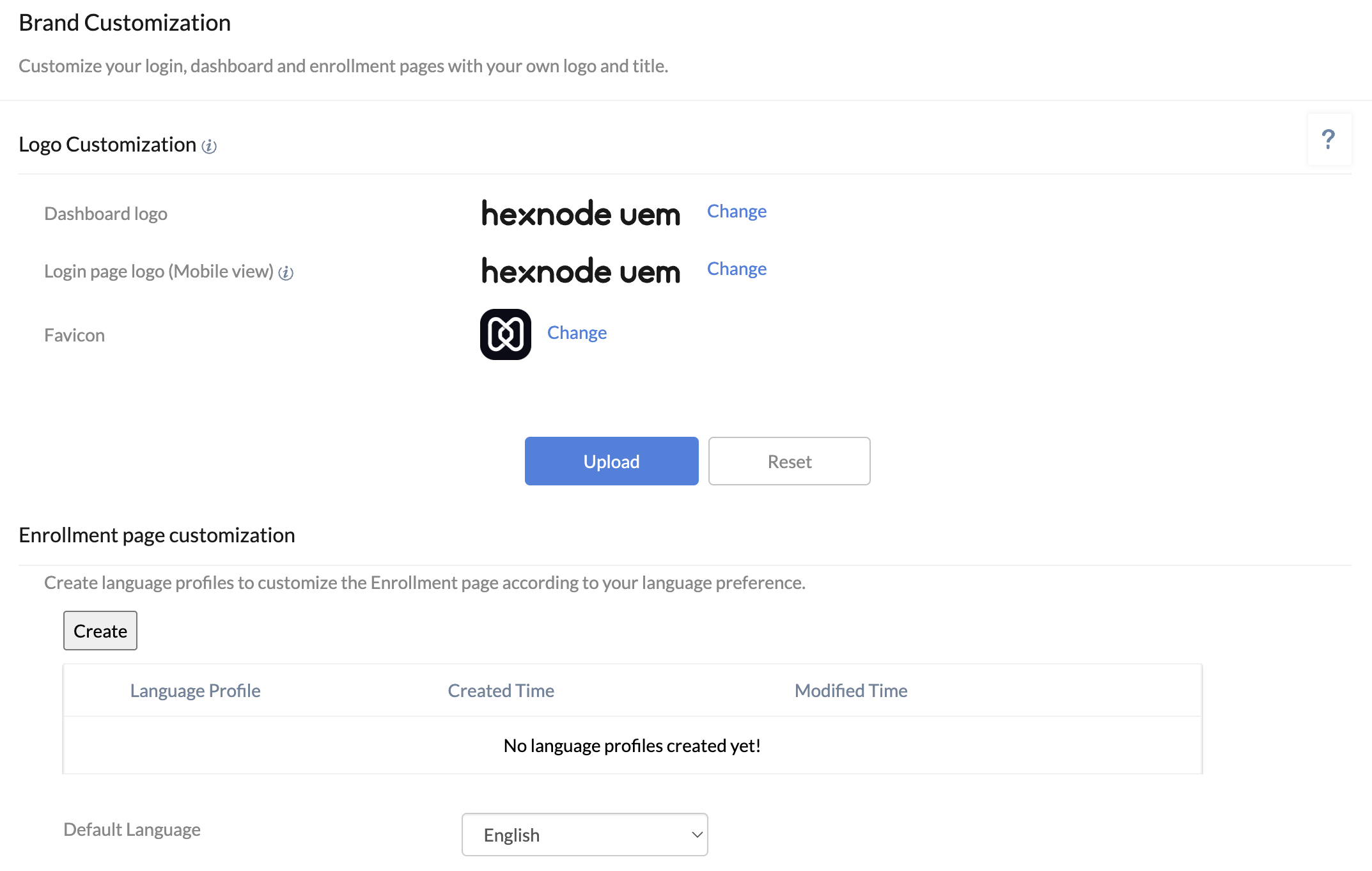
- Brand Customization: Navigate to Admin > Brand Customization. Upload your company logo to ensure employees see familiar branding during the enrollment process.
- Configure Technicians: Go to Admin > Technicians and Roles. For small teams, assign an “Admin” or “Reports Manager” role to secondary IT staff to delegate tasks safely.
Phase 2: Platform Integration & Certificates
To manage Apple and Android devices, Hexnode must be authorized to communicate with their respective servers.
Apple Push Notification service (APNs)
Required for iOS, iPadOS, and macOS.
- Navigate to Admin > APNs.
- Download the Certificate Signing Request (CSR).
- Upload it to the Apple Push Certificates Portal using a corporate Apple ID.
- Download the .pem file from Apple and upload it back to Hexnode.
Android Enterprise (AE)
Required for advanced Android management.
- Go to Admin > Android Enterprise.
- Choose the preferred Enrollment type and click Enroll.
- Follow the prompts to link a Gmail account (ideally a corporate service account) to create your Managed Google Play Store.
Phase 3: Developing Core Security Policies
Policies are the “rules” of your MDM environment. For a small business, start with a Global Security Policy.
- Passcode Requirements: Navigate to Policies > New Policy > Passcode. Enforce a minimum length (e.g., 6 digits) and complexity.
- Wi-Fi Configuration: Under Policies > Network, add your office Wi-Fi details. This allows devices to connect automatically upon enrollment.
- Restrictions: Use Policies > Restrictions to disable high-risk features like “Factory Reset” or “Account Modification” on corporate-owned devices.
Phase 4: User Onboarding & Directory Integration
You can add users manually or sync from existing directories.
- Manual Entry: Go to Manage > Users > Add User. Ideal for businesses with fewer than 20 employees.
- Directory Integration: If you use Google Workspace or Microsoft Entra ID (Azure AD), navigate to Admin > Microsoft Entra ID / Google Workspace to sync your user list automatically.
Phase 5: Device Enrollment Methods
Hexnode offers several ways to “onboard” hardware based on ownership.
- BYOD (Bring Your Own Device): Send an Enrollment Request via Email or SMS (Enroll > All Enrollments > Invite). Users follow a link to install the MDM profile.
- Corporate-Owned (QR Code): For Android, use the QR Code Enrollment during the initial “out-of-the-box” setup for Device Owner mode.
- Apple Business Manager (ABM): If you purchased devices through Apple’s business program, use Automated Device Enrollment (ADE) for zero-touch deployment.
Phase 6: Monitoring & Compliance
Once devices are enrolled, use the dashboard to maintain health.
- Compliance Rules: Go to Policies > Compliance Policies > New Policy. Define what makes a device “Non-Compliant” (e.g., a missing passcode or a rooted device).
- Reports: Schedule weekly reports under the Reports tab to monitor data usage, battery health, and app inventory across your small business.
Pro Tip: Always test your policies on a “sandbox” device before deploying them to your entire team to avoid accidental lockouts.


