


Category filter
Identifying “Ghost” Devices: Cleaning Up a 10,000-Unit Hexnode UEM Database
Executive & Technical Summary
In massive enterprise fleets (e.g., 10,000+ units), the accumulation of “Ghost Devices” orphaned, inactive, or decommissioned assets that remain in the management database; presents a dual risk: Security Compliance Drift and Licensing Inefficiency.
Technically, Ghost Devices are identified via Management Inactivity Thresholds where the On-Device Agent fails to complete the Server-to-Endpoint Handshake for an extended period. This guide outlines an actionable, tiered workflow to identify stale telemetry, dynamically quarantine assets, and execute bulk database sanitization within Hexnode UEM. By implementing this strategy, you ensure the UEM database remains a “Single Source of Truth” for active, compliant hardware while proactively shrinking your corporate carbon footprint.
1. The Anatomy of a Ghost Device
At a scale of 10,000 units, roughly 5–10% of the fleet typically falls into the “Ghost” category annually. This database bloat is usually driven by four main factors:
- Employee Offboarding: Devices returned to IT but never properly disenrolled from the portal.
- Hardware Failure: Units that “went dark” due to dead motherboards or complete battery exhaustion.
- Shadow IT: Devices that were manually wiped or factory-reset by users without properly removing the UEM profile.
- Lost/Stolen Assets: Units that have been offline and out of communication for extended periods.
2. Identification: The High-Scale Audit Workflow (The Pulse Check)
Manual auditing is impossible at scale. Administrators must define strict baselines and utilize dynamic reporting to isolate stale assets.
Establish the Baseline
Before automating the cleanup, define your inactivity threshold.
- Hexnode UI Path: Admin > General Settings > Inactivity Settings
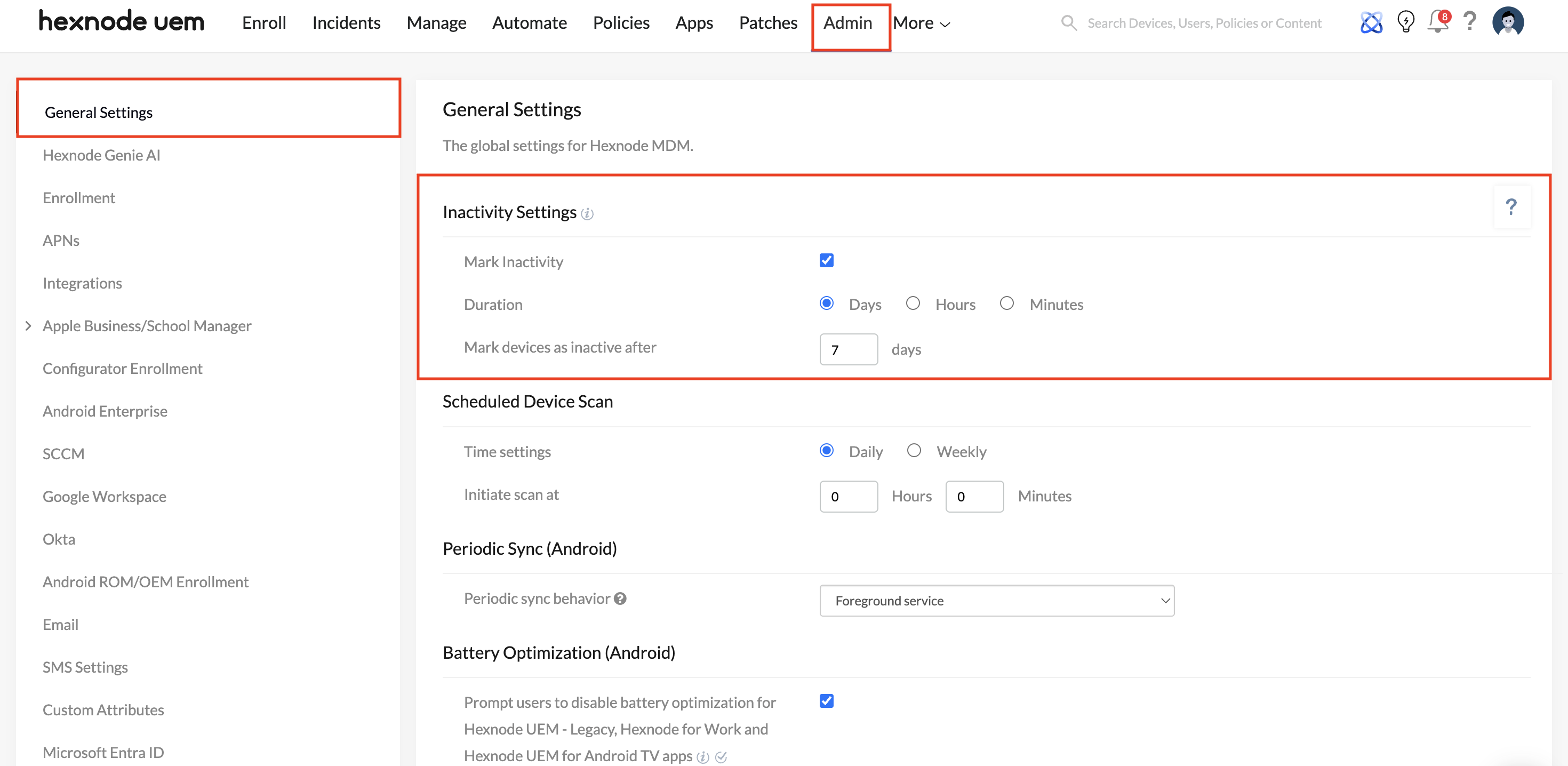
- Action: Check Mark Inactivity and set the duration (e.g., 30 Days).
Generate the Roster & Cross-Reference
- Hexnode UI Path: Reports > Built-in Reports > Device > Inactive Devices
- Action: Filter the Inactivity Days parameter to your baseline and export the CSV for a “Pre-Cleanup” audit trail.
- Identity Cross-Reference: Run a VLOOKUP against your Identity Provider (Okta, Microsoft Entra ID) “Active User” list. This instantly identifies “Orphaned” devices where the assigned user is no longer active in the corporate directory, but the device continues to consume a Hexnode license.
- The Zombie vs. Ghost Pivot: Cross-reference the inactive list with the “Last Known Battery Level” telemetry. A device at 0% is likely dead in a drawer (Ghost). A device at > 0% is powered on, disconnected, and wasting energy (Zombie).
3. Quarantine & Compliance Integration
Inactivity alone is just a status tag. To trigger security postures, this status must be legally tied to a compliance violation within Hexnode’s Zero-Trust architecture.
Tie Inactivity to Compliance
- Hexnode UI Path: Policies > Compliance Policies > New Policy > Basic Settings
- Action: Enable the Device becomes inactive rule. The moment a device fails to check in, Hexnode instantly flags it as Non-Compliant.
Create a Dynamic Quarantine Bucket
- Hexnode UI Path: Manage > Device Groups > New Dynamic Group
- Action: Configure the Condition Filter: Compliance info -> Device Status -> is -> Inactive.
- Result: Devices automatically populate into this group, allowing you to scope restrictive policies (e.g., blocking network access) exclusively to this bucket.
4. Out-of-Band Warnings
Do not send a broadcast message to a dead device; it will just sit in a queue. Instead, utilize out-of-band communication by alerting the assigned user or their line manager.
- Hexnode UI Path: Reports > Scheduled Reports
- Action: Select the Inactive Devices report, set it to run weekly, and schedule delivery to the IT Service Desk.
- Workflow: IT uses this scheduled intelligence to notify users via Slack/Teams/Email: “Hi [Name], your assigned device [Serial] hasn’t synced in 30 days. Please power it on and connect to Wi-Fi by Friday, or it will be subjected to our remediation protocol.”
5. Remediation: Tiered Cleanup Protocol
To clean a 10,000-unit database without risking active production hardware, follow this Tiered Isolation Strategy based on how long the device has been dark:
| Tier | Status | Action | Strategic Goal |
|---|---|---|---|
| Tier 1: Quarantine | Inactive 30–60 Days | Move to “Inactive-Review” Dynamic Group. | Halt all automated app/policy updates to save server bandwidth and isolate the device. |
| Tier 2: Enforcement | Inactive 60–90 Days | Execute “Corporate Wipe”. | Secure company data immediately while leaving the base OS intact for potential re-deployment. |
| Tier 3: Sanitization | Inactive 90+ Days | Disenroll & Delete. | Reclaim the UEM license seat and permanently remove the entry from the database. |
6. Execution: Bulk Actions at Scale
Hexnode UEM allows administrators to perform the above tier-actions on thousands of devices simultaneously.
- Navigate to the Manage tab.
- Filter for your Quarantine/Inactive Dynamic Group.
- Select All (using the bulk-select checkbox).
- Navigate to Actions > Disenroll Device (or Corporate Wipe, depending on the Tier).
- Once the action is confirmed, use the Delete Device action to purge the record from the database.
Critical Infrastructure Note for Apple & Windows: If you are permanently retiring from Apple ADE (DEP) or Windows Autopilot devices, ensure they are also released from Apple Business or the Intune/Autopilot deployment profiles. Otherwise, they will simply force-enroll back into Hexnode the next time they connect to the internet.
FAQ (Frequently Asked Questions)
Q: Will simply deleting a device from Hexnode also wipe the physical hardware?
A: No. Executing a “Delete” action simply removes the management record from the Hexnode database. If you wish to remove corporate data from the physical hardware, you must execute a “Remote Wipe” or “Disenroll” command before deleting the device.
Q: Can I recover a Ghost device after deleting it from the Hexnode UEM console?
A: Once a device is permanently deleted from the UEM database, it is gone. It must be physically recovered and re-enrolled as a brand-new asset. Furthermore, all previous action history, logs, and telemetry for that specific hardware record will be permanently purged.


