


Category filter
UEM Idempotency Strategy: Scaling Bulk Actions without Redundancy
Executive Summary
In modern Enterprise IT management, treating device fleets as Infrastructure as Code (IaC) requires a shift from reactive, manual actions to declarative architectures. Bulk Action Idempotency is the foundational concept that enables this. In the context of Hexnode Unified Endpoint Management (UEM), idempotency ensures that applying an application deployment configuration multiple times results in the exact same target state as applying it once, without causing redundant installations, double-downloads, or unintended user downtime.
Without idempotency, triggering a bulk push to 5,000 endpoints could result in massive network congestion. An idempotent workflow rigorously compares the “Desired State” (what the admin mandates) against the “Live State” (what the device currently has), automatically filtering out compliant devices and only executing the payload on the delta.
This document explores how to engineer robust, scalable, and idempotent bulk app deployments leveraging Hexnode’s Native Declarative Policies (Required Apps).
The Core Engine: Achieving Idempotency Natively with Required Apps Policy
Relying on Hexnode’s native policy framework is the most reliable way to achieve automatic bulk idempotency. By shifting from a one-time “Push Action” to a persistent “Required State,” Hexnode automatically handles configuration drift and deployment logic at the OS and agent level.
Architectural Steps for Native Idempotency:
1. Application Repository & Native Processing (Defining the Payload):
Instead of external scripts pushing data, the enterprise binary (APK, IPA, MSI, or PKG) is uploaded directly to the Hexnode App Inventory (Apps > Add Apps > Enterprise App).
-
How the Binary is Processed: When the file is uploaded, Hexnode’s backend engine parses the package’s internal manifest (e.g., the AndroidManifest.xml for Android or the Info.plist for macOS/iOS). From this file, Hexnode natively extracts the App Name, the internal Bundle Identifier (e.g., com.company.fieldapp), and the Version Number. This establishes the exact identity of the app for future compliance checks.
2. Create the Declarative Policy (Defining the Desired State):
Navigate to Policies > New Policy to create a baseline deployment configuration. Based on the target OS platform, navigate to App Management > Required Apps and add the target application from your repository.
3. Enforce Success Criteria (macOS/Windows Specifics):
To guarantee idempotency on desktop operating systems, Hexnode allows you to configure precise Success Criteria. This tells the Hexnode agent exactly how to verify that the installation is complete, preventing loop installations:
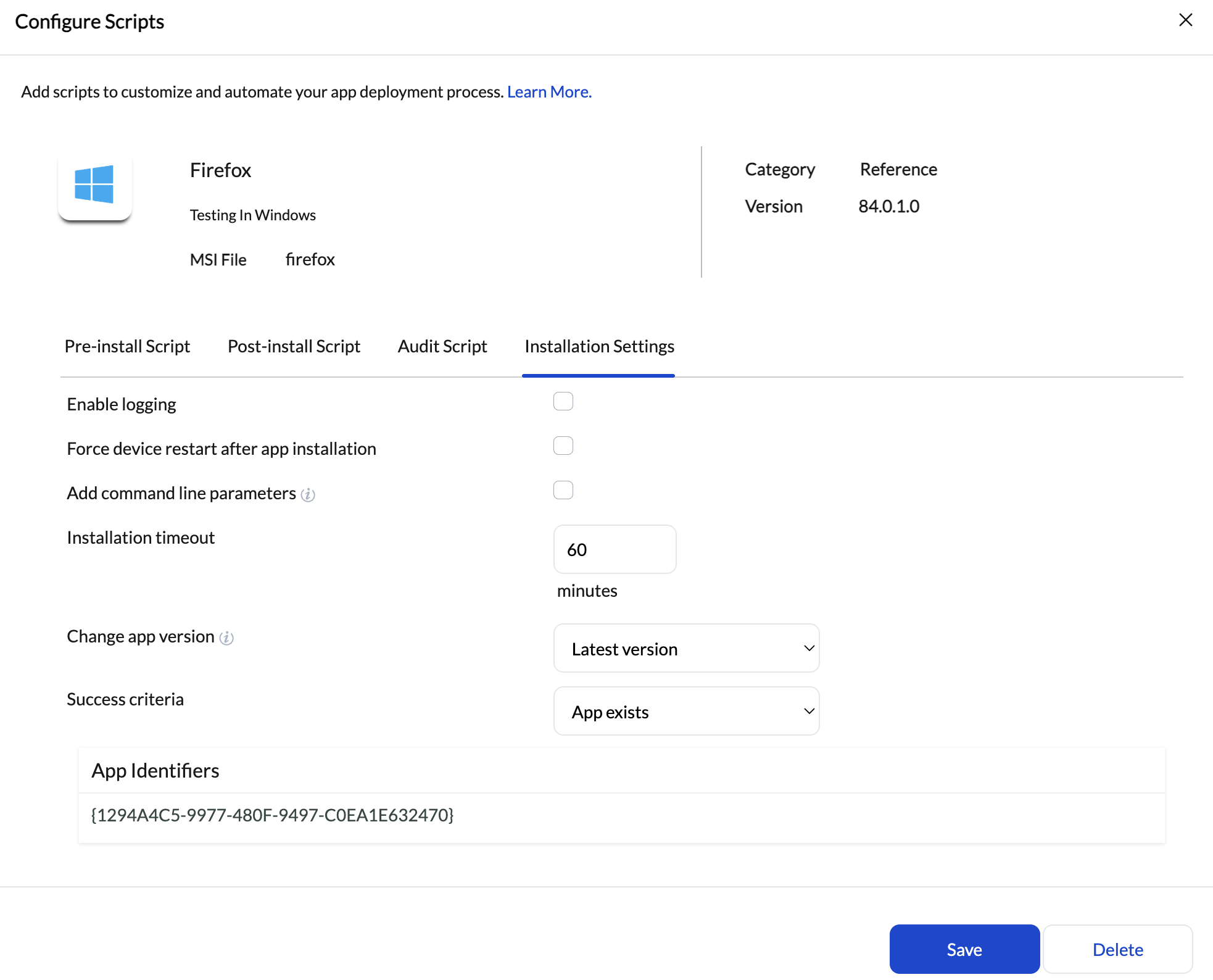
- App Exists: Hexnode verifies if the specific App Identifier/Bundle ID (e.g., com.microsoft.teams2) is successfully registered on the OS.
- File Exists: Hexnode verifies the presence of the installed executable at a specific directory path (e.g., /Applications/Microsoft Teams.app).
4. Continuous Drift Detection (The Idempotent Check):
Once the policy is associated with your target Device Groups (e.g., 5,000 devices), Hexnode initiates continuous drift detection.
-
How it works: The Hexnode agent installed on the endpoint routinely syncs its live inventory of applications back to the console. Hexnode cross-references the device’s live app list against the Required Apps policy. If the specific Bundle Identifier is missing, or if the installed version is lower than the required version, Hexnode silently pushes the installation command. If the app matches the policy, Hexnode does nothing.
Policy Dynamics: Why Does a Policy Trigger Multiple Times?
A core question in declarative management is: Why does an idempotent architecture matter if I only assign a policy once? In a dynamic enterprise environment, policies are not static; they are frequently re-evaluated and re-applied by Hexnode. An idempotent design guarantees that these re-applications do not force devices to repeatedly download the same application.
A policy will apply or evaluate multiple times due to:
- Routine Administrator Edits: A single Hexnode policy often contains multiple configurations (e.g., Required Apps, Wi-Fi settings, and Password Restrictions). If an IT admin opens this policy simply to update a Wi-Fi password and clicks Save, Hexnode automatically repushes the entire policy to all associated devices to ensure strict compliance.
- Dynamic Group Membership: When using Smart/Dynamic Groups (e.g., “All Windows 11 Devices in Marketing”), devices are constantly entering and exiting the group based on real-time conditions. The exact moment a new device meets the criteria and enters the group, the policy is triggered.
- Routine Agent Check-Ins: Devices periodically sync with the Hexnode server to report their status. During every sync, the server re-evaluates the device. If a user maliciously or accidentally deleted the required application locally, Hexnode detects this “configuration drift” during the sync and auto-remediates the device by re-initiating the download.
Best Practice Guide for Bulk Application Deployments
Executing application deployments to 5,000+ nodes requires enterprise-grade safety mechanisms to ensure scale and stability within Hexnode UEM:
- Strictly Avoid ClickOps (Manual Actions): Executing bulk deployments via the Actions > Install Application dropdown introduces a high risk of human error and bypasses continuous compliance. Always rely on Required Apps Policies, which act as an automated, declarative safety net that naturally respects idempotency.
- Execute Phased Rollouts (Canary Testing): Never deploy an enterprise application to 5,000 devices simultaneously on the first attempt. Utilize Hexnode Dynamic Groups or Custom Groups to segment your endpoints by department or region. Push the app to a “Phase 1” pilot group, validate the installation status and success criteria via the Hexnode Action History logs, and then proceed to deploy to subsequent rings.
- Leverage Version Priority Logic: In Hexnode’s app inventory, if multiple versions of the same enterprise app are uploaded over time, the system intelligently defaults to pushing the highest version when configured in a Required Apps policy or App Group. Admins should align their update cadences with this native versioning logic to prevent accidental downgrades, utilizing the “Enforce App Downgrade” toggle within the policy only when explicitly necessary for rollback scenarios.


