


Category filter
Automating OS Updates: The Definitive Guide to Autonomous Patching
Introduction: The Shift from Reactive to Autonomous Patch Management
In modern enterprise environments, managing Windows updates manually is an unscalable process that leaves organizations exposed to zero-day vulnerabilities and compliance drifts. Standard Windows Update configurations often lack the granularity required to balance critical security deployments with end-user productivity.
Hexnode UEM elevates Windows patch management from a reactive chore to an autonomous, policy-driven architecture. By leveraging the Patches & Updates feature set, IT administrators can establish zero-touch automation workflows, define granular update preferences, deploy application-specific patches, and enforce system active hours.
This document explores the advanced, use-case-driven strategies for architecting a resilient Windows update infrastructure using Hexnode UEM.
Use Case 1: Autonomous Remediation of Critical Vulnerabilities
The Architectural Challenge: When a critical Common Vulnerabilities and Exposures (CVE) identifier is released, relying on users to click “Update” or waiting for a monthly patch cycle is too slow. IT needs a mechanism to intercept and deploy specific patches autonomously based on severity.
The Hexnode Execution Strategy: Instead of manually approving individual updates, administrators can utilize Hexnode’s Automations engine to build dynamic deployment criteria for Windows OS patches.
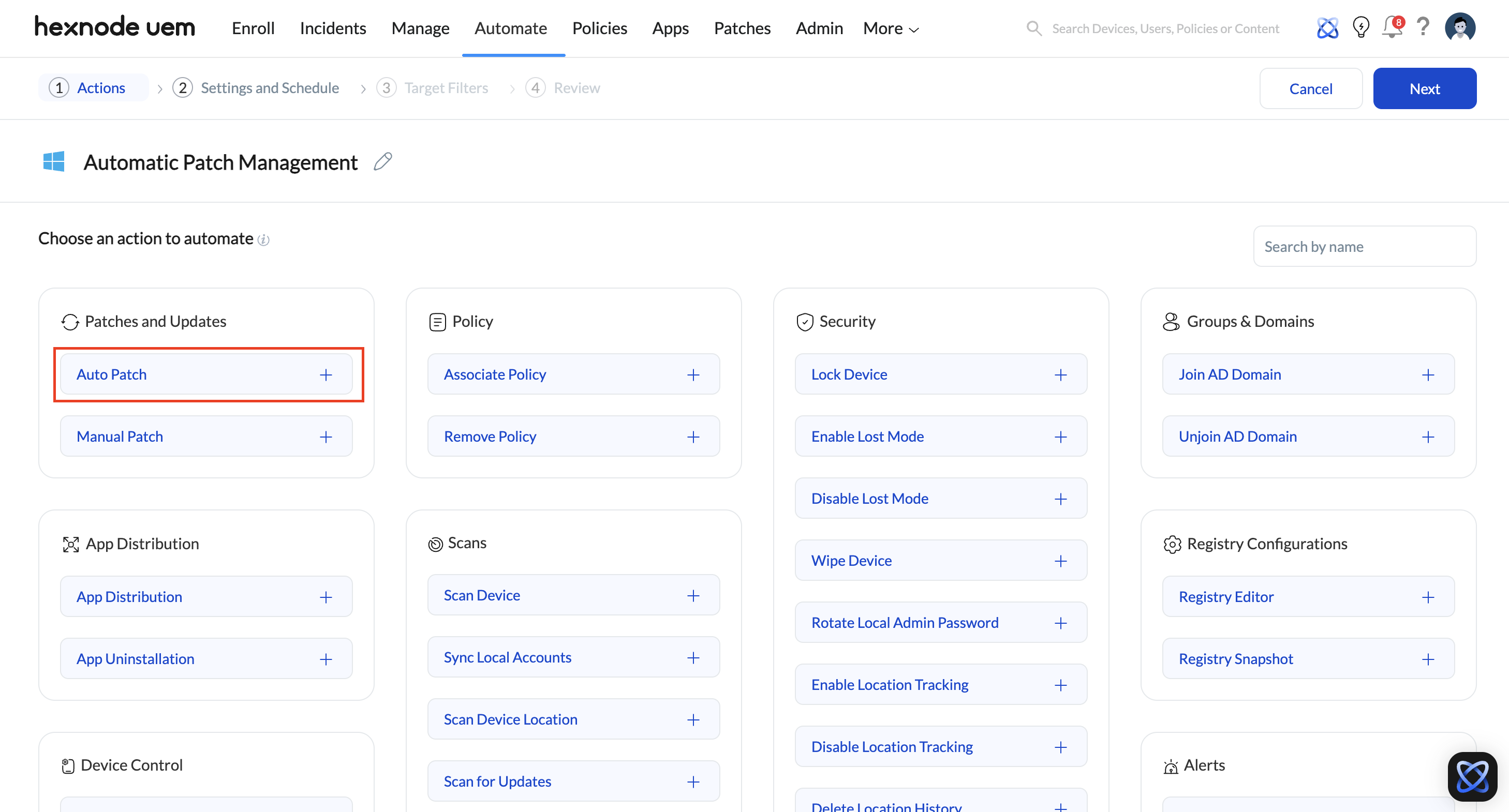
- Navigate to Automate > New Automation and select Windows.
- Set the action to Patches and Updates > Auto Patch.
- Define Criteria for Automation: This is where the architectural logic resides. You can configure conditional filters using data columns (such as KB Number or CVE) and comparators.
- The Deployment Logic: By setting a rule such as “If CVE equals [Specific ID]” or filtering by severity, Hexnode will automatically query the fleet. Any enrolled Windows device missing that specific OS patch will have it deployed automatically without administrative intervention.
Use Case 2: Zero-Disruption Patching via Active Hours Enforcement
The Architectural Challenge: Forced updates and reboots during peak business hours result in data loss and disrupted workflows. Relying on end-users to manually configure their own “Active Hours” leads to inconsistent fleet behavior, unpredictable patch cycles, and frustrated employees.
Primary Execution Strategy (Native Policy): To guarantee that devices only reboot or perform heavy maintenance outside of operational shifts, the most scalable approach is to natively lock in the system’s Active Hours using Hexnode’s update experience profiles.
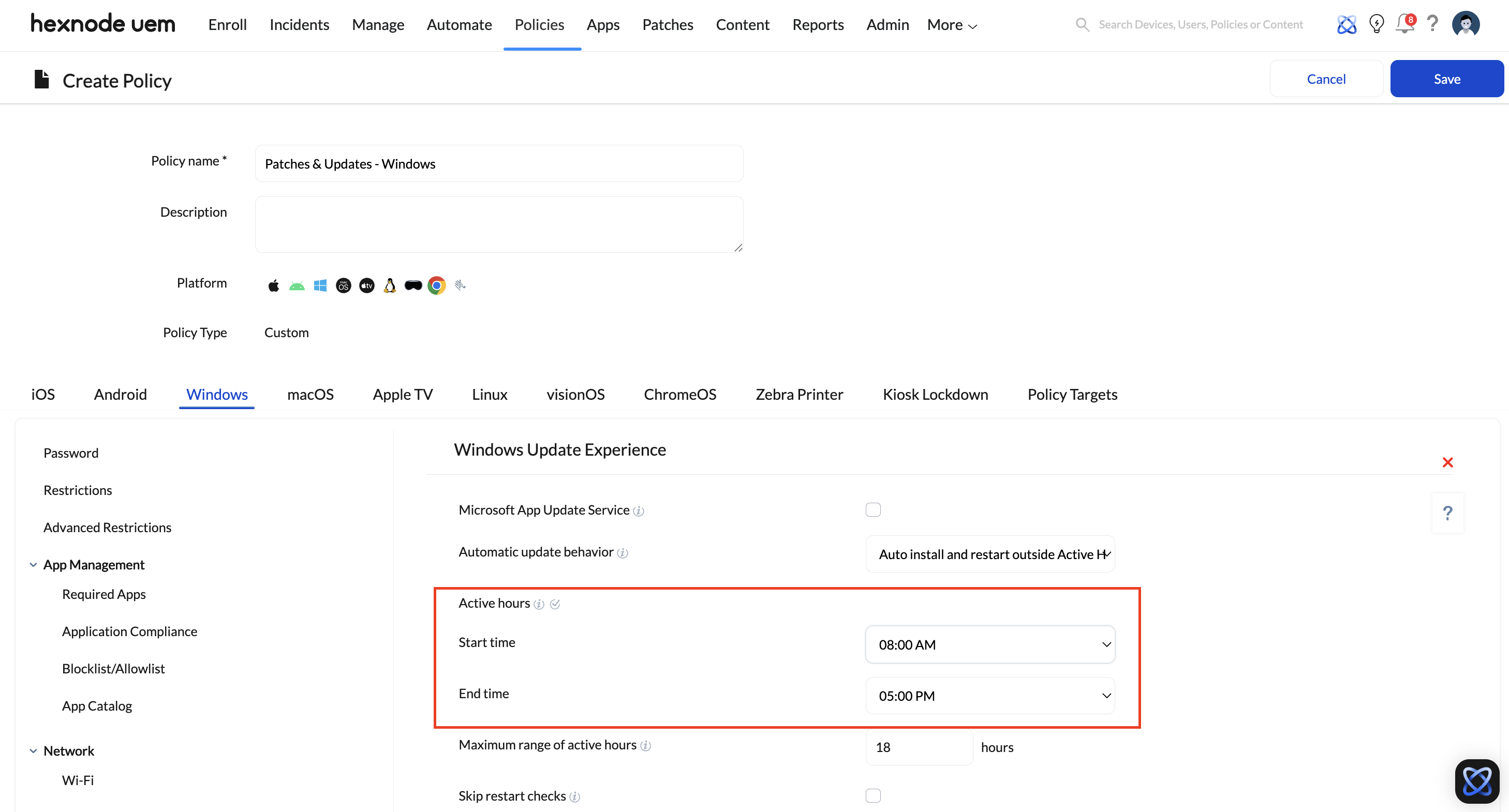
- Navigate to Policies > Create a fully custom policy > Windows > Patches & Updates > Windows Update Experience.
- Configure Active Hours: Within the policy, explicitly define the Active hours start time and Active hours end time (e.g., 8:00 AM to 5:00 PM).
Advanced Execution Strategy (Custom Scripting): If IT needs to instantly enforce custom Active Hours on specific devices without modifying the fleet-wide baseline policy, they can deploy a remote script. This approach directly edits the Windows registry, applying the new schedule immediately without waiting for a standard policy sync.
- Navigate to Manage > Devices (or target a specific Device Group).
- Select Actions > Execute Custom Script.
- Push the following PowerShell parameters to define the operational window (e.g., 08:00 – 17:00):
|
1 2 3 4 5 6 |
$startHour = 8 $endHour = 17 $activeHours = "$startHour-$endHour" Set-ItemProperty -Path "HKLM:\SOFTWARE\Microsoft\WindowsUpdate\UX\Settings" -Name "ActiveHoursStart" -Value $startHour Set-ItemProperty -Path "HKLM:\SOFTWARE\Microsoft\WindowsUpdate\UX\Settings" -Name "ActiveHoursEnd" -Value $endHour Write-Host "Active Hours set from $startHour to $endHour." |
The Result: Regardless of the execution method used, the system is explicitly blocked from initiating a forced reboot during these hours. Routine maintenance and scheduled OS patches will be deferred until the active window expires.
Use Case 3: Enterprise App Version Control and Patching
The Architectural Challenge: Third-party applications frequently require updates to patch vulnerabilities. However, blindly updating an enterprise application to the latest version might break compatibility with legacy internal systems or specific server architectures.
The Hexnode Execution Strategy: Hexnode provides dedicated controls over application patching through the App Updates policy, allowing IT to enforce strict version controls.
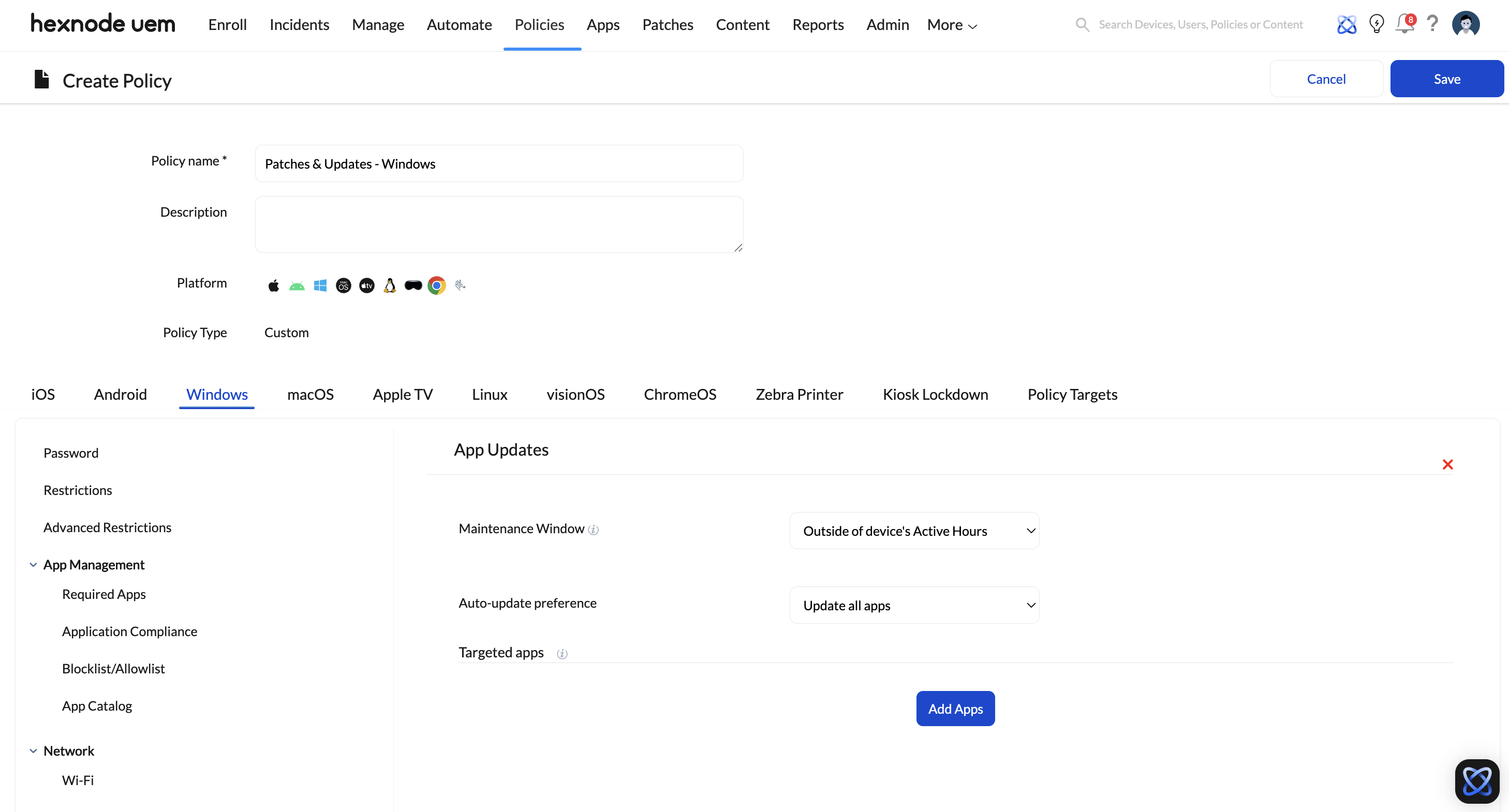
- Navigate to Policies > Create a fully custom policy > Windows > Patches & Updates > App Updates.
- Maintenance Window: Force app updates to occur either Outside of device’s Active Hours or within a strictly defined time window (must be a minimum of 4 hours, configurable by specific days or weekends).
- Targeted App Preferences: Rather than updating everything, select Update targeted apps only.
- Version Enforcement (The Critical Control): When configuring a target app, administrators can define a Target Version. This ensures Hexnode will patch the application up to, but never beyond, the approved target version. IT can also select Block automatic upgrades to strictly maintain the current app state until it has been tested by the QA team.
Use Case 4: Controlling Telemetry and Network Load
The Architectural Challenge: A remote workforce utilizing cellular data connections (tethering or internal SIMs) can rapidly incur massive carrier overage charges if Windows decides to download massive Feature Updates or Optional Updates over a metered connection.
The Hexnode Execution Strategy: IT must strictly govern the update telemetry and network preferences using the Windows Update Preferences policy.
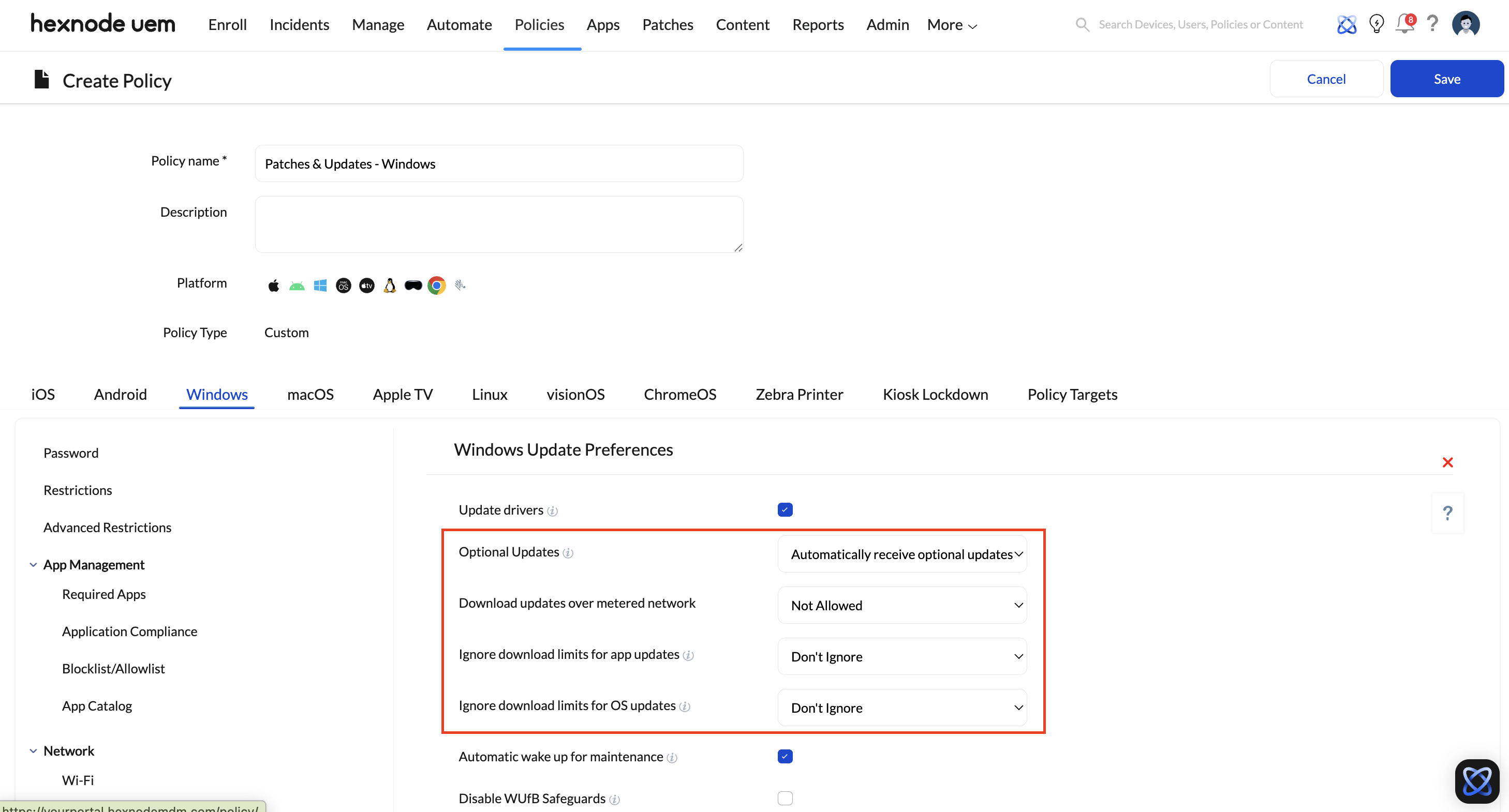
- Navigate to Policies > Create a fully custom policy > Windows > Patches & Updates > Windows Update Preferences.
- Download Updates over Metered Network: Set this explicitly to Not Allowed to prevent OS updates from consuming cellular data.
- Ignore download limits for app/OS updates: Ensure this is set to Don’t Ignore to respect external policies imposed by mobile operators.
- Optional Updates: By default, Hexnode disables Optional Updates. However, if your environment requires gradual feature rollouts (CFRs), you can change this setting to automatically receive optional cumulative updates in line with quality update deferrals, keeping non-critical telemetry controlled.
On-Demand Troubleshooting Workflow
Even with highly automated structures, manual intervention is occasionally required for compliance auditing or out-of-band vulnerability mitigation.
- Real-Time Auditing: IT can force a device to check into the Microsoft Update servers by selecting the device and sending the Scan for updates – Windows remote action.
- Patch Visibility: To see exactly what updates are missing fleet-wide, IT admins can navigate to the dedicated Patches tab in the main console and go to Patches > Missing Patches. This displays a detailed breakdown of applicable updates (including KB numbers and Severity) that have not yet been installed.
- Surgical Deployment: If an executive’s machine is failing compliance due to a missing patch, an admin does not need to wait for the next automation cycle. They can navigate to the Patches tab, locate the specific missing patch, and manually push the installation to the affected device(s) using the Automation feature to force immediate remediation.


