


Category filter
ADE Enrollment Profile for Apple Zero-Touch Deployment
What is ADE and the Enrollment Profile?
Apple Device Enrollment (ADE), a core component of Apple Business (AB) and Apple School Manager (ASM), is Apple’s automated framework for deploying corporate-owned iOS, iPadOS, macOS, tvOS, and visionOS devices over the air. It allows organizations to securely manage devices without IT ever needing to physically unbox or handle the hardware.
In Hexnode UEM, the ADE Enrollment Profile is the foundational configuration blueprint applied to these devices. While ADE provides the secure tunnel, the Enrollment Profile dictates the exact behavior, Out-of-Box Experience (OOBE), and security posture of the device the moment it is turned on. It transforms a factory-reset Apple device into a fully managed, secure corporate asset before the user even reaches the home screen.
Strategic Benefits & Enterprise Use Cases of ADE Enrollment Profiles
By customizing the ADE Enrollment Profile, IT administrators architect a seamless onboarding experience that yields critical benefits:
- Zero-Touch Deployment: Devices can be drop-shipped directly from Apple or an authorized reseller to the end-user.
- Automated Identity Mapping: Enforce mandatory authentication during setup, seamlessly binding the device to the user’s corporate directory identity.
- Unremovable Management: Prevent end-users from bypassing or manually removing the MDM profile.
Real-World Enterprise Use Cases:
- Global Remote Workforces: A newly hired remote executive receives a factory-sealed MacBook. Upon opening it and connecting to Wi-Fi, the ADE profile skips all consumer setup screens, prompts for their Microsoft Entra ID credentials, silently creates an invisible IT admin account, and drops them onto a desktop pre-loaded with corporate network settings.
- Shift-Based Healthcare or Retail: A hospital deploys a fleet of iPads for nurses. Using Shared Device Settings within the ADE profile, the iPads are configured as multi-user workstations with strict data quotas, ensuring patient data is securely partitioned between shifts and automatically wiped during idle timeouts.
How the Enrollment Profile is Applied (The Device Perspective)
To understand the power of the ADE profile, it is helpful to look at the enrollment flow from the device’s perspective:
- Association: IT adds the device serial numbers to Apple Business and assigns them to the Hexnode UEM server. Hexnode syncs with Apple Business, and IT assigns the custom ADE Enrollment Profile to those devices within the Hexnode console.
- Boot and Connect: The end-user turns on the factory-reset device and connects to a Wi-Fi or cellular network.
- Apple Handshake: The device automatically contacts Apple’s activation servers. Apple recognizes the serial number belongs to your organization and directs the device to Hexnode UEM.
- Profile Injection: The device pulls the ADE Enrollment Profile from Hexnode. The screen instantly locks into “Remote Management,” bypassing consumer setup screens, installing associated day-zero apps, and enforcing the security policies dictated by the tabs configured below.
Core Configurations: The Six ADE Enrollment Profile Tabs
The ADE Enrollment Profile in Hexnode is divided into six distinct configuration tabs. To maximize operational efficiency, these settings should be utilized to solve specific enterprise deployment scenarios.
1. General Settings: Core Identity, Control, and Lifecycle Management
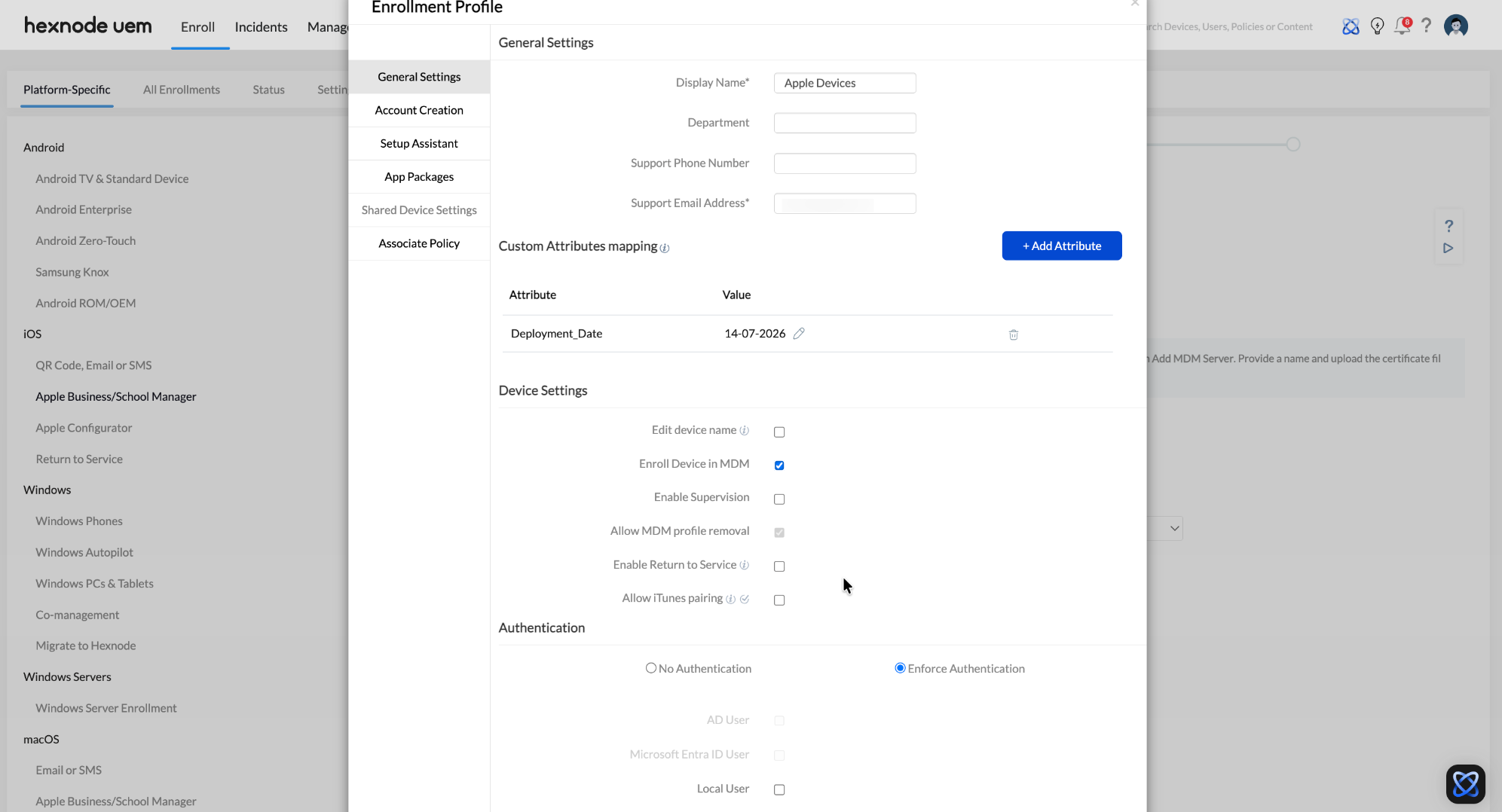
This primary tab establishes the foundational identity, management boundaries, and security baseline of the Apple device before the user even reaches the home screen. It is divided into five distinct sub-sections:
-
General Settings (Support Context)
- Display Name & Department: Defines how the profile appears internally, helping IT rapidly identify the payload’s purpose (e.g., “Q3 Remote Sales Deployment”).
- Support Phone Number & Support Email Address: These are critical for the end user experience. If a device fails to authenticate or download its payload during the Out of Box Experience (OOBE), these contact details populate directly on the Apple setup screen, giving the frustrated employee an immediate lifeline to the IT Helpdesk.
-
Custom Attributes Mapping
The Custom Attributes Mapping section allows administrators to assign pre-configured custom attributes to devices during enrollment. The configured attributes store metadata —such as department, device ID or other custom details, eliminating the need to manually update these details after enrollment. Custom Attributes must first be created under Admin > Custom Attributes (Devices).
- Adding Attributes: Click +Add Attribute to assign one or multiple existing custom attributes to the profile.
- Value Customization: Click the pen icon under the Value section to add or edit the attribute values directly within this profile. Wildcards (except %newline%, %null% and *) are supported.
-
Device Settings (Naming & Supervision)
- Edit device name: Instead of manually renaming hundreds of devices, administrators can use wildcards (e.g., %name%_MacBook) to automatically apply standard corporate naming conventions based on the assigned user.
- Append number: When combined with the device name setting, this bulk assigns serialized names (e.g., iPad_Kiosk_1, iPad_Kiosk_2) to instantly differentiate identical unassigned hardware.
- Enroll Device in MDM & Enable Supervision: Checking these boxes establishes absolute corporate control. Supervision unlocks advanced payload capabilities (like silent app installation and strict web content filtering) that are unavailable on unsupervised consumer devices.
- Allow MDM profile removal: Leaving this box unchecked is a paramount security practice. It permanently prevents the end user from deleting the management profile from their device settings, ensuring persistent corporate control.
- Enable Return to Service: Highly strategic for frontline, education, or retail environments where devices frequently change hands. When an admin wipes the device, Return to Service (RTS) allows the endpoint to automatically reconnect to Wi Fi, bypass setup screens, and re-enroll into Hexnode without requiring any physical IT interaction, drastically reducing device turnaround time.
- Allow iTunes pairing: Disabling this prevents users from connecting the corporate device to a personal Mac or PC to back up or extract sensitive corporate data via a USB cable.
-
Authentication (Identity Mapping)
- Enforce Authentication: By selecting this and choosing a sub option (AD User, Microsoft Entra ID User, Local User, OKTA User, Google User, or Hexnode IdP User), IT forces the employee to log in using their exact corporate directory credentials before the device will activate. This Zero Trust approach guarantees the endpoint is immediately securely bound to the correct employee identity in the Hexnode console.
- No Authentication: Ideal for dedicated kiosks, digital signage, or shared warehouse scanners where associating the device with a single user identity is unnecessary.
-
Activation Lock (Asset Recovery)
- Device based Activation Lock: This is the enterprise standard. It ties the activation lock strictly to the corporate Managed Apple Account used to create the MDM server token. If a device is lost or an employee leaves abruptly, IT can easily clear the lock via the portal.
- User based Activation Lock: Allows the end user to lock the device using their personal Apple Account credentials. This should generally be avoided in strict corporate environments, as it introduces severe asset recovery challenges if the employee departs on bad terms.
-
Custom EULA (Compliance)
- Choose EULA: Allows administrators to select a predefined Custom T&C or Terms of Use from a dropdown. This dropdown automatically populates with whatever custom agreements you have already configured and added in the Hexnode console under Admin > EULA. This forces employees to legally accept your corporate Acceptable Use Policy (AUP) directly on the screen before they can access the hardware.
2. Account Creation: macOS Privilege and Local Account Management
Securing macOS requires a strict separation of administrative power and daily user privileges. The Account Creation tab allows IT architects to automate this local security structure during the initial boot process, ensuring compliance before the employee even accesses the desktop.
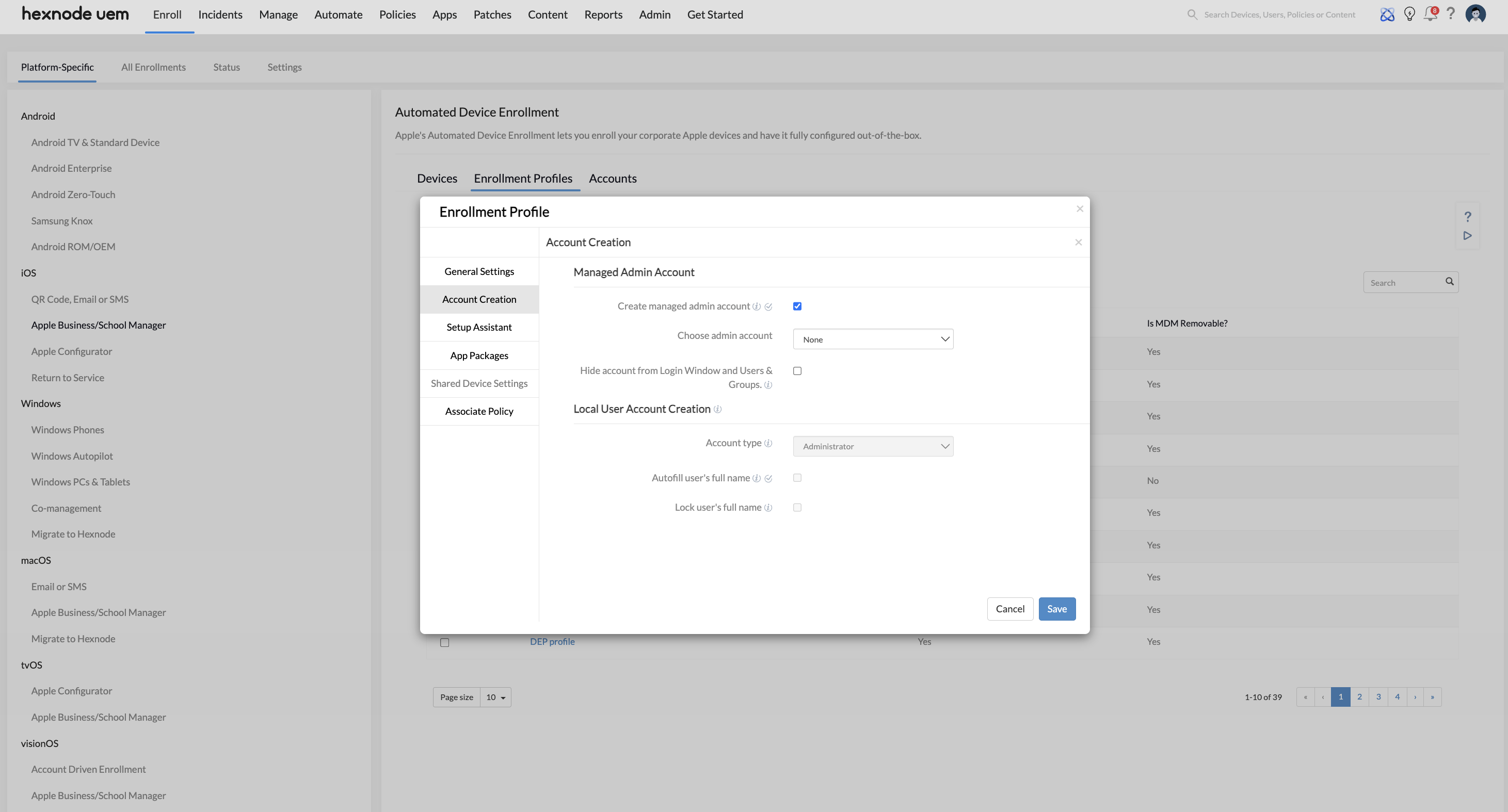
Managed Admin Account (IT Support Access)
- Create managed admin account: Checking this box mandates the creation of a dedicated local administrator profile on the Mac. This provides the IT Helpdesk with guaranteed local root access for future troubleshooting, script execution, or emergency lockouts.
- Choose admin account: Administrators can select a previously saved profile from the dropdown or select + Create new Account. Creating a new account requires defining the Full Name, Account Name (which determines the macOS home folder name), and a secure Password.
- Hide account from Login Window and Users & Groups: Leaving this checkbox enabled is a critical security best practice. It makes the IT admin account completely invisible within the Mac’s System Settings and hides the profile from the standard macOS login screen. This “hidden backdoor” prevents end-users from attempting to guess the password, tampering with the account, or even realizing that IT maintains local root access.
Local User Account Creation (End-User Privileges)
- Account type: This dropdown dictates the power the employee holds over their own machine. While it defaults to Administrator, enterprise security standards heavily favor changing this to Standard (or selecting Skip account creation if managed elsewhere). Forcing a Standard account enforces the Principle of Least Privilege, preventing the employee from installing unauthorized shadow IT software, bypassing firewall settings, or disabling endpoint detection agents.
- Autofill user’s full name: When checked alongside the “Enforce Authentication” setting (from the General tab), this feature automatically pulls the user’s details from your corporate directory (e.g., Microsoft Entra ID or Okta) and populates the macOS account creation screen. This removes manual data entry and speeds up the Out-Of-Box Experience (OOBE).
- Lock user’s full name: Checking this box prevents the employee from altering their auto-filled credentials during setup. This ensures that the local macOS account name perfectly matches your corporate directory identity.
3. Setup Assistant: Streamlining the Out-Of-Box Experience (OOBE)
By default, the Apple Setup Assistant is designed for consumers, prompting users to sign into personal accounts, configure biometric data, and set up consumer features like Apple Pay. In an enterprise environment, these screens cause confusion, generate helpdesk tickets, and delay productivity.
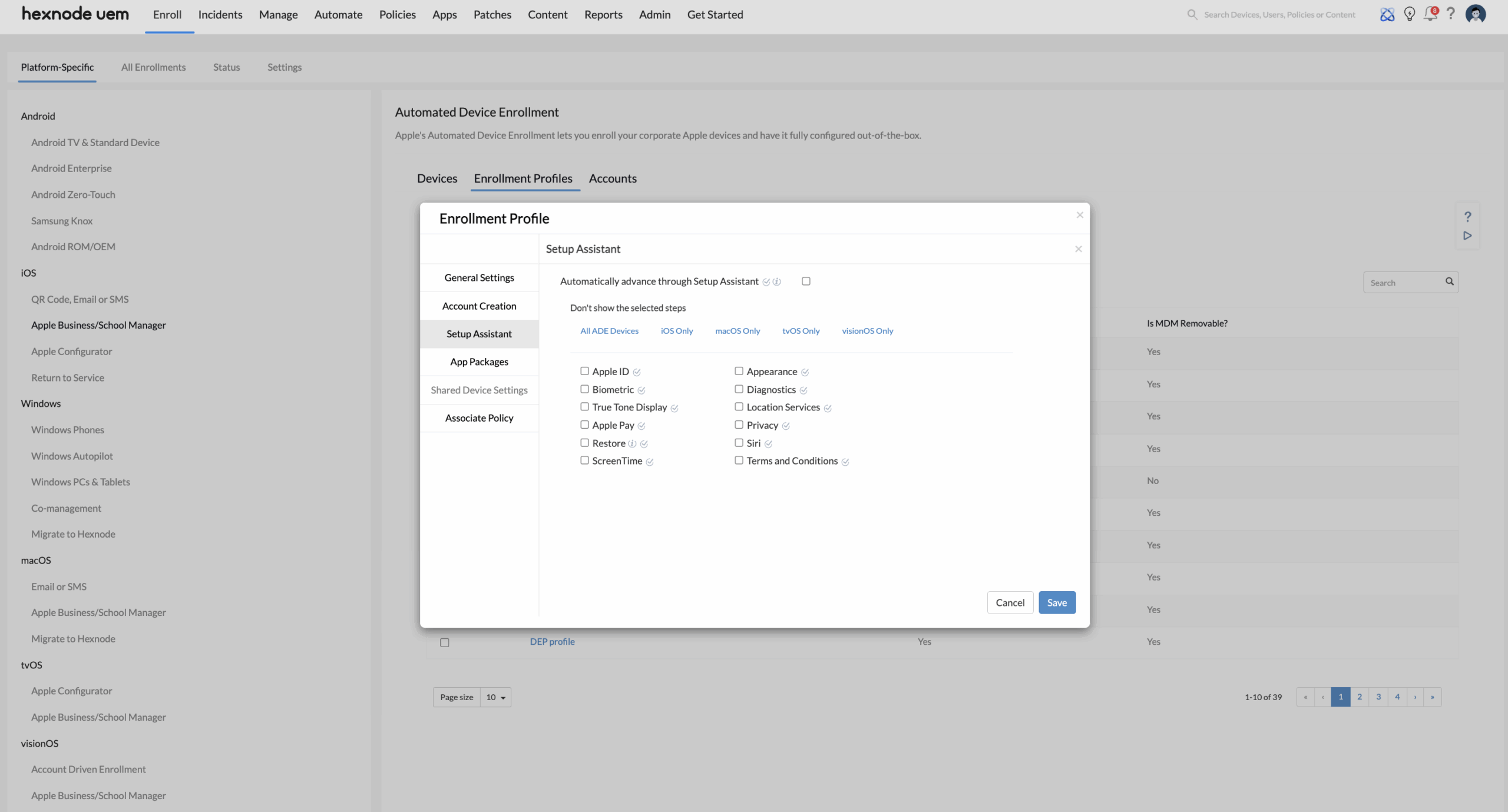
The “Zero-Touch” Approach: Checking Automatically advance through Setup Assistant represents the pinnacle of zero-touch deployment. Hexnode will automatically aggregate and skip all general and platform-specific setup steps, booting the device directly to the desktop or home screen without requiring a single tap from the end-user.
Targeted Screen Skipping: If your organization prefers users to interact with specific screens (such as selecting a localized Wi-Fi network), you can uncheck the “Automatically advance” box. You can then navigate through the OS sub-tabs and explicitly check the boxes for the screens to hide:
| Platform / View | All Available Screens to Skip | Recommended to Skip | Strategic Enterprise Value |
|---|---|---|---|
| All ADE Devices |
|
|
Prevents users from binding personal accounts to corporate hardware. Skipping Terms and Conditions reduces legal friction, as corporate EULAs are handled natively via the General Settings tab. |
| iOS Only |
|
|
Prevents employees from dumping unmanaged, personal data onto a secure corporate device. Passcode prompts should be skipped here and enforced later via a strict Hexnode UEM Passcode policy. |
| macOS Only |
|
|
Skipping FileVault prevents users from encrypting the disk and losing the recovery key; IT should deploy a silent FileVault policy later to securely escrow keys in the portal. Hiding iCloud prevents data bleed into consumer drives. |
| tvOS Only |
|
|
Ensures conference room displays or digital signage hardware boots directly into Single App Mode without requiring an on-site technician to click through menus using the Siri Remote. |
| visionOS Only |
|
|
Allows enterprise users to bypass consumer-focused spatial tutorials and jump directly into proprietary training or spatial visualization applications. |
4. App Packages: Day-Zero Provisioning and Retention
Zero-touch deployment is only successful if devices are immediately ready for production use the moment they hit the home screen. The App Packages tab allows administrators to queue and pre-load core enterprise applications natively during the enrollment sequence, preventing the productivity lag often caused by post-enrollment application downloads.
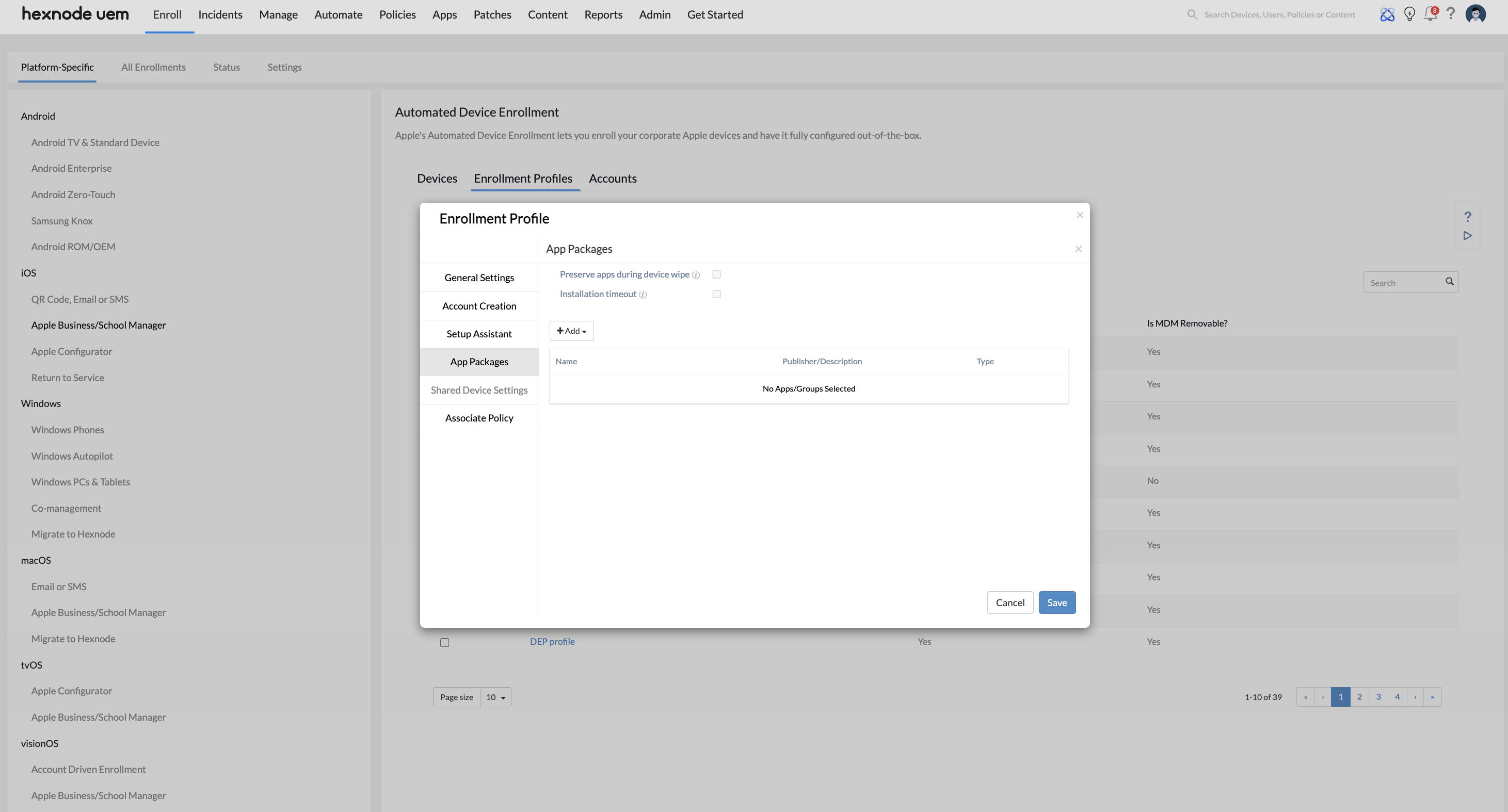
App Selection (Building the Core Repository)
- + Add Dropdown: This menu gives IT administrators two pathways to populate the baseline app payload:
- Add App: Supports both custom in-house Enterprise apps and Volume Purchase Program (VPP) apps synchronized directly from Apple Business.
- Add Group: Allows administrators to attach an entire pre-compiled collection of apps from the Hexnode inventory (e.g., “Standard Employee Core Apps Suite”) in a single click, simplifying bulk profile management.
Installation Controls & Performance Optimization
- Preserve apps during device wipe: Leaving this checkbox enabled is a massive operational best practice for retail, logistics, or shift-work environments where hardware is frequently recycled. If a device requires a remote wipe between shifts, this setting instructs the underlying file system to cache and preserve the preloaded application binaries on the local storage partition. When the device spins back up, it eliminates the need to re-download gigabytes of data over the network, drastically cutting down turnaround times and conserving corporate bandwidth.
- Installation timeout: When checked, this acts as a critical fail-safe for deployment pipelines. If a device is being provisioned on a sluggish network or cellular connection, a massive enterprise app might hang, stalling the entire enrollment process.
- Skip installation after X minutes: This editable text field allows you to enforce a strict threshold (e.g., 5 minutes). If an application package fails to complete its installation within this window, Hexnode will intelligently skip the problematic app and allow the Setup Assistant to finish. This ensures the employee is not trapped on a loading screen indefinitely, deferring the stalled app installation to background processing once the user lands on the home screen.
5. Shared Device Settings: Multi-User iPad Deployments
For shift-based environments like healthcare, retail floors, or logistics centers, assigning a dedicated iPad to every employee is often cost-prohibitive. Checking the Enable shared device box transforms standard iPads into managed multi-user workstations, allowing dozens of employees to securely leverage the same piece of hardware.
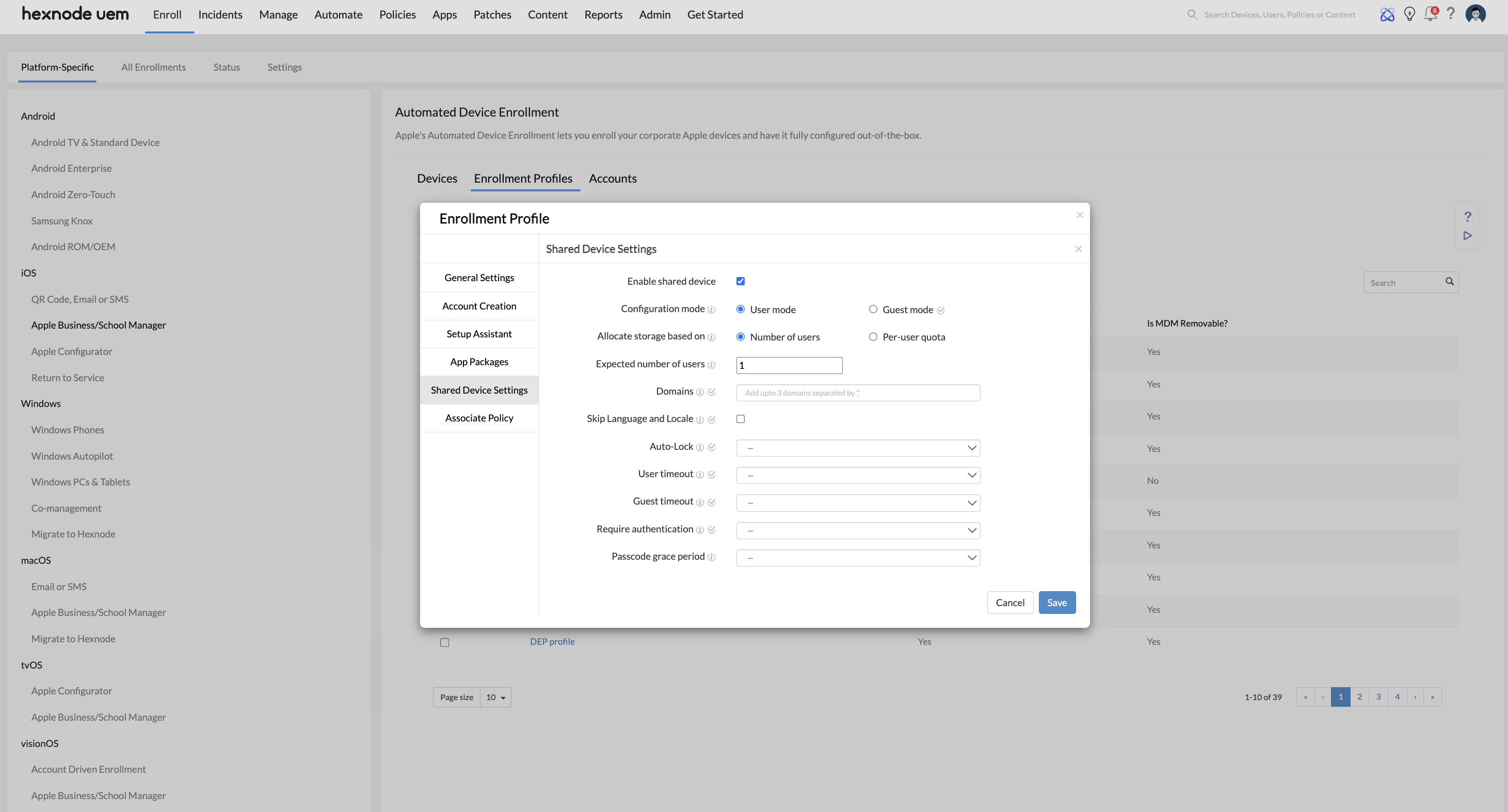
Prerequisite Note: Apple mandates that Shared iPad functionality requires device supervision. To utilize these settings, administrators must first ensure Enable Supervision is checked under General Settings > Device Settings.
Once enabled, IT architects must choose the primary Configuration mode:
User Mode (Persistent Shift Workers)
User mode is designed for environments where employees maintain Managed Apple Accounts and return to the same device repeatedly (e.g., nurses on a hospital floor). The system intelligently caches their app data locally to speed up subsequent logins.
- Allocate storage based on: Because local disk space is finite, IT must define how the iPad handles data for multiple users.
- Number of users: Selecting this reveals the Expected number of users field. The iPadOS will mathematically divide the total available storage equally among this specified number.
- Per-user quota: This replaces the user count field with a strict storage limit, allowing you to define an exact cap (via a dropdown for MB or GB) for every individual profile, which is ideal for a highly fluctuating pool of temporary workers.
- Domains: Entering corporate domains here (up to 3, separated by commas) pre-populates the login screen. When an employee types their username, they can simply tap the domain suffix button rather than typing out
@global.corporate.comevery time, significantly speeding up the shift-change bottleneck. - Require authentication: Administrators can define how frequently the iPad must ping Apple’s identity servers to verify the user (Options include Always, Every day, Once a week, Once in 30 days, or Never). Lower frequencies allow faster, cached local logins for daily shift workers.
- Passcode grace period: Determines how long a user has to unlock their account without re-entering their passcode after the screen turns off (ranging from Immediately to 4 hours). This balances security with convenience for employees constantly moving around a warehouse or retail floor.
- User timeout & Auto-Lock: Auto-Lock (2 to 15 minutes) simply turns off the display to save battery. User timeout (ranging from Never up to 15 minutes) is a critical security trigger; if the device remains idle for this duration, the iPad actively logs the worker out, securing their session data.
Guest Mode (Temporary Kiosks & Retail)
Guest mode is tailored for public-facing deployments (like library terminals, patient entertainment iPads, or retail browsing stations) where users do not have login credentials. Users simply tap “Guest” to initiate a temporary session.
- Guest timeout: By setting this threshold (from 1 minute to 15 minutes), IT ensures that if a customer walks away, the iPad automatically ends the session. Once the timeout is reached or the user manually logs out, all session data, browsing history, and downloaded files are instantly and permanently destroyed.
Seamless Handoff (UX)
- Skip Language and Locale: Leaving this unchecked means every new user is greeted by the standard “Hello/Hola” language setup screens. Checking this box is an operational best practice; it forces the iPad to adopt the system default automatically, allowing the employee or guest to jump straight to the login screen and start working immediately.
6. Associate Policy: Enforcing Baseline Security at Boot
The final step in architecting a zero-touch deployment is bridging the gap between basic MDM enrollment and full corporate compliance. If an ADE profile only enrolls the device, the endpoint might briefly sit unprotected on the home screen before dynamic cloud policies catch up. The Associate Policy tab eliminates this vulnerability by hardcoding your security baselines directly into the initial provisioning payload.
- + Associate Policy Button: Clicking this button opens your Hexnode policy directory, allowing you to browse and select pre-configured security payloads. Strategic admins will attach a “Baseline Configuration” policy here containing essential Day-Zero requirements, such as hidden corporate Wi-Fi certificates (ensuring the device doesn’t drop offline after setup), strict passcode complexity rules, and mandatory Web Content Filters.
Steps for creating and editing the Enrollment Profile (The Workflow)
To construct this profile within the Hexnode console, IT administrators must follow this exact navigation path:
- Navigate to Enroll in the top console menu.
- Select Platform-Specific > Apple Business/School Manager.
- Navigate to the Enrollment Profiles sub-tab.
- Click Create Enrollment Profile to build a new zero-touch configuration from scratch, or click on an existing profile in the list to audit and edit its parameters.
- Traverse the tabs to configure your General Settings, Account Creation, Setup Assistant, App Packages, Shared Device Settings, and Associated Policies.
- Click Save to lock in the blueprint.
Profile Assignment & Apple Business Sync Workflow (The Deployment Loop)
Creating the ADE Enrollment Profile is only the first half of the zero-touch architecture. To execute the deployment, IT administrators must map this profile to the physical hardware synced from Apple Business. Hexnode supports two distinct assignment methodologies based on your scaling needs:
Method A: Default Profile Automation (Zero-Touch Scaling)
For organizations standardizing on a single unified deployment (e.g., all incoming corporate iPhones receive the exact same baseline), setting a Default Profile is the most efficient strategy.
- Navigate to Enroll > Platform-Specific > Apple Business/School Manager.
- Select the Apple Business (AB) and Apple School Manager (ASM) Accounts tab.
- Click on your configured Apple account.
- Under the Default Enrollment Profile dropdown, select your newly created profile and save.
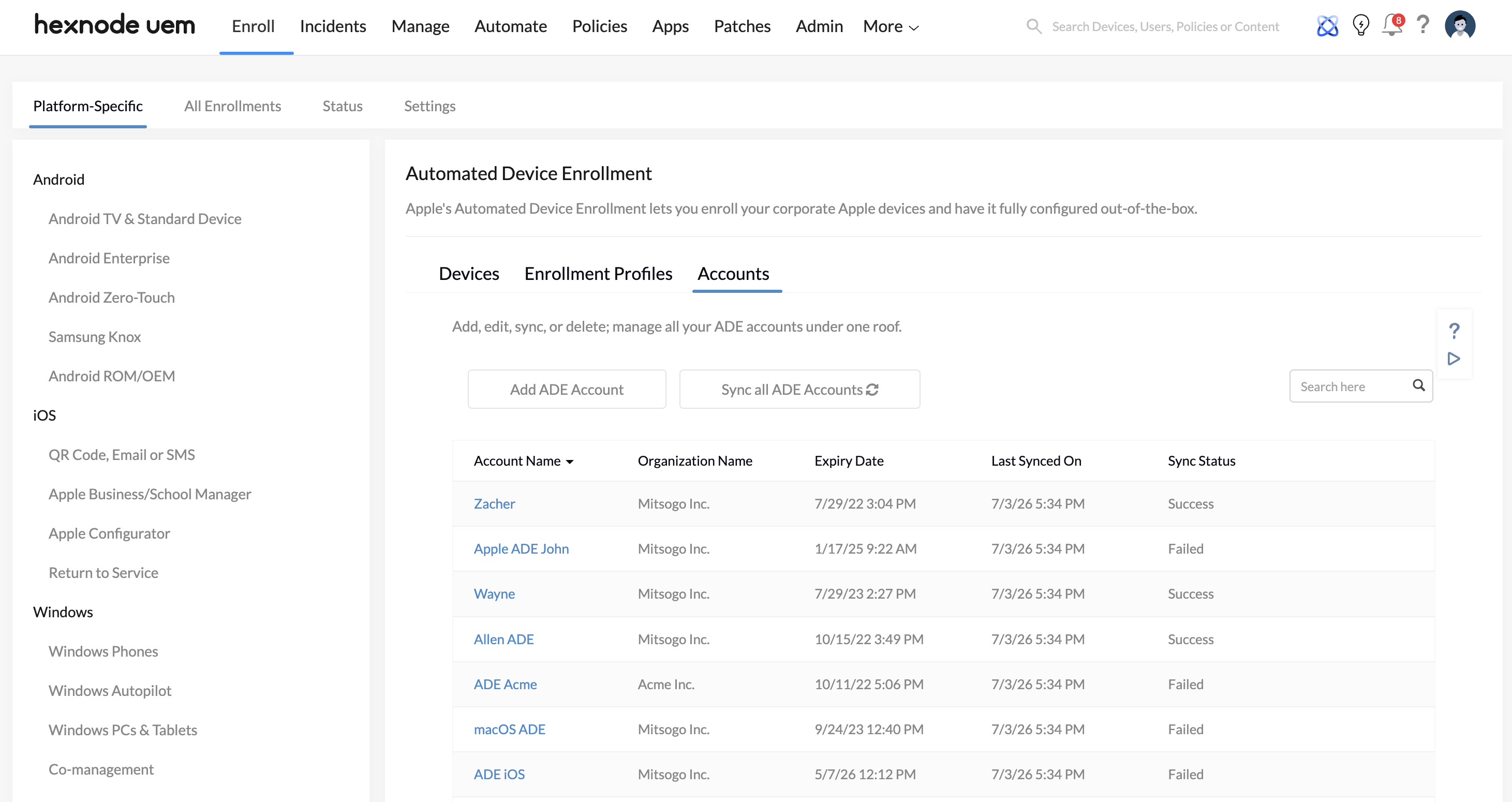
Strategic Value: Once configured, any new device purchased through your authorized Apple reseller and synced into Apple Business will automatically inherit this profile. When the user unboxes the device, it provisions instantly without IT lifting a finger.
Method B: Manual Profile Assignment (Targeted Batches)
For environments deploying specialized hardware (e.g., standard employee laptops vs. locked-down retail kiosks), IT must assign profiles granularly.
- Navigate to Enroll > Platform-Specific > Apple Business/School Manager.
- Select the ADE Devices tab to view your entire hardware fleet synced from Apple.
- Check the boxes next to the specific devices you wish to provision.
- Click on Actions > Assign Enrollment Profile and select the specialized profile (e.g., “Retail Kiosk Blueprint”).
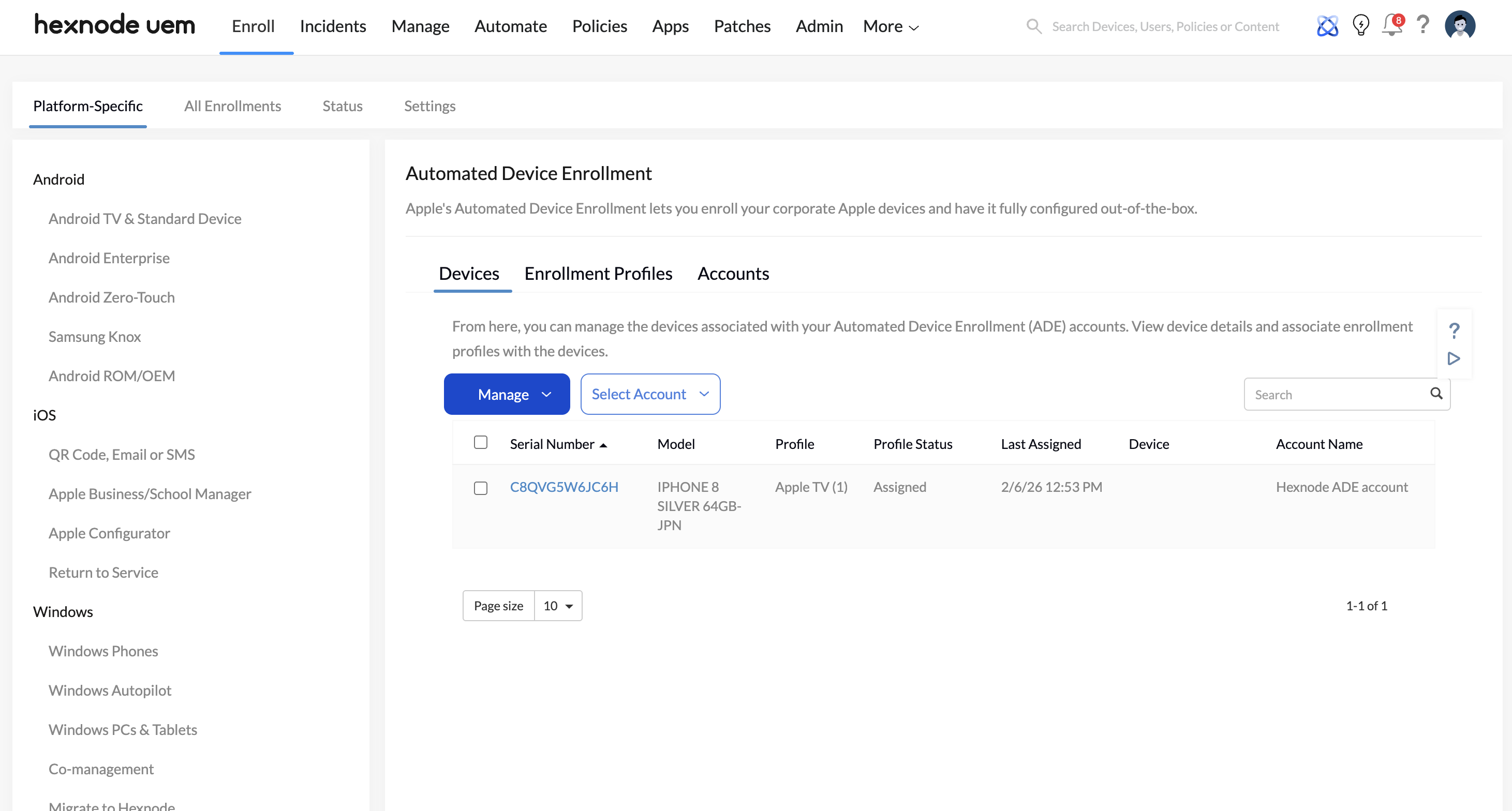
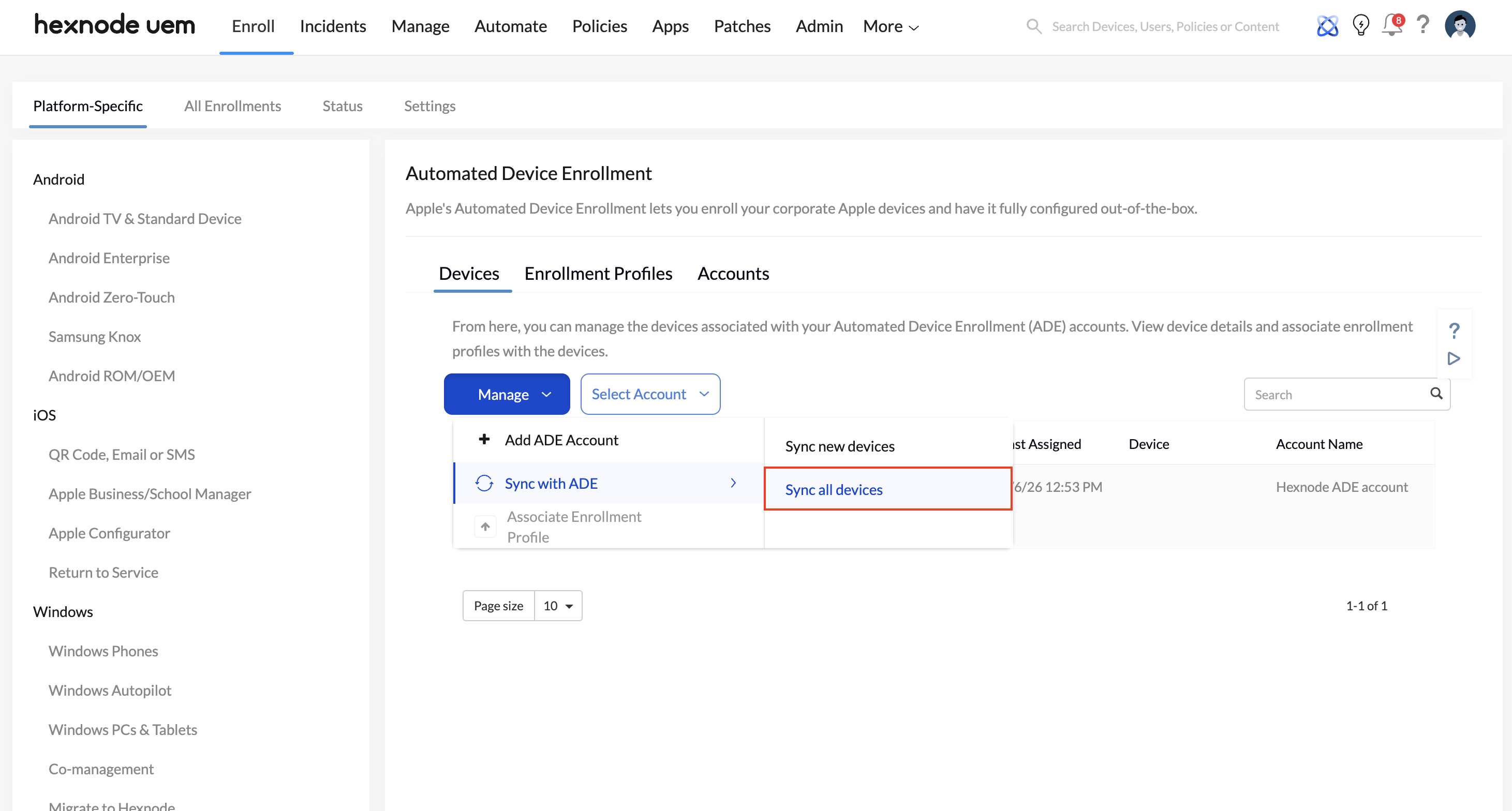
The Manual Sync Trigger: Hexnode periodically syncs with Apple Business to fetch new device purchases. However, if you are actively waiting for a newly purchased device to appear in your Hexnode console, you can force an immediate pull by navigating to the ADE Devices tab and clicking the Manage > Sync with ADE > Sync all devices.
Staging and Testing Best Practices (Ring Deployment)
In enterprise environments, systems engineers should never push a new baseline configuration to a global production fleet without rigorous testing. The Out-of-Box Experience (OOBE) dictates the user’s first impression of corporate IT; if a required app hangs or an authentication gateway fails during setup, it generates a massive influx of helpdesk tickets.
To mitigate risk, utilize a Ring Deployment testing strategy for your ADE profiles:
- The Beta Profile: Instead of editing your active production profile, duplicate or create a new profile named
[BETA] Q4 macOS Deployment. - IT Pilot (Ring 0): Manually assign this Beta profile (using Method B above) to a single test device managed by the IT department.
- The Wipe and Load: Execute a factory reset on the test device. Walk through the physical setup process exactly as an end-user would.
- Verification: Verify that the OOBE screens skipped correctly, the Managed Admin Account is properly hidden, the user is forced to authenticate via your IdP, and day-zero apps (like Slack or VPNs) install reliably without timing out.
- Production Rollout (Ring 1): Only after the physical test device perfectly executes the intended workflow should you update the settings of your global “Default Enrollment Profile” to match the validated Beta configuration.
Frequently Asked Questions
What happens if a device loses its Wi-Fi connection during the ADE setup process?
The initial Out-of-Box Experience (OOBE) requires a network connection to handshake with Apple’s servers and pull the ADE Enrollment Profile from Hexnode. If the connection drops, the setup will halt. Once network connectivity is restored, the process will automatically resume.
Can I change an Enrollment profile settings after a device is already enrolled and active?
No. The Enrollment Profile for ADE devices strictly governs the initial provisioning and Out-of-Box Experience. If you make changes to an ADE profile, those changes will only apply to new enrollments or devices that are factory reset and re-enrolled. To push changes to an active device, you must use standard Hexnode Policies.
What is the difference between Device-based and User-based Activation Lock in the profile?
Device-based Activation Lock is strictly controlled by Hexnode and is associated with the corporate Managed Apple Account used to create the MDM server token. It can only be cleared by an IT admin. User-based Activation Lock allows the end-user to lock the device using their personal Apple Account, which introduces severe asset recovery challenges if the employee leaves the company.
Can users manually remove the MDM profile if enrolled via ADE?
No, provided the administrator configures the profile correctly. Under the General Settings tab, leaving the Allow MDM profile removal toggle unchecked permanently prevents the end-user from deleting the management profile from their device settings. This persistent control survives even unauthorized factory resets.


