


Category filter
Web-Based iOS Device Enrollment with Just-In-Time (JIT) Registration: Enterprise Deployment Guide
1. Architectural Overview & Value Architecture
Enrolling Bring Your Own Device (BYOD) assets requires a strict balance between securing corporate data and respecting user privacy. Hexnode leverages Apple’s modern BYOD framework—User Enrollment—to eliminate the need for third-party MDM agent apps to anchor the device identity.
For web-initiated onboarding, Hexnode utilizes Profile-Driven User Enrollment. Employees complete the initial onboarding process by authenticating through the Safari browser, which downloads a secure management payload installed via the iOS Settings app.
Core Enterprise Workflows Included:
- Just-In-Time (JIT) Provisioning: By federating Hexnode with your Identity Provider (e.g., Microsoft Entra ID, Okta, Google Workspace), administrators do not need to pre-create user accounts in Hexnode. The user record is created natively Just-In-Time the moment the employee authenticates at the Hexnode web enrollment portal.
- Strict Data & Privacy Separation: Apple’s User Enrollment creates a cryptographically separated Business Container anchored by a Managed Apple Account. IT can wipe corporate apps and data but cannot view personal apps, erase the entire device, or access native device identifiers (UDID, MAC address, IMEI).
- Extensible Single Sign-On (SSO): Post-enrollment, Hexnode deploys Apple’s Extensible SSO configuration profile. This uses a broker app (like Microsoft Authenticator) to provide silent, passwordless authentication into corporate enterprise apps.
2. Infrastructure Prerequisites & Requirements
Before deploying Profile-Driven User Enrollment from the Hexnode console, your environment must satisfy these specifications:
- Operating System: Devices must run iOS 13.1 or later (or iPadOS 13.1+).
- Managed Apple Accounts: You must have an active Apple Business Manager (ABM) or Apple School Manager (ASM) account configured to issue Managed Apple Accounts (formerly Managed Apple IDs) to your employees. User Enrollment will fail without one.
- APNs Status: A verified, active Apple Push Notification service (APNs) certificate must be integrated into your Hexnode tenant.
- Identity Provider Integration: Your Hexnode instance must be federated with your cloud directory (e.g., Microsoft Entra ID) to facilitate JIT user registration at the enrollment portal.
3. Administrative Configuration inside Hexnode UEM
Setting up this environment begins with configuring the enrollment portal for JIT authentication and enabling the Profile-Driven User Enrollment framework.
Step 1: Configuring JIT via Authenticated Enrollment
- Log in to your Hexnode UEM console and navigate to Enroll > Settings > Authentication Modes.
- Check the box for Enforce Authentication and select your target Identity Provider (e.g., Microsoft Entra ID, Okta, or Google Workspace).
- Scroll down to the Enrollment Ownership section.
- Set the Default Ownership type to Personal.
- Choose Apple Enrollment Type as Profile-Driven.
- Click Save.
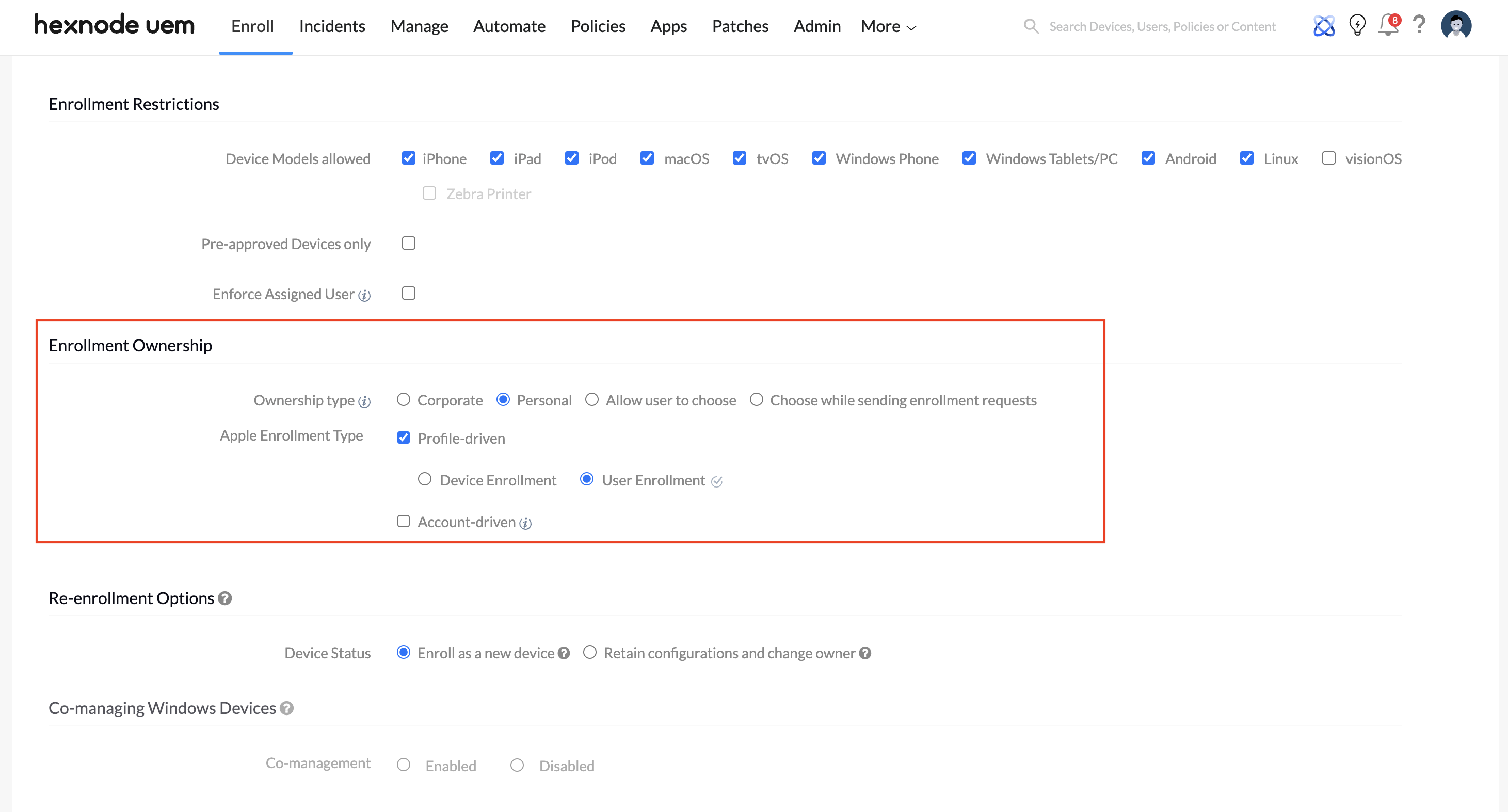
Note: This ensures that when a user logs into the web portal, Hexnode validates their identity, creates the user JIT, and tags the device as BYOD.
4. The End-User Onboarding Blueprint
Provide your employees with this exact step-by-step runbook to prevent onboarding drop-offs.
Step 1: Web Portal Authentication (Safari)
- Open the Safari browser application on your iPhone.
- Navigate to your organization’s custom Hexnode enrollment URL (e.g.,
https://[your-portal].hexnode.com/enroll). - Authenticate using your corporate credentials and complete any required Multi-Factor Authentication (MFA) prompts.
- When prompted to download a configuration profile, tap Allow, then tap Close.
Step 2: Installing the Profile (iOS Settings)
CRITICAL: Open the native Settings app immediately. Apple enforces a strict 8-minute security timeout. If the profile is not installed within 8 minutes, it expires.
- CRITICAL: Open the native Settings app immediately. Apple enforces a strict 8-minute security timeout. If the profile is not installed within 8 minutes, it expires.
- Tap the Profile Downloaded button directly below your Apple Account banner (or navigate to General > VPN & Device Management).
- Tap Install in the top-right corner and enter your personal iPhone lock screen passcode.
- When prompted by iOS, enter your Managed Apple Account and password. This securely anchors the business container and completes the MDM enrollment.
5. Post-Enrollment: Configuring & Accessing Extensible SSO
To ensure users do not have to repeatedly sign into corporate applications (like M365) after the device is enrolled, deploy an Extensible SSO policy.
For the Administrator: Designing the Extensible SSO Configuration
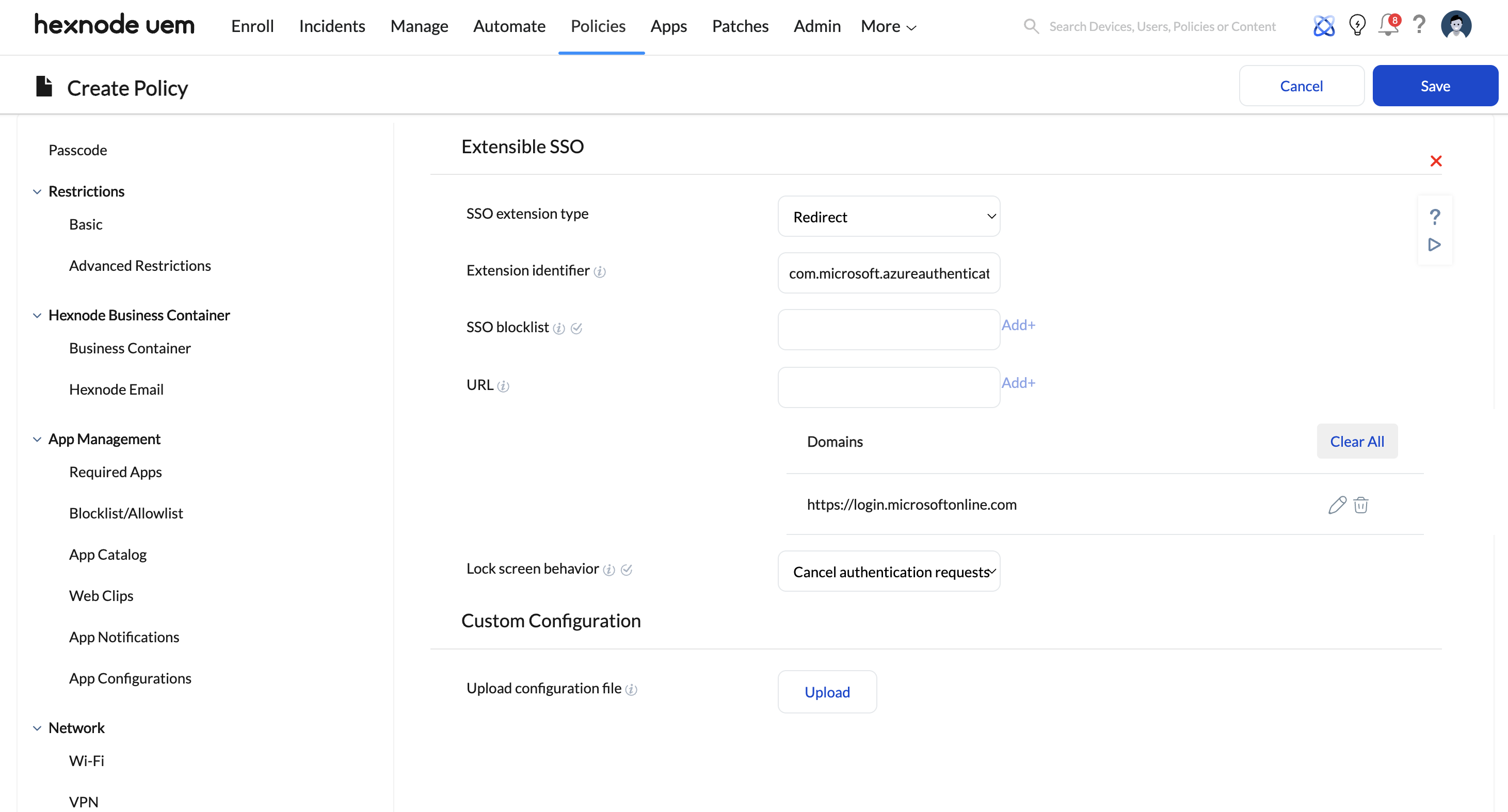
- Navigate to Policies > New Policy > Create a fully custom policy > iOS > Security > Extensible SSO.
- Click Configure and adjust the key properties:
| Hexnode UI Field | Configuration Setting |
|---|---|
| SSO Extension Type | Select Credential, Redirect or Kerberos.. (Note: Modern IdPs like Microsoft Entra ID or Okta using OAuth/SAML typically use Redirect). |
| Extension Identifier | Enter the exact bundle ID of the app extension (e.g., com.microsoft.azureauthenticator.ssoextension for Microsoft or com.okta.mobile.auth-service-extension for Okta). |
| URL (if using Redirect) | Provide the URL of the Identity Provider where the extension performs SSO. |
| Custom Configuration | Upload a .plist file containing any specific key-value dictionaries required by your SSO provider. (This replaces manual key-value entry for advanced IdP configurations). |
Assign this policy to your target BYOD User Groups under Policy Targets and click Save. (Note: Require users to download the Microsoft Authenticator app to their personal device to act as the SSO broker).
For the End-User: Accessing Apps via SSO
- Download Microsoft Authenticator from the App Store (if not already installed).
- Open your first assigned corporate application (e.g., Microsoft Teams). The Extensible SSO profile will securely route your login through Authenticator, granting you access without requiring repeated password entries.
6. Troubleshooting & Technical Error Remediation Matrix
| Error Description | Root Cause | Resolution |
|---|---|---|
| Managed Apple Account Rejection | During the final phase of User Enrollment, the user attempted to sign in using their personal Apple Account (iCloud) instead of the Managed Apple Account issued by the organization. | Ensure the user is inputting the exact Managed Apple Account generated from Apple Business Manager. User Enrollment inherently rejects personal Apple Accounts to maintain cryptographic isolation. |
| “The new MDM payload does not match the old payload.” | The device is already actively managed by another MDM profile, or a residual profile fragment from a previous enrollment exists. | Have the user navigate to Settings > General > VPN & Device Management and delete existing management profiles before restarting the Safari link. |
| “Profile Expired / Not Verified / Missing from Settings” | The employee exceeded Apple’s native 8-minute installation timeout window between downloading the profile in Safari and selecting install in Settings. | The user must return to Safari, log back into the Hexnode portal (/enroll), and re-download a fresh configuration profile payload. |
| “A connection to the server could not be established.” | Outbound internet paths to Apple’s APNs servers are blocked by a corporate Wi-Fi firewall, or the iPhone’s system time is out of sync causing SSL validation failure. | 1. Ensure device Date & Time is “Set Automatically”.
2. Have the user disconnect from Wi-Fi and use cellular data to bypass firewall restrictions. |


