


Category filter
Managing Custom Attributes as Dynamic Inventory in Hexnode
TL;DR
A Custom Attribute becomes dynamic inventory when a Dynamic Device Group uses the attribute’s value as a membership condition. Changing the attribute’s value re-sorts the device into the matching Dynamic Device Group on the next sync, and the device automatically receives the policies targeted at that group. One attribute change replaces three manual steps: re-tagging, re-grouping, and policy reassignment.
This page covers how Custom Attributes, Dynamic Device Groups, Wildcards, and bulk updates behave together.
How the components relate
- The Custom Attribute stores the value.
- The Dynamic Device Group condition watches the value and controls group membership.
- The policy targeted at the group applies automatically to every device currently in the group.
- A Wildcard reads the attribute’s value at action-delivery time.
- A script (on Windows, macOS, and Linux) can write the attribute’s value from its output.
Custom Attributes With and Without a Dynamic Device Group
A device carries a custom attribute compliance_tier = Restricted. Six months later, its attribute value changes to Standard.
- Without a Dynamic Device Group: An administrator must notice the outdated value, update it, and manually reassign the device’s policies—requiring three separate manual interventions.
- With a Dynamic Device Group filtering on compliance_tier: The administrator updates the attribute value to
Standard. On the group’s next evaluation cycle, the device leaves the Restricted Devices group, joins the Standard Devices group, loses the Restricted policy, and receives the Standard policy automatically.
How to set up Custom Attributes as Dynamic Inventory
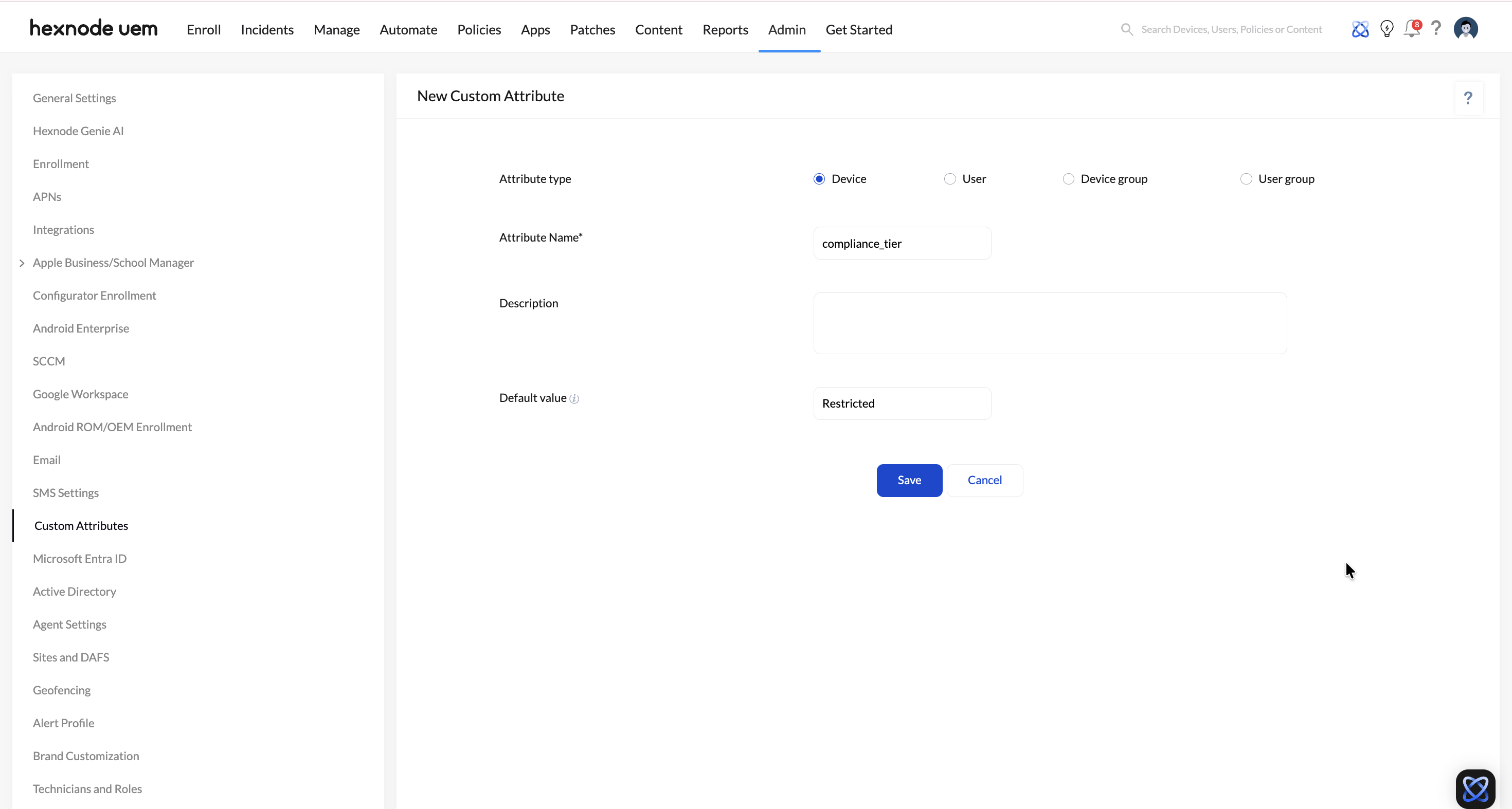
1. Create the Custom Attribute
Navigation path: Admin > Custom Attributes.
For attributes that will drive group conditions, agree on an exact set of values in advance—for example ‘Standard’, ‘Restricted’, ‘Critical’—and document them, so that value drift like ‘restricted’ vs ‘Restricted’ cannot break condition matching later.
2. Create the Dynamic Device Group
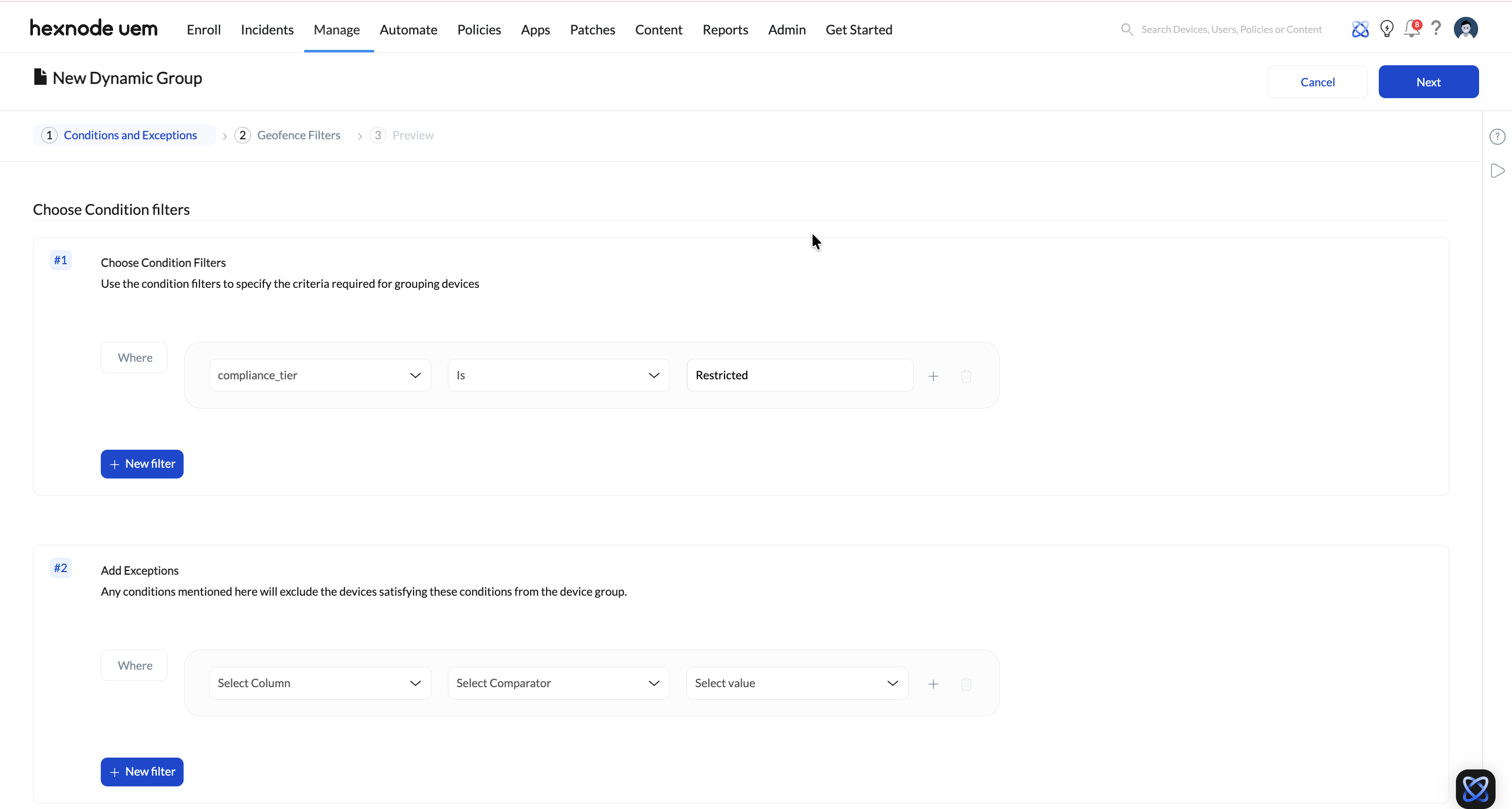
Navigation path: Manage > Device Groups > New Dynamic Group.
Set the group’s condition to filter on the Custom Attribute—for example, ‘compliance_tier’ Is ‘Restricted’. Custom Attributes appear as selectable condition fields alongside built-in fields such as OS version and compliance status.
Result: Every device whose current attribute value matches the condition is a member of the group. A device whose value stops matching leaves the group on the next evaluation.
3. Target a policy at the Dynamic Device Group
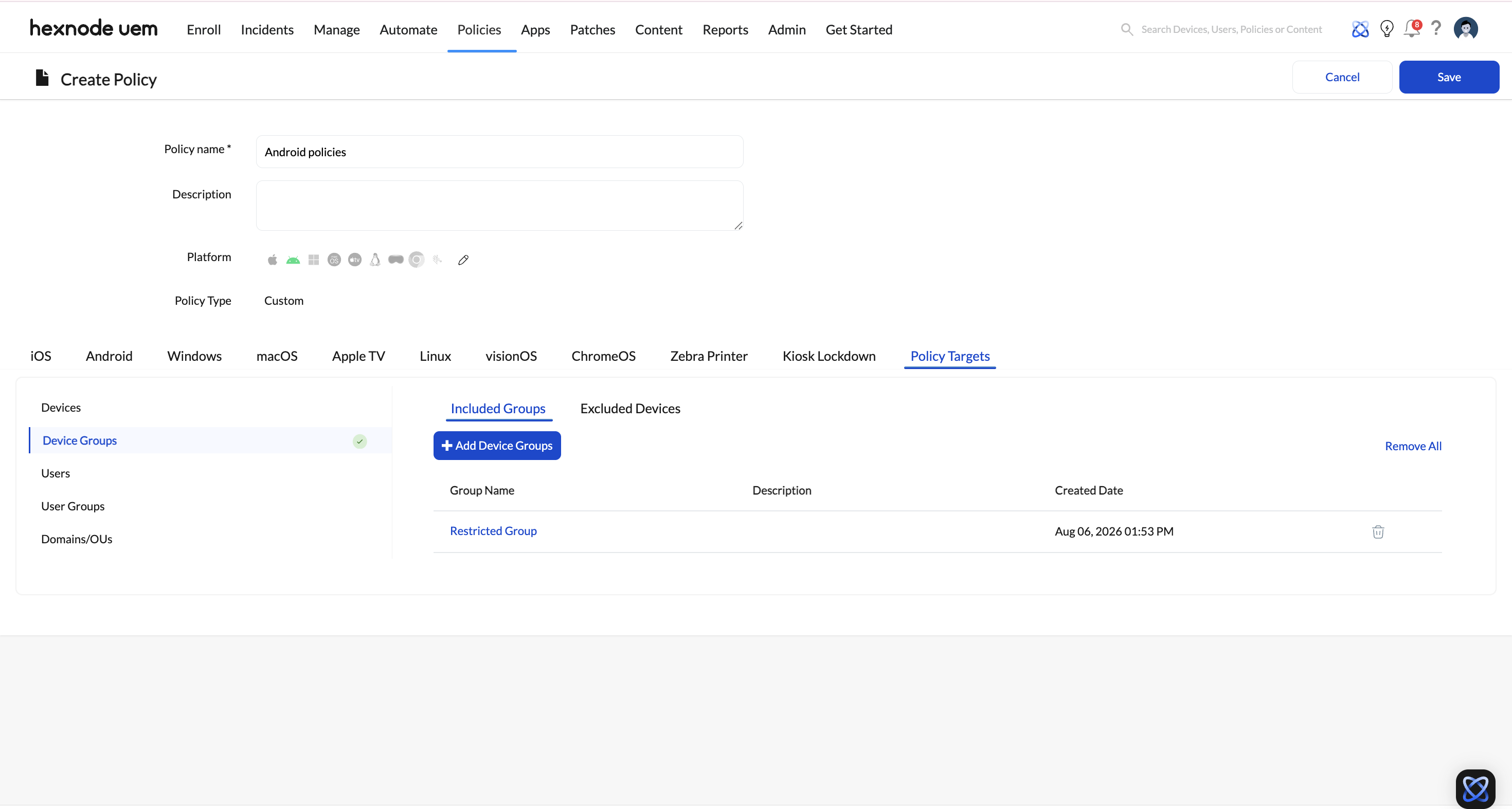
Navigation path: Manage > Device Groups > select the dynamic device group > Actions > Policies & Accounts > Associate Policy.
Result: Devices in the group receive the policy immediately; devices that join the group later receive it automatically upon joining; devices that leave the group lose the policy.
4. Update attribute values
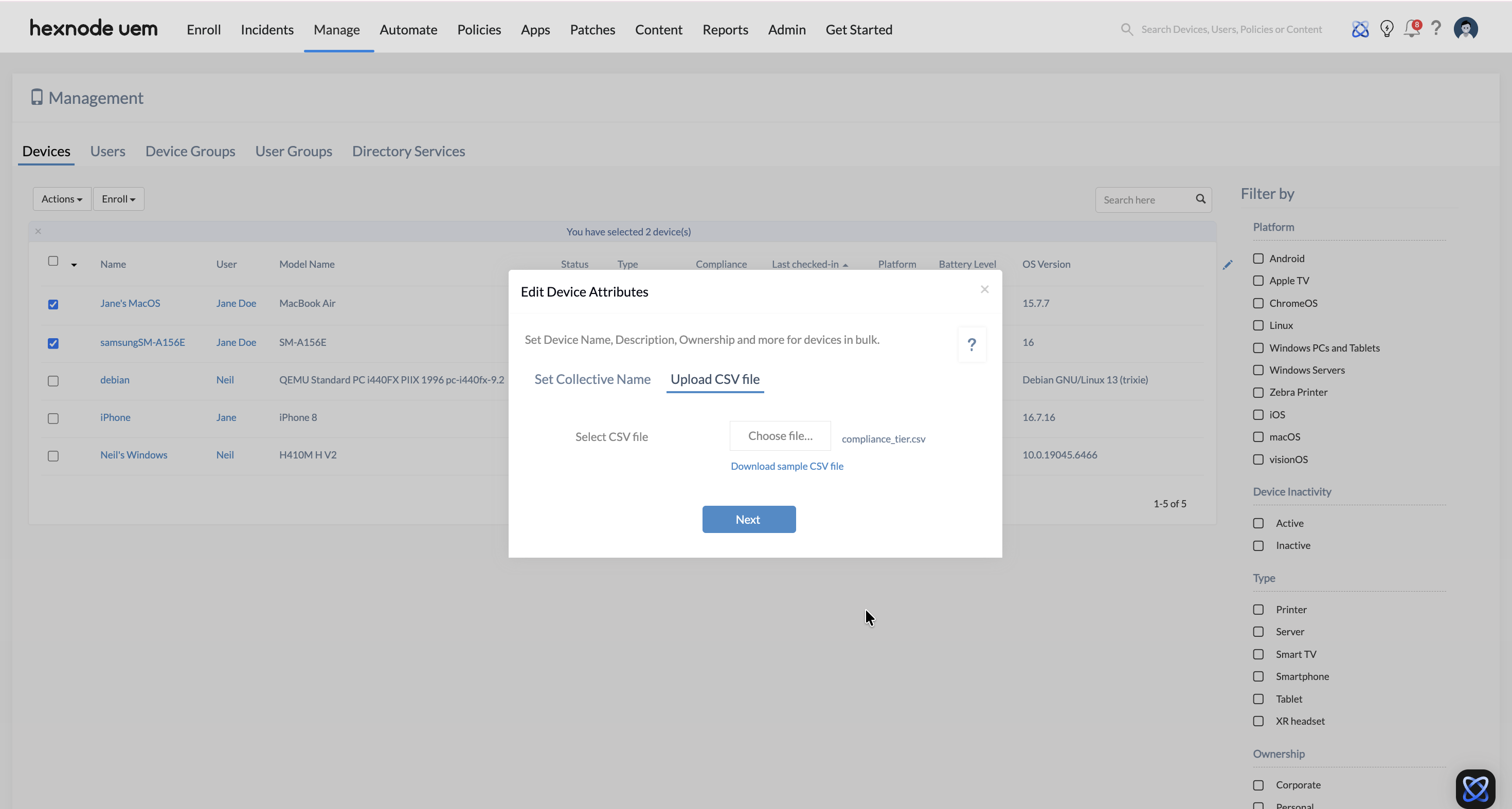
Navigation path:
- Single device: Manage > Devices > select device > Actions > Edit > Edit Device Attributes
- Bulk devices: Manage > Devices > select devices > Actions > Edit > Edit Device Attributes > Upload CSV file
- Automated: Via script output
Result: Every update—regardless of method—feeds the same group re-evaluation. A quarterly CSV refresh of ‘warranty_expiry’ re-sorts the whole fleet’s lifecycle groups in one pass.
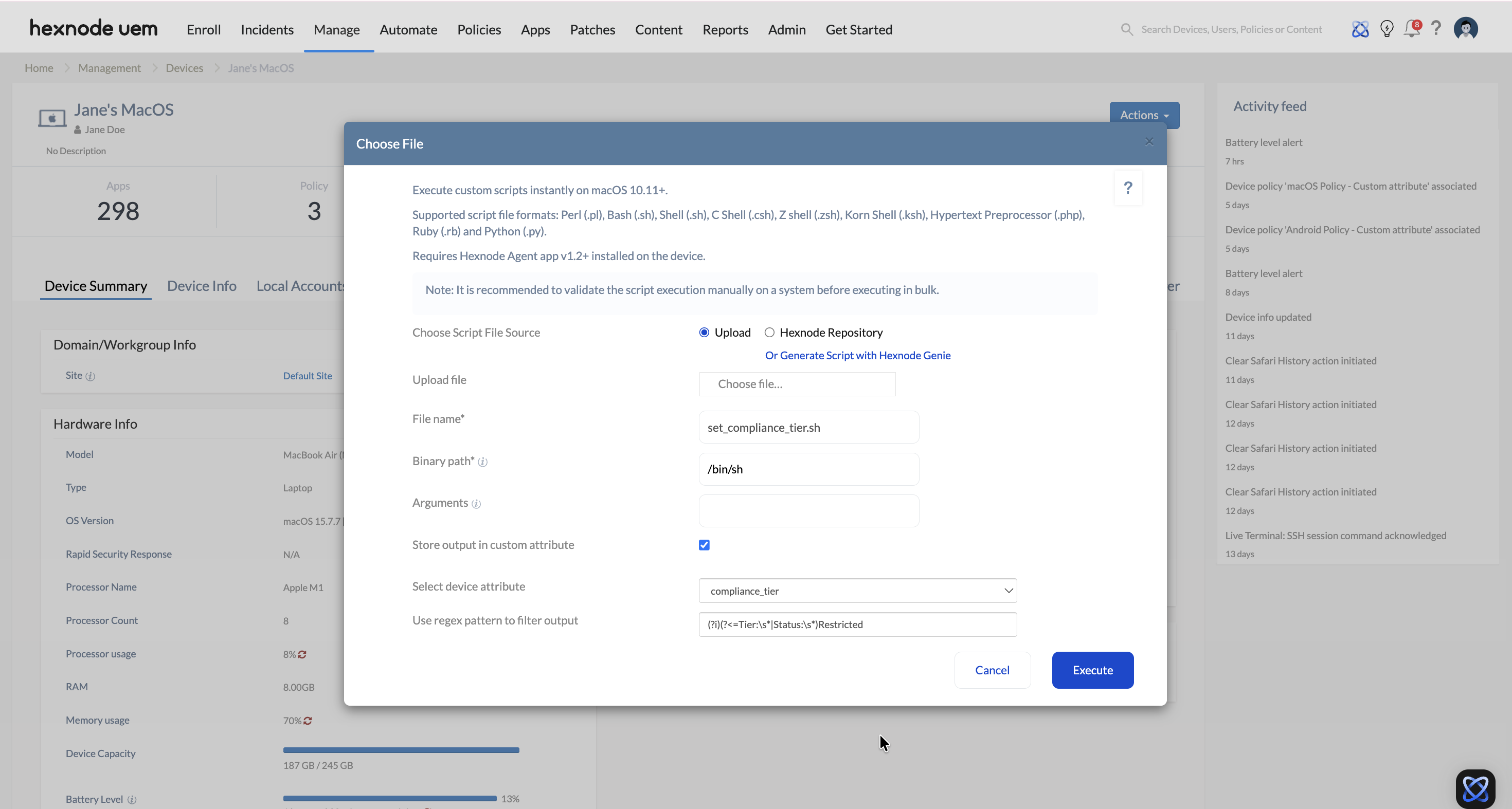
5. (Optional) Populate the attribute from a script
Remote actions such as Execute Custom Script (for Windows, macOS, and Linux) include a Store output in custom attribute option. Select the target attribute, run the script, and the captured output is written to the attribute (visible under Device Info > Custom Attributes).
Result: A device can update its own inventory data—for example, an encryption-status check writing to ‘encryption_state’—and that value drives group membership like any manually entered value.
6. (Optional) Reference the custom attribute value with Wildcards
Text fields across policies and actions—such as Asset Tag Information in iOS Lock Screen Message or the message body in Broadcast Message—support wildcards allowing custom attributes to be passed (e.g., %compliance_tier%). One message, written once, renders each device’s own current value.
Result: Wildcard output reflects the custom attribute value at the time the action is delivered; a later value change appears the next time the action is sent.
Behavior details
When does group membership update after an attribute value changes?
Membership updates on the Dynamic Device Group’s next evaluation cycle, not instantaneously at the moment of the edit. While automatic re-evaluation runs at regular scheduled intervals, admins can trigger an immediate update at any time via Manage > Device Groups > Actions > Sync Dynamic Groups.
What if a device matches the conditions of two Dynamic Device Groups with conflicting policies?
The device is a member of both groups and receives both groups’ policies; conflicts between policy payloads resolve according to Hexnode’s policy precedence rules, where the most restrictive setting takes precedence (e.g., blocklists override allowlists).
Is condition matching case-sensitive?
Value evaluation in condition matching is case-sensitive by default. Values such as Restricted and restricted are evaluated as non-matching entries. Predefining strict values or dropdown options prevents broken filter conditions.
What happens if a Custom Attribute referenced by a live group condition is deleted?
Deleting a Custom Attribute actively referenced by a Dynamic Device Group condition invalidates that filter rule. Upon the next sync evaluation, affected devices fail the criterion, exit the group (causing the group to empty if it relied solely on that attribute), and automatically lose any policies targeted at that group. Always verify group dependencies prior to deleting an attribute.
Use cases
| Attribute | Group condition | Automatic outcome |
|---|---|---|
compliance_tier |
Is Restricted | Stricter policy applies the moment classification changes |
cost_center |
Is target department | Device moves between department policy sets on reassignment |
warranty_expiry |
Within defined range | Devices nearing end-of-warranty surface for replacement planning |
rotation_status |
Is Available | Loaner-pool group always reflects currently free devices |
Across all four cases, the underlying mechanism is identical: a custom attribute value drives a group condition, which in turn triggers an automatic downstream action—such as applying a policy, updating an inventory view, or reassigning endpoints. While the attributes and conditions change between use cases, the automated workflow connecting them remains the same.
Governance
- Restrict attribute creation via role-based access control so the 50-attribute account limit is budgeted deliberately and naming stays consistent.
- Audit values periodically using Export Device Details to compare actual values against expected states—dynamic groups are only as accurate as the underlying values.
- Check dependencies before deleting or restructuring an attribute to prevent unintended group membership changes and policy unassignments.
Frequently Asked Questions
Can a script set a Custom Attribute's value?
Yes — supported remote actions offer Store output in custom attribute, writing the script’s output to the selected attribute.
Do wildcard values update automatically on the device?
No. A wildcard renders the value current at delivery time; a later change appears only when the action is re-delivered.
How do I update one attribute across thousands of devices at once?
Select the devices under Manage > Devices, choose Actions > Edit Device Attributes, and upload a CSV of device identifiers and new values.
Do I need one group per attribute value?
Values that only need to be recorded or displayed (via wildcards or reports) do not need a group.
Does custom attribute replace a CMDB or ITAM system?
No. This is a lightweight, self-maintaining inventory layer inside the UEM console — useful for policy automation and operational tracking, not a system of record for procurement or financial asset management.


