


Category filter
How to Enforce a Zero Trust Architecture using Hexnode
Overview
In a traditional “perimeter-based” security model, anything inside the corporate network is trusted by default. Zero Trust flips this script, operating on the principle: “Never trust, always verify.”
Using Hexnode UEM, organizations can enforce Zero Trust by ensuring that every access request is fully authenticated, authorized, and encrypted before granting access to corporate resources.
Core Pillars of Zero Trust in Hexnode
To build a Zero Trust framework, Hexnode focuses on four critical pillars: Identity, Device Health, Access Control, and Continuous Monitoring.
1. Identity Verification
Zero Trust starts with knowing exactly who is accessing the data.
IDP Integration: Link Hexnode with Identity Providers (IdPs) like Okta, Azure AD, or Google Workspace to ensure only authenticated users can enroll devices.
Multi-Factor Authentication (MFA): Enforce MFA at the enrollment level to prevent unauthorized device onboarding.
2. Device Compliance and Health
A user’s identity is only half the battle; the device must also be “healthy.”
- Compliance Rules: Define strict policies (e.g., OS version, jailbreak/root detection, and encryption status).
- Automated Remediation: Configure Hexnode to automatically mark a device as “Non-compliant” and revoke access if it fails a security check.
3. Principle of Least Privilege (PoLP)
Users should only have access to the specific apps and data required for their roles.
- App Management: Use Hexnode to push only required enterprise apps and blacklist/whitelist others.
- Containerization: Use Android Enterprise (Work Profile) or Apple User Enrollment to separate corporate data from personal data, preventing data leakage.
4. Secure Connectivity
Zero Trust assumes the network is always hostile.
- Per-App VPN: Instead of a full-tunnel VPN, configure Per-App VPN via Hexnode. This ensures only managed, authorized apps can access the corporate network.
- Wi-Fi & Certificate Management: Deploy identity-based certificates to ensure only managed devices can connect to corporate Wi-Fi.
Implementation Steps
Step 1: Establish Device Trust
Before a device can access any resource, it must be under management.
- Navigate to Enroll > Settings.
- Choose Enforce Authentication to tie every device to a verified user identity.
- Deploy Device Encryption (FileVault for macOS, BitLocker for Windows) via Hexnode policies.
Step 2: Define Conditional Access Policies
Create a dynamic environment where access is granted based on real-time context:
- Go to Policies > New Policy.
- Set up Geofencing: Restrict access to corporate apps if the device leaves a designated “safe zone.”
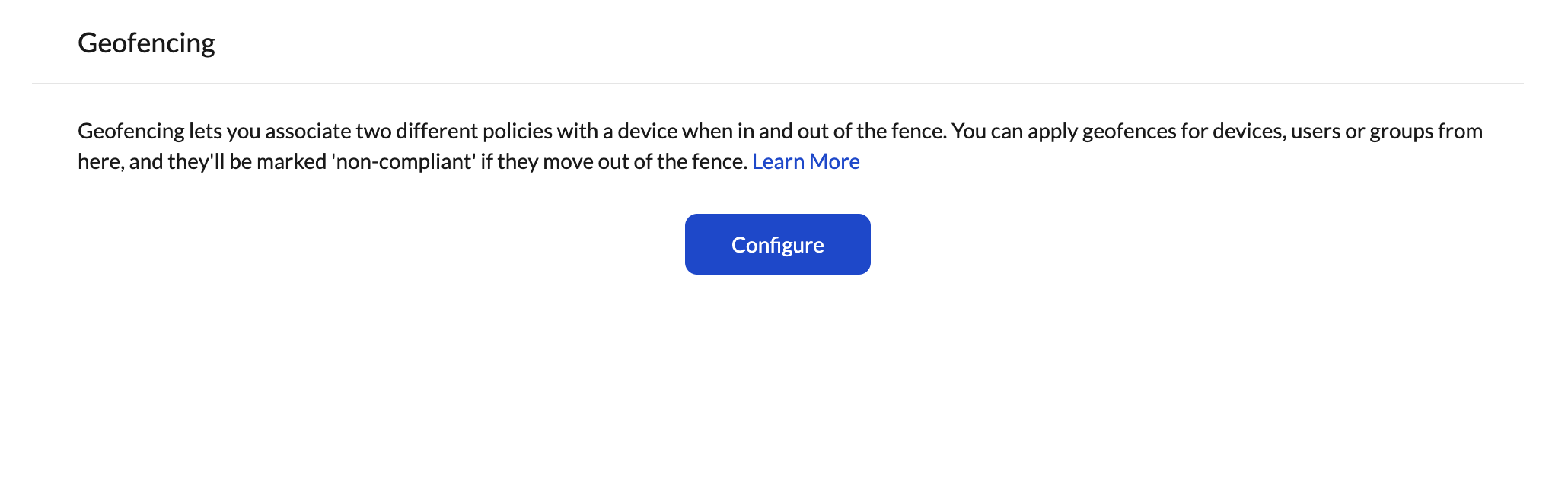
- Enable Periodic Scanning: Set the frequency at which Hexnode checks the device for policy violations.
Step 3: Secure the Data Layer
- Business Containerization: Prevent “Copy-Paste” or data sharing between work and personal applications.
- Remote Wipe: In the event of a lost device or a detected threat, use Hexnode’s Wipe/Lock commands to instantly neutralize the risk.
Summary of Zero Trust Workflow
| Feature | Zero Trust Action |
|---|---|
| Enrollment | Verified Identity via IdP |
| Compliance | Real-time health checks (Root/Jailbreak) |
| Connectivity | Per-App VPN and Certificate-based Auth |
| Data Security | Managed app configurations and containerization |
Note: Zero Trust is not a “set it and forget it” configuration. It requires continuous refinement of your Hexnode policies as your organization’s threat landscape evolves.


