


Category filter
How to enable multi-app kiosk mode in iOS
This article describes how to enable multi-app kiosk mode in iOS devices with the help of Hexnode.
Multi-app kiosk mode is a lockdown mechanism that limits your device to a set of apps and restricts access to all other apps installed on the device. The multi-app kiosk mode ensures that the device is not used for anything other than to access the applications approved by your organization. The phone app and settings app will get added in the kiosk mode by default.
Create multi-app kiosk policy
You can lock your iPhone and iPad devices down to a few apps or app groups using the multi-app kiosk policy. To add app groups, they have to be first configured in Hexnode.
To configure the multi-app kiosk policy,
- Login to your Hexnode portal.
- Go to Policies > New Policy > iOS > Kiosk and provide a suitable name for the policy.
- Go to Kiosk Lockdown and select Multi App under iOS Kiosk Lockdown and click Configure.
- Click on +Add,
- Select Add app > Local Apps for adding VPP, enterprise, store, Web Clips or system apps from Hexnode repository.
- Select Add app > Public Store to add apps directly from the App Store.
- Select Add group for adding an app group.
- Select the apps or app groups from the list and click Save.
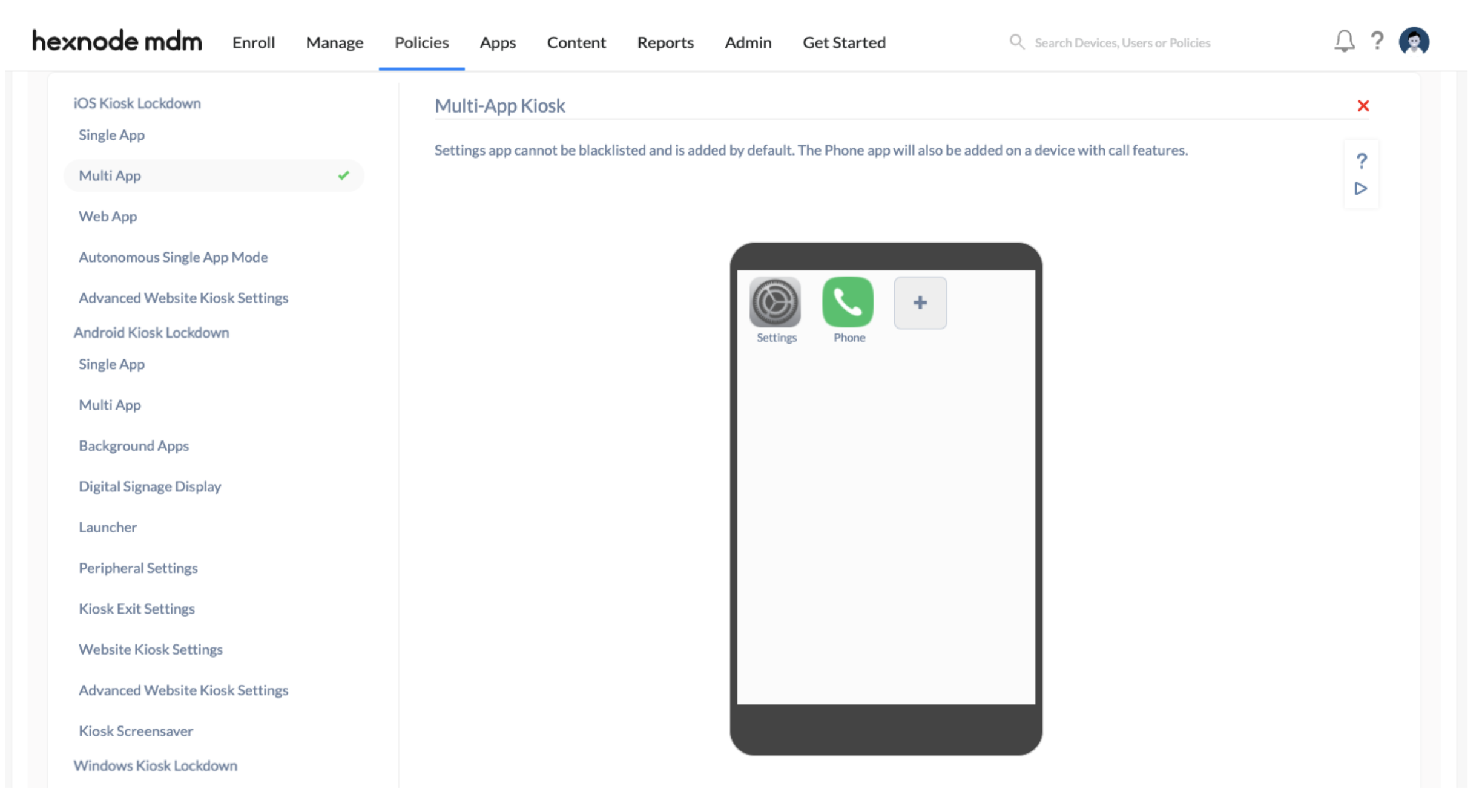
Associate Multi app kiosk mode policy with iPhone/iPad
If you haven’t saved your policy,
- Navigate to Policy Targets.
- Click on +Add devices to add the devices.
- Save the policy.
You can also assign the policy to device groups, users, user groups and domains.
If you have saved your policy,
- Navigate to Manage > Devices.
- Select the devices.
- Click on Actions > Associate Policy.
- Select the policy and click on Associate.
Or
- Navigate to Policies.
- Search and select the policy.
- Click Manage > Associate Targets.
- Select the devices, devices groups, users, user groups or domains.
- Click on Associate.
Frequently Asked Questions
1. Can both individual apps and app groups be added to the same Multi-App Kiosk policy?
Yes. A Multi-App Kiosk policy can include a combination of individual apps and app groups, if the app groups are configured beforehand.
2. How does Hexnode UEM link existing Web Clip policies to a Multi-App Kiosk configuration?
When adding a Web Clip to the Multi-App Kiosk policy, Hexnode checks for existing Web Clips in the Web Clip policy and displays a prompt asking whether to include them. If the option to add all apps is selected confirmed, those Web Clips are also added to the kiosk policy.
3. What happens if an app included in the Multi-App Kiosk policy is not available on the device?
The app will not appear on the device in kiosk mode. Ensure that all required apps are installed on the device before applying the policy for a complete kiosk experience.
4. Why can’t some Web Clips be removed directly from the Multi-App Kiosk policy?
Web Clips added via the Web Clip policy will also appear in the Multi-App Kiosk policy. These Web Clips cannot be removed directly from the kiosk policy and need to be removed from the Web Clip policy first.


