


Category filter
Dashboard view of Patch Management metrics in Hexnode
The Patches and Updates dashboard in Hexnode provides IT administrators with key patch management metrics that help measure the progress of patch management in your organization. It brings together insights into the status of patches and updates across devices in your company network, enabling a quick overview of missing updates, vulnerable devices, and more. This visibility allows for proactive management of critical security patches and software updates. By using these metrics, IT teams can stay ahead of potential threats, ensure regulatory compliance, and maintain the overall security of their IT environment.
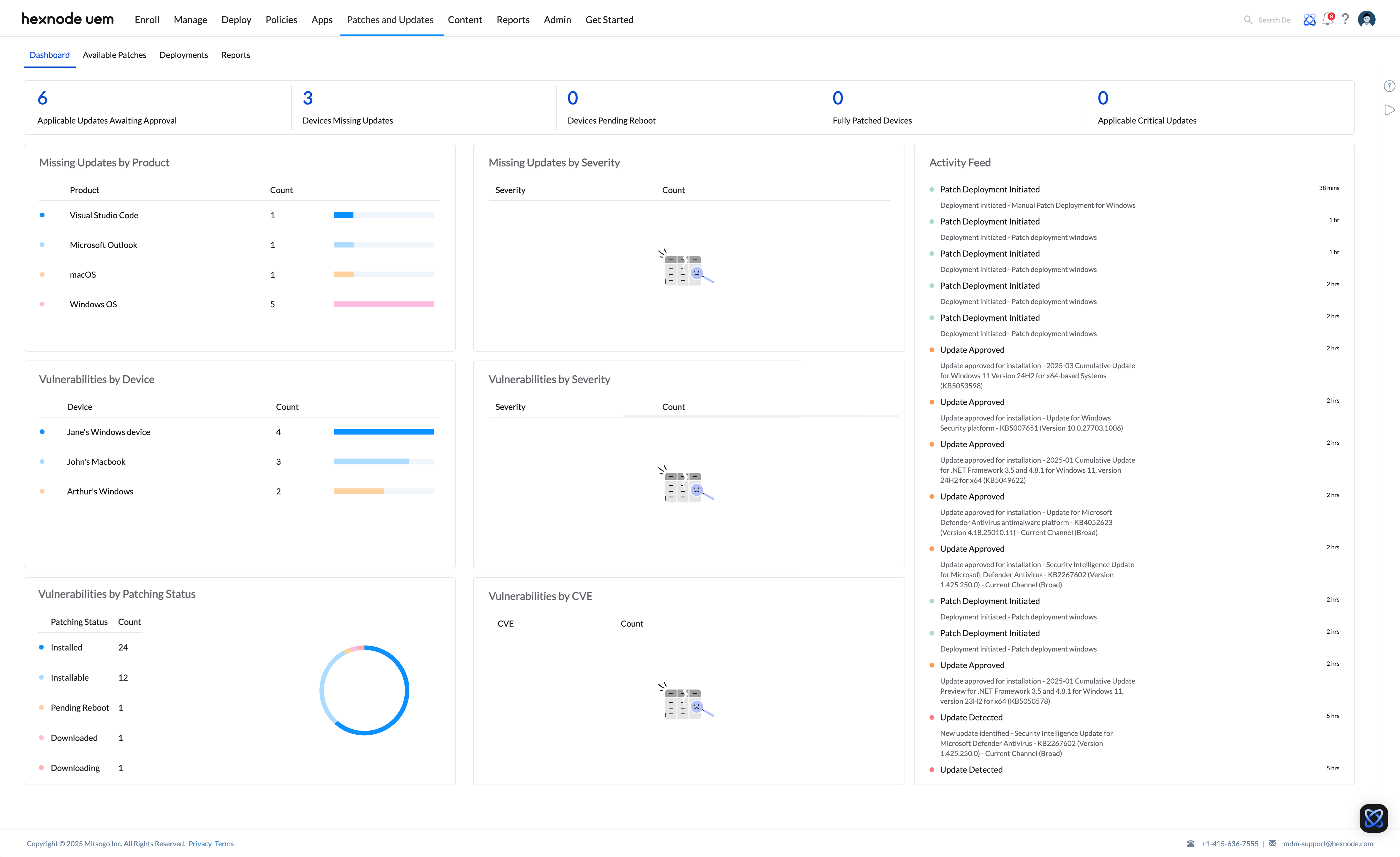
Patch Management Metrics displayed on the dashboard
To get an overview of all the details related to patches and updates in Hexnode, follow these steps:
- Log in to your Hexnode UEM portal.
- Navigate to the Patches and Updates tab.
- By default, you will be taken to the Dashboard. If not, click the Dashboard section to view all the details.
The Patches and Updates dashboard displays the details described below.
Patch Management Metrics – Patch status overview
This section displays seven key patch metrics:
- Critical Patches Missing: Represents the number of critical patches applicable to the targeted devices that have not yet been installed. These patches address high-priority security vulnerabilities and other critical issues. Administrators can prioritize these patches to reduce security risks and maintain device security.
- Devices Missing Critical Patches: Represents the number of targeted devices that have at least one applicable critical patch that has not been installed. These devices may be exposed to high-priority security vulnerabilities. Administrators can prioritize these devices for critical patch deployment.
- Failed Patches: Represents the number of patches whose installation failed on the targeted devices. Patch installation may fail due to device, package, dependency, or other installation-related issues. Administrators can review the failed patches and take corrective action before retrying the deployment.
- Devices with Failed Patches: Represents the number of targeted devices on which at least one patch installation has failed. Administrators can identify these devices and investigate the failed installations to ensure the required patches are successfully deployed.
- Devices Waiting for Reboot: Represents the number of targeted devices that require a system restart to complete the installation of one or more updates. Restarting these devices allows the installed updates to be fully applied.
- Unapproved Patches: Represents the number of applicable patches that have not yet been approved by the administrator. Administrators can review and approve these patches based on organizational patching policies before deploying them to targeted devices.
- Applicable Vulnerabilities: Represents the number of vulnerabilities identified on the targeted devices for which applicable patches are available. Administrators can review these vulnerabilities and prioritize the corresponding patches based on their severity and organizational security requirements.
Missing Patches by Operating System
This section categorizes missing updates by product, providing administrators with a clear breakdown of which applications or operating systems require updates. The count represents the number of updates that are available for installation and have not yet been installed on at least one targeted device. For example, a count of 5 for Windows OS under Missing Patches by Operating System means there are five pending updates that have not yet been installed on at least one targeted device.
Missing Patches by Severity
This section categorizes missing updates based on their impact, helping administrators prioritize patches effectively. Updates are classified into four severity levels—Critical, Important, Moderate, and Low—based on vendor-defined ratings from Microsoft, Apple, or third-party vendors for applications. The count represents the number of patches available for installation on at least one affected device in each severity category. Updates are arranged in descending order of severity, with Critical updates at the top, followed by the other levels.
Patch Management: Activity Feed
This section logs all actions related to Patches and Updates, including update approvals, revocations, newly detected updates, and initiated patch deployments. It offers administrators an overview of these activities, providing visibility into completed actions and helping them track progress.
Vulnerabilities by Endpoints
This section highlights devices with the highest number of critical updates pending installation. These updates address significant security vulnerabilities, system bugs, or other high-risk issues affecting device functionality. Each device is listed along with the number of available updates, prioritized by severity. Critical updates are shown first, followed by Important, Moderate, and Low-severity updates.
Vulnerabilities by Severity
Vulnerabilities are security weaknesses that can be exploited if left unpatched. Severity is classified based on potential impact, such as Critical, Important, Moderate, or Low. This section provides a breakdown of vulnerabilities along with the available updates that address them. Critical vulnerabilities pose the highest risk and should be patched immediately. Understanding severity levels helps IT administrators prioritize updates, reduce security risks, and strengthen overall system protection.
Top missing patches
This section shows the seven missing updates that affect the most targeted devices, ranked by the number of distinct devices missing each update. Each bar is labeled with the update’s KB number or name and colored by severity, helping administrators identify which missing updates affect the largest portion of their device fleet.
Top missing critical patches
This section shows the five missing Critical-severity updates that affect the most targeted devices, ranked by the number of distinct devices missing each update. Bars are colored by operating system (Windows, macOS, or Linux), helping administrators see which operating system each critical update affects and prioritize deployment where exposure is greatest.
Patch Automation execution status
This section represents the outcome of patch automation runs based on execution history, helping administrators track how their patch automations have performed.
- Success: The number of automation runs that completed successfully.
- Failed: The number of automation runs that did not complete successfully.
- Pending: The number of automation runs yet to complete.
Clicking View reports navigates to the Patch automations section for further details.
Patch coverage
This section represents the proportion of enrolled devices covered by available patches, based on whether the devices have any missing updates. It helps administrators assess patch coverage across their device fleet and identify devices that require updates.
- Covered: Enrolled devices with no missing updates.
- Not covered: Enrolled devices with at least one missing update.
Automation Lifecycle summary
This section provides a breakdown of patch automation deployments by their current lifecycle state. It helps administrators monitor patch automation status in the portal and track deployments that are scheduled, in progress, completed, or failed.
- Scheduled: Patch automation deployments configured to run at a specified time but not yet started.
- In progress: Patch automation deployments currently executing on the targeted devices.
- Completed: Patch automation deployments that have finished execution.
- Failed: Patch automation deployments that could not complete successfully. Administrators can review the automation details to identify the cause of failure.
Device compliance for Patches
This section represents the patch compliance status of enrolled devices based on the OS and patch type selected for the dashboard view.
- Compliant: Enrolled devices with no missing updates for the selected OS and patch type.
- Non-compliant: Enrolled devices with at least one missing update for the selected OS and patch type.
Clicking View reports navigates to the Device patch compliance section for further details.
Frequently Asked Questions
How to approve patches from Hexnode UEM?
Go to Patches and Updates > Patches, select the required patch, and click Actions > Approve > Proceed to approve it. You can also open an individual patch to view its summary and click Approve. Approved updates can be deployed through automations configured with Require update approval.


