


Category filter
Triggers and Conditions to Automate Device Management Workflows
Quick Summary:
Hexnode UEM Automations operate on a logical “If-Then” framework:
[Trigger] + [Target Filter] = [Action Execution].
- Trigger: The specific event (Time or Activity) that initiates the automation process.
- Target Filter: The Boolean conditions (Device, User, or Network attributes) that must be met for the action to deploy.
Steps to Configure Triggers and Conditions
- Navigate to Automate > Active Automations > New Automation.
- Select the target Platform and define the Action (e.g., Lock Device, Install App).
- Proceed to the Settings and Schedule page to define your Triggers.
- Proceed to Target Filters to define the scope of the automation.
- Review the summary and click Save.
Phase 1: Defining the Trigger
The Trigger determines when the automation engine begins evaluating your fleet.
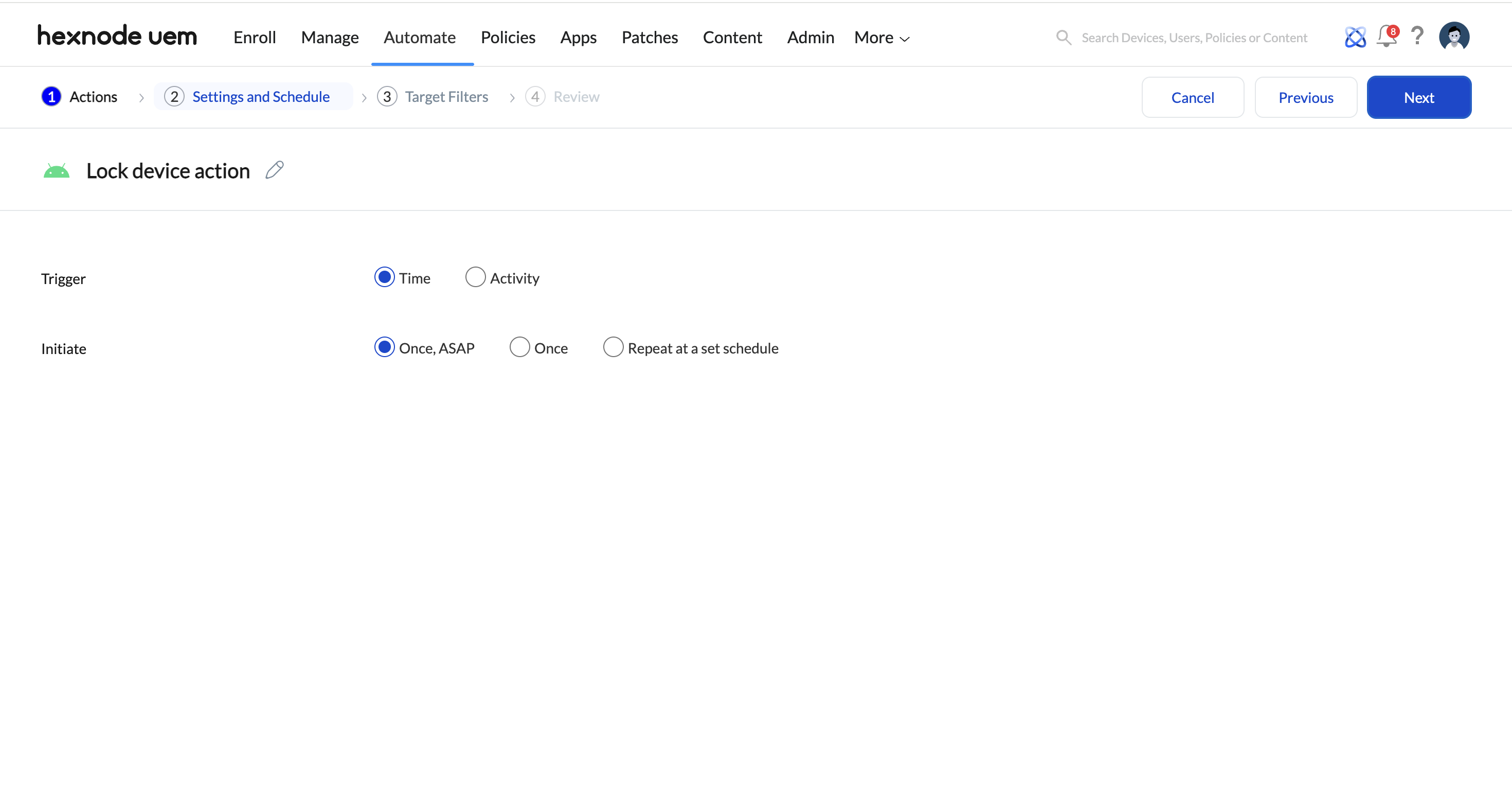
Type A: Time-Based Triggers (Scheduled Events)
Time triggers execute actions based on a clock-driven schedule:
- Once, ASAP: Triggers immediately upon saving the automation.
- Once: Triggers at a precise future timestamp (MM/DD/YY | HH:MM).
- Repeat: Triggers on a recurring cadence (Everyday, Weekly, or Monthly).
Type B: Activity-Based Triggers (Behavioral Events)
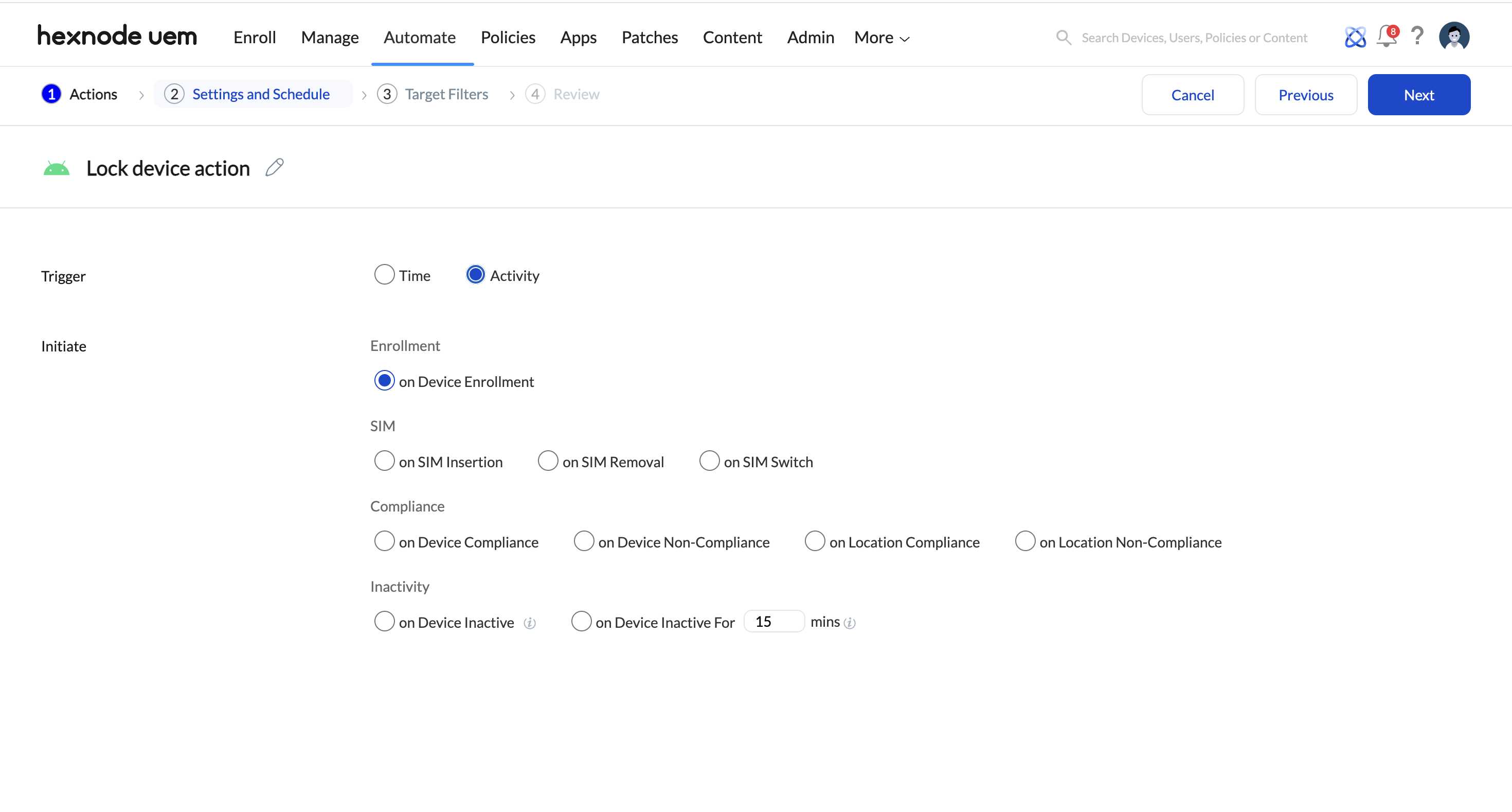
Activity triggers respond to real-time changes in device state:
- Enrollment: Executes when a device first checks into the portal.
- SIM Activity (Android Only): Insertion, removal, or switching of SIM cards.
- Compliance Status: Triggered by changes in device-level or location-based compliance.
- Inactivity (Android Only): Triggered when a device remains offline past a specified threshold.
Phase 2: Applying Target Filters
Target Filters refine the scope of the trigger. An action only executes if the device matches the filter criteria at the time of the trigger.
| Category | Filterable Attributes (Sub-categories) |
|---|---|
| Device | Apple ADE, Asset Tag, Battery Level, Device Model, Serial Number, OS Version, Ownership, Supervision Status. |
| User | Email, Department, Office Location, Username. |
| Network | Wi-Fi SSID, IP Address, ICCID, Roaming Enabled, Home Carrier, MCC/MNC, Personal Hotspot. |
| Device Status | Rooted/Jailbroken, Lost Mode, Kiosk Status, Enrollment Status, Compliance Status, Activity Status. |
Frequently Asked Questions
What are the SIM-based activity triggers in Hexnode?
SIM-based triggers include SIM Insertion, SIM Removal, and SIM Switch. These are supported exclusively on Android devices.
Does the 'Inactivity' trigger work for iOS?
No. The ‘On Device Inactive’ and ‘On Device Inactive For’ triggers are currently supported only on Android devices.
What is the difference between AND and OR logic in filters?
AND logic requires a device to satisfy every single filter criterion to trigger the action. OR logic allows the automation to execute if the device satisfies at least one of the defined criteria.
How does the 'Inactivity' trigger work?
The Inactivity trigger initiates security actions like Lock Device or Wipe (as configured by the Admin) when a device fails to communicate with the Hexnode server for a threshold duration. On Android, this requires the “Alarms and reminders” permission to be granted to the Hexnode UEM app.
Which automation triggers are Android-exclusive?
SIM-based activity triggers (Insertion, Removal, Switch) and Inactivity triggers (On Device Inactive/Inactive For) are currently supported exclusively on Android devices.
What is the difference between Hexnode Automations and Policies?
Policies define static settings and restrictions that are applied to devices. Automations, however, are used for scheduling and executing specific operations (like scripts or scans) based on defined time intervals or real-time device triggers.


