


Category filter
Automating App Uninstallation on Windows via Hexnode UEM
Overview
Automating App Uninstallation in Hexnode UEM is a workflow to automatically remove applications from Windows devices with controlled execution and error handling. Unlike the basic Uninstall Application action (under App Management), which only runs an uninstall command and uninstall string, this advanced workflow supports execution order (parallel or sequential), pre/post-uninstall scripts, custom command-line parameters, and return code-based actions like retries or device restarts.
Primary Use Cases
- Security: Remove unauthorized or high-risk applications.
- Maintenance: Clean up outdated or unsupported software.
- Compliance: Enforce organizational software policies.
- Lifecycle Management: Streamline device offboarding or ownership transfers.
Step-by-Step Configuration Guide
Step 1: Initialization
- Log in to the Hexnode UEM portal.
- Navigate to the Automate tab and click New Automation.
- Select Windows as the target platform.
- Enter a descriptive Name and an optional Description (e.g., geographic scope or intent).
- Click Next.
Step 2: Configure Actions
Select App Uninstallation from the App Distribution menu. This process is divided into four key stages:
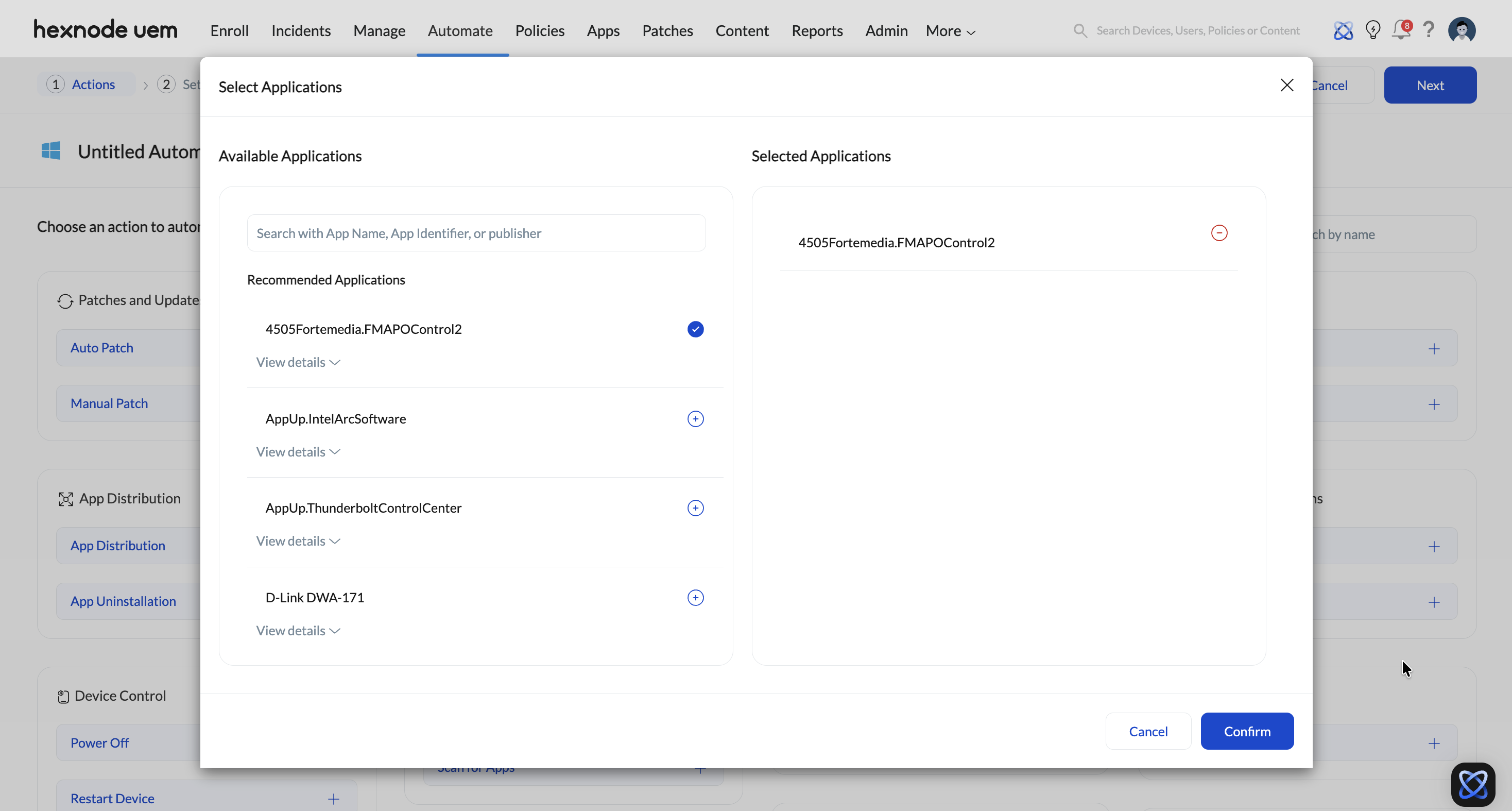
Stage 1: Select Applications
Click Add next to the desired applications targeted for removal, then click Confirm. You can select multiple apps simultaneously.
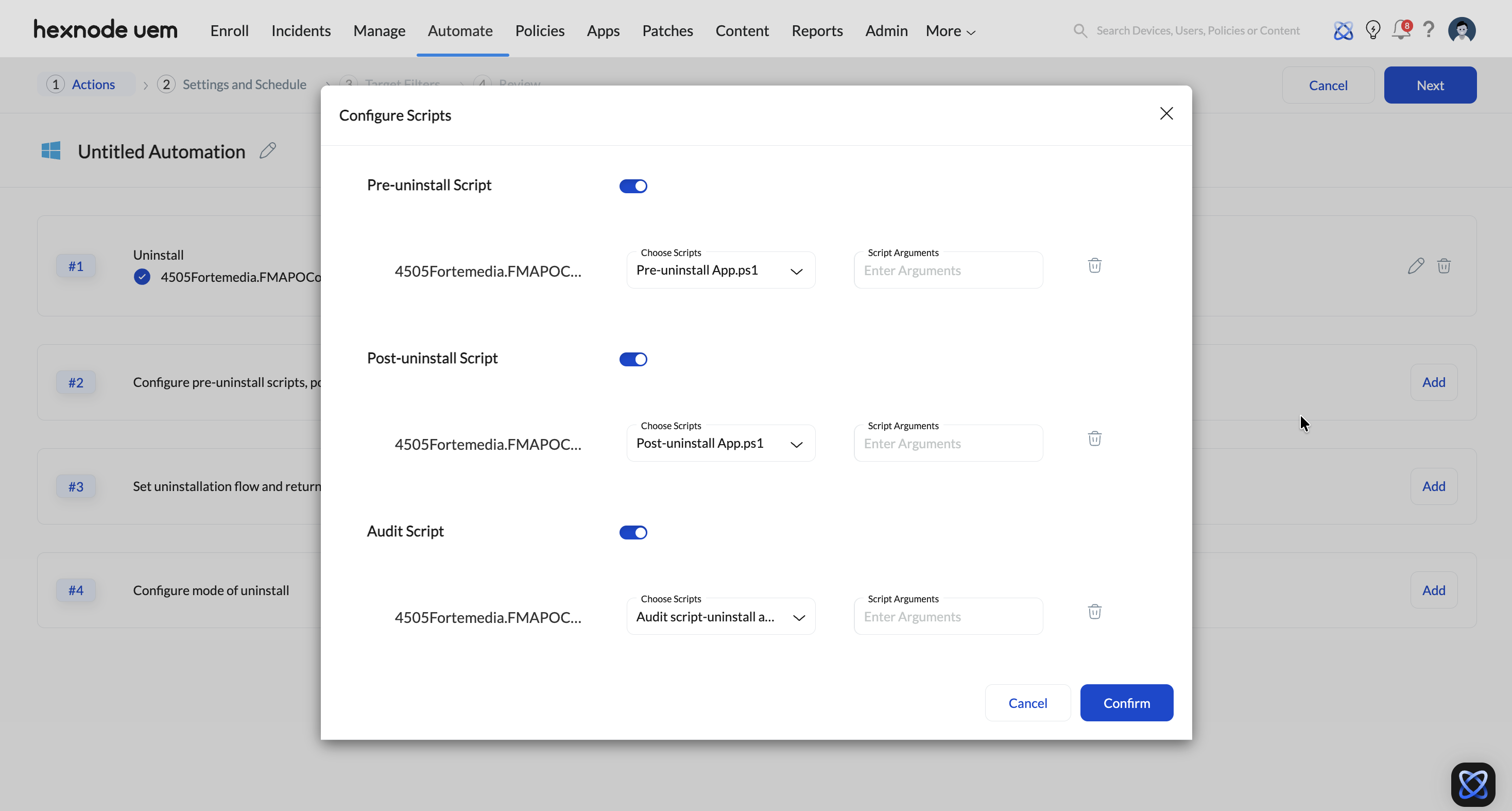
Stage 2: Configure Automation Scripts
Click Add next to the scripts option. Enable the toggles, select scripts from your Hexnode repository, and input required arguments.
- Pre-uninstall script: Runs before uninstallation to verify system requirements or prepare the environment.
- Post-uninstall script: Runs after uninstallation to configure settings or remove lingering components.
- Audit script: Runs post-uninstallation to scan for leftover files, folders, or registry keys, ensuring complete removal.
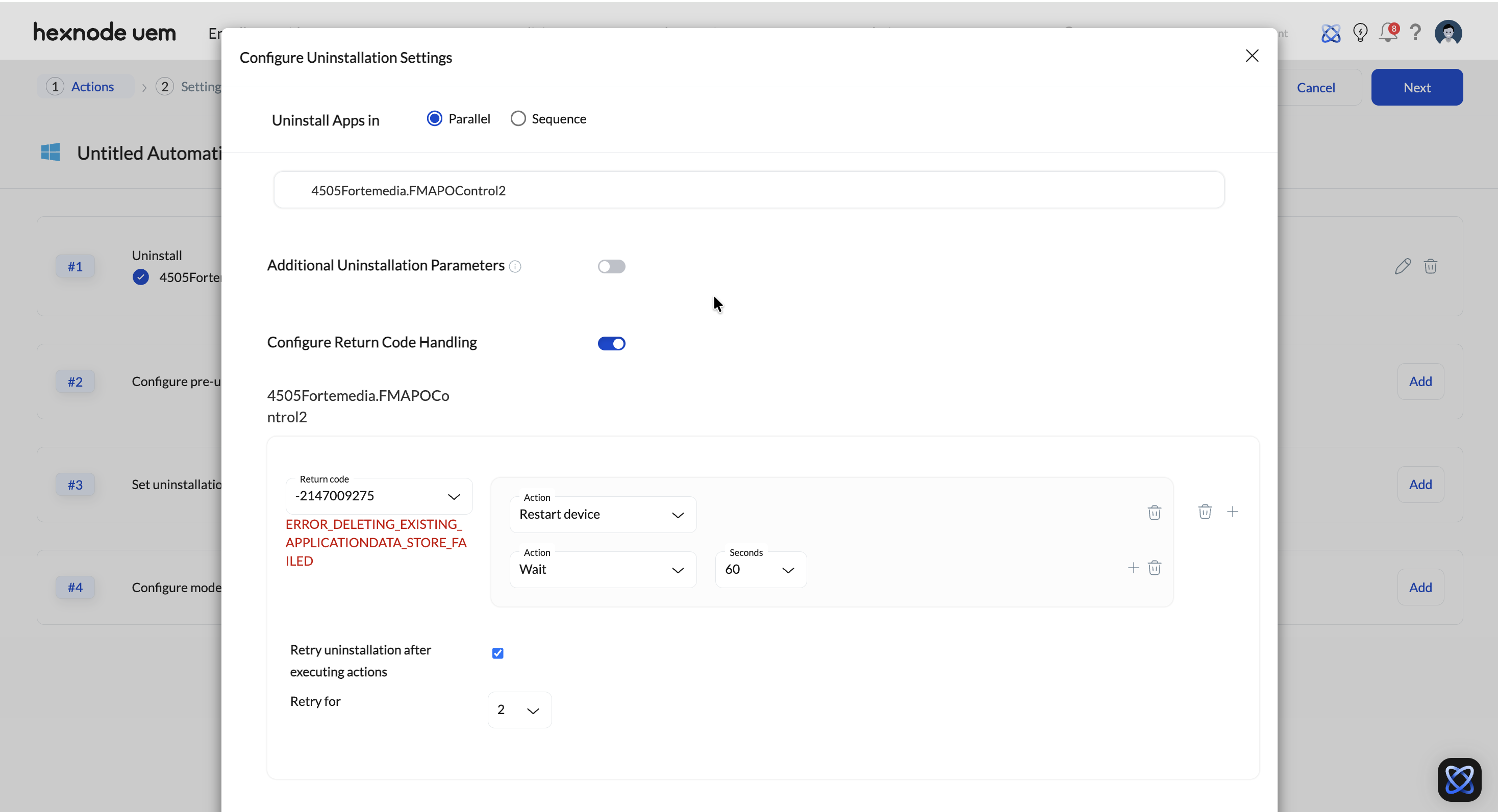
Stage 3: Configure Uninstallation Settings and Return Code Handling
Click Add next to Set uninstallation flow and return code handling to define uninstallation order and error handling.
Install Apps In (Execution Order):
When removing multiple applications, define the flow:
- Parallel: All selected apps uninstall simultaneously.
- Sequence: Apps uninstall one after another. Use drag-and-drop to arrange the exact order.
Additional Uninstallation Parameters:
Enable this to specify custom command-line parameters to tailor the process.
Configure Return Code Handling:
Return codes indicate the success or failure of an operation and are reported back to the Hexnode UEM portal. Enabling this option allows you to trigger response actions such as Execute script, Restart device, Wait, or Retry based on specific outcomes. Select code/s from the Return Code drop-down menu below each app. The common Windows return codes:
| Return Code | Error Description |
|---|---|
| 0 | The operation completed successfully. |
| 13 | The data is invalid. |
| 87 | The parameter is incorrect. |
| 1601 | The Windows Installer Service could not be accessed. |
| 1602 | The user cancelled the installation. |
| 1603 | A fatal error occurred during installation. |
| 1605 | Action only valid for currently installed products (Unknown product). |
| 1606 | The feature ID is unknown or not registered. |
| 1607 | The component ID is unknown or not registered. |
| 1608 | The property is unknown. |
| 1610 | The configuration data for this product is corrupt. |
| 1614 | The product is already uninstalled. |
| 1618 | Another installation is already in progress. |
| 1646 | Uninstallation of the patch package is not supported. |
| 1649 | Uninstallation of the patch package is not allowed by policy. |
| -2147009275 | Deleting the existing application data store failed. |
| -2147009278 | Packages could not be updated/removed because they are in use. |
| -2147009282 | The package repository is corrupted. |
| -2147009286 | The package removal process failed. |
| -2147009289 | Installation deregistration encountered a failure. |
| -2147009295 | The installation package was not found. |
| -2147024809 | One or more arguments provided are invalid. |
| -2147024894 | The system cannot find the file specified. |
If a required code is not listed, select Custom, enter the code manually, and assign an action from:
- Execute script: Run a repository script (arguments optional).
- Restart device: Force a device reboot upon encountering the code.
- Wait: Introduce a deliberate delay (1 to 60 seconds).
- Retry Uninstallation: Attempt the app uninstallation again (choose 1, 2, or 3 retry attempts).
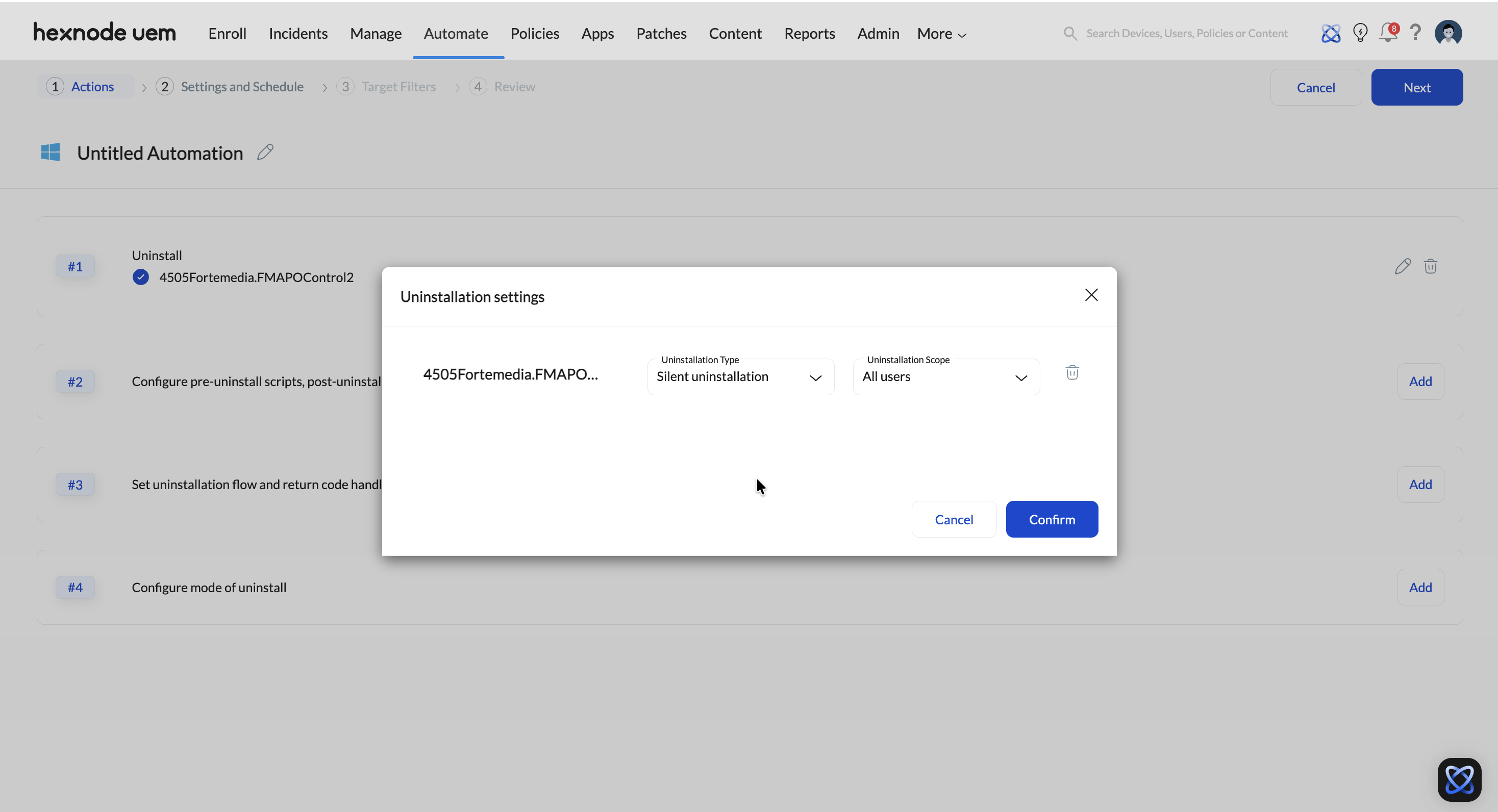
Stage 4: Configure Mode of Uninstallation
Click Add next to Configure mode of uninstall to define the user experience and scope:
- Silent Uninstallation: App removes quietly in the background with zero user interaction.
- Notified Uninstallation: Alerts the end-user. Features options to Allow user to defer uninstallation, set a Defer duration (1-1440 minutes), and limit the Maximum number of deferrals (1-3).
- Scope: Choose All users (entire endpoint) or Current user (active profile only).
Step 3: Settings and Schedule
Define when the automation executes via global triggers:
- Time-Based Triggers: Once ASAP, Once Scheduled, or Repeat on a schedule.
- Activity-Based Triggers: On Device Enrollment/Re-Enrollment, On Compliance/Non-Compliance, or On Location Compliance/Non-Compliance (Geofencing).
Step 4: Target Filters and Finalization
- Target Filters: Define the deployment scope using Included groups, Excluded groups, or custom Filters.
- Review: Verify all configurations.
- Save: Click Save to deploy the automation to the targeted Windows endpoints.
Troubleshooting Guide
1. Command-Line Parameter Failures
- The Issue: Custom uninstallation parameters fail to execute, resulting in unexpected user prompts.
- The Fix: Validate your Hexnode UEM App version. Command-line parameters require the latest agent. Navigate to Manage > Devices, select the affected endpoints, and ensure the agent is fully updated before deploying the automation.
2. Validating Partial/Ghost Uninstallations
- The Issue: The portal reports a successful uninstallation (Return Code 0), but residual files, shortcuts, or registry keys persist on the device.
- The Fix: Utilize Audit Scripts. Return to the Configure scripts section of your automation and assign an Audit script from your repository. This actively scans the local environment for leftover directories immediately after the sequence, ensuring the Hexnode portal logs a verified, accurate status.
Frequently Asked Questions (FAQ)
1. Can an automated app uninstallation be cancelled or rolled back once initiated?
No. Once the uninstallation command reaches the target Windows device, the action cannot be paused, rolled back, or cancelled via the portal. The removal is permanent. To restore the software, administrators must deploy a new installation policy or app deployment action.
2. What happens if an app deployed through a “Required Apps” policy is removed via automation?
If an application deployed through Required Apps policy is removed via automation, it will be automatically reinstalled on the device during the next routine device scan.


