


Category filter
How do I report patch compliance to auditors?
Navigating Security Audits: Proof of Patch Compliance
Security audits like SOC 2, ISO 27001, HIPAA, or PCI-DSS demand more than just a promise that your organization is secure—they require undeniable, documented proof. For IT administrators, patching is usually the most heavily scrutinized area. Auditors will look for specific evidence: your defined security baselines, your patch installation success rates, your time-to-patch (SLAs), and your visibility into outstanding critical vulnerabilities (CVEs).
This FAQ is designed to bridge the gap between “what the auditor is asking for” and “how to extract that exact proof using Hexnode UEM,” ensuring you can navigate your next compliance audit with confidence.
Patching and Compliance FAQs
Q1: How do I prove my fleet is fully patched and meets our organizational baselines for a SOC 2 or ISO 27001 audit?
General Best Practice:
Compliance standards require evidence of your defined patch baseline and proof that your fleet adheres to it. They look for high-level, executive summaries of deployment success across your network before diving into the granular data.
The Hexnode Workflow:
Do not overwhelm the auditor with raw data immediately. Start by using Hexnode’s central dashboard to provide a real-time, executive-level overview of your fleet’s health.
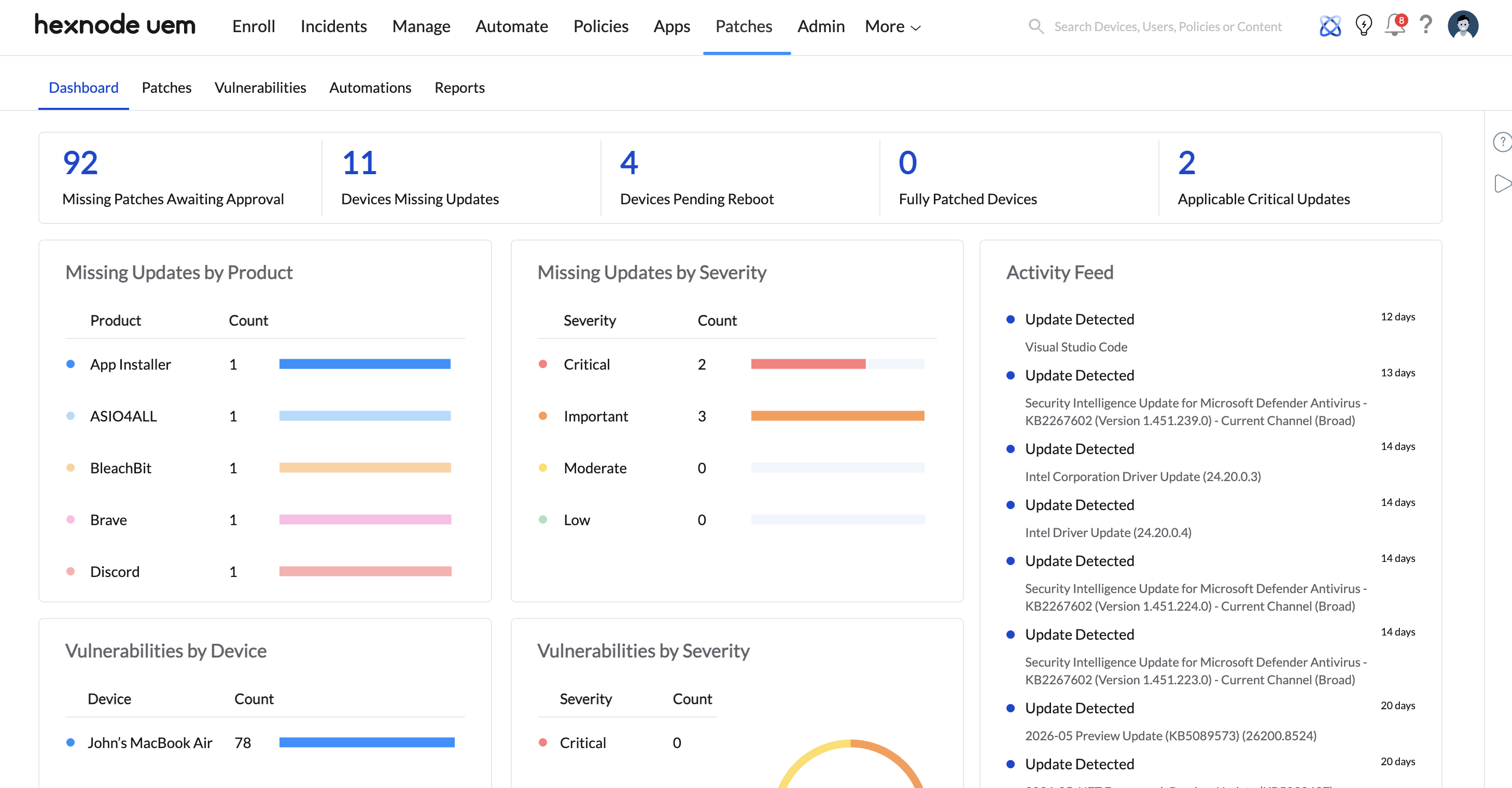
- Navigate to the Patches > Dashboard tab.
- Demonstrate the auditor visual metrics like Missing Updates by Severity (proving you have minimal or zero “Critical” missing updates) and the Patch Management: Activity Feed (which logs a continuous trail of admin patch approvals and automated deployments).
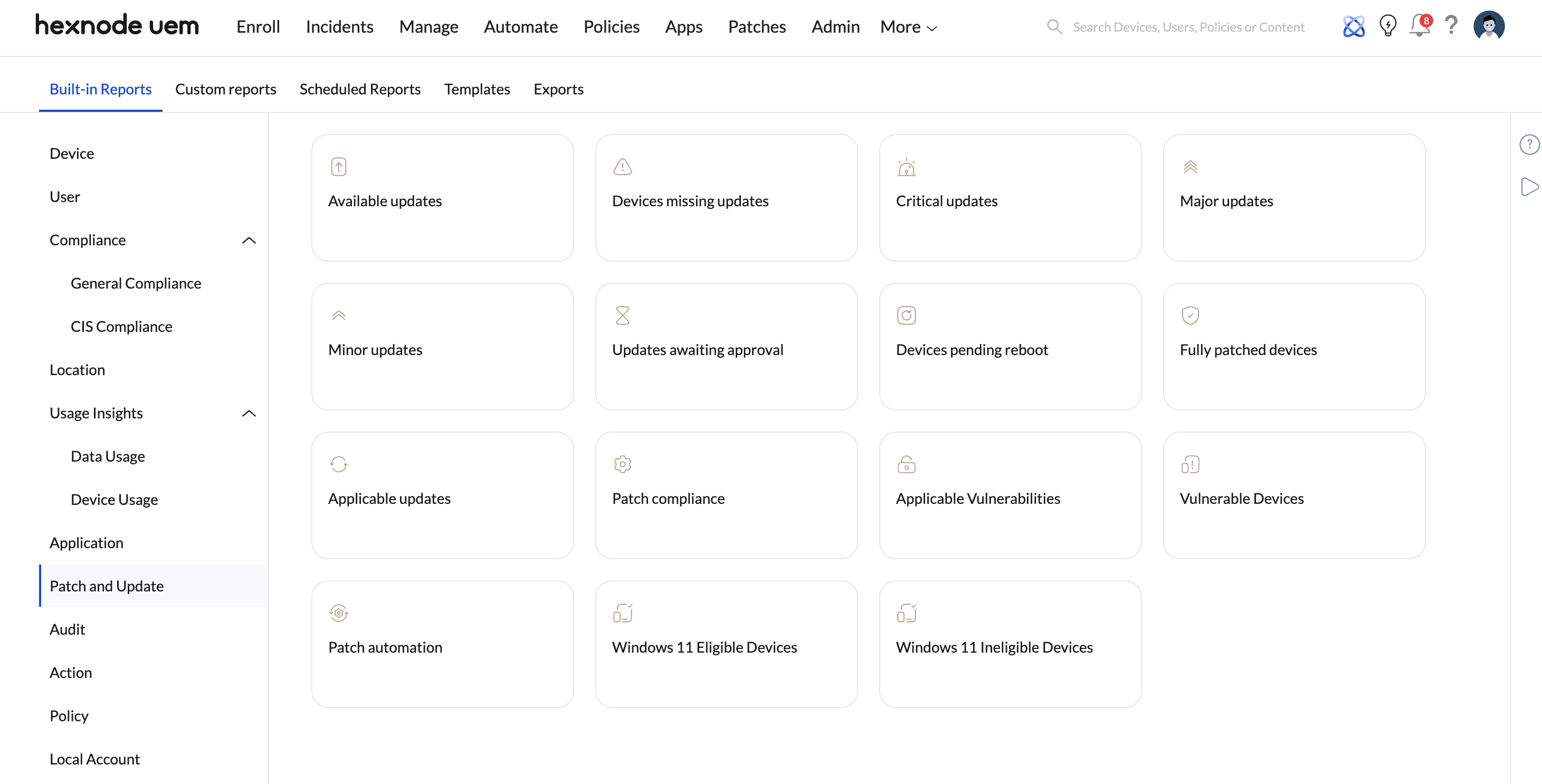
- For hard, exportable proof, navigate to Reports > Built-in Reports > Patch and Update.
- Export the Applicable updates or Minor updates reports. These lists detail every patch relevant to your enrolled devices alongside the exact Installed Devices count, providing indisputable proof of fleet-wide compliance.
Q2: The auditor is asking for our outstanding critical vulnerabilities. Where do I pull a CVE report?
General Best Practice:
Vulnerability management requires mapping missing patches to specific, publicly known threats. Auditors will request a list of unmitigated Common Vulnerabilities and Exposures (CVEs) and want to see how you prioritize them based on their severity ratings (CVSS).
The Hexnode Workflow:
Hexnode natively links CVEs directly to available patches, meaning you don’t have to cross-reference an external vulnerability scanner with your MDM.
- Navigate to the Applicable Vulnerabilities report under Reports > Built-in Reports > Patch and Update.
- Export this data. The list of all vulnerabilities applicable to the enrolled devices explicitly includes the Name (Vulnerability Name), Description, CVE ID, CVSSv3.1 Base Score, CVSS Vector String, CVSS Rating (e.g., Medium, High, Critical), CVE.org link, and the Affected Devices.
- To prove that you actively monitor incoming threats, go to Patches > Patches > Available Patches. Here, filter the grid by Severity (Critical) to show auditors exactly which patches are pending review or deployment, complete with their KB Number and CVE references.
Q3: How can I demonstrate that we meet our patch deployment SLAs (time-to-patch)?
General Best Practice:
Compliance frameworks (especially PCI-DSS) often mandate that critical security patches be installed within a strict timeframe (e.g., within 14 or 30 days of vendor release). You need to prove your rollout cadence meets this Service Level Agreement (SLA).
The Hexnode Workflow:
You can prove deployment timeliness by comparing patch release dates to your installation logs and automation workflows.
- Go to Reports > Built-in Reports > Patch and Update.
- In the Patch and Update section, you can use reports like the Fully patched devices or Devices missing updates reports to establish your SLA standing. Utilize the Status Filter (Installed) to show a list of successfully deployed patches. The auditor can cross-reference the Release Date column with the Last Successful Scan to verify the time-to-patch.
- The definitive proof: Present the auditor your automated patching rules. In the Hexnode Automate tab, display your CVE-based or Severity-based auto-patching configurations (e.g., an active automation rule set to deploy patches where the “Severity” equals “Critical”). This proves to the auditor that your SLA is programmatically enforced by the system, eliminating the risk of human delay.
Q4: What do I do if an auditor asks for proof of failed updates or unpatched endpoints?
General Best Practice:
Standard audit practices recognize that 100% compliance at all times is technically impossible due to offline devices, full hard drives, or user delays. Hiding unpatched devices results in an audit failure; aggressively tracking them proves organizational maturity. What they test is your visibility into failures and your process for addressing them.
The Hexnode Workflow:
Never hide offline or unpatched endpoints. Instead, generate a specific failure report to show your active remediation queue.
- Go to Reports > Built-in Reports > Patch and Update and generate a Device-Centric Deployment Status Report, such as Vulnerable Devices, Fully Patched Devices, Devices Pending Reboot, and Devices Missing Updates.
- Point the auditor to data fields like Missing Updates (Count) and Updates Pending Reboot (Count). This proves you know exactly which devices are lagging.
- To show maturity, navigate back to the Patches > Dashboard and display the Vulnerabilities by Patching Status widget. This widget proves you have granular visibility into the exact bottleneck of a pending update, breaking down unpatched devices into specific statuses like Idle, Downloaded, Installing, and Waiting for Reboot.
Q5: How do I automate compliance so that an unpatched device is immediately flagged for audit review?
General Best Practice:
Manual audits are prone to human error. Compliance standards favor systems where non-compliance (like missing a mandatory OS upgrade) is automatically flagged, logged, and isolated from corporate data without administrative intervention.
The Hexnode Workflow:
Configure Hexnode’s advanced compliance engine to act as your continuous, automated internal auditor.
- Navigate to Policies > Compliance Policies and click New Policy > [Platform] > New Blank Policy.
- Switch to Advanced Settings. Here, you can define granular criteria using specific device attributes.
- Set a rule using the OS Version attribute. Configure the comparator so that any device running an OS build lower than your corporate baseline is immediately flagged.
- Use AND / OR operators to combine this with other security metrics (e.g., combining OS Version requirements with Password Compliance).
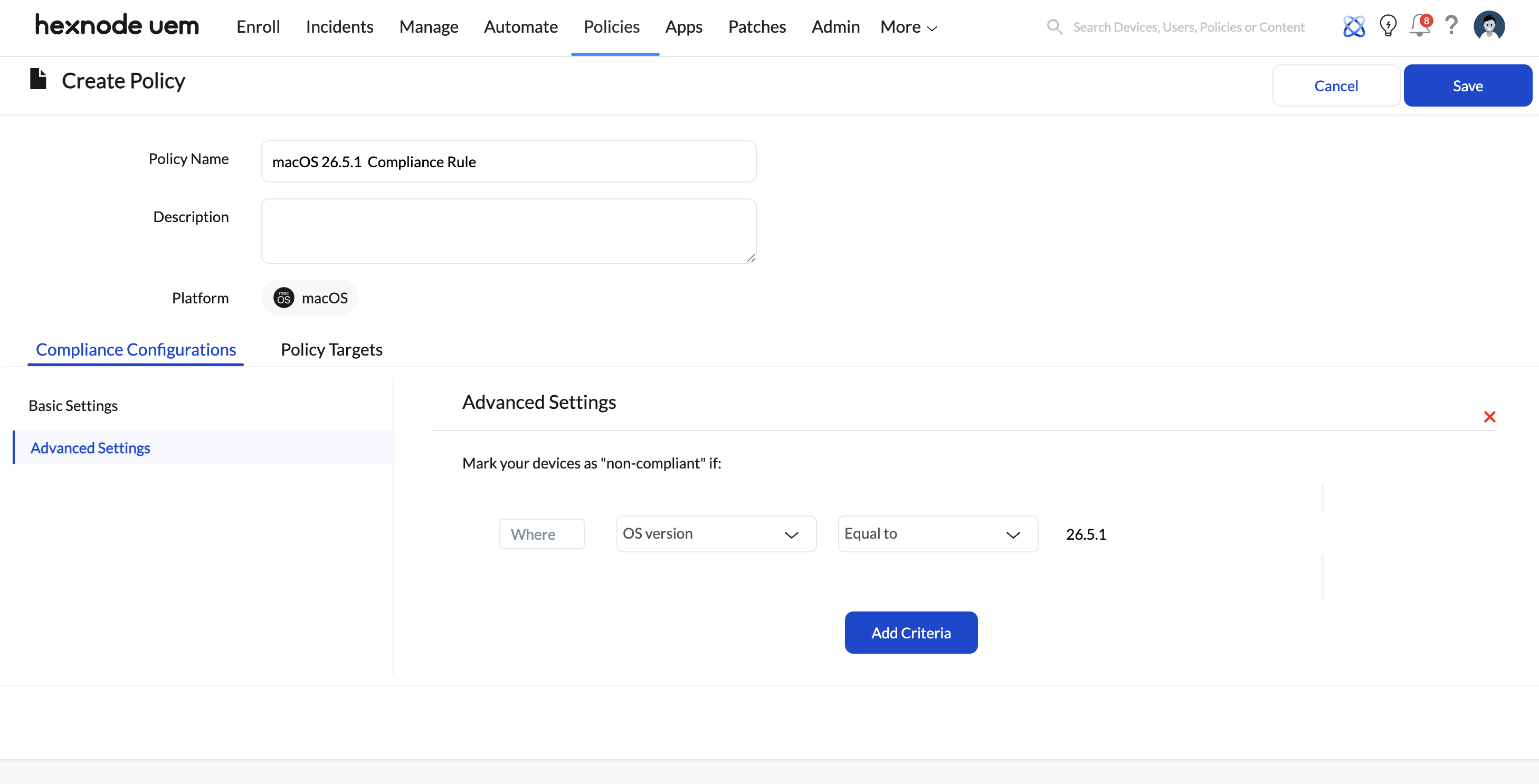
When an auditor asks how you handle rogue or outdated devices, you can demonstrate that Hexnode automatically changes their Device Status to Non-Compliant the moment they fall out of your defined baseline. This triggers administrative alerts and can proactively restrict the device’s access to corporate resources until the patch is applied.


