


Category filter
Best Practices for Bulk Enrollment of 500+ iPads via Hexnode UEM
Strategic Overview
Managing a fleet of 500+ iPads requires a shift from “manual configuration” to “orchestrated automation.” At this scale, the goal is to ensure that no IT administrator needs to physically touch the devices.
The primary vehicle for this is Apple’s Automated Device Enrollment (ADE), formerly known as DEP, integrated with Apple Business Manager (ABM).
1. The Infrastructure Foundation: ABM & ADE
For 500+ devices, manual enrollment is not feasible. You must use a Zero-Touch workflow.
- Source of Truth: Ensure all iPads are purchased through Apple’s authorized business channels or directly from Apple so they automatically appear in your Apple Business Manager (ABM) portal.
- The Handshake: Link your ABM account to Hexnode via an ADE Token.
-
Path: Admin > Apple Business/School Manager > Apple Device Enrollment > Add ADE Account.
- Default MDM Server: In ABM, set Hexnode as the default MDM server for “iPad” so all new serial numbers are automatically routed to your portal.
2. Network Optimization (The “Hidden” Bottleneck)
Enrolling 500 devices simultaneously can crash a standard office network.
- Staggered Activation: If unboxing in-house, activate devices in batches of 25-50 to prevent bandwidth saturation during OS updates and app downloads.
- Caching Server: If your local network allows, set up a Content Caching server on a Mac. This stores copies of apps and OS updates locally, saving significant external bandwidth.
- Pre-Configured Wi-Fi: Use an ADE profile to automatically push Wi-Fi credentials so the device connects to the internet immediately upon power-on without manual input.
3. Designing the “Zero-Touch” ADE Profile
The ADE profile determines what the user sees during the Out-of-Box Experience (OOBE).
- Skip Setup Assistant: For maximum efficiency, skip irrelevant screens like Siri, Apple Pay, Screen Time, and Data & Privacy.
- Mandatory & Non-Removable: Configure the MDM profile to be mandatory and non-removable. This ensures that even if a device is factory reset, it will automatically re-enroll into Hexnode.
- User Authentication: If the devices are 1-to-1, enable Cloud Authentication (e.g., Microsoft Entra ID or Google Workspace) during the setup assistant to automatically assign the user to the device.
4. Automation via Dynamic Groups
Do not assign policies to 500 devices individually. Use Dynamic Groups to automate the software layer.
- Group Criteria: Create a Dynamic Group with the criteria Device Model = iPad.
- Policy Attachment: Attach your “Core Security Policy” (Passcode, App Restrictions, Wi-Fi) to this group.
- The Result: As soon as a device completes enrollment, it “falls” into the group and receives all configurations and apps within seconds, without admin intervention.
5. Logistical Execution
- Drop-Shipping: The most efficient method for 500+ units. Have the vendor ship devices directly to the end-users’ homes. Because of ADE, the device will “call home” to Hexnode as soon as the user turns it on.
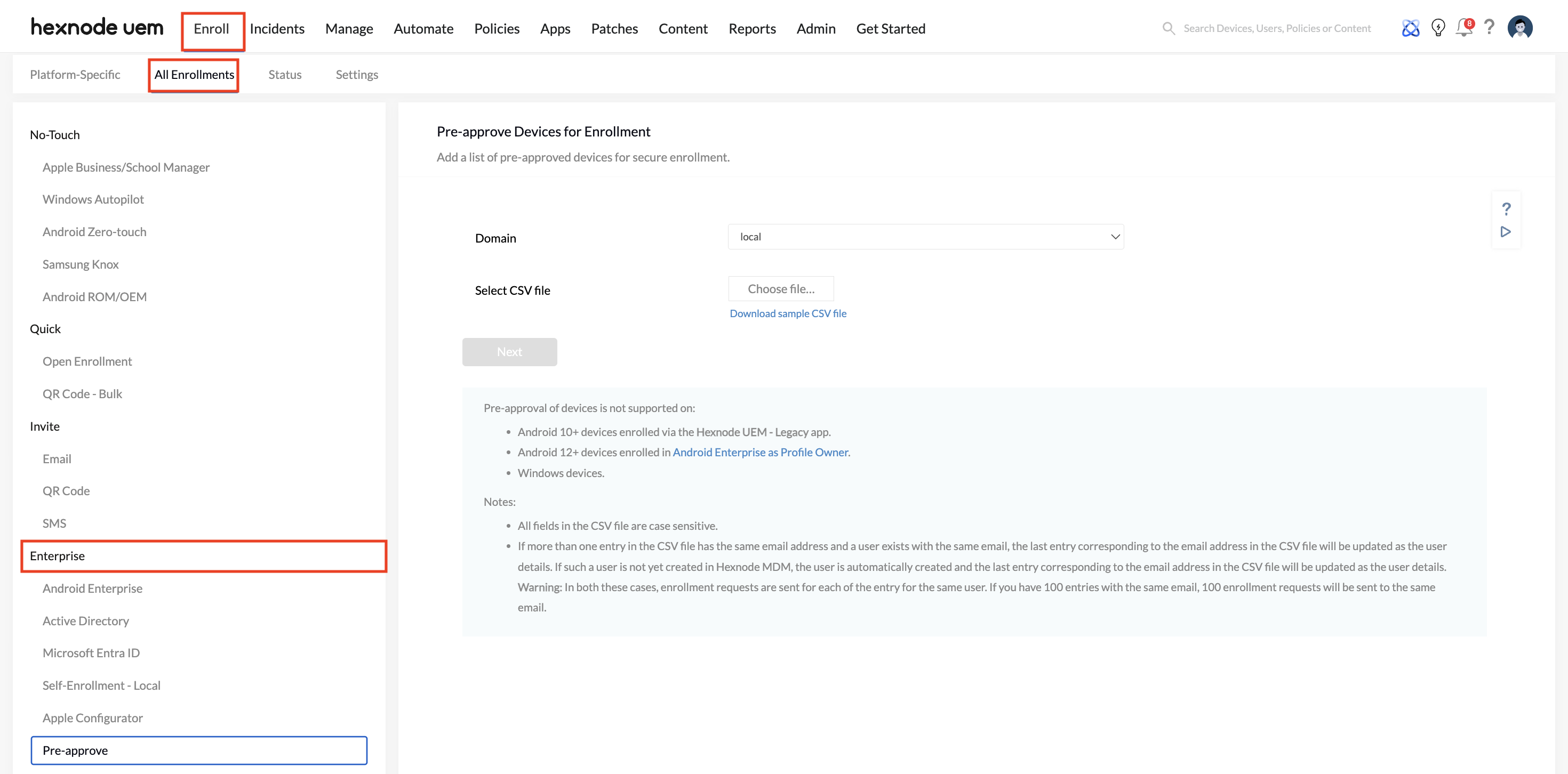
- Asset Tagging: If you need physical asset tags, ask your vendor to apply them and provide a CSV file mapping the Asset Tag to the Serial Number. You can upload this CSV to Hexnode under Enroll > All Enrollments > Enterprise > Pre-approve.
Summary Checklist for Bulk Success
- [ ] ABM Linked: Confirm ADE token is active and valid.
- [ ] ADE Profile Assigned: Set a default profile for all new iPads.
- [ ] VPP Apps Purchased: Ensure you have enough licenses in Volume Purchase Program (VPP) for your mandatory apps.
- [ ] Dynamic Groups Ready: Confirm that the auto-assignment rules are tested.
- [ ] Pilot Test: Enroll 5 “test” devices from start to finish before unboxing the remaining 495.
Peer Tip: At 500+ devices, “Status Monitoring” is your best friend. Use the Hexnode Dashboard to track the “Enrollment Progress” widget. It’s the easiest way to spot devices that might be stuck in the setup assistant due to poor Wi-Fi.
For specific technical errors during bulk deployment, reach out to the Hexnode Support team at support@hexnode.com.


