Category filter
How to Prevent MDM Enrollment Failures: The Pre-Deployment Guide
Proactive Guide: Preventing Device Enrollment Failures
Device enrollment is the most critical phase of the Mobile Device Management (MDM) lifecycle. When a deployment fails, it is rarely due to a spontaneous system bug; instead, failures are almost always the result of expired certificates, blocked network ports, mismatched identifiers, or skipped pre-requisites.
By shifting from reactive troubleshooting to proactive environmental readiness, IT administrators can eliminate the vast majority of enrollment errors before a device is ever unboxed. This guide provides a comprehensive, pre-deployment checklist to ensure a seamless, zero-error onboarding experience across all platforms supported by Hexnode UEM.
1. General Pre-Flight Checks for All Devices
Before diving into platform-specific configurations, IT must verify the core environmental and hardware baselines. A failure in any of these universal prerequisites will halt enrollment regardless of the operating system.
- Audit Network and Firewall Rules: Devices must have an uninterrupted line of communication to the Hexnode UEM servers and platform-specific push notification services. Verify that your corporate firewalls and web filters allow outbound traffic on ports 443 (HTTPS) and 80 (HTTP).
- Enforce Network Time Protocol (NTP): MDM authentication relies on highly sensitive cryptographic certificates. If a device’s internal clock is out of sync with global time servers, SSL/TLS handshakes will be rejected immediately. Ensure network settings allow devices to fetch their date and time automatically upon boot.
- Power and Storage Baselines: A device powering off mid-enrollment can corrupt the MDM profile. Ensure all devices have at least a 50% battery charge (or are plugged in) and possess adequate free storage to download the Hexnode agent, configurations, and any Day-1 mandatory applications.
- Clean Device State & FRP Avoidance: If you are redeploying corporate-owned hardware, ensure every device is completely factory reset. Crucially, remove all existing personal accounts (Apple Accounts or Google Accounts) before wiping. Failing to do so triggers Activation Lock (Apple) or Factory Reset Protection/FRP (Android), which locks the hardware out of automated enrollment completely.
- OS Compatibility: Verify that the hardware runs a supported Operating System version. Devices running deeply outdated OS versions may no longer support modern MDM APIs and will fail to parse Hexnode’s enrollment payload.
2. Pre-Flight Checks: Apple Ecosystem (iOS, iPadOS, macOS, tvOS)
Apple’s Automated Device Enrollment (ADE) is highly secure but unforgiving if backend certificates and portal assignments are not actively maintained.
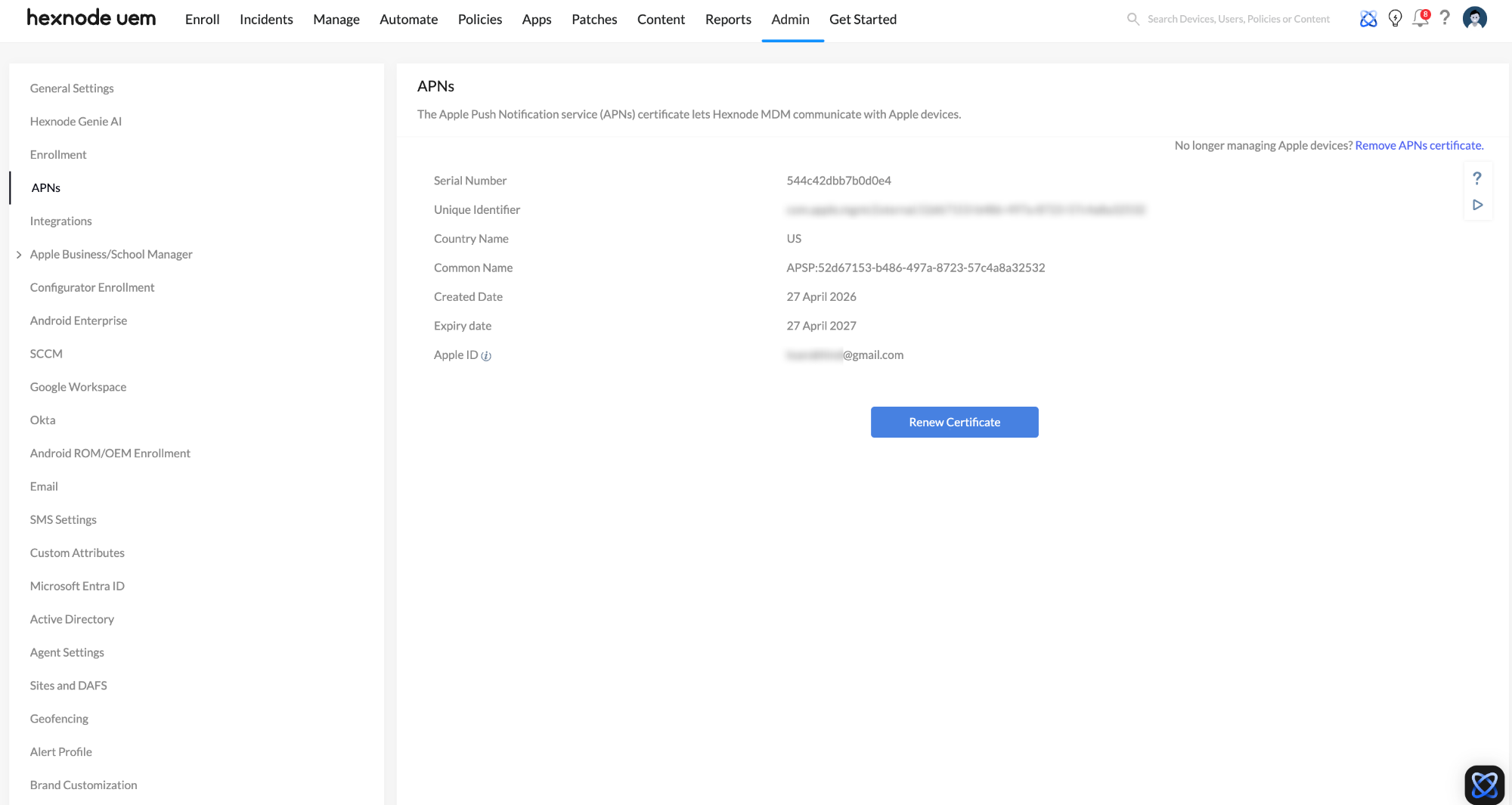
- Schedule Manual APNs Certificate Renewals: Hexnode cannot communicate with Apple devices without a valid Apple Push Notification service (APNs) certificate. Never let this expire mid-deployment. Navigate to Admin > APNs in your Hexnode portal and set an external calendar reminder to renew it annually using the exact same Apple Account used during its initial creation.
- Verify Apple Business Server Tokens: ADE relies on a synchronized token between Apple Business (formerly Apple Business Manager / ABM) and Hexnode. Navigate to Admin > Apple Business/School Manager to confirm the token is active and syncing before shipping devices to end-users.
- Validate Apple Device Assignments: Ensure the hardware is explicitly assigned to your Hexnode UEM server within the Apple Business portal before the user turns on the machine. If the assignment is missing, the Setup Assistant across any Apple device (iOS, iPadOS, or macOS) will skip the “Remote Management” screen entirely.
3. Pre-Flight Checks: Android Ecosystem
Android enrollment success depends on precise portal synchronization and strict hardware identifier mapping.
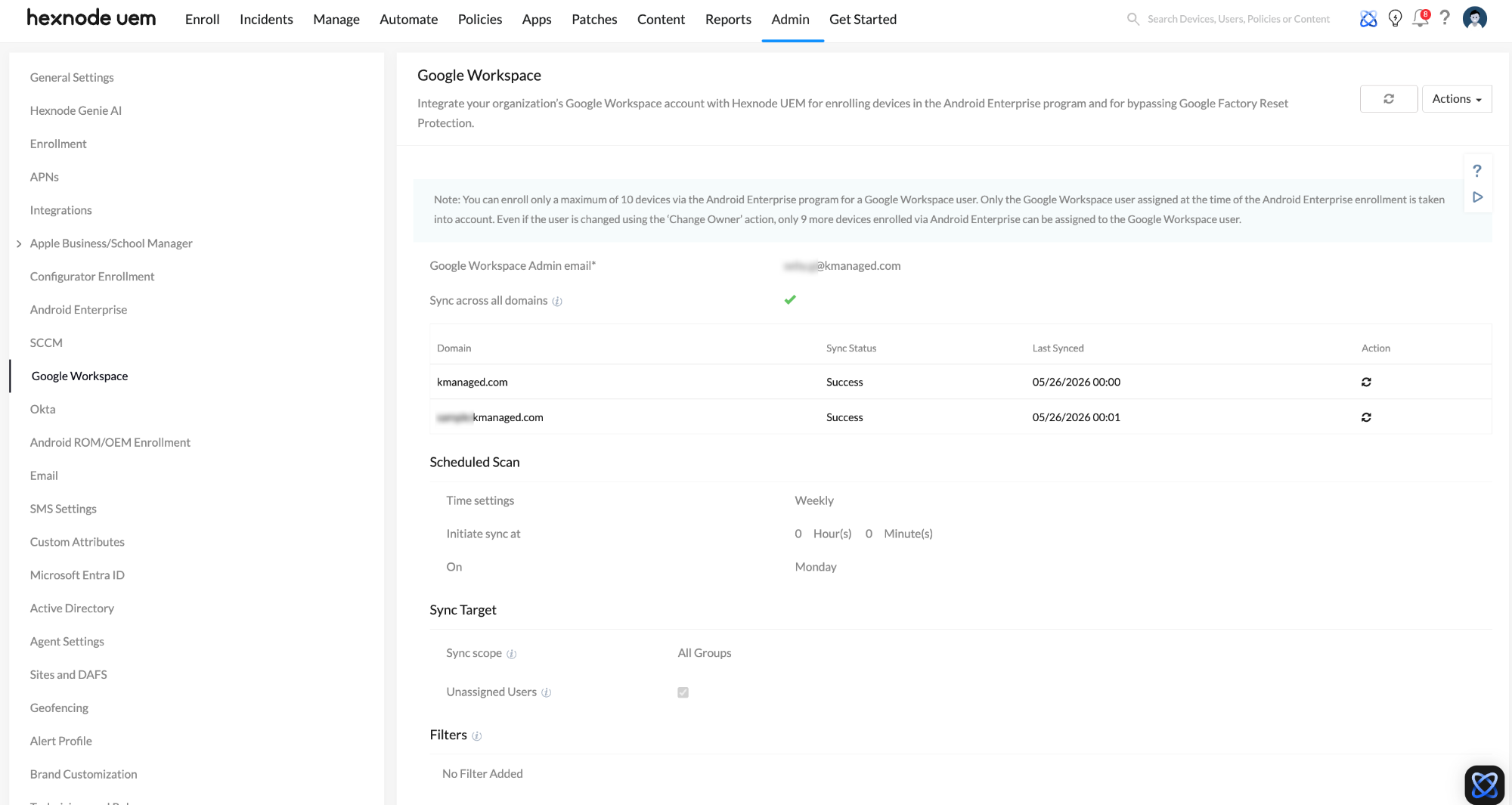
- Validate Google Workspace API Access: If you are tying Android enterprise enrollments to your Google Workspace, Hexnode must have uninterrupted API access. Navigate to Admin > Google Workspace in Hexnode to verify the sync status. Ensure API access is explicitly enabled within your Google Admin console prior to deployment.
- Audit Zero-Touch and KME Hardware Identifiers: For Zero-Touch Enrollment (ZTE) or Samsung Knox Mobile Enrollment (KME), the cloud portal must perfectly match the physical device in the user’s hands. Always double-check that the uploaded IMEI or Serial Number CSV files contain zero typos.
- Set the Default DPC: Within your ZTE or Knox portals, ensure that the Hexnode for Work application is explicitly selected as the default Device Policy Controller (DPC). If this is missing, the device will not know which UEM agent to download upon boot.
4. Pre-Flight Checks: Windows Ecosystem
Windows deployments require strict adherence to licensing and Microsoft Entra ID configurations.
- Verify OS Editions: Do not attempt to enroll Windows Home editions into a corporate MDM environment. Hexnode UEM workflows require Windows 10/11 Pro, Enterprise, or Education editions to function intact. Auditing your purchasing pipeline prevents these OS conflicts on day one.
- Configure Microsoft Entra ID Scopes: If utilizing Microsoft Entra ID (formerly Azure AD) for automated onboarding, verify your user scopes in the Microsoft Entra portal before users attempt to log in. The specific user accounts attempting enrollment must be explicitly included in the allowed scope, or authentication will fail immediately.
5. Pre-Flight Checks: ChromeOS Ecosystem
ChromeOS enrollment is intrinsically tied to your Google Admin console environment.
- Verify Chrome Enterprise/Education Upgrades: Devices cannot enroll into management without an active license. Audit your Google Admin console to ensure you have sufficient, unassigned Chrome Enterprise Upgrade (CEU) or Chrome Education Upgrade licenses available before onboarding begins.
- Check Hexnode UEM Integration: ChromeOS management requires a direct integration between Hexnode and your Google domain. Navigate to Admin > Google Workspace and ensure the integration is active and properly scoped.
- Confirm Deprovisioning State: If you are repurposing older Chromebooks, ensure they have been properly deprovisioned from any previous Google Admin consoles and completely wiped. If a device is still tied to an old domain’s forced re-enrollment policy, it will reject the new Hexnode configuration.
6. Pre-Flight Checks: Linux Ecosystem
Linux enrollment rely heavily on terminal commands, meaning local user privileges and network dependencies are critical.
- Validate OS and Architecture Compatibility: Verify that the endpoints are running a Hexnode-supported operating system (such as Debian, Ubuntu, or Linux Mint) and a compatible architecture. Running the deployment script on an unsupported distribution will result in immediate dependency failures.
- Confirm Administrative (Sudo) Privileges: Linux enrollment requires executing a shell script. Ensure the IT tech or end-user performing the enrollment has sudo privileges. Root access is strictly necessary to install the Hexnode agent daemon on the machine.
- Check Package Manager Availability: Ensure the device’s package manager (apt) is not currently locked by another background process (like an automatic OS update) and has unrestricted outbound internet access to fetch the necessary dependencies during the agent installation.
7. Pre-Flight Checks: Zebra Printers
Enrolling IoT and peripheral devices like Zebra printers requires specific firmware versions and local network staging before the device can communicate with Hexnode.
- Verify Link-OS Compatibility: Ensure your Zebra printers are running LinkOS version 5.0 and above. Legacy printers or devices running older firmware will not be able to process the enrollment commands and cannot be managed via Hexnode.
- Establish Pre-Enrollment Network Connectivity: Unlike a smartphone with cellular data, a printer has no default internet access out of the box. The printer must be connected to your local network (via Ethernet or a pre-configured Wi-Fi profile) before you can send the enrollment configuration file.
- Validate the Enrollment Commands Script: To complete the enrollment, you must send a specific commands script to the printer.
- If using a Windows PC and the Direct Communication dialog box, ensure the “path=yourserverURL” parameter in the script is explicitly replaced with your specific Hexnode server URL.
- If you are using Authenticated Enrollment, ensure the “username:::password” parameter is accurately formatted within the script so the printer can successfully authenticate against your Hexnode server.
8. Automate Post-Enrollment Stability
Prevent devices from dropping offline immediately after enrollment by having your management payloads ready to deploy the second the device connects.
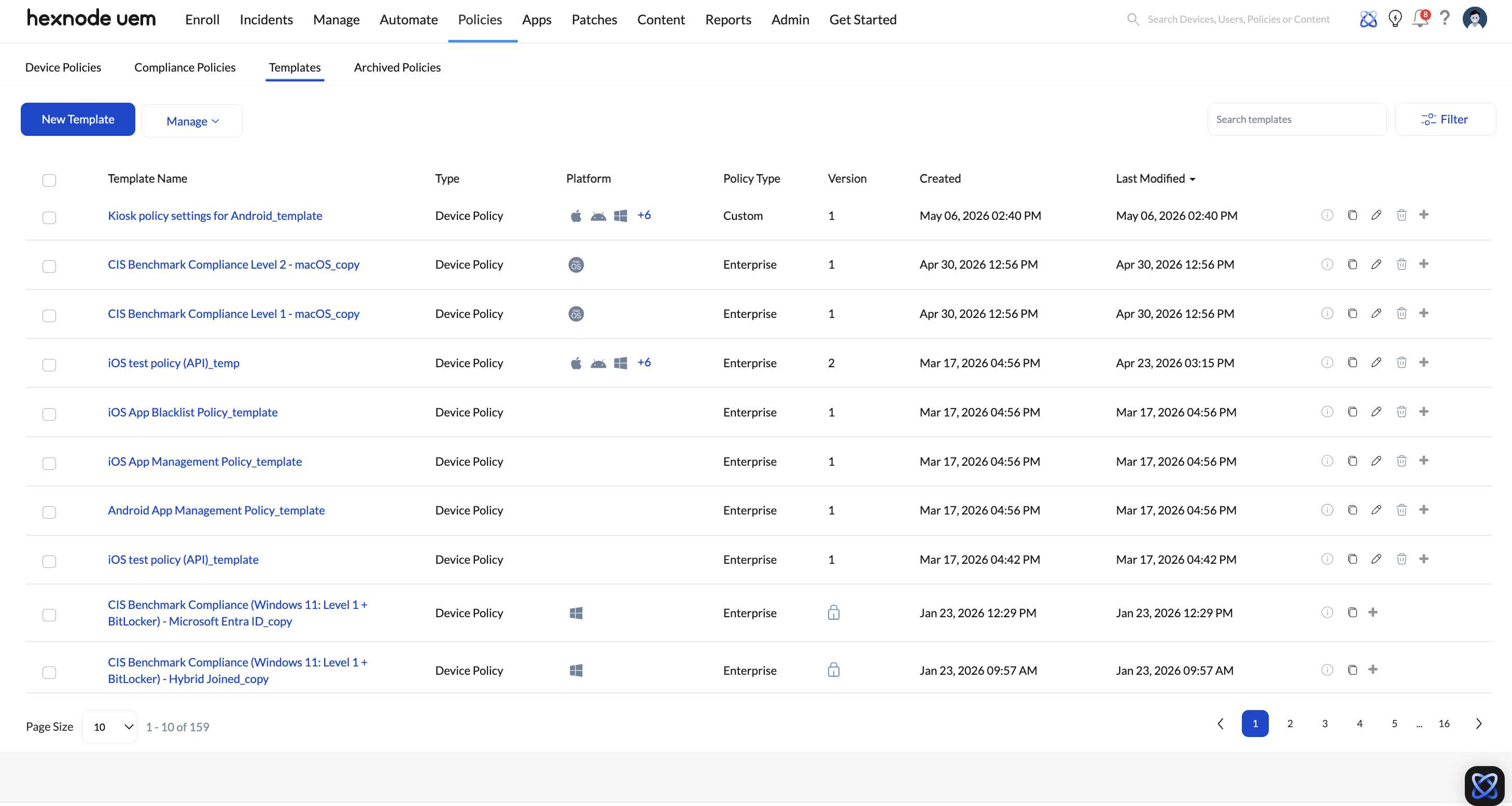
- Deploy Pre-Configured Templates: Do not build complex policies from scratch while users are enrolling. Navigate to Policies > Templates and utilize Hexnode’s pre-configured templates. Assign these templates to your target User Groups in advance so compliance is achieved instantly upon enrollment.
- Pre-Allocate App Licenses: A common post-enrollment bottleneck is a mandatory app failing to install because the server ran out of licenses. Review your Apps tab and ensure you have an ample surplus of Apple VPP licenses and approved Managed Google Play apps to handle the influx of new hardware.