


Category filter
SCIM & Directory Integration: Scaling Automated User Provisioning in Hexnode UEM
Technical Summary: Automated User Provisioning in Hexnode UEM utilizes SCIM (System for Cross-domain Identity Management) and API-based Directory Integrations to synchronize the identity lifecycle. By establishing an integration between a Cloud IdP (Entra ID, Okta, Google Workspace) and Hexnode, IT admins can automate group-based policy enforcement. The framework leverages Hexnode Access for IdP-backed macOS and Windows SSO and enforces Zero-Touch Offboarding, where HR-triggered status changes automatically execute remote data wipes on managed endpoints.
The Architecture & Workflow
Scaling user provisioning from a Human Resources (HR) system into Hexnode UEM creates a seamless, automated identity lifecycle. In this Zero-Trust workflow, the HR system serves as the ultimate source of truth. It feeds organizational data to a Cloud Identity Provider (IdP), which then automatically provisions those validated identities into the Hexnode UEM console.
Here is how the automated identity lifecycle flows from the HR desk directly to the endpoint:
- HR Event Trigger: A new hire is officially onboarded and entered into the core HR System (e.g., Workday, BambooHR).
- IdP Ingestion & Categorization: The HR system integrates with your chosen IdP (Okta, Microsoft Entra ID, or Google Workspace) and deploys the employee’s attributes. Within the IdP, an administrator configures dynamic routing rules so users are automatically categorized into directory groups based on HR metadata (e.g., Department: “Engineering“, Location: “New York“).
- Automated Sync to Hexnode UEM: Through direct API integrations and SCIM-aligned commands, the IdP communicates continuously with Hexnode UEM. Hexnode automatically imports the user account and mirrors the IdP group structure within the UEM console.
- User-Centric Policy Enforcement: Hexnode UEM utilizes user-centric management, meaning device policies, application catalogs, and security restrictions are tied directly to synchronized groups. The new employee instantly inherits all necessary IT payloads based on their HR-defined role.
- Desktop Login via Hexnode Access: Once the endpoint is enrolled, IT deploys the Hexnode Access policy to macOS and Windows machines. This intercepts the native OS login screen, allowing users to authenticate their machines using their centralized Cloud IdP credentials. This guarantees a unified Single Sign-On (SSO) experience from the moment the device is powered on.
- Automated Decommissioning: Upon an employee’s departure, their status is updated to “inactive” in the HR system. This triggers a cascading deprovisioning command through the IdP to Hexnode UEM. Hexnode immediately drops the user from active sync scopes, allowing IT to automatically execute a Corporate Data Wipe or complete remote wipe to secure company data.
Step-by-Step Configuration Guide
Follow these operational steps to establish a hyper-scalable provisioning pipeline using leading IdPs:
Step 1: Link your HR System to your IdP
- Establish the foundational integration between your HR system and your Cloud IdP.
- Configure your IdP to read HR attributes (job title, department, cost center) to ensure the system automatically assigns the user to the correct dynamic directory groups.
Step 2: Establish the Integration between the IdP and Hexnode UEM
Depending on your identity infrastructure, connect your IdP to Hexnode UEM to enable seamless data synchronization:
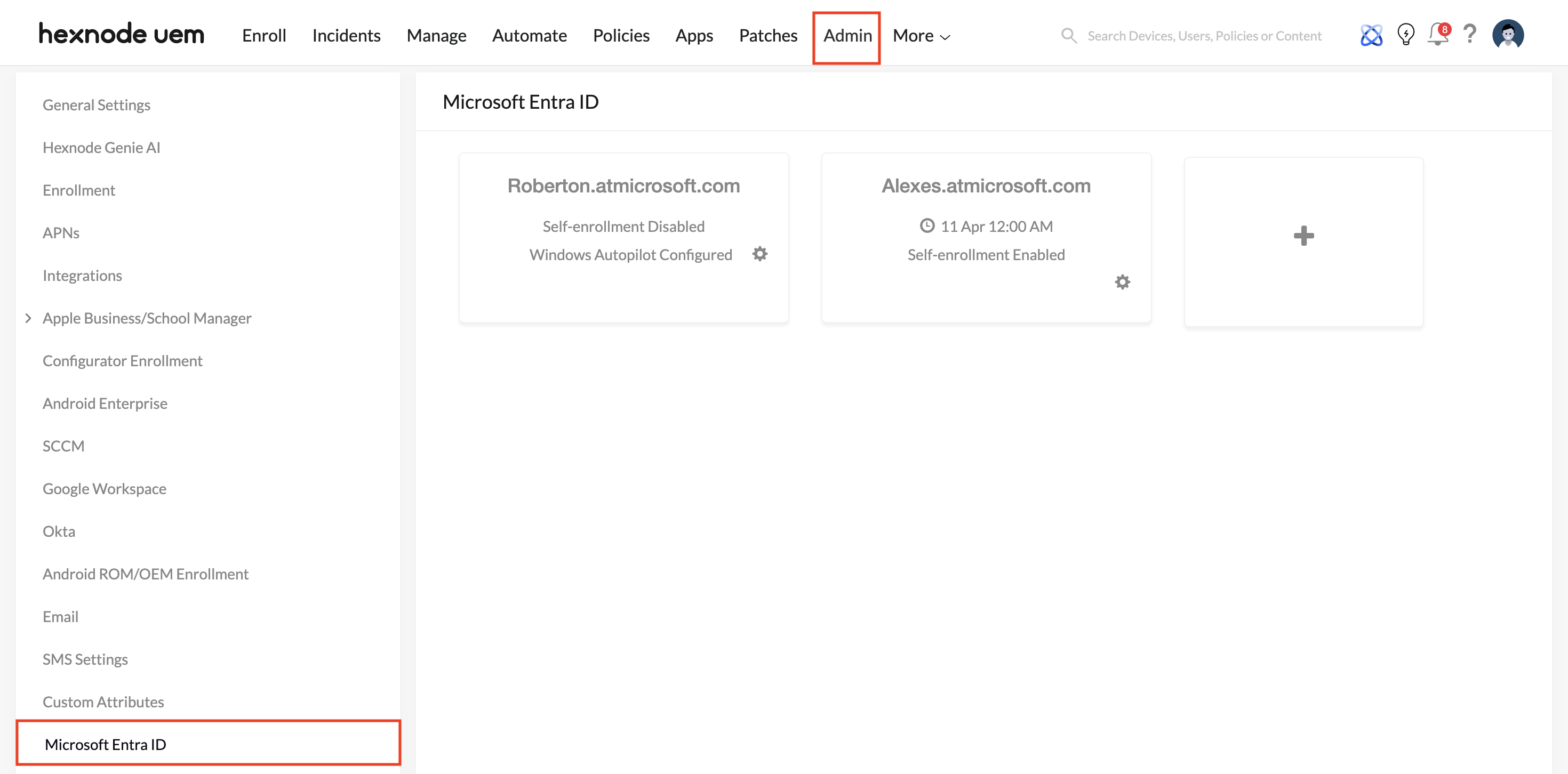
- For Okta / Microsoft Entra ID: Navigate to the integration settings in your IdP console and add the Hexnode application. Generate the required OAuth client credentials (Client ID and Client Secret). Input these credentials into your Hexnode UEM portal (under Admin > Okta or Admin > Microsoft Entra ID) to authenticate the secure connection.
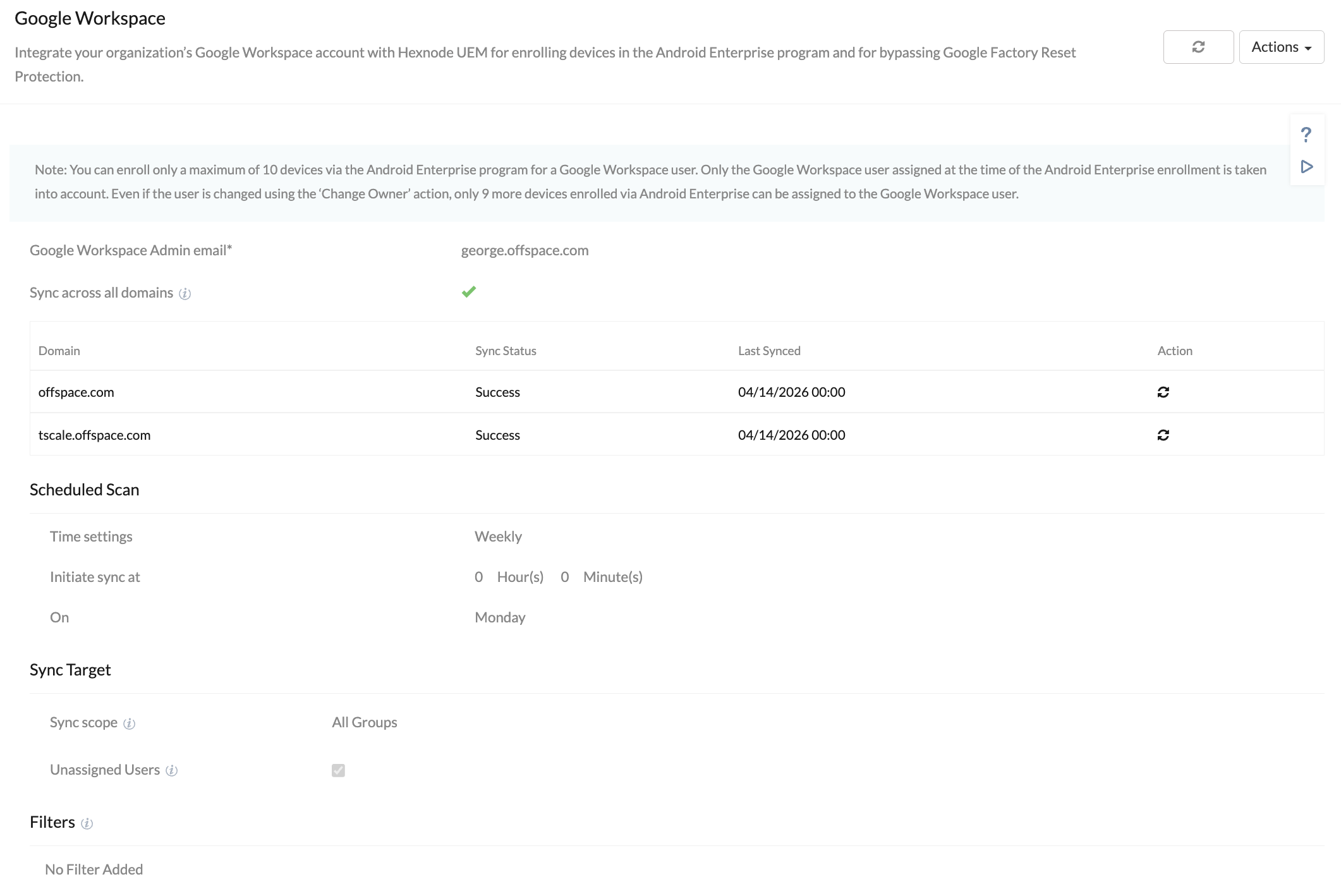
- For Google Workspace: In the Hexnode UEM portal, navigate to Admin > Google Workspace. You will need to authenticate the integration by generating a Service Account JSON key from Google Cloud and granting Domain-wide delegation in your Google Workspace Admin console. This establishes a secure API pipeline between Google’s directory and Hexnode UEM.
Step 3: Configure Group Sync Scope
Once the handshake is established, configure your Sync Target settings in Hexnode UEM.
- Targeted Scoping: Avoid syncing the entire corporate directory, as this can clutter the UEM console with non-device users or service accounts. Instead, choose “Selected groups” to import only the specific, categorized groups that require endpoint management policies.
- Continuous Synchronization: Set your sync schedule to pull in directory updates automatically, ensuring the UEM environment remains perfectly aligned with the IdP state.
Step 4: Enable Hexnode Access for macOS and Windows Logins
To maximize the value of your synced IdP identities, configure the Hexnode Access feature within your UEM device policies.
- Navigate to Policies > macOS/Windows > Security > Hexnode Access and deploy the configuration to your deployed endpoints.
- This replaces the local, native OS login window with your Cloud IdP login portal, enforcing cloud-based authentication and any associated Multi-Factor Authentication (MFA) protocols directly at the hardware level.
Best Practices for Managing Scaled User Groups
- Leverage Dynamic Categorization: Ensure that the groups managed in your IdP are dynamic. Group membership should rely strictly on automated HR tags rather than manual IT assignment. This enables Hexnode UEM to execute Just-in-Time (JIT) policy deployments effortlessly.
- Implement Authenticated Enrollment: Force devices to validate against the directory before deployment. When a user unpacks a new device, require them to authenticate using their IdP credentials against their synced Hexnode profile to trigger the device setup process.
- Map Policies to Users, Not Just Devices: Associate your Wi-Fi payloads, VPN profiles, and App Catalogs directly to the Directory Groups imported from the IdP. Whether the user signs into a managed Android tablet or a Windows 11 laptop, their customized corporate workspace follows their identity.
- Enforce Zero-Touch Offboarding: Ensure downstream integration rules are configured so that an HR termination status cascades immediately to Hexnode UEM. This guarantees the UEM platform automatically isolates the user’s endpoints from corporate networks and executes data wipes without requiring manual IT intervention.


