


Category filter
Steps to Configure and Manage FileVault for macOS via Hexnode
Overview
FileVault is a built-in macOS security feature that uses XTS-AES-128 encryption with a 256-bit key to prevent unauthorized access to the information on a startup disk. By using Hexnode UEM, IT administrators can centrally enforce FileVault, manage recovery keys, and ensure that corporate data remains encrypted without manual user intervention.
Prerequisites
Before deploying the policy, ensure the following requirements are met:
- OS Version: macOS 10.13 (High Sierra) or later.
- Enrollment: Devices must be enrolled in Hexnode UEM.
- Hardware: FileVault works on both Intel-based Macs and Apple Silicon Macs.
- Secure Token: The user account enabling FileVault must have a valid Secure Token. (On macOS 10.13+, mobile/Active Directory accounts do not get this automatically; local accounts do).
- Power Source: The device should be plugged into an electrical outlet during encryption, or the process may pause.
Step 1: Create a FileVault Policy in Hexnode
- Log in to your Hexnode UEM Portal.
- Navigate to the Policies tab.
- Click New Policy > Create a fully custom policy or edit an existing macOS policy.
- Provide a Policy Name (e.g., “macOS Security – FileVault Encryption”).
- On the left-hand sidebar, navigate to macOS > Security > FileVault.
- Click Configure.
Step 2: Configure Encryption Settings
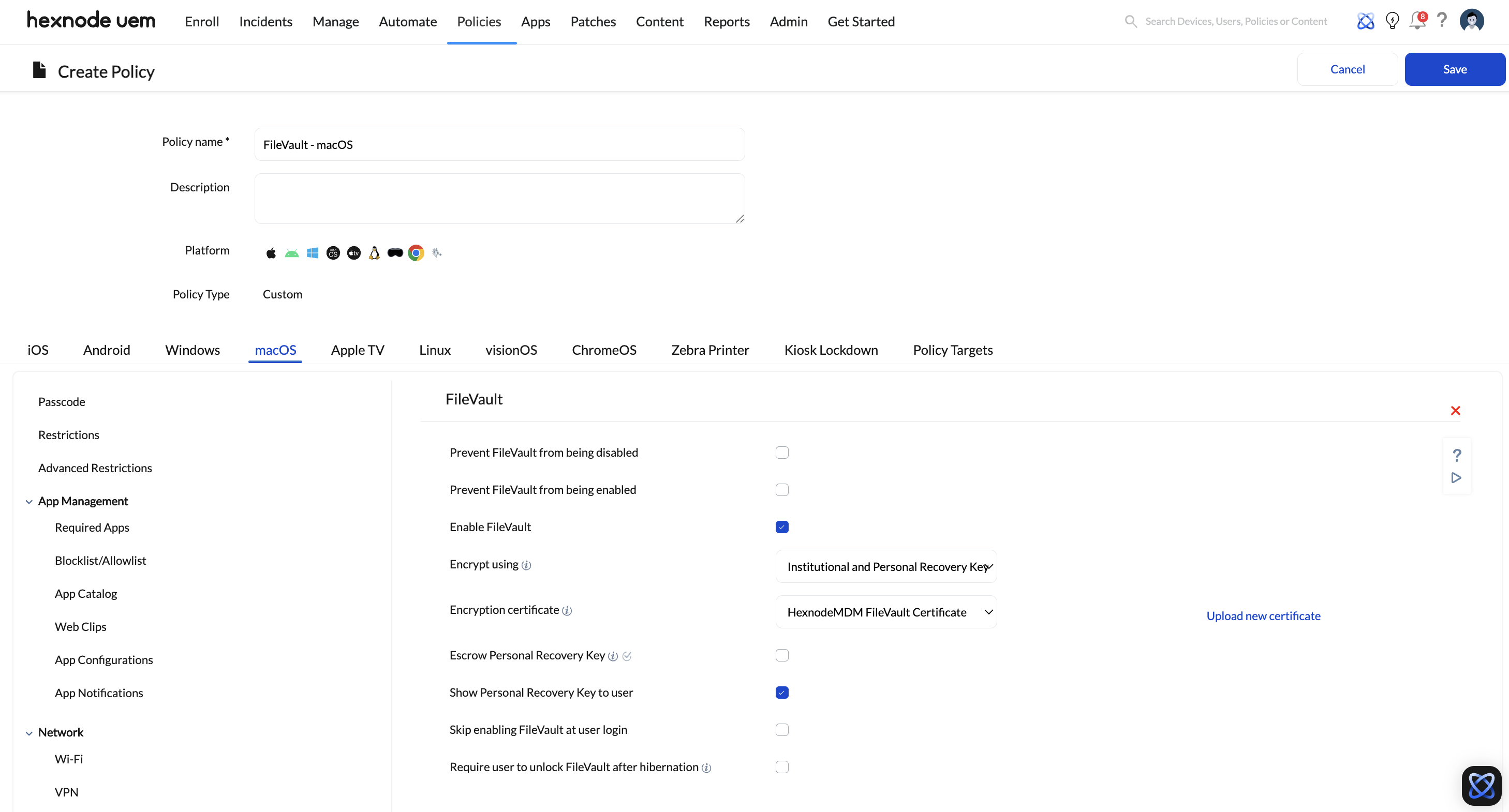
Define how FileVault should behave on the target Macs by selecting Enable FileVault. You will then configure the following behavior:
- Skip enabling FileVault at user login: Define how many times a user can skip or bypass the FileVault setup prompt at login before they are forced to enable it.
- Require user to unlock FileVault after hibernation: Enforce a password to unlock FileVault after hibernation and restore the disk to its last saved state.
- Prevent FileVault from being disabled: Check this box to stop end-users from turning off FileVault encryption locally on their Mac.
Step 3: Manage Recovery Keys (Escrow)
Managing the recovery key is the most critical part of MDM-based encryption. Hexnode offers three distinct methods for recovery keys:
- Institutional Recovery Key (IRK): A common certificate used across the entire fleet. By default, Hexnode uses the HexnodeMDMFileVaultCertificate. You can upload a custom certificate (Supported formats: .cer, .crt, .pem, .der, .p7b, .p12).
- Personal Recovery Key (PRK): A unique alphanumeric key generated for each device. Recommended for most businesses.
- Institutional and Personal Recovery Key (Recommended): Generates both. This is the safest method as it allows the user to use their unique PRK, but gives the IT admin an IRK as a failsafe if the PRK is lost.
Crucial Settings for PRK:
- Escrow Personal Recovery Key: Enable this to securely send and store the PRK in the Hexnode portal. You can choose to let Hexnode automatically encrypt/decrypt the key, or manually specify an encryption key.
- Escrow location description: Enter a brief description that the end-user will see, explaining where their recovery key is being stored (e.g., “Your recovery key will be securely sent to the IT Department”).
Step 4: Assign the Policy
- Navigate to the Policy Targets tab.
- Select the Devices, Device Groups, Users, User Groups or Domains/OUs to whom the encryption policy should apply.
- Click Save.
Monitoring and Recovery
Retrieving the Recovery Key
If a user forgets their password and is locked out:
- Go to Manage > Devices and select the device.
- Navigate to Device Info > Security Info > FileVault Recovery Key.
- Click Decrypt. (If encrypted with a custom certificate, you must upload the private .pem key to decrypt it).
- Provide the key to the user.
Verifying Key Status via Reports
You can audit your fleet’s escrow status by navigating to Reports > Built-in Reports > Device > Enrolled Devices. The FileVault Personal Recovery key column will show:
- Decrypted key: Successfully escrowed.
- Failed: The key was not fetched despite the policy being active.
- N/A: FileVault is enabled and fetched, but not decrypted yet.
- FileVault disabled: FileVault is off.
Troubleshooting Common FileVault Errors
1. Error: “An unexpected master password keychain was found.”
- Cause: Often occurs when enabling FileVault via PRK.
- Fix: Navigate to /Library/Keychains/ and delete the FileVaultMaster.keychain file. Restart the device.
2. FileVault fails to enable due to missing Secure Token
- Open Terminal and execute the following command:
- Log out of the Mac, then log back into the account for the changes to take effect.
|
1 |
sysadminctl interactive -adminUser [admin_username] -adminPassword [adminpassword] -secureTokenOn [username_that_needs_token] -password [userspassword] |


