


Category filter
Optimizing Configuration Performance: Reduce MDM Policy Sync Delays
When deploying critical configurations or security restrictions across your fleet, speed is no longer a luxury—it’s a necessity. If your Unified Endpoint Management (UEM) policies are stuck in a “Pending” state, it creates an operational blind spot and potential security gaps. As an IT Administrator, you need instant confirmation that your deployed policies are actively enforcing your organization’s compliance rules.
This comprehensive FAQ guide addresses one of the most common pain points in mobile device management: How to troubleshoot and reduce policy sync delays in Hexnode. By optimizing your sync schedules, mastering remote actions, and adjusting device-level tracking, you can transform a sluggish sync cycle into near real-time deployment and regain confident control over your endpoints.
Understanding Hexnode Sync Mechanics
Don’t panic when a deployment doesn’t instantly flip to “Success.” Understanding the underlying architecture is the first step to speeding things up.
Why do my policies sometimes sit in a “Pending” state after I hit deploy?
While Hexnode uses a highly responsive architecture—often acting like continuous WebSocket management—certain dependencies can introduce latency. When you deploy a policy, Hexnode sends a push notification to prompt the device to sync. A “Pending” state usually occurs if this notification is delayed by the device’s environment. Factors like unstable network conditions, aggressive battery-saver modes throttling background tasks, or OS-level scheduling constraints can cause the device to temporarily miss the prompt.
What is the exact difference between a scheduled automatic sync and a manual sync?
A scheduled automatic sync is periodically initiated from the Hexnode UEM portal based on the maintenance cycle configured in your policy (e.g., every 15 minutes or every few hours). A manual sync is an on-demand trigger that can be executed in two ways. As an admin, you can initiate a sync from the console using the Scan Device remote action; the status and output of this command are directly recorded in the device’s Action History log. Alternatively, the end-user can initiate a client-side sync by opening the Hexnode UEM app on their device and manually refreshing it.
Optimizing Console & Directory Configurations
Take control of your deployment timelines by configuring your portal for maximum responsiveness.
I just moved an employee to a new Google Workspace OU. Why isn’t their new dynamic policy applying immediately?
By default, UEM platforms pull directory data from Identity Providers (like Google Workspace or AD) on a scheduled cycle, sometimes taking up to 24 hours. If your dynamic groups rely on attributes like Organizational Units (OUs), Title, or Location, the device won’t receive the new policy until that directory sync completes.
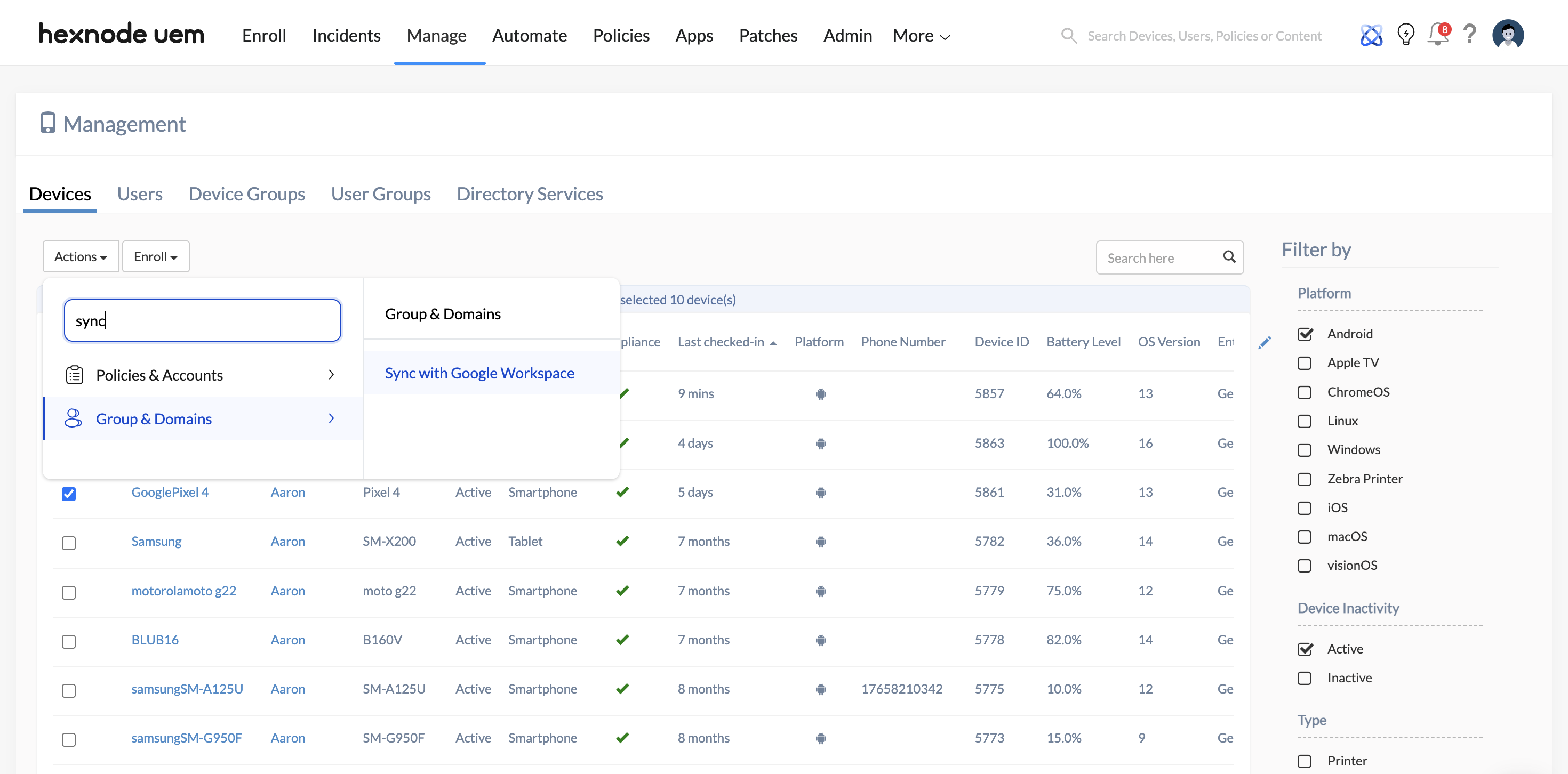
The Fix: You can bypass the wait time using the Sync with Google Workspace remote action. Select your target devices/groups, click Actions, and force this sync. It performs a silent, high-velocity API handshake that updates your access control lists based on live data instantly.
I need a critical security policy applied right now. How can I force an immediate sync to a specific device?
You do not have to wait for the device’s next scheduled check-in. Navigate to the Manage tab, select the specific device(s) from your production fleet, click the Actions dropdown, and select Scan Device. This deploys an immediate command to the device, drastically minimizing the latency gap.
Troubleshooting Location and Geofence Delays
Location-based policies require special tuning to ensure they trigger the moment a boundary is crossed.
Why is there a delay in applying restrictions when a user leaves an office geofence?
This is expected behavior tied to the device’s location update interval. If a device only checks its GPS coordinates every 15 or 30 minutes, it won’t realize it has left the geofenced area until the next scheduled ping.
The Fix: To reduce this delay for high-security setups, reduce the location tracking interval in your policy configurations where feasible. If you are in a critical situation and need instant enforcement, you can manually trigger a Scan Device Location action from the console to force an immediate update.
My users are sitting at their desks, but their devices keep flapping between the “Inside” and “Outside” geofence policies. How do I stabilize this?
“Policy flapping” occurs due to unstable location signals, especially indoors where GPS accuracy can fluctuate and bounce.
The Fix: Slightly increase the geofence radius in your Hexnode console to create a buffer zone. This prevents minor, temporary GPS drifts from causing rapid policy transitions. For Android fleets, you can enforce stronger location reliability by enrolling devices in Device Owner mode, enforcing strictly GPS-based tracking, and disabling “mock locations.”
Device-Level & Network Factors
Sometimes, the delay is entirely out of the console’s hands. Here is how to handle environmental variables.
Can a device’s battery or network state actually block a policy sync?
Yes. Even when Hexnode successfully deploys the command instantly, the device’s operating system has the final say on when the background management task actually runs. If a device is on a metered connection, hidden behind a strict NAT firewall, or in an aggressive battery-saving mode, the OS may intentionally throttle the push notification.
The Fix: When planning a massive deployment, communicate with your users to ensure their devices are connected to a stable, non-metered Wi-Fi network and are adequately charged.


