


Category filter
Remote Cast in Hexnode UEM: View, Control, and Troubleshoot Devices Remotely
At a Glance
In modern endpoint management, Remote Cast functionality serves as a vital diagnostic lifeline between IT administrators and a globally distributed workforce. Rather than attempting to troubleshoot blind, administrators can instantly bridge the geographical gap to view or interact with device screens in real-time.
It is crucial to distinguish between the two primary models: Remote View (a real-time, read-only screen broadcast where the administrator guides the user) and Remote Control (interactive control where the administrator directly navigates the endpoint’s interface, clicks elements, and executes commands). Hexnode UEM provides highly secure, encrypted administrative sessions across both paradigms, empowering support teams to troubleshoot, maintain, and configure devices instantly without requiring physical handling of the endpoint.
Cross-Platform Remote Capabilities Matrix
Hexnode’s remote architecture adapts to the strict API boundaries and security frameworks of each native operating system. The following matrix details the exact remote capabilities achievable across your unified fleet.
| Platform (OS) | Supported Mode | Interaction Model |
|---|---|---|
| Android | Remote View & Control | Attended & Unattended |
| Windows | Remote View & Control | Attended & Unattended |
| macOS | Remote View & Control | Attended & Unattended |
| iOS / iPadOS | Remote View only | Attended |
| Linux | Remote View & Control | Attended |
| ChromeOS | Remote View & Control | Attended |
Enterprise Use Cases & Deployment Topologies
Remote Cast capabilities are critical across several distinct operational environments:
- Frontline and Kiosk Maintenance: Purpose-built, locked-down Android and Windows kiosks often reside in high-traffic public spaces (like retail point-of-sale terminals or digital signage). Remote Control allows administrators to seamlessly update background applications or clear cache errors without unlocking the kiosk UI or dispatching a technician.
- Unattended Infrastructure Support: Accessing dedicated logistics hardware—such as rugged Android scanners resting on warehouse charging docks—or troubleshooting remote Mac/Windows workstations out-of-hours ensures that system maintenance never disrupts employee productivity.
- Distributed Workforce Helpdesk: When a remote employee experiences a proprietary application crash on their corporate iPhone or Windows laptop, the Helpdesk can initiate an immediate, attended Remote View session to witness the exact error state in real-time, drastically reducing ticket resolution time.
Attended vs. Unattended Remote Access Architectures
Understanding the security workflow for remote access is critical for compliance and user privacy.
- Attended Access: Designed for scenarios where the device is actively in use, this model strictly enforces user privacy. Before a session begins, the endpoint requires explicit user consent, such as clicking “Accept” on a Windows/macOS prompt, authorizing an Android runtime permission popup, or manually starting a broadcast from the native Apple screen recording interface.
- Unattended Access: Designed for headless devices or out-of-hours support, this model eliminates the need for user presence. By directly deploying the specific Unattended Remote Access policy and the Hexnode Remote Assist app to Windows, macOS, and Android devices, IT teams bypass the requirement for a user-side prompt. This grants administrators instant, silent access to the endpoint.
Cross-Platform Step-by-Step Configuration Workflows
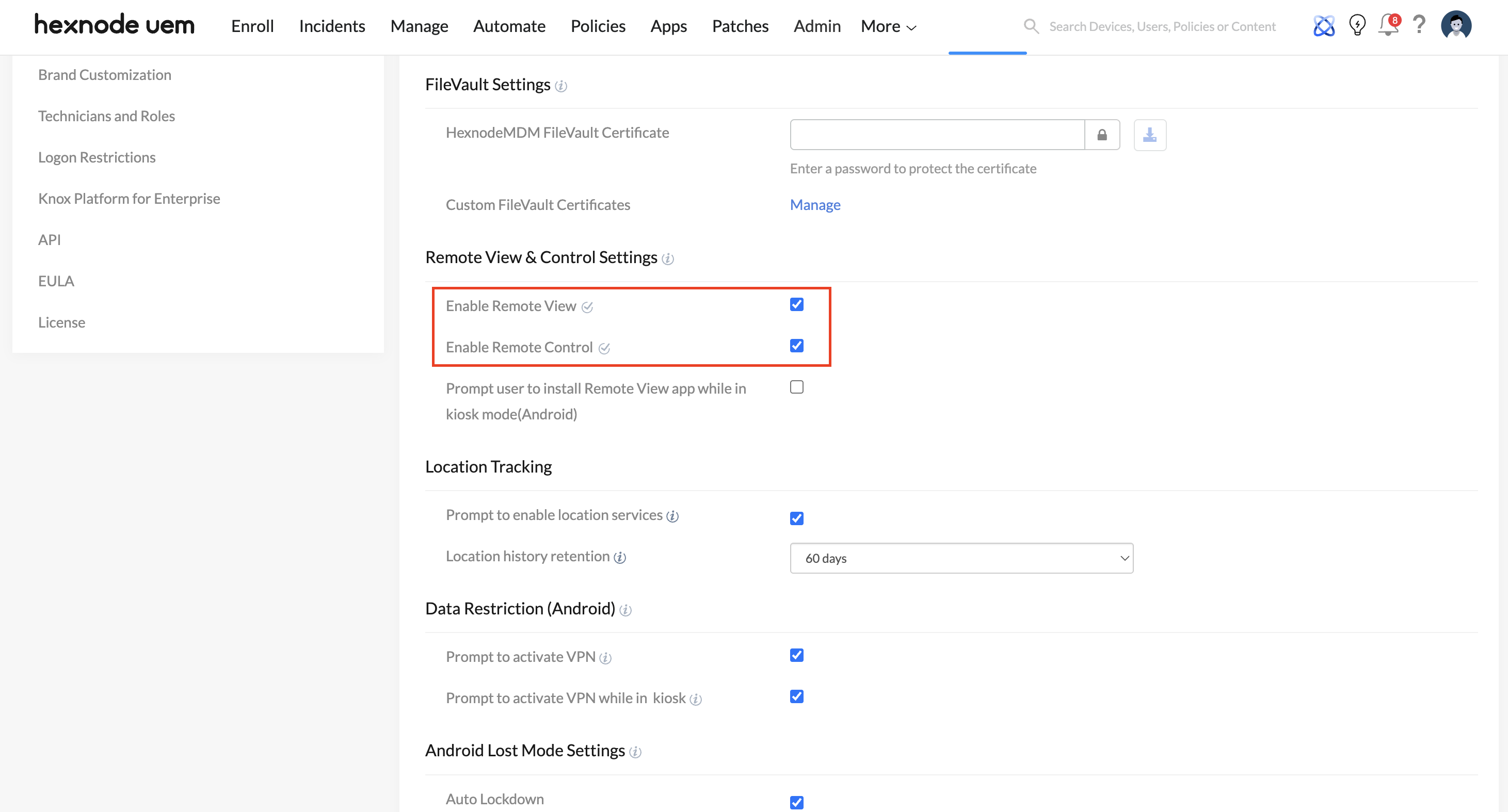
Global Prerequisite: Before initiating sessions on any platform, ensure that Enable Remote View and Enable Remote Control are checked globally under Admin > General Settings > Remote View & Control Settings.
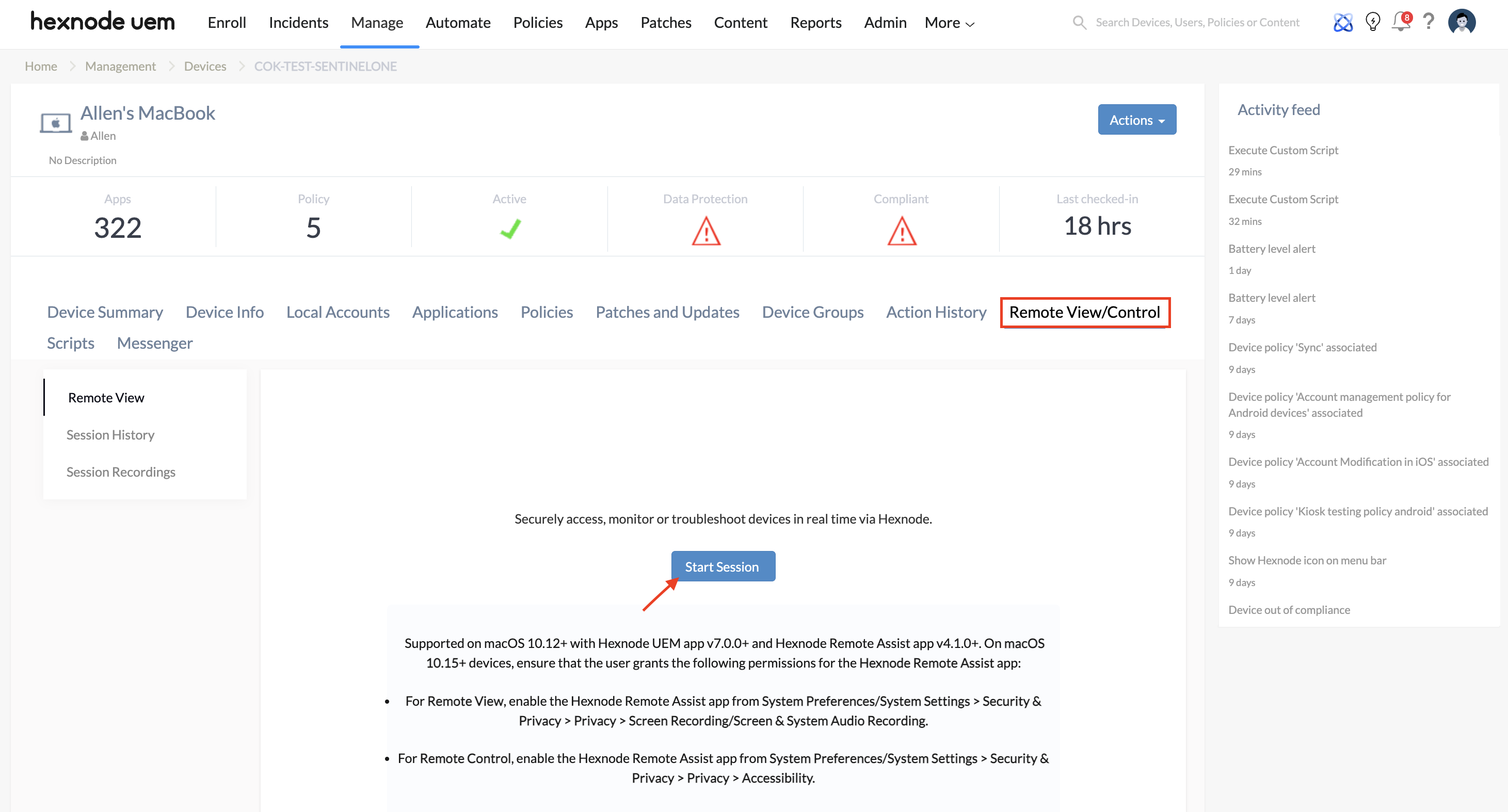
To initiate a session, log into the Hexnode UEM portal and navigate to Manage > Devices. Select the target device to open its Device Summary page, navigate to the Remote View/Control (or Remote Access) sub-tab, and proceed based on the OS:
Configuring Remote Access for Android Devices
Ensure the Hexnode Remote Assist app is installed on the target device.
- For Attended Access: You do not need to configure a policy. Simply click Start Session from the Device Summary page. The device will prompt the user to grant the necessary Screen Capture and Accessibility permissions.
- For Unattended Access: Navigate to Policies > Android > Troubleshooting > Remote Access Management and click Configure. Check the box to Silently enable remote viewing of the device screen and associate the policy with your target devices. On the device end, the Hexnode MDM app will display a prompt to enable Accessibility settings. Once the user enables this permission initially, administrators can initiate unattended remote access without any further end-user intervention.
Configuring Remote Access for Apple Devices (macOS & iOS/iPadOS)
- macOS: Ensure the Hexnode Remote Assist app is installed.
- For Attended Access: The user must manually grant remote session permissions from System Settings > Privacy & Security > Screen & System Audio Recording (and Accessibility for control). Click Start Session from the Device Summary to prompt the user.
- For Unattended Access: Configure the Remote Access policy via Policies > New Policy > macOS > Troubleshooting > Remote Access and select Enable unattended remote access. When initiating the session from the Device Summary page, click Start Session, check the Initiate session without user interaction option, and click Start.
- iOS/iPadOS: To initiate, go to the Device Summary page and click Start Session. On the device, instruct the user to open the Hexnode UEM app and select Remote view from the bottom navigation bar. Tap Start Remote, then from the screen broadcast pop-up, select the Hexnode UEM app icon and tap Start broadcast.
Configuring Remote Access for Windows and Linux Endpoints
- Windows: Ensure the Hexnode Remote Assist app is installed. For Unattended Access, configure a policy under Policies > Windows > Troubleshooting > Remote Access by selecting Enable unattended remote access. To initiate, navigate to the Device Summary page, click Start Session under Remote View, check the Initiate session without user interaction box, and click Start. (For attended access, simply leave this box unchecked).
- Linux: Navigate to the specific Device Summary page, open the Remote View/Control sub-tab, and click Start Session. The user must accept the prompt on the device to begin sharing.
Configuring Remote Access for ChromeOS Devices
- Standard Remote Access: Go to the Device Summary page and click Start Session under Remote Access. The admin is redirected to Google Remote Desktop and must sign in using a managed Google account. The device user must click Share on the prompt.
- Managed Guest Sessions: For terminal access during guest sessions, configure Policies > ChromeOS > Managed Guest Session > Remote Access. Here, admins can define specific Firewall traversal rules (STUN) and UDP port range settings. Note that this policy requires Chrome Remote Desktop software to be available on both the client and host devices.
Integrated Peripheral Tooling: Advanced Android File Explorer
Hexnode elevates standard remote troubleshooting by providing advanced operational tooling directly from the console. Rather than requiring an active screen-sharing session to manage files, a dedicated File Explorer sub-tab is available directly within the Android device’s Device Summary page (alongside the standard Remote View/Control sub-tab).
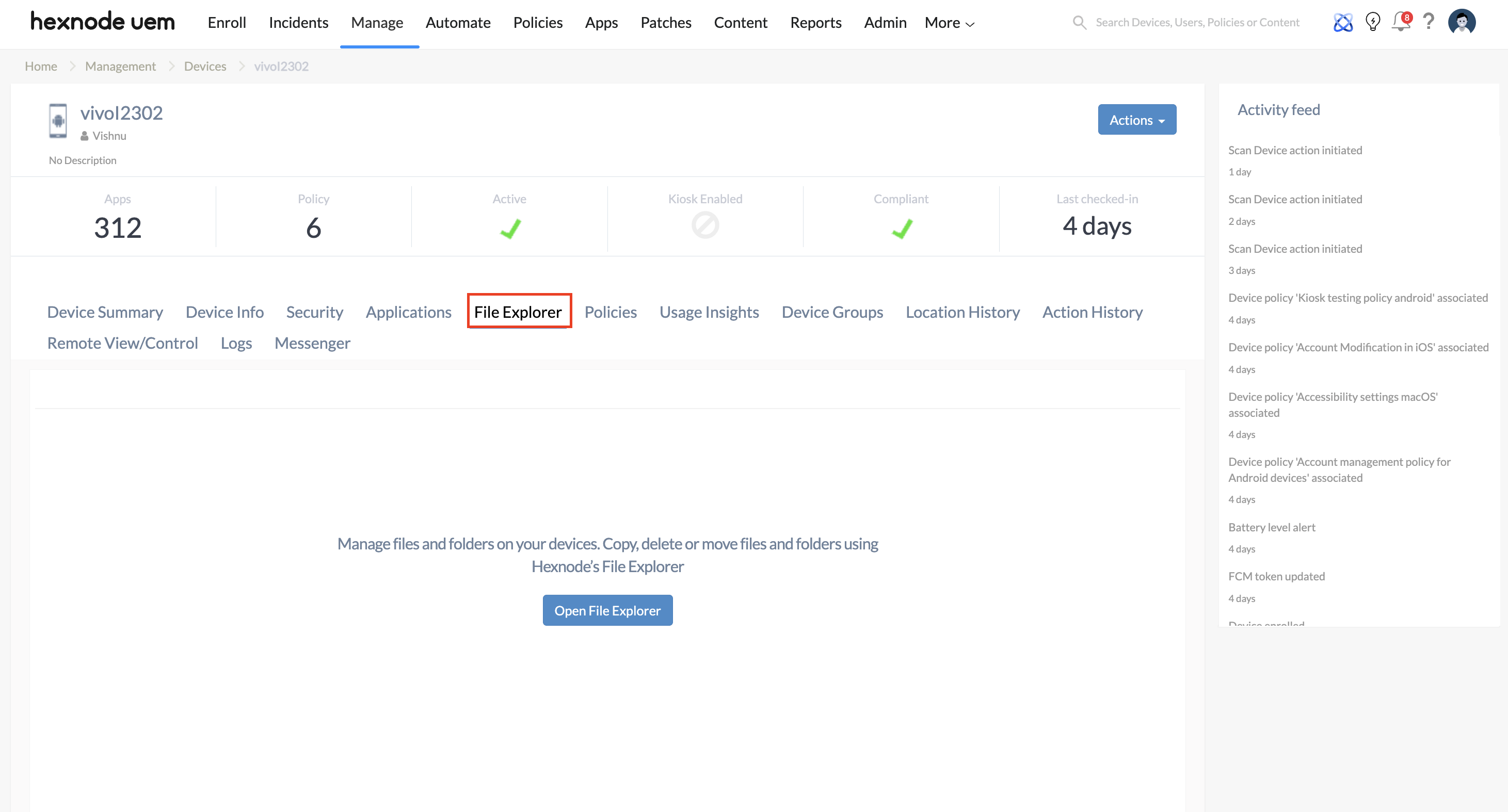
This tool acts as a direct, over-the-air bridge to the device’s internal storage and SD card file system. Administrators can remotely browse device directories and perform a full suite of file management actions:
- Transfer Files: Securely Upload new application packages (APKs) or configuration files directly to the endpoint, or Download crucial crash logs and system files back to the administrator’s local machine.
- Organize and Modify: Use the action menu to Create new folders, Rename files, or permanently Delete corrupt data.
- Move and Copy: Seamlessly select individual or multiple files to Move or Copy across different directories within the device.
Crucially, these operations execute completely in the background, allowing the administrator to repair the file system or push necessary configurations without disrupting the live user interface or halting the employee’s active workflow.
Administrative Multi-Endpoint Support Management
During widespread application outages or system updates, helpdesk efficiency is paramount. Hexnode features a specialized architecture designed to support Multi-Endpoint Sessions.
Instead of being restricted to a single rigid session, a single support technician can initiate concurrent remote view or control sessions across multiple different devices. These active sessions are managed in distinct tabs or windows directly from the Hexnode technician portal. This allows the administrator to cross-examine a healthy device against a failing device in real-time, seamlessly switching focus between screens to diagnose systemic fleet issues with minimal latency.
Frequently Asked Questions
Why can I only view and not interactively control iOS/iPadOS devices?
This is a hard-coded limitation enforced by Apple’s strict application sandbox and privacy architecture. Apple explicitly prohibits any third-party Mobile Device Management (MDM) profile or application from programmatically injecting touch events or cursor control into the iOS/iPadOS operating system. Remote View is the highest level of visual support permitted by Apple on mobile devices.
Will remote sessions drop if the device is locked into a restrictive Kiosk mode?
No. Hexnode’s remote services run securely at the administrator level. Even if the endpoint is locked down into a single-app or multi-app kiosk mode with heavily restricted user access, Hexnode maintains an exclusive, secured communication loop back to the UEM console. This ensures Remote View, Control, and File Explorer sessions execute seamlessly in the background without requiring the kiosk to be unlocked.
Can a remote cast session be executed over cellular data, or is corporate Wi-Fi mandatory?
Corporate Wi-Fi is not mandatory. Remote Cast sessions seamlessly execute on active cellular data connections (4G/5G). However, because real-time screen broadcasting consumes significant bandwidth, organizations should monitor data caps for roaming cellular devices.


