


Category filter
Setting Up Multi-Factor Authentication (MFA) for Hexnode Portal Access
Overview
In a Unified Endpoint Management (UEM) environment, the administration portal is the “keys to the kingdom.” Enabling Multi-Factor Authentication (MFA)—also referred to as Two-Step Verification—is the single most effective way to prevent unauthorized access to your organization’s device fleet. Hexnode supports multiple secondary verification factors to ensure that only authenticated technicians can modify policies or execute remote commands.
Phase 1: Prerequisites for MFA Methods
Hexnode supports three primary verification channels. Depending on your choice, ensure the following requirements are met:
- Authenticator App (TOTP): Technicians must have Google Authenticator or Microsoft Authenticator installed on their mobile devices. (Highly Recommended).
- Email OTP: The portal will use the registered business email of the technician.
- SMS OTP: Requires configuring SMS Settings on your portal (under Admin > SMS Settings) to enable technician login using OTP via SMS.
Phase 2: Enabling MFA for Technicians
MFA is managed at the technician level, allowing for granular security controls based on user roles.
- Log in to your Hexnode UEM Portal as a Super Admin/Admin.
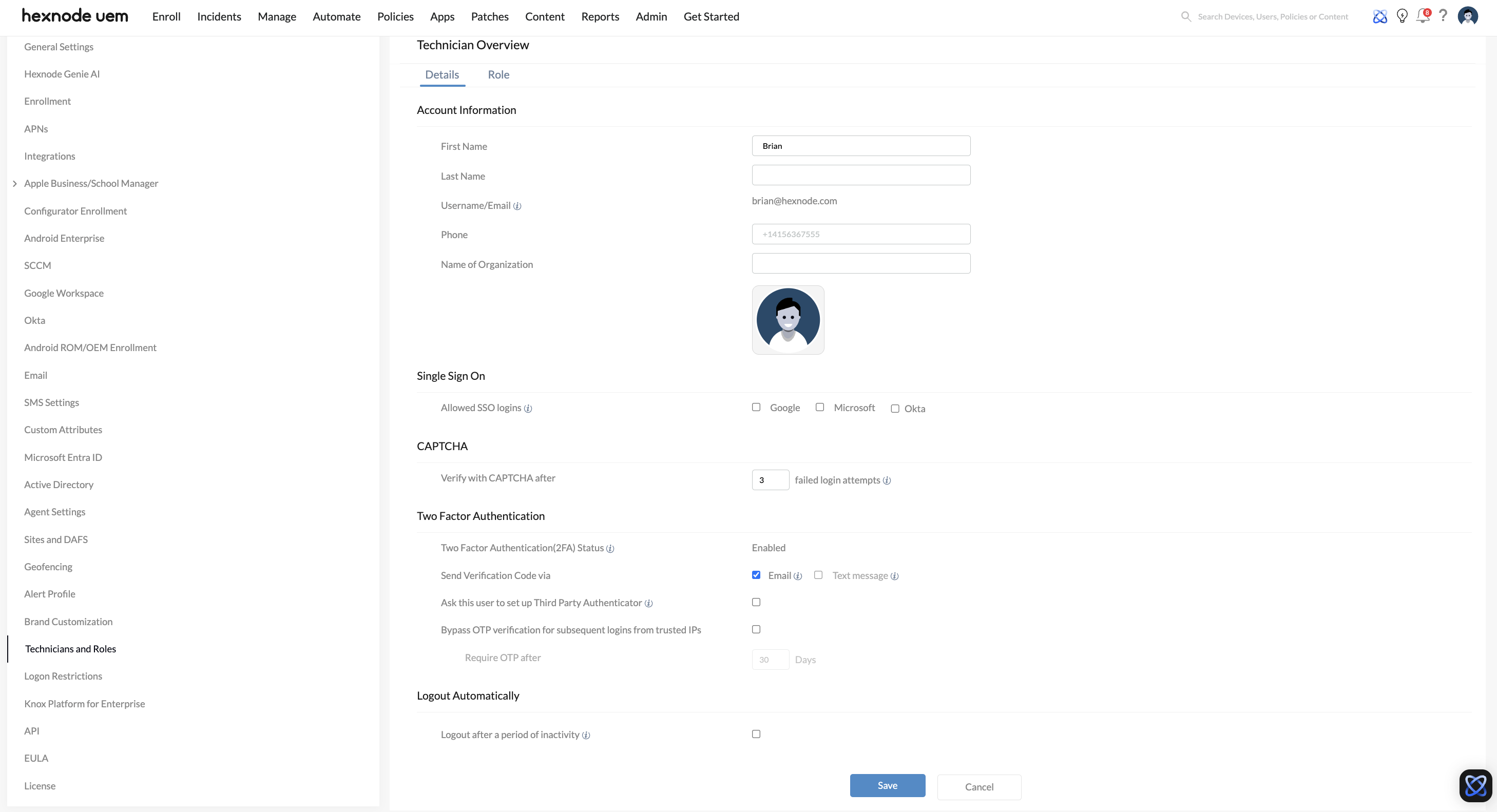
- Navigate to Admin > Technicians and Roles.
- To enable MFA for an existing technician, click the More icon (…) next to their name and select Edit Technician.
- Scroll down to the Two Factor Authentication section.
- Select your preferred Verification Mode:
- Authenticator App
- Send Verification Code via Email
- Send Verification Code via Text Message
- Click Save.
Phase 3: The Login Experience
Once enabled, the technician will be prompted to verify their identity during their next login attempt.
For Authenticator App:
- The technician enters their standard credentials (username/password) or SSO credentials.
- A QR Code will be displayed on the login screen.
- The technician scans the QR code using their authenticator app.
- Enter the 6-digit verification code generated by the app on the portal to successfully complete the setup.
For Email/SMS OTP:
- Upon entering credentials, a code is automatically dispatched to the technician’s registered email or mobile number.
- Strict Security Limits: The verification code sent is only valid for 3 minutes. If the 3 minutes expire, or if the code is entered incorrectly three times, the OTP is invalidated, and a new verification code must be requested.
Phase 4: Identity Provider (IdP) Integration for SSO MFA
If your organization uses Microsoft Entra ID, Google Workspace, or Okta, you can offload MFA management entirely to your Identity Provider.
- Navigate to Admin > Logon Restrictions.
- Scroll to Global SSO Login Settings.
- Under Allowed SSO logins, select the providers (e.g., Microsoft, Google, or Okta) that technicians are permitted to use.
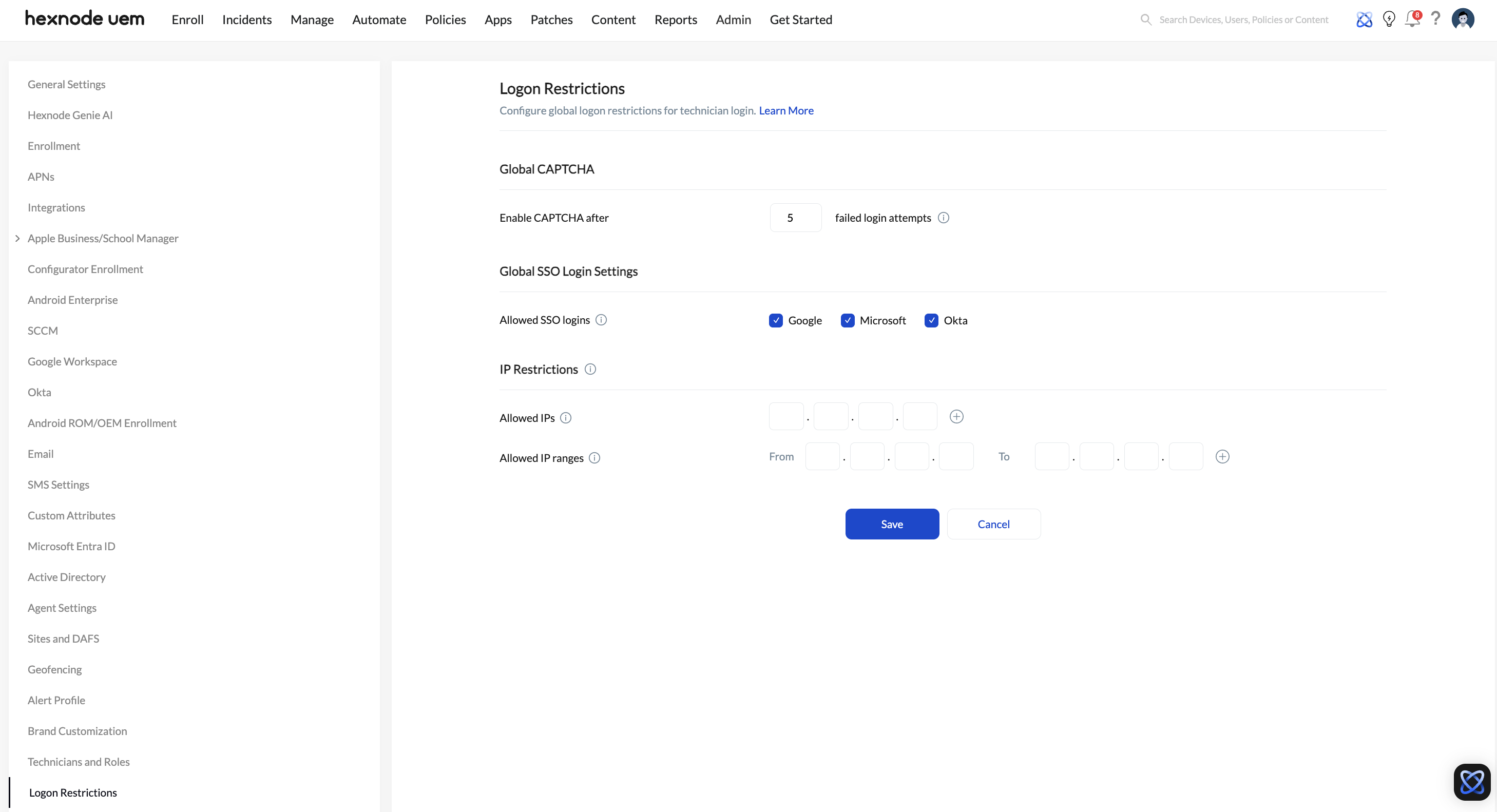
By enforcing MFA at the IdP level, technicians will be challenged by your corporate security policies before they are redirected to the Hexnode portal.
Security Best Practices
| Best Practice | Recommendation |
|---|---|
| Preferred Method | Use Authenticator Apps (TOTP) over SMS/Email to mitigate “SIM swapping” or email hijacking risks. |
| Global Enforcement | Ensure all technicians, especially those with Super Admin or Admin roles, have MFA enabled. |
| Session Management | Configure Logout Automatically on a per-technician basis under their specific profile details (Admin > Technicians and Roles > Edit Technician). Additionally, note that Hexnode automatically forces a logout if a login to the same account is attempted from multiple browsers/devices concurrently. |
| Emergency Access | Ensure more than one Super Admin exists with MFA enabled on different devices to avoid being locked out of the portal. |
Troubleshooting
- Code Not Received (SMS/Email): Check the Admin > SMS Settings logs to ensure the gateway is active, or check spam folders.
- Invalid App Code: Ensure the time/date settings on the technician’s mobile device are set to Automatic. TOTP codes are time-sensitive and will fail if the device clock is out of sync.
- Lost Device (Reconfiguring Authenticator): The Admin technician can navigate to their profile settings under Two Factor Authentication and simply click the Reconfigure Authenticator app button. This will invalidate the old device and generate a new QR Code on the screen.


