


Category filter
How to configure CardDAV settings on macOS devices
CardDAV (vCard Extensions to WebDAV) is a protocol that allows the users to access and share contacts on a server. Admins can configure CardDAV settings for macOS devices from the Hexnode console. With this functionality, admins can remotely add a contact account to the user’s device thus enabling them to synchronize contact data with any server that supports CardDAV.
Configure CardDAV settings via policy
To configure CardDAV settings on your Mac devices via policy,
- Login to your Hexnode portal.
- Navigate to Policies > New Policy. Assign a suitable name and description (optional) for the policy. You can also choose to continue with an existing policy.
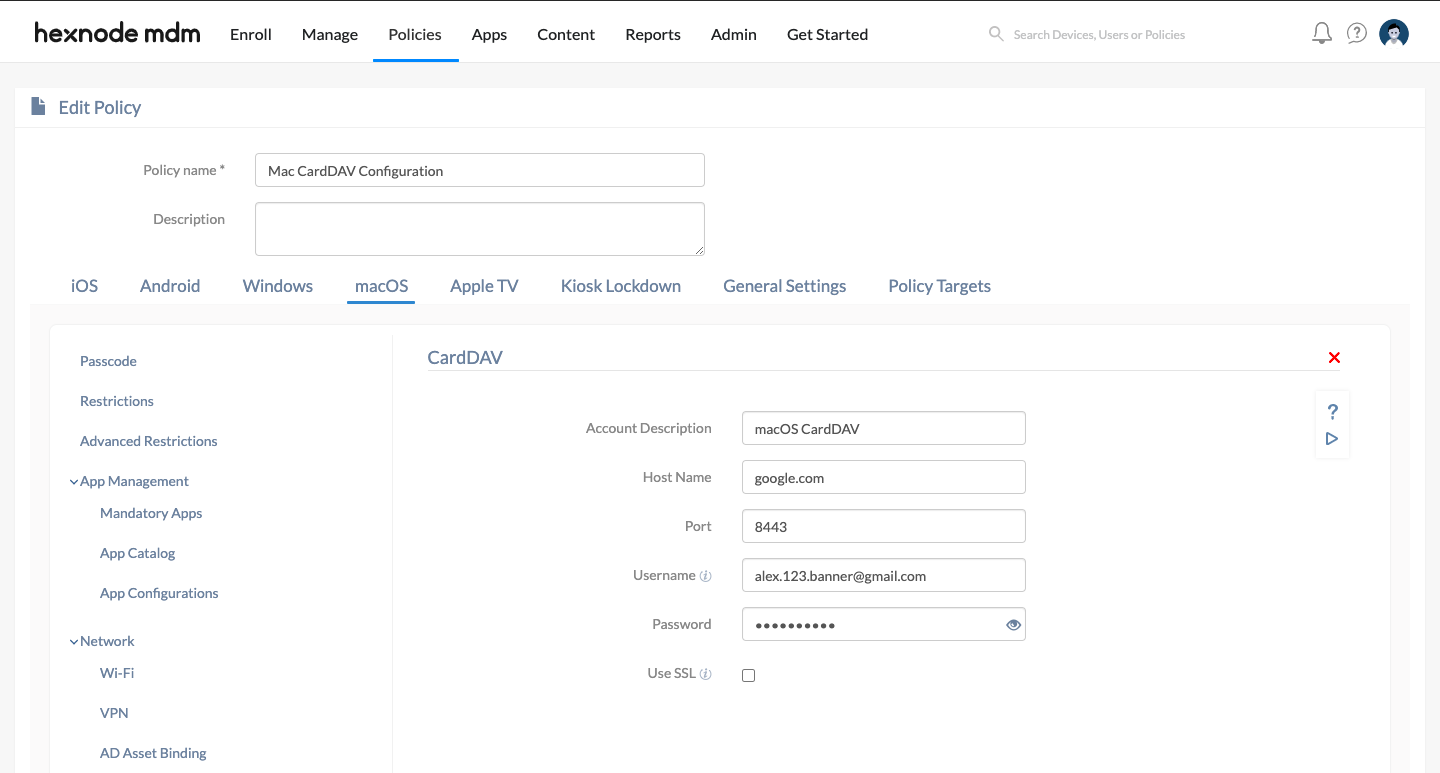
- Go to macOS > Accounts > CardDAV. Click Configure.
| Settings | Description |
|---|---|
| Account Description | Provide a suitable display name for the account. This is merely for identification. |
| Host Name | The IP address or fully qualified domain name (FQDN) of the CardDAV server. |
| Port | Provide the port number used to connect to the CardDAV server. The default port number is 8443. |
| Username | Provide the username of the account where contacts are saved. Supports the use of wildcards %email% and %alternateemail%. |
| Password | Provide the password associated with the account. |
| Use SSL | Enable this option to secure the connection between macOS and the CardDAV server using secure socket layer. Enabled by default. |
Associate policy with devices/ groups
If the policy has not been saved,
- Navigate to Policy Targets > +Add Devices.
- Choose the target entities and click Ok. Click Save.
- You can also choose to associate the policy with device groups, users, user groups or domains from the left pane of the Policy Targets tab.
If the policy has been saved,
- Choose the desired policy from the Policies tab.
- Click on Manage drop-down and select Associate Targets. Choose the target entities and click Associate.
What happens at the device end?
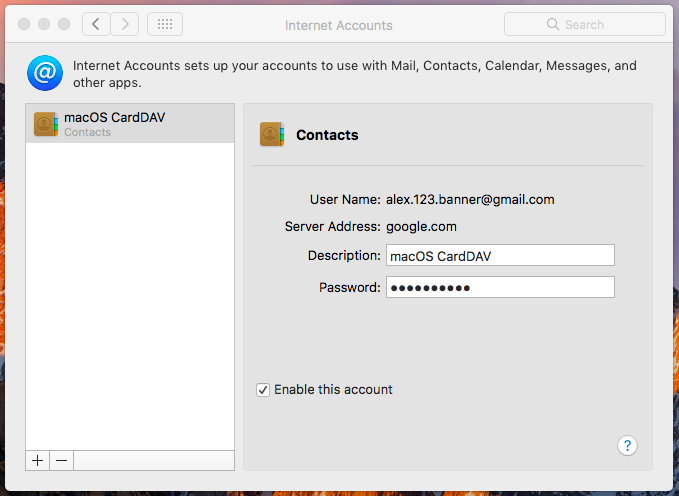
On associating the policy with the macOS device, the configured CardDAV account will get added and the contacts will sync with the device. The synchronized contacts can be accessed from the Contacts app on the Mac.
FAQs
- What is the default port for CardDAV connections?
The default port is 8443, but admins can specify a different port if required by their CardDAV server configuration.
- Is SSL mandatory for CardDAV connections?
SSL is enabled by default and strongly recommended to secure communication between macOS devices and the CardDAV server. Disabling SSL may expose sensitive contact data.
- Can multiple CardDAV accounts be configured on the same Mac?
Yes. Admins can configure multiple CardDAV accounts by creating separate policies or adding multiple accounts under the same policy, each with its own description and server details.
Troubleshooting Guides:
1. Authentication Failure
Symptom: User cannot log in; contacts fail to sync.
Cause: Incorrect username/password or misconfigured wildcards.
Solution:
- Verify credentials in the policy.
- Ensure wildcards (%email%, %alternateemail%) are mapped correctly to user data.
- Update and redeploy the policy with corrected values.
2. The contacts are not syncing
Symptom: Account appears on device, but contacts do not sync.
Cause: Incorrect host name, port, or server path.
Solution:
- Double-check the Host Name (IP/FQDN) and Port (default: 8443).
- Confirm the CardDAV server is reachable and supports syncing.
- Redeploy the policy with corrected server details.
Best Practices
- Use SSL: Keep SSL enabled to secure communication between macOS devices and the CardDAV server.
- Verify Server Details: Double-check host name (IP/FQDN) and port (default: 8443) before deployment.
- Leverage Wildcards: Use %email% and %alternateemail% to auto-populate usernames dynamically.
- Test Before Rollout: Apply the policy to a small group of Macs first to confirm correct syncing.
- Keep Credentials Updated: Update policies promptly if server usernames or passwords change.
- Audit Sync Status: Regularly check that contacts are syncing correctly in the Contacts app.
- Document Configurations: Maintain internal records of server paths, ports, and authentication methods for consistency.


