


Category filter
Fix Return to Service Disabled but Still Showing
TL;DR
If an ADE-enrolled iPhone or iPad shows Return to Service behavior while checking for iOS or iPadOS updates, first verify whether the active device profile contains the ReturnToServiceEnabled key. If the key is present, the behavior may be expected because Return to Service with app preservation can disable software update checks. If the key is not present, the ADE Enrollment Profile has Return to Service unchecked, and the affected device is assigned to the Default ADE profile, create a new Enrollment Profile, assign the affected device to the new profile, then wipe and re-enroll the device.
Executive Summary
Some ADE-enrolled iOS and iPadOS devices may show Return to Service behavior while checking for software updates, even when the Return to Service option appears disabled in the ADE Enrollment Profile. In this case, restarting the device or re-saving the existing ADE profile may not clear the behavior.
Before remediation, admins should confirm whether Return to Service is actually active on the device. If the active MDM profile includes the ReturnToServiceEnabled key, the software update behavior may be linked to an active Return to Service configuration. If the key is missing and the ADE profile setting is unchecked, the issue may be tied to the assigned ADE profile state, especially when the device is using the Default ADE profile.
The recommended remediation is to create a brand-new ADE Enrollment Profile, keep Return to Service disabled, assign the affected ADE devices to the new profile, then wipe and re-enroll them through Automated Device Enrollment.
Why Return to Service can affect iOS update checks
Return to Service is designed to prepare a managed iPhone or iPad for reuse. When Return to Service with app preservation is active, software updates may be disabled because the device can restore a preserved system state during the Return to Service workflow.
This means the first step is to determine whether Return to Service is truly active on the device or whether the device is incorrectly showing Return to Service behavior even though the ADE profile setting is disabled.
This table explains how to interpret Return to Service behavior when an ADE-enrolled iPhone or iPad cannot check for software updates.
| Condition | Expected Interpretation | Recommended Action |
|---|---|---|
ReturnToServiceEnabled key is present |
Return to Service may be active on the device. | Review the ADE profile and Return to Service configuration before troubleshooting the update check. |
ReturnToServiceEnabled key is not present |
The active profile does not show Return to Service as enabled. | If the device still shows Return to Service behavior, continue with ADE profile remediation. |
| Device is assigned to the Default ADE profile | The behavior may persist even after the setting is unchecked or the profile is re-saved. | Create a new Enrollment Profile, assign the affected device to it, then wipe and re-enroll. |
| Device was restarted but not wiped | A restart alone may not clear the ADE profile state. | Perform wipe and re-enrollment after assigning the new profile. |
Symptoms on ADE-enrolled iPhones and iPads
- The device enters or displays Return to Service mode while checking for iOS or iPadOS updates.
- The device cannot check for software updates.
- The ADE Enrollment Profile has the Return to Service option unchecked.
- The active configuration profile on the device does not show the
ReturnToServiceEnabledkey. - The device may be assigned to the Default ADE profile.
- The affected device may have been added to Apple Business using Apple Configurator and then assigned an ADE profile in Hexnode.
Prerequisites and cautions before remediation
Note: The remediation requires wiping and re-enrolling the affected iPhone or iPad. Ensure that required data is backed up and that the device can complete Automated Device Enrollment again after the wipe.
- Access to the Hexnode UEM portal with permission to manage Apple Business or Apple School Manager Enrollment Profiles.
- Access to ADE device assignment through Hexnode UEM.
- The affected iPhone or iPad must be available for wipe and re-enrollment.
- The device should be assigned to the correct Apple Business or Apple School Manager server token in Hexnode.
- The new Enrollment Profile should be created before wiping the affected device.
Verify whether Return to Service is active on the device
Before creating a new ADE Enrollment Profile, verify whether the active profile on the device includes Return to Service configuration.
- In the Hexnode UEM portal, review the ADE Enrollment Profile assigned to the affected device.
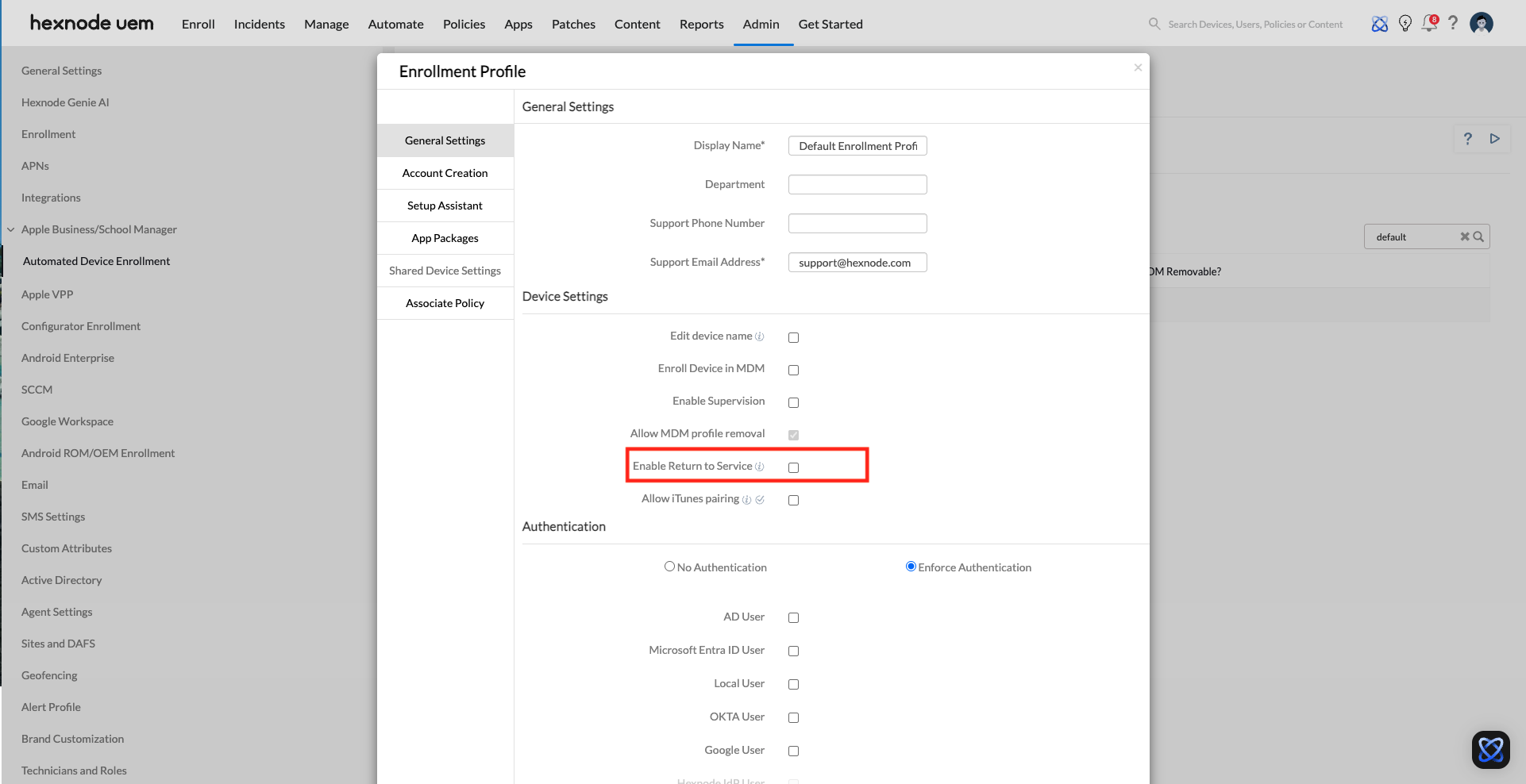
- Confirm that the Return to Service option is unchecked in the assigned ADE Enrollment Profile.
Device details page in Hexnode UEM. - On the affected iPhone or iPad, go to Settings > General > VPN & Device Management.
- Open the active MDM profile.
- Check the active configuration profile restrictions for the
ReturnToServiceEnabledkey or any active Return to Service-related restriction. - If
ReturnToServiceEnabledis present, review the Return to Service configuration before proceeding. - If
ReturnToServiceEnabledis not present and the ADE profile has Return to Service unchecked, continue with the remediation below.
Resolve the issue by creating a new ADE Enrollment Profile
If the device still shows Return to Service behavior even though the setting is unchecked and the ReturnToServiceEnabled key is not present, create a new ADE Enrollment Profile and re-enroll the device.
- In the Hexnode UEM portal, go to Admin > Apple Business/Apple School Manager > Automated Device Enrollment > Enrollment Profiles.
- Create a brand-new Enrollment Profile with the required Automated Device Enrollment settings.
- Keep the Return to Service option unchecked in the new profile.
- Assign the affected ADE devices to the newly created Enrollment Profile.
- Confirm that the affected devices are no longer assigned to the Default ADE profile.
- Wipe the affected iPhone or iPad.
- Complete Automated Device Enrollment again using the newly assigned Enrollment Profile.
- After enrollment completes, check for iOS or iPadOS updates again.
- Confirm that the device no longer enters or displays Return to Service mode during the software update check.
Important: Re-saving the existing ADE Enrollment Profile or restarting the device may not clear this behavior. The affected device must be assigned to the newly created Enrollment Profile and then wiped and re-enrolled.
If the device still shows Return to Service mode
- Confirm that the affected device is assigned to the newly created Enrollment Profile and not the Default ADE profile.
- Confirm that the device was wiped and re-enrolled after changing the Enrollment Profile assignment.
- Confirm that no other ADE Enrollment Profile is assigned to the device.
- Recheck the active MDM profile on the device for the
ReturnToServiceEnabledkey or any active Return to Service-related restriction. - Confirm that the device is assigned under the correct Apple Business or Apple School Manager token.
- Export the device details from Manage > select the affected device > Actions > Others > Export Device Details.
- Contact Hexnode Support with the exported device details if the behavior persists.
Remediation summary
This table summarizes the verification and remediation steps for ADE-enrolled devices that show Return to Service mode during software update checks.
| Step | What to Check | Expected Result |
|---|---|---|
| 1 | Check whether Return to Service is enabled in the ADE Enrollment Profile. | The setting should be unchecked if Return to Service is not intended. |
| 2 | Check the device profile for ReturnToServiceEnabled. |
The key should not be present if Return to Service is disabled. |
| 3 | Check whether the device is assigned to the Default ADE profile. | If affected, move the device to a newly created Enrollment Profile. |
| 4 | Create a new ADE Enrollment Profile with Return to Service unchecked. | The new profile becomes the clean enrollment profile for affected devices. |
| 5 | Wipe and re-enroll the device. | The device enrolls using the new profile and should no longer show Return to Service during update checks. |
Frequently Asked Questions
Why does Return to Service still show when it is disabled in the ADE profile?
If Return to Service is unchecked in the ADE profile and the active device profile does not include the ReturnToServiceEnabled key, the behavior may be tied to the existing ADE profile assignment state. In the confirmed remediation, affected devices were moved from the Default ADE profile to a newly created Enrollment Profile, then wiped and re-enrolled.
Does unchecking Return to Service in the ADE profile immediately fix affected devices?
Not always. Re-saving the existing ADE profile and restarting the device may not resolve the behavior. Affected devices may need to be assigned to a newly created Enrollment Profile and then wiped and re-enrolled.
What should I check before creating a new Enrollment Profile?
On the affected device, go to Settings > General > VPN & Device Management, open the active MDM profile, and check whether ReturnToServiceEnabled or another Return to Service-related restriction is present. If the key is not present and the ADE profile setting is unchecked, proceed with the new Enrollment Profile remediation.
Can this happen with the Default ADE profile?
Yes. The confirmed remediation involved assigning affected devices from the Default ADE profile to a newly created Enrollment Profile, followed by a wipe and re-enrollment. If devices assigned to the Default ADE profile continue to show Return to Service behavior despite the setting being unchecked, use a new Enrollment Profile and contact Hexnode Support if the issue persists.
Is restarting the device enough to clear the behavior?
No. A restart alone may not clear the behavior. The affected device should be assigned to the new ADE Enrollment Profile and then wiped and re-enrolled.
Can Return to Service prevent iOS or iPadOS software update checks?
Yes. When Return to Service with app preservation is active, software update checks may be disabled. This is why admins should first verify whether the active device profile includes the ReturnToServiceEnabled key before treating the issue as an ADE profile problem.


